Bash auto-completion in Linux
Social Share:
Saturday, July 27, 2024 at 12:03 AM | 4 min read
Last modified on Sunday, June 21, 2026 at 2:53 AM
#command line, #terminal, #linux, #ubuntu, #linux mint, #bash, #auto-completion, #zsh

Photo by Robert So on pexels.com
Table of Contents
- Discovering and installing the bash-completion Linux Mint package
- How does bash auto-completion work in Linux Mint?
- Zsh auto-completion in macOS
- Conclusion
- Related Resources
- Footnotes
Since I started using bash much more in Linux, I missed the zsh auto-completion feature on macOS, and wanted to implement something similar in Linux bash.
Bash supports basic auto-completion in some distros, but Ubuntu doesn't enable it by default. And Linux Mint is an Ubuntu derivative.
Discovering and installing the bash-completion Linux Mint package
I found that there was an Ubuntu package called bash-completion. I had no problem installing it because Linux Mint is a derivative of Ubuntu, which made bash-completion available to me.
I ran the following in Terminal to install bash-completion:
# to update current packages. updates the list of available packages and their versions, but it does not install or upgrade any packages.
sudo apt update
# actually installs newer versions of the packages you have. After updating the lists, the package manager knows about available updates for the software you have installed. This is why you first want to update.
sudo apt upgrade
# install bash-completion
sudo apt install bash-completion
When the installation was complete, I exited out of Terminal and then opened it up again to make sure that it recognized the package installation. To be absolutely sure that Terminal recognized bash-completion, I ran the source ~/.bashrc command as well to confirm that any changes made to .bashrc would take effect immediately. That would include the addition of the bash-completion feature. source ~/.bashrc alone would have sufficed. Then I tested to see if it was working properly:
# typed from the Home directory, which is where Linux Terminal defaults to when I open it
$ cd Des # followed by pressing the tab key to see if Des would auto-complete to "Desktop", and it did!
I typed cd Des from the Home directory, which is where the Linux Terminal defaults to when I open it. When I typed it, I pressed the tab key, and cd Desktop/ was auto-completed for me. Bash-completion worked!
How does bash auto-completion work in Linux Mint?
In order to enable bash-completion in Linux (Mint), I have to press the tab key. For example, if I type cd Des, wanting to change into the Desktop directory, cd Des has to be followed by pressing the tab key. After I press the tab key, something like the following appears:
$ cd Desktop/
That's an easy one, because chances are there aren't many (or any) other completions that start with Des in my Linux Mint VM.
But let's say I type sudo a followed by pressing the tab key. Something like the following could appear:
# what I first type
$ sudo a
# what is returned in my instance of Linux Mint Terminal
Display all 105 possibilities? (y or n)
If I press y, it results in something like the following:
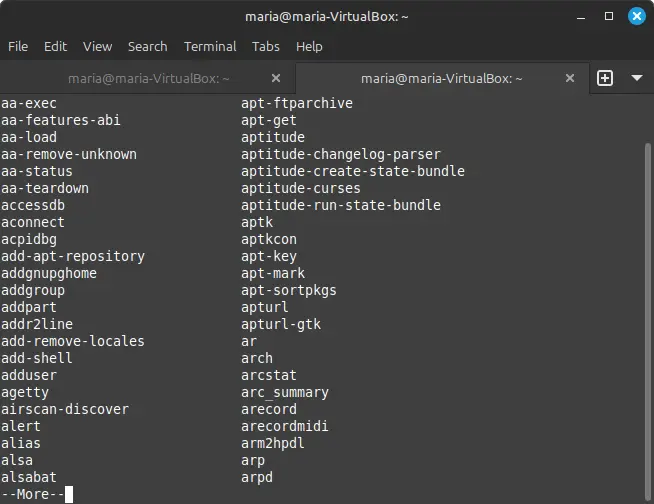
Displaying some of 105 possibilities for auto-completing sudo a
If I scroll down a bit more, I come across apt, which is the possibility I was looking for. Bash-completion is definitely a better command line experience than having to type out long path names, long files or directories, or new commands I have typed only once or twice, for example. When it comes to commands, I could always open my .bash_history file in Vim with the vim .bash_history command and scroll through to find the command I am looking for. But that means actually having to open .bash_history in Vim and scroll through the various commands I have executed in the past.
I hadn't used Linux Mint in a long time, so bash-completion didn't have many completion suggestions based on my command line history. The more I use command line, the more suggestions bash-completion is able to make instead of offering numerous ones, which I probably never implemented, because of its lack of historical options.
Zsh auto-completion in macOS
Even though the default shell in macOS is Zsh, Zsh auto-completion is not fully enabled by default. That includes macOS Tahoe, the latest OS1 in macOS. However, once it has been completely configured, it is much more powerful than bash-completion in Linux.
In Zsh, I can also use the tab key to enable auto-suggestions similar to the bash-completion experience. For example, if I type dev from the Home directory on my macOS (~), followed by the tab key, something like the following is returned:
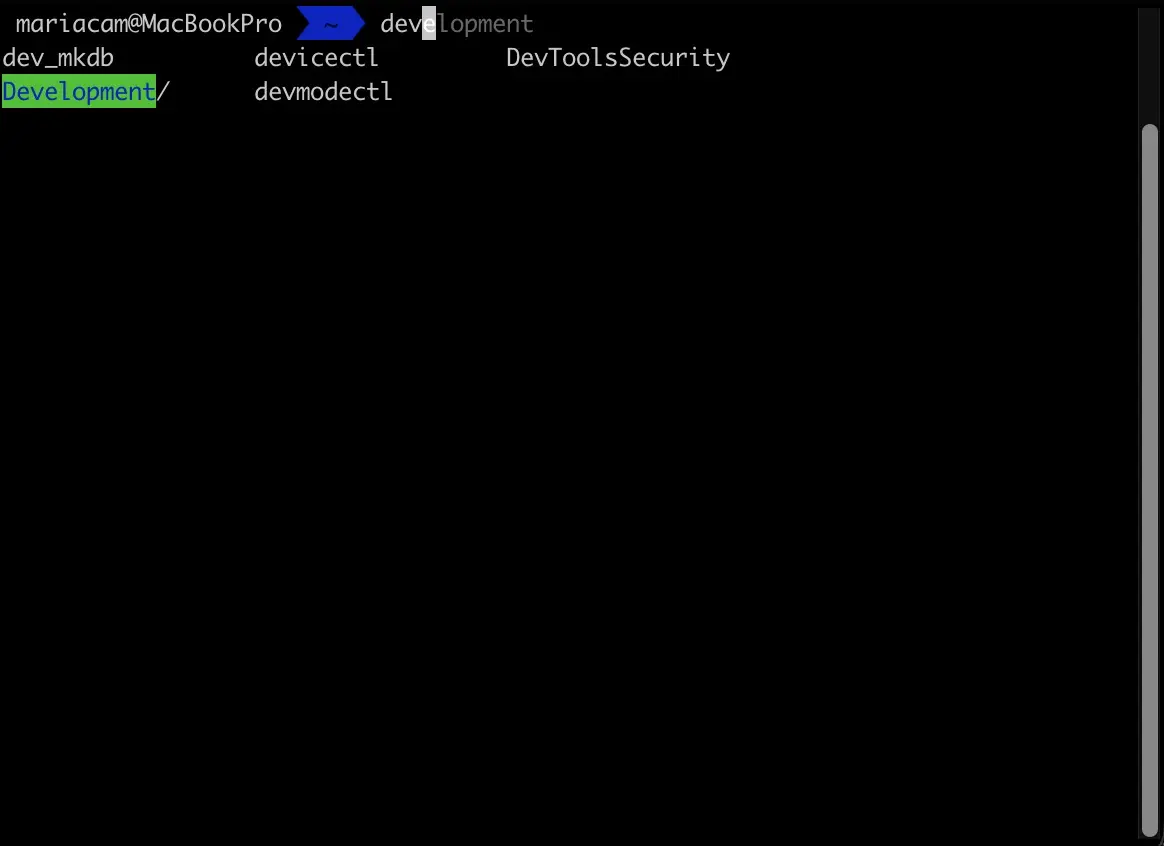
Starting to type a directory name in Zsh followed by pressing the tab key
The user experience differs somewhat, but the idea is the same.
If however, I start typing the name of the same directory followed by pressing the right arrow key, the following happens instead:
~ development
I personally find this much easier and intuitive. First of all, it is easier for me to access the right arrow key as opposed to the tab key while typing. Second of all, I downloaded the zsh-autosuggestions plugin and added it to my .zshrc file. That is why I am able to "auto-complete" in two ways. I "auto-complete" with the tab key and an "auto-suggestion" appears while I type in Command Line.
Conclusion
Bash-completion is bare-bones, consisting of command and filename completion, whereas Zsh auto-completion is more complex. Bash-completion requires more manual typing, whereas Zsh offers more advanced features like zsh-autosuggestions available through the zsh-autosuggestions plugin. Bash-completion is for users who want a traditional, no-fuss, no-muss, experience. Zsh is for users who want advanced features that are more flexible, powerful, and customizable, lending a more efficient experience.
Related Resources
-
How to add bash auto completion in Ubuntu Linux: by Vivek Gite, cyberciti.biz
-
Bash completions: Writing and customizing: linuxbash.sh
-
Enable Bash Completion in Zsh on Linux: by Josphat Mutai, computingforgeeks.com
-
Zsh vs. Bash: by Stanley Ulili, betterstack.com
Footnotes
-
macOS Tahoe was released in September 15, 2025, and is still the current macOS at the time of the current update of this post (June 20, 2026). ↩