Changing the Git master branch to main
Social Share:
Tuesday, May 12, 2026 at 11:07 AM | 4 min read
Last modified on Thursday, July 16, 2026 at 10:56 PM
#default branch, #git, #github, #macOS, #main branch, #master branch
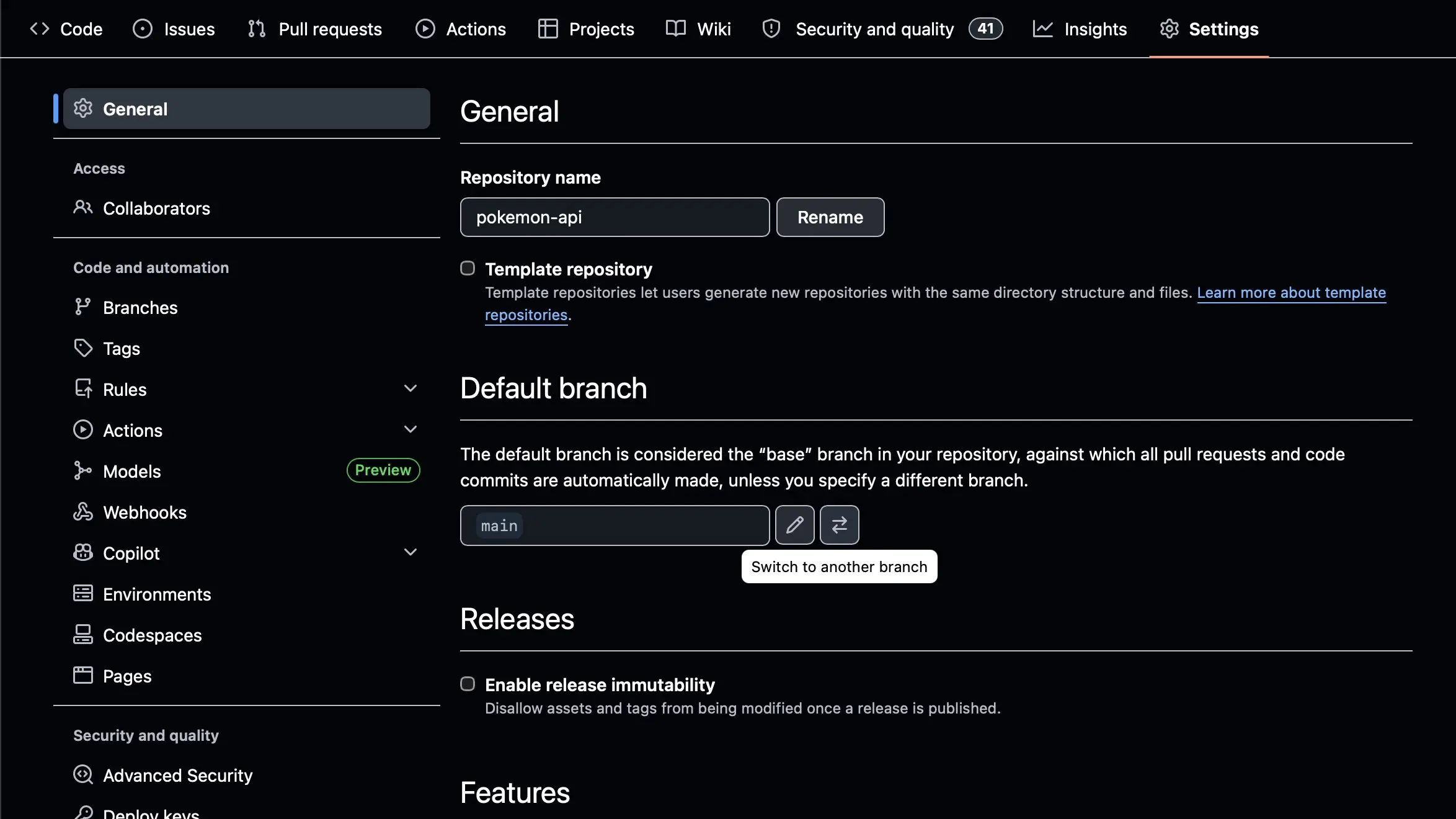
Changing the Git default branch manually on GitHub
Table of Contents
- When the Git default branch was changed to main and why
- How to change the Git default branch from master to main
- What git push -u origin main means
- Git: Migrating from master to main recap
- Conclusion
- Related Resources
If you're still maintaining older Git projects that use the default master branch, this post walks you through the most recent process for switching from default master to default main — both locally and on GitHub.
Even I still have some older projects tracked by Git which use the old master branch.
When the Git default branch was changed to main and why
GitHub changed the default branch from master to main on October 1, 2020. It was changed because some developers were concerned that the term "master" could be associated with slavery and its derogatory historical connotations. They thought the term "main" would be more inclusive.
How to change the Git default branch from master to main
I changed most of my Git projects' default branch from master to main on June 12, 2020. However, there are a few older projects that I have not yet updated. And today I came across one of them.
The process to change master to main has also changed a little since it was first implemented. For one, GitHub has radically changed since then!
As of today, the following is how I can change the Git default branch locally and on GitHub from master to main:
# renames the default local Git branch master to main
git branch -m master main
# pushes the new main branch to remote origin (in my case, GitHub)
git push -u origin main
# deletes remote master branch
git push origin --delete master
This is where I had to stop. GitHub would not let me delete the master branch because it was the default branch. So I had to change my default branch in order to delete the master branch.
When I executed the command git push origin --delete master, the following was returned:
To git@github.com:interglobalmedia/pokemon-api.git
! [remote rejected]   master (refusing to delete the current branch: refs/heads/master)
error: failed to push some refs to 'git@github.com:interglobalmedia/pokemon-api.git'
This happened because GitHub expected me to define a "default branch", and deleting it is not permitted. This meant that I had to change the default branch manually on remote from master to main in the following way:
Changing the Git default branch manually on GitHub
When I went to the "General" settings within the "Settings" tab of my repository, and scrolled down to "Default Branch", I clicked on the ⇄ (opposite arrows) button and the following appeared:
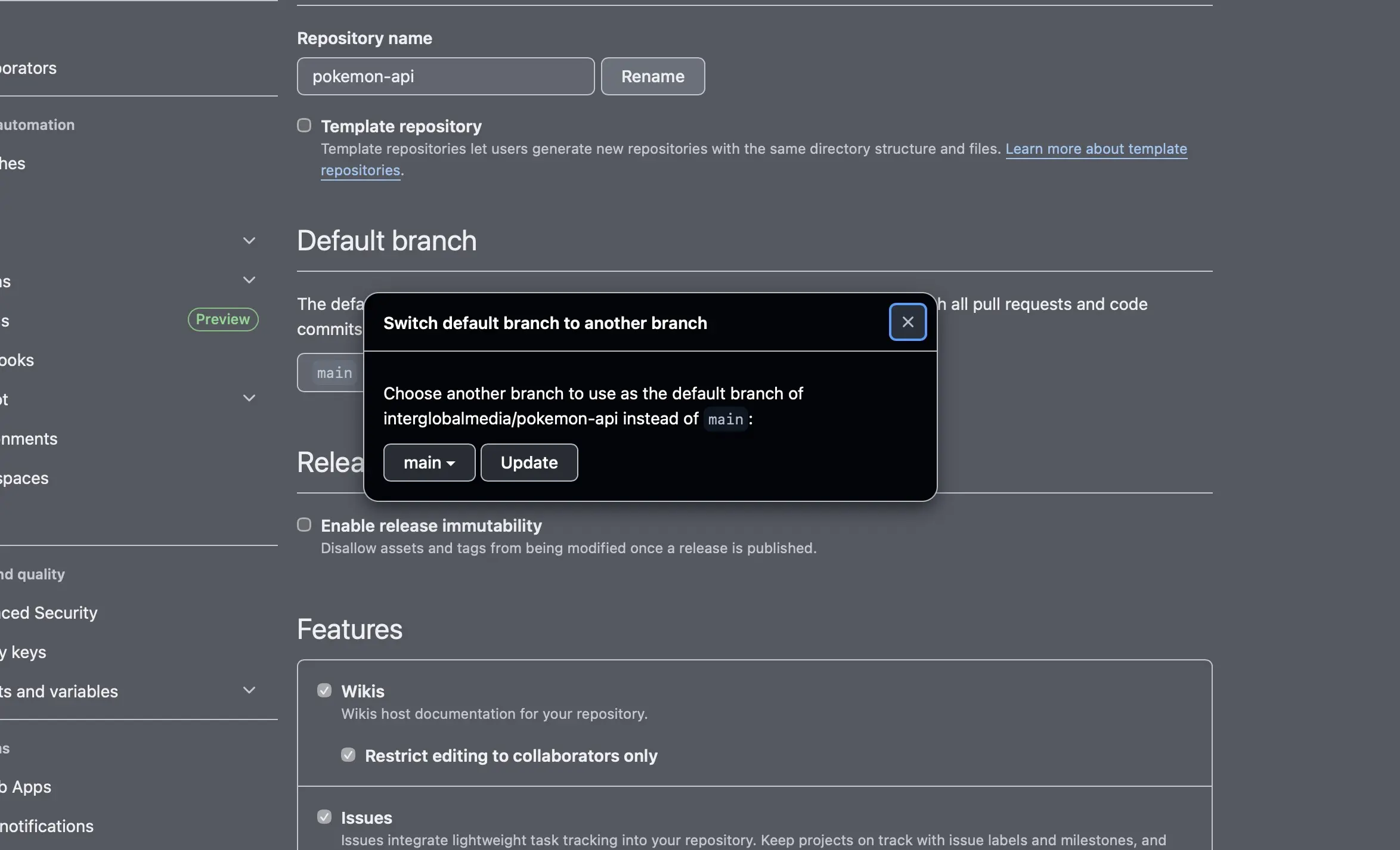
Switching default branch to another branch within a repository settings GitHub
Next, I clicked on the master branch name and a dropdown appeared containing the available branch names to switch to:
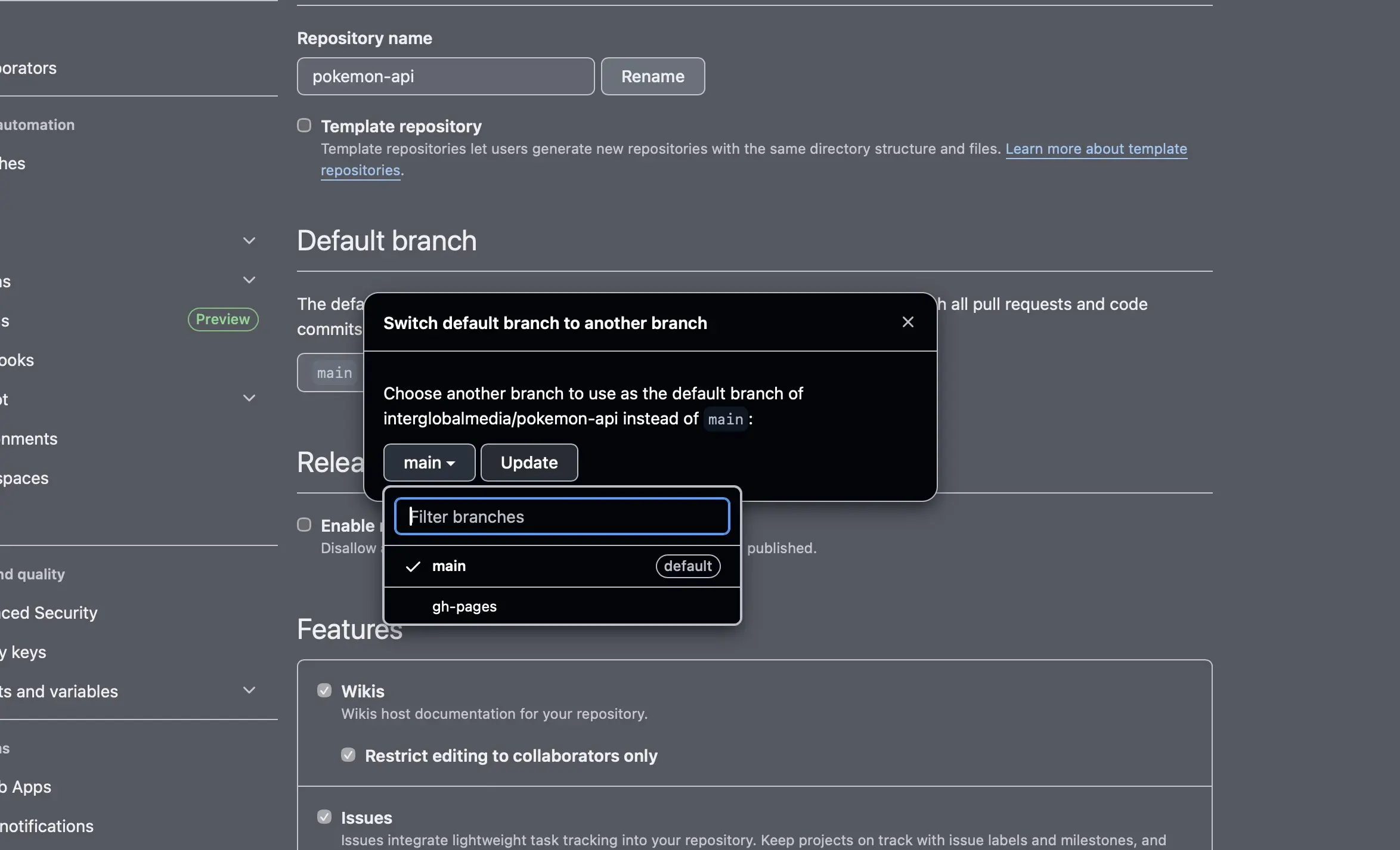
Dropdown of available branch names to switch to within a repository setting on GitHub
Note: I already had switched from master to main when I took the above screenshot, but the steps still apply. In addition, when I first switched to main, main was at the bottom of the dropdown menu.
When I selected the main branch, I went back to Terminal inside my project and ran the following:
# fetches remote origin branch (now main)
git fetch -p origin
# changes the tracked branch
git branch -u origin/master main
# local master branch has already been deleted so now you are pushing that change to remote and are deleting it remotely as well
git push origin :master
Now I was able to successfully change my default branch to main on remote and delete my remote master branch as well.
One other thing to note, however. When you next push your changes to remote, something like the following may appear in Terminal afterwards:
To github.com:your-username/your-repo.git
 * [new branch]      main -> main

hint: If you want 'master' to be the default branch, rename it back using:
hint:   git branch -m main master
hint: To set the upstream, use:
hint:   git symbolic-ref refs/remotes/origin/HEAD refs/remotes/origin/main
To suppress this type of message, simply run git push -u origin main to set the upstream tracking branch. I did just that when I pushed my subsequent change to remote origin, and it suppressed my prior message.
I no longer got a warning about a master branch. Instead, I got something like the following:
remote: Resolving deltas: 100% (7/7), completed with 5 local objects.
remote: Bypassed rule violations for refs/heads/main:
remote:
remote: - Cannot change this locked branch
remote:
remote:
remote: GitHub found 4 vulnerabilities on interglobalmedia/nextjs-fullstack-blog's default branch (2 moderate, 2 low). To find out more, visit:
remote:      https://github.com/interglobalmedia/nextjs-fullstack-blog/security/dependabot
remote:
To github.com:interglobalmedia/nextjs-fullstack-blog.git
   9bdf499..a8d6f9f  main -> main
What git push -u origin main means
git push -u origin main kills two birds with one stone. The command sets up the tracking relationship between the local Git repository and the remote one and satisfies whatever Git is hinting or warning about, so the message disappears in future pushes. I consider this a much cleaner and shorter approach than running git symbolic-ref or git branch --set-upstream-to.
Git: Migrating from master to main recap
- Rename local branch:
git branch -m master main
- Set the tracked remote branch:
git fetch -p origin
git branch -u origin/master main
At this stage, the local main branch still tracks origin/master since the remote hasn't been renamed yet.
- Update the remote HEAD:
git remote set-head origin -a
- Push the renamed branch to the remote:
git push origin main
- Update the default branch on GitHub
Go to your repository Settings
Navigate to Branches
Change the default branch from master to main
- Update the remote tracking branch:
git branch -u origin/main main
Now that the remote branch has been renamed, you can update your local main branch to track origin/main.
- Optionally, delete the old master branch (local and remote):
git branch -D master
git push origin :master
Conclusion
In this post, I walk through how I renamed my default master branch to main locally and switched my default branch on GitHub from master to main.
Related Resources
- How to change current branch in git from master to main: stackoverflow