Creating the official Django Polls app Part 2
Social Share:
Saturday, January 4, 2025 at 1:16 AM | 13 min read
Last modified on Saturday, July 4, 2026 at 4:54 PM
#fullstack development, #macOS, #django, #python3, #admin forms, #installed apps, #language code, #number grouping, #series, #time zone, #tutorial, #use i18n, #use thousand separator, #use tz

Photo by David Clode on unsplash.com
Table of Contents
- Setting up the database
- Setting Django Polls to my time zone
- INSTALLED_APPS
- Creating the models
- Playing with the API in the interactive Python shell
- Running the interactive Python shell again
- The Django admin
- Starting the development server
- Code associated with this section
- Conclusion
- Related Resources
- Related Posts
Update (July 2026): This walkthrough was written against Django 5.1, which reached full end-of-life in December 2025 and is no longer receiving security patches. Run python -m django --version to check which version you have.
Setting up the database
polls/settings.py is a regular Python module containing module level variables representing Django settings.
By default, Django uses SQLite, and it is the easiest choice. For example, in my Django Boards application, I use SQLite locally, and a managed PostgreSQL database in production. However, in my next project, I probably will want to change my local database to PostgreSQL.
When starting your first real project, however, you may want to use a more scalable database like PostgreSQL locally, to avoid database-switching headaches. I currently have them with Django Boards, for instance. Right now, when I work in development, I comment out reference to my production database, and in production, I comment out my local database. Yes, that can be a pain!
Setting Django Polls to my time zone
Next, I want to add my time zone to polls/settings.py. By default, it is set to the following:
# Internationalization
# https://docs.djangoproject.com/en/5.1/topics/i18n/
TIME_ZONE = 'UTC'
But I wanted to switch it to my time zone, so I changed it to the following:
# Internationalization
# https://docs.djangoproject.com/en/5.1/topics/i18n/
TIME_ZONE = 'US/Eastern'
LANGUAGE_CODE
By default, my Django projects set LANGUAGE_CODE to the following:
# Internationalization
# https://docs.djangoproject.com/en/5.1/topics/i18n/
LANGUAGE_CODE = 'en-us'
I keep it that way.
USE_I18N
USE_I18N specifies whether Django’s translation system should be enabled. By default, it is set to True:
# Internationalization
# https://docs.djangoproject.com/en/5.1/topics/i18n/
USE_I18N = True
I keep it that way.
USE_THOUSAND_SEPARATOR
This setting is set to False by default. However, it is not present by default in settings.py. If set to True, Django will format numbers using the NUMBER_GROUPING and THOUSAND_SEPARATOR settings.
NUMBER_GROUPING
This setting is set to 0 by default. It specifies the number of digits grouped together on the integer part of a number. If this setting is 0 (zero), then no grouping will be applied to the number. If this setting is greater than 0, then THOUSAND_SEPARATOR will be used as the separator between those groups.
Some locales use non-uniform digit grouping. The locale-dictated format has higher precedence and will be applied instead.
USE_TZ
# Internationalization
# https://docs.djangoproject.com/en/5.1/topics/i18n/
USE_TZ = True
This setting is set to True by default. USE_TZ is a boolean that specifies if datetimes will be timezone-aware by default or not. If this is set to True, Django will use timezone-aware datetimes internally.
When USE_TZ is False, Django will use naive datetimes in local time, except when parsing ISO 8601 formatted strings, where timezone information will always be retained if present.
INSTALLED_APPS
INSTALLED_APPS contains the names of all Django applications that are activated in my Django (Polls) application. Apps can be used in multiple projects, and I can package and distribute them for use by others in their projects.
By default, INSTALLED_APPS contains the following:
# Application definition

INSTALLED_APPS = [
    'django.contrib.admin',
    'django.contrib.auth',
    'django.contrib.contenttypes',
    'django.contrib.sessions',
    'django.contrib.messages',
    'django.contrib.staticfiles',
]
- django.contrib.admin: refers to the admin site.
- django.contrib.auth: the authentication system.
- django.contrib.contenttypes: a framework for content types.
- django.contrib.sessions: a session framework.
- django.contrib.messages: a messaging framework.
- django.contrib.staticfiles: a framework for managing static files.
Some of these applications make use of at least one database table, though, so I need to create the tables in the database before I can use them. To do that, I run the following command:
python3 manage.py migrate
The migrate command looks at the INSTALLED_APPS setting and creates any necessary database tables according to the database settings in my mysite/settings.py file and the database migrations shipped with the app (I’ll cover those later). I’ll see a message for each migration it applies. If you’re interested, run the command-line client for your database (python manage.py dbshell) and type \dt (PostgreSQL), SHOW TABLES; (MariaDB, MySQL), .tables (SQLite), or SELECT TABLE_NAME FROM USER_TABLES; (Oracle) to display the tables Django created.
What I did is first run the following:
python3 manage.py migrate # as suggested in tutorial
The following was returned:
Operations to perform:
  Apply all migrations: admin, auth, contenttypes, sessions
Running migrations:
  Applying contenttypes.0001_initial... OK
  Applying auth.0001_initial... OK
  Applying admin.0001_initial... OK
  Applying admin.0002_logentry_remove_auto_add... OK
  Applying admin.0003_logentry_add_action_flag_choices... OK
  Applying contenttypes.0002_remove_content_type_name... OK
  Applying auth.0002_alter_permission_name_max_length... OK
  Applying auth.0003_alter_user_email_max_length... OK
  Applying auth.0004_alter_user_username_opts... OK
  Applying auth.0005_alter_user_last_login_null... OK
  Applying auth.0006_require_contenttypes_0002... OK
  Applying auth.0007_alter_validators_add_error_messages... OK
  Applying auth.0008_alter_user_username_max_length... OK
  Applying auth.0009_alter_user_last_name_max_length... OK
  Applying auth.0010_alter_group_name_max_length... OK
  Applying auth.0011_update_proxy_permissions... OK
  Applying auth.0012_alter_user_first_name_max_length... OK
  Applying sessions.0001_initial... OK
Then I ran the following:
python3 manage.py dbshell
This lets me peek into the db.sqlite3 database. It returns something like the following:
SQLite version 3.43.2 2023-10-10 13:08:14
Enter ".help" for usage hints.
sqlite>
If I wanted to see what tables I have in the database, I would run the following;
sqlite> .tables
For me, this returned the following:
auth_group                  auth_user_user_permissions
auth_group_permissions      django_admin_log
auth_permission             django_content_type
auth_user                   django_migrations
auth_user_groups            django_session
sqlite>
If I ran the following:
sqlite> .table
It would return the following:
auth_group                  auth_user_user_permissions
auth_group_permissions      django_admin_log
auth_permission             django_content_type
auth_user                   django_migrations
auth_user_groups            django_session
sqlite>
Creating the models
In my Django Polls app, I will create two models: Question and Choice.
A Question will contain a question and a publication date.
A Choice will contain two fields: a text field containing the text of the Choice, and a vote score.
Lastly, each Choice is associated with a Question.
I added the following to polls/models.py:
from django.db import models

# Create your models here.
class Question(models.Model):
  question_text = models.CharField(max_length=200)
  pub_date = models.DateTimeField("date published") # human readable name

class Choice(models.Model):
    question = models.ForeignKey(Question, on_delete=models.CASCADE)
    choice_text = models.CharField(max_length=200)
    votes = models.IntegerField(default=0)
Each model is represented by a class that subclasses django.db.models.Model.
Each model has several class variables, and each represents a database field in the model.
Each field is represented by an instance of a Field class – e.g., CharField for character fields and DateTimeField for datetime. This tells Django what type of data each field contains.
The name of each Field instance (e.g. question_text or pub_date) is the field’s name, in machine-friendly format. I’ll use this value in my Python code, and my database will use it as the column name.
I can use an optional first positional argument to a Field to designate a human-readable name. If this field isn’t provided, Django will use the machine-readable name. Here, I’ve only defined a human-readable name for Question.pub_date. For all other fields in this model, the field’s machine-readable name is used as its human-readable name.
Some Field classes have required arguments. CharField, for example, requires that I pass it a max_length. That’s used not only in the database schema, but in validation as well.
A Field can also have optional arguments. Here, I set the default value of votes to 0.
I also define a relationship between Choice and Question using ForeignKey. That tells Django each Choice is related to a single Question. Django supports all common database relationships: many-to-one, many-to-many, and one-to-one.
Activating my models
With my model code created, Django can do the following:
- Create a database schema (CREATE TABLE statements) for the polls app.
- Create a Python database-access API for accessing Question and Choice objects.
But first I need to tell my project that the polls app is installed. How do I do that? By adding "polls" to INSTALLED_APPS:
# Application definition

INSTALLED_APPS = [
    "django.contrib.admin",
    "django.contrib.auth",
    "django.contrib.contenttypes",
    "django.contrib.sessions",
    "django.contrib.messages",
    "django.contrib.staticfiles",
    "polls", # new
]
The tutorial states that I should add "polls.apps.PollsConfig". However, "polls" is fine too. That is how I do it.
Now Django knows to include the polls app.
Next, I can run the following:
python3 manage.py makemigrations polls
The following is returned:
Migrations for 'polls':
  polls/migrations/0001_initial.py
    + Create model Question
    + Create model Choice
When I run makemigrations, I am telling Django that I've made changes to my models, and that I want to store the changes in a migration.
Migrations are how Django stores changes to my models (and thus my database schema). They are "files on disk". That means they are stored in my project's file system instead of in a database.
I can read the migration for my new model, which is represented by the polls/migrations/0001_initial.py file. It's designed to be human-editable in case I want to manually tweak how Django changes things.
I can run the following command to see what SQL that migration would run:
python3 manage.py sqlmigrate polls 0001
This returns something like the following:
BEGIN;
--
-- Create model Question
--
CREATE TABLE "polls_question" ("id" integer NOT NULL PRIMARY KEY AUTOINCREMENT, "question_text" varchar(200) NOT NULL, "pub_date" datetime NOT NULL);
--
-- Create model Choice
--
CREATE TABLE "polls_choice" ("id" integer NOT NULL PRIMARY KEY AUTOINCREMENT, "choice_text" varchar(200) NOT NULL, "votes" integer NOT NULL, "question_id" bigint NOT NULL REFERENCES "polls_question" ("id") DEFERRABLE INITIALLY DEFERRED);
CREATE INDEX "polls_choice_question_id_c5b4b260" ON "polls_choice" ("question_id");
COMMIT;
The sqlmigrate command takes migration names and returns their SQL.
The exact output will vary depending on the database I use. The above is generated for SQLite.
- Django automatically generates table names by combining the name of the app (polls) and the lowercase name of the model – question and choice. I can override this behavior.
- Django generates primary keys (IDs) automatically. I can override this, too.
- Django appends "_id" to the foreign key field name. I can override this too.
- The foreign key relationship is made explicit by a FOREIGN KEY constraint. I don't have to worry about the DEFERRABLE parts. It’s telling PostgreSQL to not enforce the foreign key until the end of the transaction.
- The code is specific to the database I use, so database-specific field types such as auto_increment (MySQL), bigint PRIMARY KEY GENERATED BY DEFAULT AS IDENTITY (PostgreSQL), or integer primary key autoincrement (SQLite) are handled for me automatically. Same goes for the quoting of field names like using double quotes or single quotes.
- The sqlmigrate command doesn’t actually run the migration on my database. Instead, it prints it to Terminal so that I can see what SQL Django thinks is required. It’s useful for checking what Django is going to do or if I have database administrators who require SQL scripts for changes.
- I can also use python3 manage.py check. This checks for any problems in my project without making migrations or touching the database.
When I ran python3 manage.py check, I got back the following in Terminal:
System check identified no issues (0 silenced).
Then, to double check that I have nothing to migrate, I ran the following command:
python3 manage.py migrate polls
The following was returned:
Operations to perform:
  Apply all migrations: admin, auth, contenttypes, polls, sessions
Running migrations:
  Applying polls.0001_initial... OK
I had run python3 manage.py makemigrations polls beforehand, which meant that I had to run python3 manage.py migrate polls after that. As indicated above, I ran migrate again to create my model tables in my polls database.
The migrate command takes all the migrations that haven’t been applied (Django tracks which ones are applied using a special table in my database called django_migrations) and runs them against my database. Basically, synchronizing the changes I made to my models with the schema in the database.
Migrations are very powerful and let me change my models over time, as I develop my project, without the need to delete my database or tables and make new ones. It upgrades my database in real time, without losing data.
To recap, the following is a three-step guide to making changes to my model(s):
- Make changes to my models in models.py
- Run python manage.py makemigrations to create migrations for those changes
- Run python manage.py migrate to apply those changes to the database.
The reason that there are separate commands to make and apply migrations is because I’ll commit migrations to my version control system (i.e., Git) and ship them with my app. They not only make my development easier, but they’re also usable by other developers and in production.
For example, in my Django Boards application, in my build.sh script for deployment to render.com, I add the following:
#!/usr/bin/env bash

set -o errexit  # exit on error

pip install -r requirements.txt

python manage.py collectstatic --no-input
python manage.py migrate
To learn more about manage.py, please visit django-admin and manage.py in the Django documentation.
Playing with the API in the interactive Python shell
To start up the Python shell, I ran the following command:
python3 manage.py shell
# which returns the following:
Python 3.13.0 (main, Nov 16 2024, 22:29:42) [Clang 16.0.0 (clang-1600.0.26.3)] on darwin
Type "help", "copyright", "credits" or "license" for more information.
(InteractiveConsole)
>>>
I'm using this command instead of python, because manage.py sets the DJANGO_SETTINGS_MODULE environment variable, which gives Django the Python import path to my django_polls/settings.py file.
Later on, I will be reconfiguring my settings to a settings directory instead of just a settings.py file, because I want to separate my development settings from my production settings.
Once I have started up the shell, I can do the following as per the tutorial:
>>> from polls.models import Question, Choice
# No questions are in the system yet.
>>> Question.objects.all()
<QuerySet []>
# Create a new Question.
# Support for time zones is enabled in the default settings file, so
# Django expects a datetime with tzinfo for pub_date. Use timezone.now()
# instead of datetime.datetime.now() and it will do the right thing.
>>> from django.utils import timezone
>>> q = Question(question_text="What's going on?", pub_date=timezone.now())
# Save the object into the database. You have to call save() explicitly.
>>> q.save()
# Now it has an ID.
>>> q.id
>>> 1
>>> Question.objects.all()
>>> <QuerySet [<Question: Question object (1)>]>
# Access model field values via Python attributes.
>>> q.question_text
"What's going on?"
>>> q.pub_date
datetime.datetime(2025, 1, 5, 12, 57, 28, 254861, tzinfo=datetime.timezone.utc)
# Change values by changing the attributes, then calling save().
>>> q.question_text = "What's the problem?"
>>> q.save()
>>> q.question_text
"What's the problem?"
The queryset representation <QuerySet [<Question: Question object (1)>]> of Question is not very human-readable. I can change this by adding the following in polls/models.py:
from django.db import models

# Create your models here.
class Question(models.Model):
  question_text = models.CharField(max_length=200)
  pub_date = models.DateTimeField("date published") # human readable name

  def __str__(self): #new
     return self.question_text

class Choice(models.Model):
    question = models.ForeignKey(Question, on_delete=models.CASCADE)
    choice_text = models.CharField(max_length=200)
    votes = models.IntegerField(default=0)

    def __str__(self): # new
       return self.choice_text
It is important to add the __str__() method to my models not only for the convenience it provides in the interactive shell, but also in the admin interface.
Next, I add a custom method to the Question model:
from django.db import models
import datetime
from django.utils import timezone

# Create your models here.
class Question(models.Model):
  question_text = models.CharField(max_length=200)
  pub_date = models.DateTimeField("date published") # human readable name

  def recently_published(self): # new
     return self.pub_date >= timezone.now() - datetime.timedelta(days=1)

  def __str__(self):
     return self.question_text
To learn more about timezone handling in Python, please visit Django's Time zones documentation.
timezone.now() is from django.utils, and it provides the current time (timezone-aware) in a particular timezone.
Django's timezone.now() not only returns the date and time of a particular timezone, but also a timezone-aware datetime object. This means it also contains information about the timezone.
As mentioned earlier in this tutorial, if I haven't explicitly set a different timezone in my Django settings, timezone.now() will return the current time in UTC. The setting I am referring to is:
# settings.py
TIME_ZONE = "US/Eastern"
Originally, it was set to "UTC", but I changed it to "US/Eastern".
datetime.timedelta() is part of the datetime library. The datetime library is usually used to calculate differences in dates and for date manipulations in Python.
Syntax:
datetime.timedelta(days=0, seconds=0, microseconds=0, milliseconds=0, minutes=0, hours=0, weeks=0)
# Returns Date
In my case, the following was returned:
January 05, 2025 - 08:48:09
This is the current time it was when I made the addition to the code.
Running the interactive Python shell again
python3 manage.py shell
Python 3.13.0 (main, Nov 16 2024, 22:29:42) [Clang 16.0.0 (clang-1600.0.26.3)] on darwin
Type "help", "copyright", "credits" or "license" for more information.
(InteractiveConsole)
>>> from polls.models import Question, Choice
# Make sure my __str__() addition worked.
>>> Question.objects.all()
<QuerySet [<Question: What's the problem?>]>
# Django provides a rich database lookup API that's entirely driven by keyword arguments.
>>> Question.objects.filter(id=1)
<QuerySet [<Question: What's the problem?>]>
>>> Question.objects.filter(question_text__startswith="What")
<QuerySet [<Question: What's the problem?>]>
# Get the question that was published this year.
>>> from django.utils import timezone
>>> current_year = timezone.now().year
>>> Question.objects.get(pub_date__year=current_year)
# Request an ID that doesn't exist, this will raise an exception.
>>> Question.objects.get(id=2)
Traceback (most recent call last):
  File "<console>", line 1, in <module>
  File "/Users/mariacam/.pyenv/versions/3.13.0/lib/python3.13/site-packages/django/db/models/manager.py", line 87, in manager_method
    return getattr(self.get_queryset(), name)(*args, **kwargs)
           ~~~~~~~~~~~~~~~~~~~~~~~~~~~~~~~~~~^^^^^^^^^^^^^^^^^
  File "/Users/mariacam/.pyenv/versions/3.13.0/lib/python3.13/site-packages/django/db/models/query.py", line 649, in get
    raise self.model.DoesNotExist(
        "%s matching query does not exist." % self.model._meta.object_name
    )
polls.models.Question.DoesNotExist: Question matching query does not exist.
# Lookup by a primary key is the most common case, so Django provides a shortcut for primary-key exact lookups. The following is identical to Question.objects.get(id=1).
>>> Question.objects.get(pk=1)
<Question: What's the problem?>
# Make sure our custom method worked.
>>> q = Question.objects.get(pk=1)
>>> q.recently_published()
True
# Give the Question a couple of Choices. The create call constructs a new Choice object, does the INSERT statement, adds the choice to the set of available choices and returns the new Choice object. Django creates a set (defined as "choice_set") to hold the "other side" of a ForeignKey relation (e.g. a question's choice) which can be accessed via the API.
>>> q = Question.objects.get(pk=1)
# Display any choices from the related object set -- none so far.
>>> q.choice_set.all()
<QuerySet []>
# Create three choices.
>>> q.choice_set.create(choice_text="Not much", votes=0)
<Choice: Not much>
>>> q.choice_set.create(choice_text="The sky", votes=0)
<Choice: The sky>
>>> c = q.choice_set.create(choice_text="Just hacking again", votes=0)
# Choice objects have API access to their related Question objects.
>>> c.question
<Question: What's the problem?>
# And vice versa: Question objects get access to Choice objects.
>>> q.choice_set.all()
<QuerySet [<Choice: Not much>, <Choice: The sky>, <Choice: Just hacking again>]>
>>> q.choice_set.count()
3
# The API automatically follows relationships as far as you need. Use double underscores to separate relationships. This works as many levels deep as you want; there's no limit. Find all Choices for any question whose pub_date is in this year (reusing the 'current_year' variable we created above).
>>> Choice.objects.filter(question__pub_date__year=current_year)
<QuerySet [<Choice: Not much>, <Choice: The sky>, <Choice: Just hacking again>]>
# Delete one of the choices. Use delete() for that.
>>> c = q.choice_set.filter(choice_text__startswith="Just hacking")
>>> c.delete()
(1, {'polls.Choice': 1})
The Django admin
According to the Django documentation for Django Polls part 2,
Generating admin sites for your staff or clients to add, change, and delete content is tedious work that doesn’t require much creativity. For that reason, Django entirely automates creation of admin interfaces for models.
Django was written in a newsroom environment, with a very clear separation between “content publishers” and the “public” site. Site managers use the system to add news stories, events, sports scores, etc., and that content is displayed on the public site. Django solves the problem of creating a unified interface for site administrators to edit content.
The admin isn’t intended to be used by site visitors. It’s for site managers.
Creating the superuser
I need to create a superuser who can access the admin interface. In order to do that, I run the following command in Terminal:
python3 manage.py createsuperuser
Follow the prompts for creating the superuser, and something like the following will appear when the superuser has been successfully created:
Superuser created successfully.
For now, you can skip the email part.
Starting the development server
Next, I started the development server by running the following command in Terminal:
python3 manage.py runserver
When I go to admin/, the following appears:
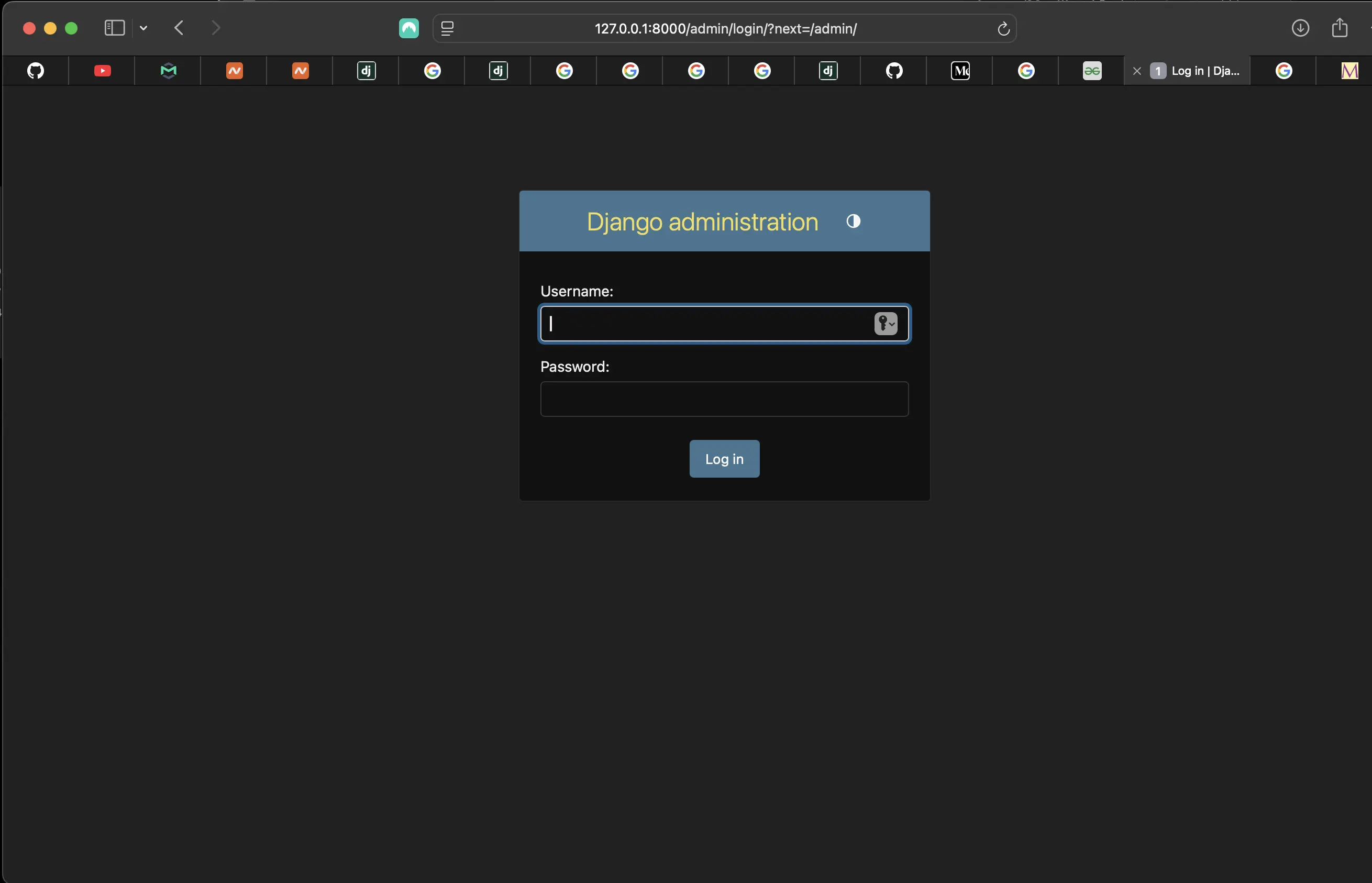
The admin login page
I used the credentials I used to create my superuser, and it got me into the admin interface. All I could see at the moment was the following:
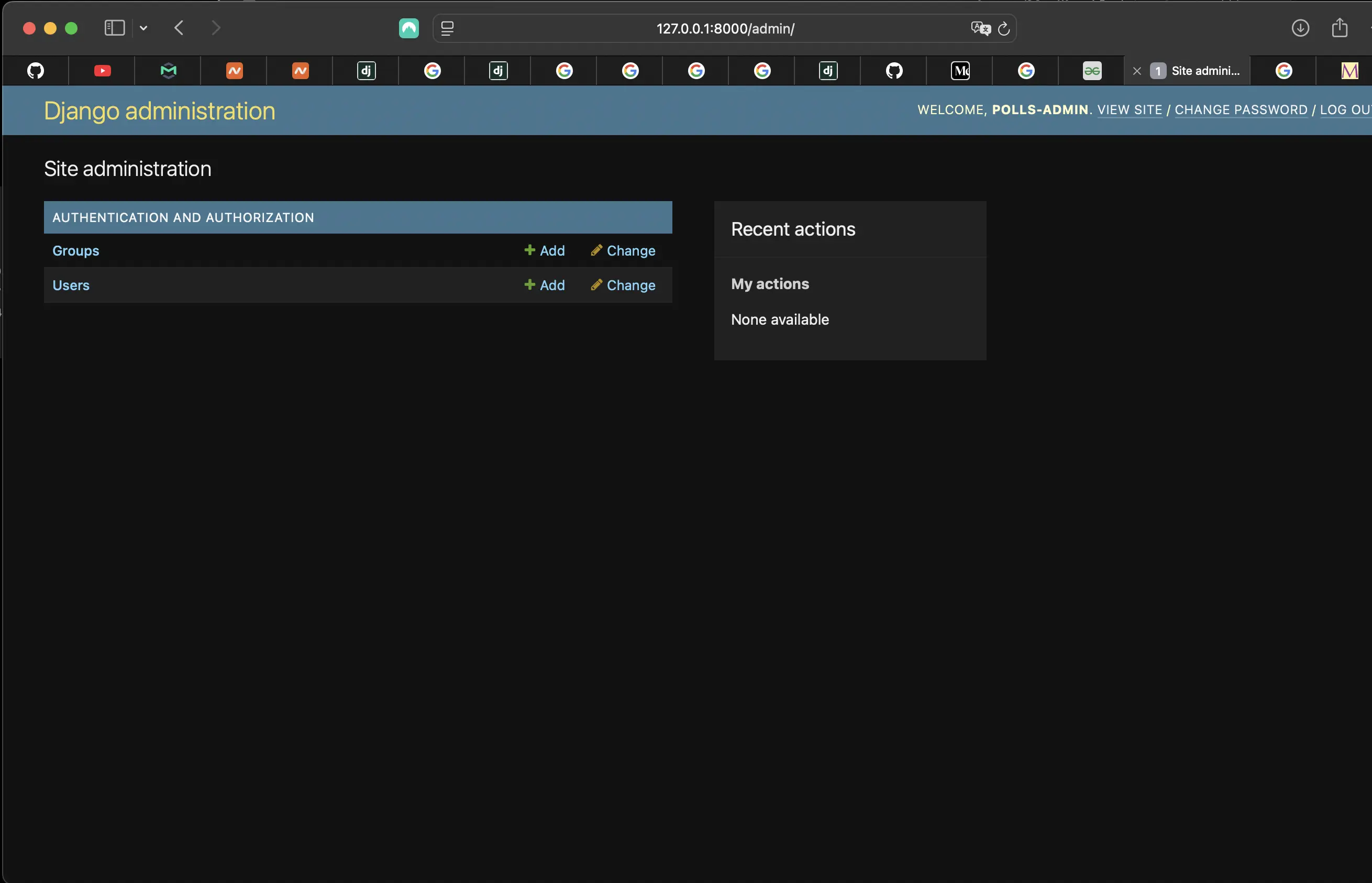
Landing on the admin interface for the first time
Only Users and Groups were available, but there were no actual Groups, and only one user: the superuser I created to get into the admin interface.
The Users and Groups are provided by the django-contrib-auth, Django's authentication framework.
Making the poll app modifiable in the admin
You will notice that when I entered the admin interface, I didn't see my polls app anywhere. That's because I didn't register it yet in polls/admin.py. To make it visible in the admin interface so I could edit it, I added the following to polls/admin.py:
# polls/admin.py
from django.contrib import admin

from .models import Question
admin.site.register(Question)
When I registered Question, I could see the following in the admin interface:
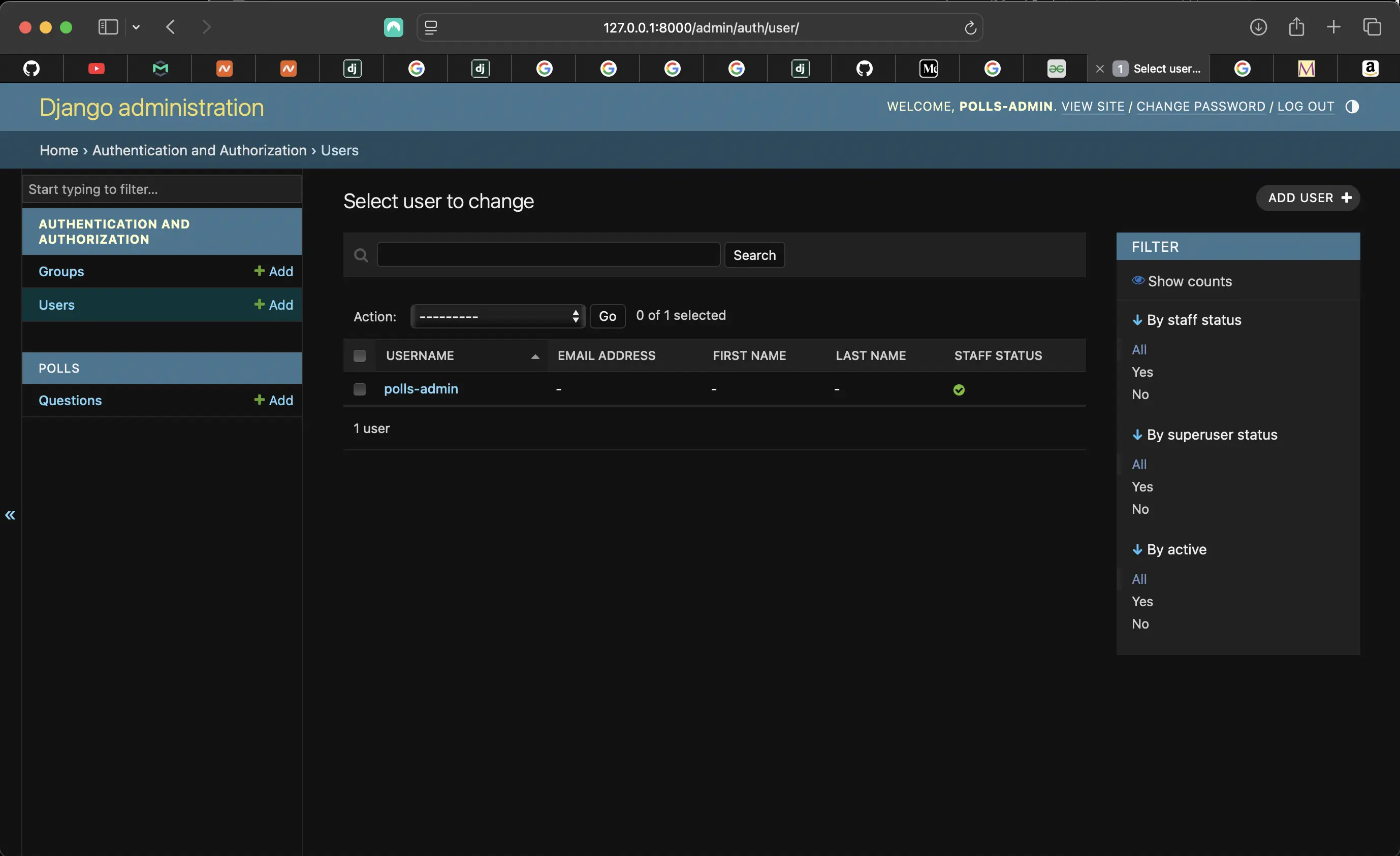
Appearance of Polls app Question
When I clicked on Questions, I saw the following:
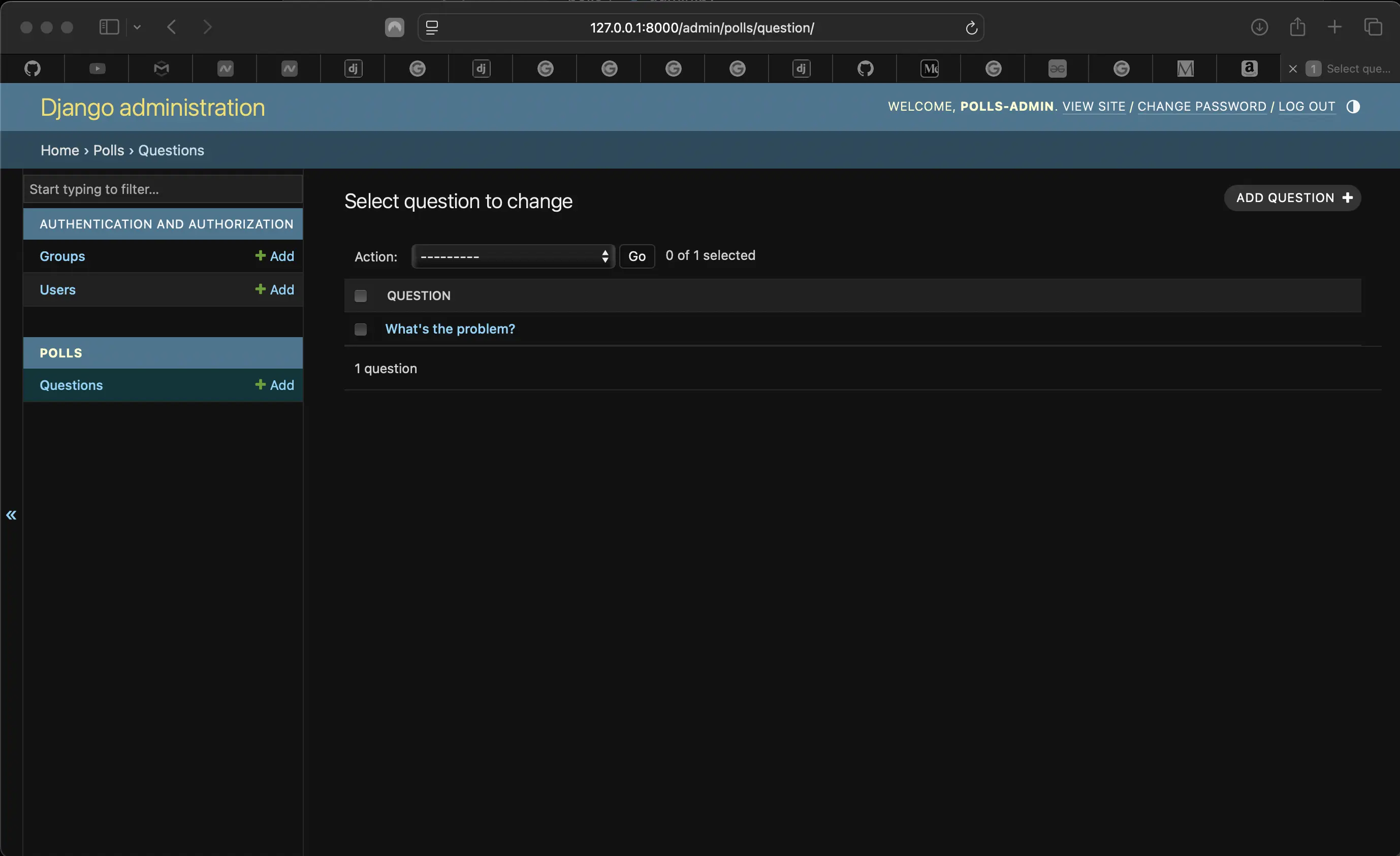
Clicking on Questions
When I clicked on "What's the problem?", the following appeared:
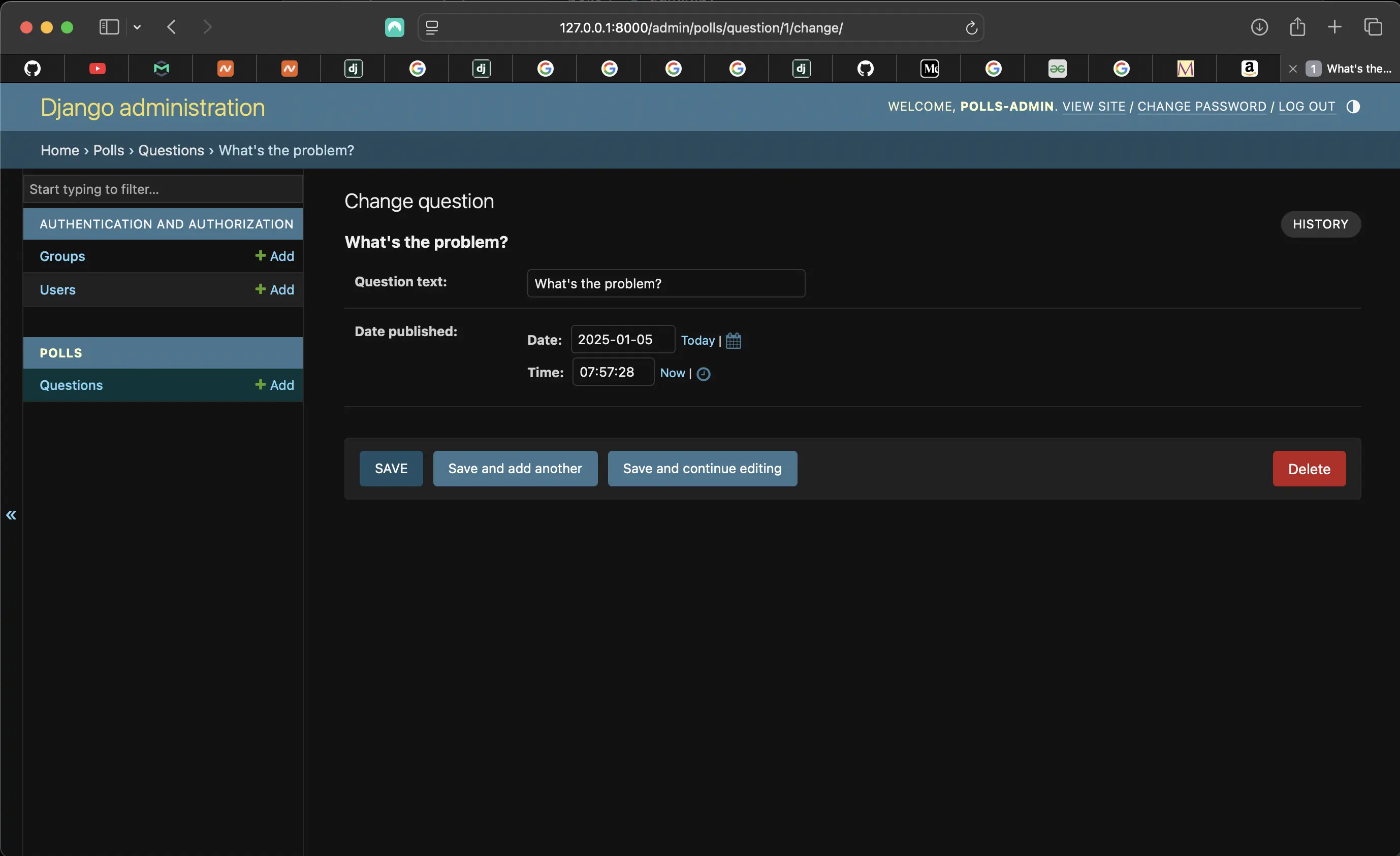
Result of clicking on "What's the problem?"
Now I could edit "What's the problem?".
Some things to know about the Question form
- The form is automatically generated from the Question model.
- The different model field types (DateTimeField, CharField) correspond to the appropriate HTML input widget. Each type of field knows how to display itself in the Django admin.
- Each DateTimeField gets free JavaScript shortcuts. Dates get a “Today” shortcut and calendar popup, and times get a “Now” shortcut and a convenient popup that lists commonly entered times.
I am given a few options to choose from at the bottom of the page:
- "Save" saves changes and returns to the change-list page for this type of object.
- "Save and add another" – saves changes and loads a new, blank form for this type of object.
- "Save and continue editing" saves changes and reloads the admin page for this object.
- "Delete" displays a delete confirmation page.
If the value of Date/Time Published isn't the same as the time I created the question in Tutorial 1, it probably means I forgot to set the correct value for the TIME_ZONE setting. I could change it, reload the page and make sure the correct value appears. But in my case, it was correct.
Next, I can change the "Date published" by clicking "Today" and "Now" shortcuts. Then I click "Save and continue editing". Then, to see all the changes I have made to this entry, I click on "History". I am taken to a page listing all the changes made to the entry. It states the date and time the change was made, who made it, and the action taken.
Code associated with this section
To view the code associated with this section, please visit cbe08de.
Conclusion
In this section, I set up the Django Polls database, explained/set LANGUAGE_CODE, USE_I18N, USE_THOUSAND_SEPARATOR, NUMBER_GROUPING, USE_TZ, and INSTALLED_APPS, created the polls models, activated the models, played with the API in the interactive Python shell, discussed the Django admin interface, created a superuser, started the development server, registered polls app in polls/admin.py, and discussed the Question form in the admin interface.
Related Resources
- Settings: Django documentation
- Writing your first Django app, part 2: Django documentation
- Database access optimization: Django documentation
- django-admin and manage.py: Django documentation
- timedelta objects: docs.python.org
Related Posts
- Creating the official Django Polls app table of contents: mariadcampbell.com