How to create a fullstack application using Django and Python Part 32
Social Share:
Sunday, November 24, 2024 at 10:59 AM | 38 min read
Last modified on Thursday, July 16, 2026 at 12:31 PM
#code refactoring, #debugging, #deployment, #django, #os.environ, #fullstack development, #local environment, #macOS, #persistent disk, #production environment, #python-decouple, #python-dotenv, #python3, #python3 shell, #render, #scp, #series, #settings directory, #ssh, #transferring files

Photo by Lala Azizli on unsplash.com
Important Note: Before committing anything to Git or pushing anything to remote, please visit How to create a fullstack application using Django and Python Part 4 where I discuss how to add the python-dotenv package to the Django site and why it is crucial to do it. This article assumes you have a working knowledge of Git.
Table of Contents
- Deploying to Render
- Updating an existing Django project for deployment on Render
- Creating a Render account
- Updating an existing Django project
- The DEBUG environment variable in development vs production
- Media files configuration in development vs production
- Local DATABASES configuration vs production DATABASES configuration
- Local static files configuration vs production staticfiles configuration
- Configuring the production database settings
- Adding the whitenoise package to make my static files persist on Render
- Configuring whitenoise in django_boards/settings.py
- Creating a build script
- Installing Gunicorn and Uvicorn
- Creating a Django project in the Render Dashboard
- Adding the Postgres managed database service on Render
- Creating a persistent disk
- Creating an SSH key pair locally
- Creating a superuser in the Render shell
- A note about liking a post
- Code associated with this post
- Adding python-decouple
- Creating a settings directory to separate development settings from production settings
- Updating settings/base.py
- settings directory configuration did not work in production on Render and how I fixed it
- The settings directory code to date
- django_boards/asgi.py to date
- django_boards/wsgi.py to date
- manage.py to date
- Fine-tuning manage.py so I didn't have to manually switch between development and production
- Note regarding likes (again)
- Latest commit for Django Boards on GitHub
- Running python3 manage.py check
- Regenerating a SECRET_KEY locally for production on Render
- Conclusion
- Related Resources
- Related Posts
- Footnotes
Update 12.27.24: I tweaked the local vs production settings in settings.py using the Python package python-decouple. This decreased the amount of code that I had to comment out or uncomment so as to switch between local development and production on Render. Please visit the section entitled Adding python-decouple to learn more.
Update (July 2026): This walkthrough was written against Django 5.1, which reached full end-of-life in December 2025 and is no longer receiving security patches. Run python -m django --version to check which version you have.
I wrote this series as a live process, so sometimes it might seem confusing, but it all works out in the end.
Deploying to Render
I can deploy my Django application to render.com. I can also store my uploaded user avatar images on a persistent disk in my Django project on render.com.
Updating an existing Django project for deployment on Render
I tried very hard to deploy my Django Boards project on Heroku, but to no avail. It just didn't happen. I opted to try out Render, which was suggested to me by someone on the Django Forum, and it ended up working like a charm.
Since I already had an "existing" Django project (Django Boards), I opted for the "Updating an existing Django project" option.
I found out the hard way that I had to re-organize my project directory in order for Django Boards to work properly on Render. In other words, I had to make sure that my manage.py file resided at the root of my project.
Django Boards directory structure before re-organization for Render
- django-boards/ # the root local Git directory
    - .git
    - .venv
    - .vscode
    - django_boards/
        - accounts/
        - avatars/
        - boards/
        - django_boards/
            - __init__py
            - asgi.py
            - settings.py
            - urls.py
            - wsgi.py
        - static/
        - templates/
        - manage.py
    - .gitignore
    - README.md
    - requirements.txt
All other files and directories were specific to Heroku or "experiments" along the way. This is basically what you should have before reorganizing your Django Boards directory structure so that manage.py resides at the root of your project.
Django Boards directory structure after re-organization for Render
- django-boards/ # the root local Git directory
    - accounts/
    - avatars/
    - boards/
    - django_boards/
        - __pycache__/
        - __init__.py
        - asgi.py
        - settings.py
        - urls.py
        - wsgi.py
    - htmlcov/
    - media/
    - mediafiles/
    - static/
    - staticfiles
    - templates/
    - venv/
    - .coverage
    - .env
    - .gitignore
    - db.sqlite3
    - manage.py
    - requirements.txt
Creating a Render account
First, I had to create a Render account. I went to the render.com home page and signed up for an account. In order to save you time and avoid aggravation, if you want to avoid hosting images on a service like AWS S3 and use a persistent disk for your Django Boards application instance instead, don't select the free tier. Select "Starter". It costs $7 a month. It will permit you to add a persisted disk to your web service. However, you will have to do that through your render.yaml file. You will want a render.yaml file so that you can configure your Django application automatically. When I signed up, I chose the hobbyist plan (which is free), and changed to the Starter plan for my web service instance via render.yaml when I created it.
Initially, I had my web service and database instances set to free plans. They had nothing to do with my hobbyist plan. It was specific to my django-boards web service and database service instances. My plans were upgraded after I had set up my paid managed Postgres database service and my paid Django web service via render.yaml. I will get to all that soon!
Updating an existing Django project
Since I already had an existing Django project, I followed the "Updating an existing Django project" option in the Render documentation entitled Deploy a Django App on Render. I also followed Nik Tomazic's article entitled Deploying a Django App to Render. You can access both articles under Related Resources.
I updated my django_boards/settings.py file to work on render.com in production. It consisted of the following:
"""
Django settings for django_boards project.

Generated by 'django_boards' using Django 5.1.

For more information on this file, see
https://docs.djangoproject.com/en/5.1/topics/settings/

For the full list of settings and their values, see
https://docs.djangoproject.com/en/5.1/ref/settings/
"""

import os
from pathlib import Path
import dj_database_url
from dotenv import load_dotenv
load_dotenv() # take environment variables from .env
dotenv_path = os.path.join(os.path.dirname(__file__), '.env')
load_dotenv(dotenv_path)

# Build paths inside the project like this: BASE_DIR / 'subdir'.
BASE_DIR = Path(__file__).resolve().parent.parent

AVATAR_PROVIDERS = (
    'avatar.providers.PrimaryAvatarProvider',
    'avatar.providers.LibRAvatarProvider',
    'avatar.providers.GravatarAvatarProvider',
    'avatar.providers.DefaultAvatarProvider',
)

# Quick-start development settings - unsuitable for production
# See https://docs.djangoproject.com/en/5.1/howto/deployment/checklist/

# SECURITY WARNING: keep the secret key used in production secret!
SECRET_KEY = str(os.getenv('SECRET_KEY'))

# SECURITY WARNING: don't run with debug turned on in production!
# DEBUG = os.getenv('DEBUG')
DEBUG = os.environ.get('DEBUG')

# For user uploaded files locally
# MEDIA_ROOT = os.path.join(BASE_DIR, 'media')
MEDIA_URL = '/media/'
# For user uploaded files on render.com
MEDIA_ROOT = '/opt/render/project/src/mediafiles/'

# Local only
# ALLOWED_HOSTS = ['127.0.0.1', 'localhost']
ALLOWED_HOSTS = ['*']

# Application definition

INSTALLED_APPS = [
    'django.contrib.admin',
    'django.contrib.auth',
    'django.contrib.contenttypes',
    'django.contrib.sessions',
    'django.contrib.messages',
    'django.contrib.staticfiles',
    'django.contrib.humanize',
    'boards',
    'accounts',
    'dotenv',
    'pylint',
    'graphviz',
    'djlint',
    'coverage',
    'widget_tweaks',
    'soupsieve',
    'bs4',
    'html5lib',
    'markdown',
    'avatar',
    'pygments',
    'nh3',
]

MIDDLEWARE = [
    'django.middleware.security.SecurityMiddleware',
    'whitenoise.middleware.WhiteNoiseMiddleware',
    'django.contrib.sessions.middleware.SessionMiddleware',
    'django.middleware.common.CommonMiddleware',
    'django.middleware.csrf.CsrfViewMiddleware',
    'django.contrib.auth.middleware.AuthenticationMiddleware',
    'django.contrib.messages.middleware.MessageMiddleware',
    'django.middleware.clickjacking.XFrameOptionsMiddleware',
]

ROOT_URLCONF = 'django_boards.urls'

TEMPLATES = [
    {
        'BACKEND': 'django.template.backends.django.DjangoTemplates',
        'DIRS': [
            os.path.join(BASE_DIR, 'templates')
        ],
        'APP_DIRS': True,
        'OPTIONS': {
            'context_processors': [
                'django.template.context_processors.debug',
                'django.template.context_processors.request',
                'django.contrib.auth.context_processors.auth',
                'django.contrib.messages.context_processors.messages',
                'django.template.context_processors.request',
            ],
        },
    },
]

WSGI_APPLICATION = 'django_boards.wsgi.application'

# Local Database
# https://docs.djangoproject.com/en/5.1/ref/settings/#databases
# DATABASES = {
#     'default': {
#         'ENGINE': 'django.db.backends.sqlite3',
#         'NAME': BASE_DIR / 'db.sqlite3',
#     }
# }
# Render database
DATABASES = {
    'default': dj_database_url.parse(os.environ.get('DATABASE_URL'), conn_max_age=600),
}

# Password validation
# https://docs.djangoproject.com/en/5.1/ref/settings/#auth-password-validators

AUTH_PASSWORD_VALIDATORS = [
    {
        'NAME': 'django.contrib.auth.password_validation.UserAttributeSimilarityValidator',
    },
    {
        'NAME': 'django.contrib.auth.password_validation.MinimumLengthValidator',
    },
    {
        'NAME': 'django.contrib.auth.password_validation.CommonPasswordValidator',
    },
    {
        'NAME': 'django.contrib.auth.password_validation.NumericPasswordValidator',
    },
]

# Internationalization
# https://docs.djangoproject.com/en/5.1/topics/i18n/

LANGUAGE_CODE = 'en-us'

TIME_ZONE = 'UTC'

USE_I18N = True

USE_TZ = True

# Static files (CSS, JavaScript, Images)
# https://docs.djangoproject.com/en/5.1/howto/static-files/

# This setting informs Django of the URI path from which your static files will be served to users
# Here, they well be accessible at your-domain.onrender.com/static/... or yourcustomdomain.com/static/...
STATIC_URL = '/static/'

# Local only
# STATICFILES_DIRS = [
#     os.path.join(BASE_DIR, 'static'),
# ]

# This production code might break development mode, so I check whether I'm in DEBUG mode
# Tell Django to copy static assets into a path called `static` (this is specific to Render)
STATIC_ROOT = BASE_DIR / 'staticfiles'

# Default primary key field type
# https://docs.djangoproject.com/en/5.1/ref/settings/#default-auto-field

DEFAULT_AUTO_FIELD = 'django.db.models.BigAutoField'

LOGIN_URL = 'login'

LOGOUT_REDIRECT_URL = 'index'

LOGIN_REDIRECT_URL = 'index'

EMAIL_BACKEND = 'django.core.mail.backends.console.EmailBackend'

# Enable the WhiteNoise storage backend, which compresses static files to reduce disk use
# and renames the files with unique names for each version to support long-term caching
STATICFILES_STORAGE = 'whitenoise.storage.CompressedManifestStaticFilesStorage'
It took a NUMBER of commits before I got it right, but this configuration worked beautifully. Note my comments in the code as well. I added the comments so that I would know what to "uncomment/comment" when I switched from production settings to development settings and vice versa. This also took a lot of tries before I got it right.
The DEBUG environment variable in development vs production
# what to toggle between production and development
# SECURITY WARNING: don't run with debug turned on in production!
# DEBUG = os.getenv('DEBUG')
DEBUG = os.environ.get('DEBUG')
DEBUG = os.getenv('DEBUG') uploads the DEBUG environment variable from my .env file for use in development. There, DEBUG is set to True. I use the Python package called python-dotenv to make that happen. Please visit How to create a fullstack application using Django and Python Part 4 to learn more.
DEBUG = os.environ.get('DEBUG') points to my environment on Render.com. There, DEBUG is set to False.
Media files configuration in development vs production
# For user uploaded files locally
# MEDIA_ROOT = os.path.join(BASE_DIR, 'media')
MEDIA_URL = '/media/'
# For user uploaded files on render.com
MEDIA_ROOT = '/opt/render/project/src/mediafiles/'
Locally, I set MEDIA_ROOT to os.path.join(BASE_DIR, 'media'). This is what I originally had for my local development settings. I comment it out when I push settings.py to GitHub/Render. When I want to run the application locally, I uncomment it, and comment out MEDIA_ROOT = '/opt/render/project/src/mediafiles/'.
Local DATABASES configuration vs production DATABASES configuration
# Local Database
# https://docs.djangoproject.com/en/5.1/ref/settings/#databases
# DATABASES = {
#     'default': {
#         'ENGINE': 'django.db.backends.sqlite3',
#         'NAME': BASE_DIR / 'db.sqlite3',
#     }
# }
# Render database
DATABASES = {
    'default': dj_database_url.parse(os.environ.get('DATABASE_URL'), conn_max_age=600),
}
The commented out DATABASES configuration is my local database. I comment it out when I am using my managed database on Render, and make sure that my Render DATABASES configuration is uncommented. When I want to run my application locally, I uncomment the local DATABASES configuration, and comment out the Render DATABASES configuration.
The dj-database-url package is a Django utility that allows me to configure my database settings using a URL string, commonly stored in an environment variable called DATABASE_URL. This is a convenient way to manage database configurations, especially in cloud environments. I created a DATABASE_URL environment variable with the value of the Internal Database URL provided to me by Render when I created my Postgres managed database service.
Local static files configuration vs production staticfiles configuration
# Static files (CSS, JavaScript, Images)
# https://docs.djangoproject.com/en/5.1/howto/static-files/

# This setting informs Django of the URI path from which your static files will be served to users
# Here, they well be accessible at your-domain.onrender.com/static/... or yourcustomdomain.com/static/...
STATIC_URL = '/static/'

# Local only
# STATICFILES_DIRS = [
#     os.path.join(BASE_DIR, 'static'),
# ]

# This production code might break development mode, so I check whether I'm in DEBUG mode
# Tell Django to copy static assets into a path called `static` (this is specific to Render)
STATIC_ROOT = BASE_DIR / 'staticfiles'
When I run my Django application locally, I use the STATICFILES_DIRS variable along with the STATIC_URL variable. When I run my Django application on Render, I comment out STATICFILES_DIRS and uncomment the STATIC_ROOT variable.
Configuring the production database settings
Next, I had to install psycopg2-binary and dj-database-url.
psycopg2-binary is the most popular Python adapter for communicating with a PostgreSQL database.
dj-database-url enables me to specify my database details via the DATABASE_URL environment variable. I got my database’s URL from the Render Dashboard when I created my managed Postgres database service.
# make sure you run the command from within the directory in which your venv folder resides
pip install dj-database-url
pip install psycopg2-binary
# then make sure to update your requirements.txt file
pip freeze > requirements.txt
Then I had to make sure to import dj-database-url at the top of my django_boards/settings.py file:
import os
from pathlib import Path
import dj_database_url # new
from dotenv import load_dotenv
...
To learn more about the psycopg2-binary package, please visit psycopg2-binary 2.9.10. I currently have this version installed in my Django Boards project.
Adding the whitenoise package to make my static files persist on Render
Next, I had to install whitenoise.
In order to make sure that my static files would persist in production on Render, I had to add the whitenoise package to my Django Boards application. I did this locally, making sure that my virtual environment was activated:
pip install 'whitenoise[brotli]'
# then make sure to update your requirements.txt file
pip freeze > requirements.txt
Adding Brotli support is optional, but recommended.
Configuring whitenoise in django_boards/settings.py
Next, I had to configure whitenoise in my django_boards/settings.py file:
MIDDLEWARE = [
    'django.middleware.security.SecurityMiddleware',
    'whitenoise.middleware.WhiteNoiseMiddleware', # new
    'django.contrib.sessions.middleware.SessionMiddleware',
    'django.middleware.common.CommonMiddleware',
    'django.middleware.csrf.CsrfViewMiddleware',
    'django.contrib.auth.middleware.AuthenticationMiddleware',
    'django.contrib.messages.middleware.MessageMiddleware',
    'django.middleware.clickjacking.XFrameOptionsMiddleware',
]

# Enable the WhiteNoise storage backend, which compresses static files to reduce disk use
# and renames the files with unique names for each version to support long-term caching
STATICFILES_STORAGE = 'whitenoise.storage.CompressedManifestStaticFilesStorage' # new
When I configured django_boards/settings.py, I went on to add my managed PostgreSQL database service.
Creating a build script
Next, I had to create a build script called build.sh at the root of my local Git repository so that, when pushed, would be added to my remote Git repository.
#!/usr/bin/env bash

set -o errexit  # exit on error

pip install -r requirements.txt

# Convert static asset files
python manage.py collectstatic --no-input

# Apply any outstanding database migrations
python manage.py migrate
Whenever I deploy a new version of my project, Render runs a build command to prepare it for production.
I also have to make sure the build script is executable before adding it to version control. I do this from Terminal inside the root of my django-boards directory:
chmod a+x build.sh
chmod a+x means setting execute permissions for all. That means for the user or file owner (u), members of the file's group (g), and users who are neither the file's owner nor members of the file's group (o).
Installing Gunicorn and Uvicorn
Next, I had to install gunicorn and uvicorn. My project is run on those two packages.
Uvicorn is a lightweight ASGI server. Gunicorn is a WSGI server which can be used alongside Uvicorn. Django applications have both an asgi.py file and a wsgi.py file inside the same directory as my settings.py.
Next, I had to copy the following command to my clipboard for later use:
python -m gunicorn django_boards.asgi:application -k uvicorn.workers.UvicornWorker
I took django_boards from my django_boards/asgi.py file. That is the name of my project (site). I added this to my render.yaml file and to the Start Command field in my django-boards web service settings when I created it.
Creating a Django project in the Render Dashboard
First and foremost, I had to create a Django project from within my dashboard.
In my dashboard, I selected "Projects", then clicked on "Create new project", and the following appeared:
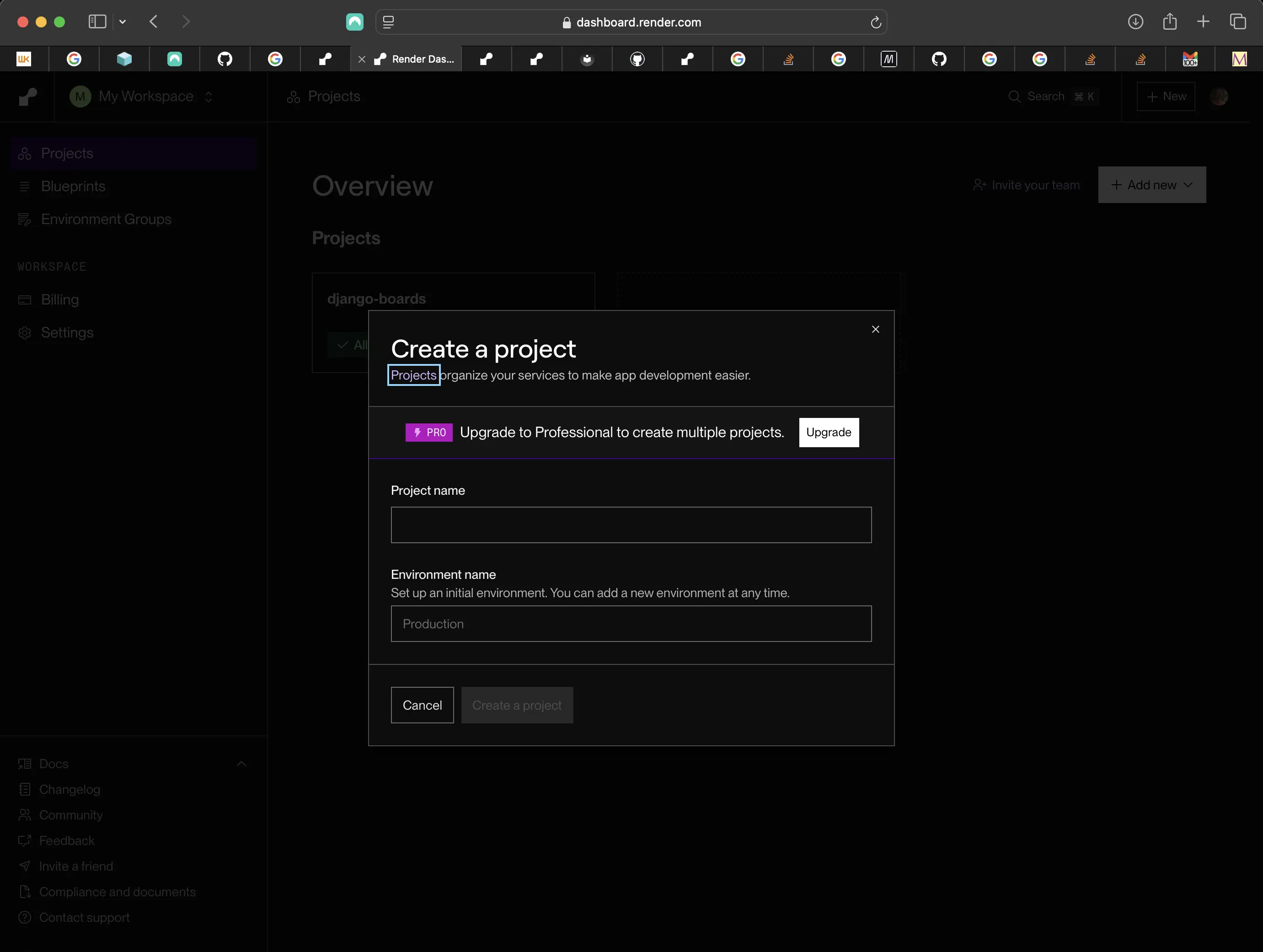
Creating a Django project
I named my project django-boards, and named my environment Production. When I created my managed database service and my web service for my django-boards project, I clicked on the django-boards project and then created the services within.
Adding the Postgres managed database service on Render
Next, I created my first web service from within my django-boards project. I went into my django-project in my Render Dashboard, and at the top right, clicked on New+.
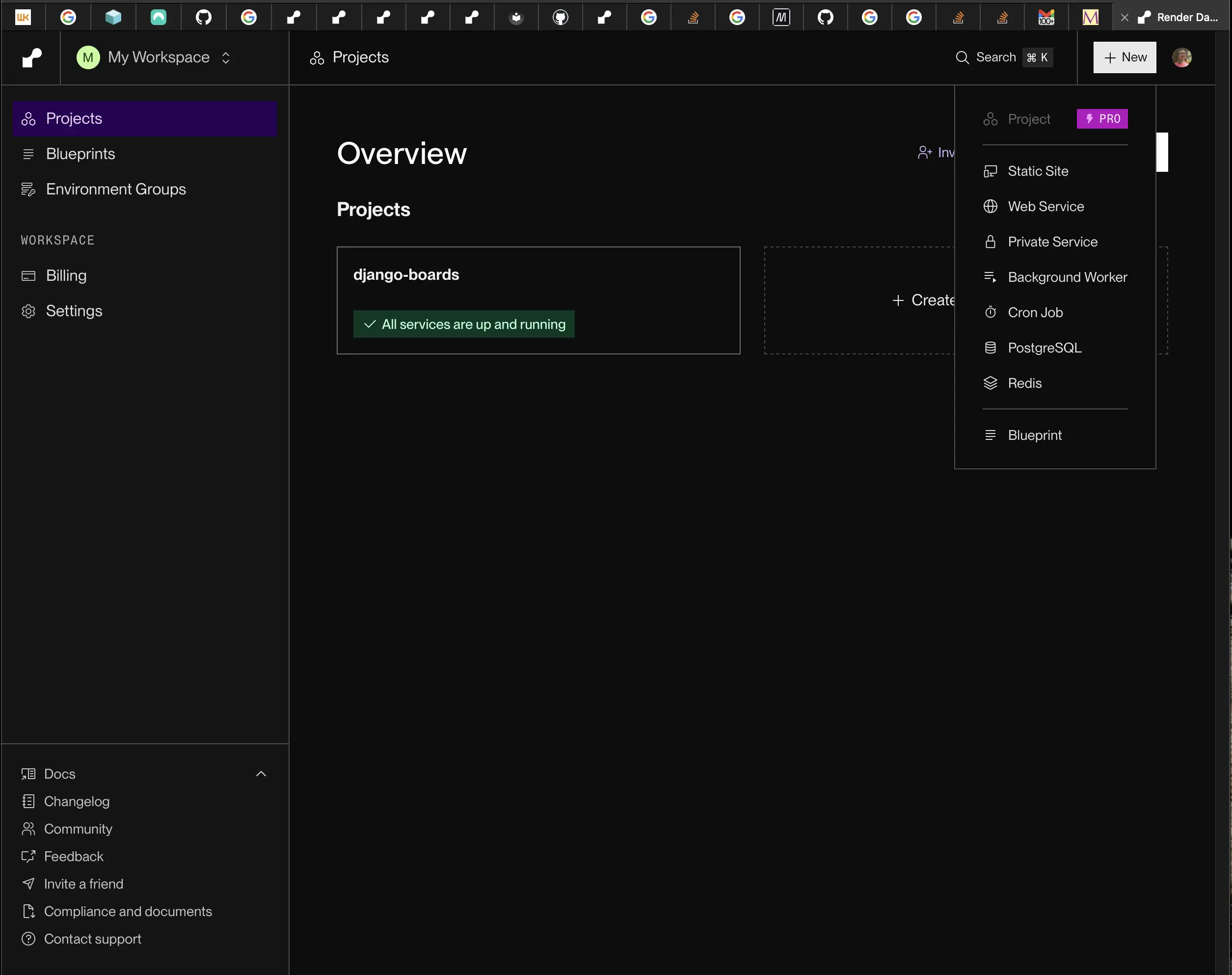
Creating a managed Postgres database service
Then I selected PostgreSQL, and the following appeared:
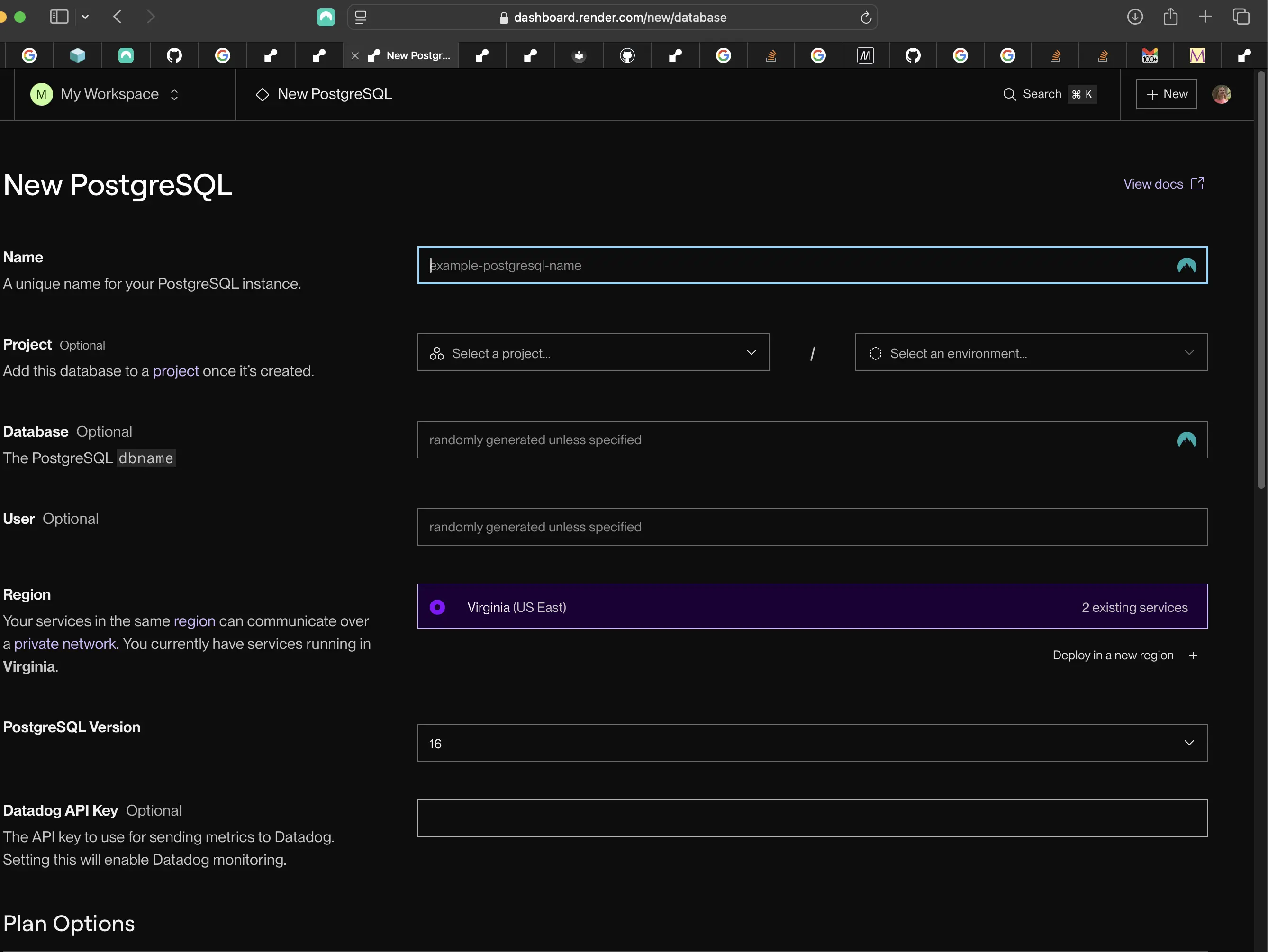
Configuring the PostgreSQL managed database service part 2 screenshot
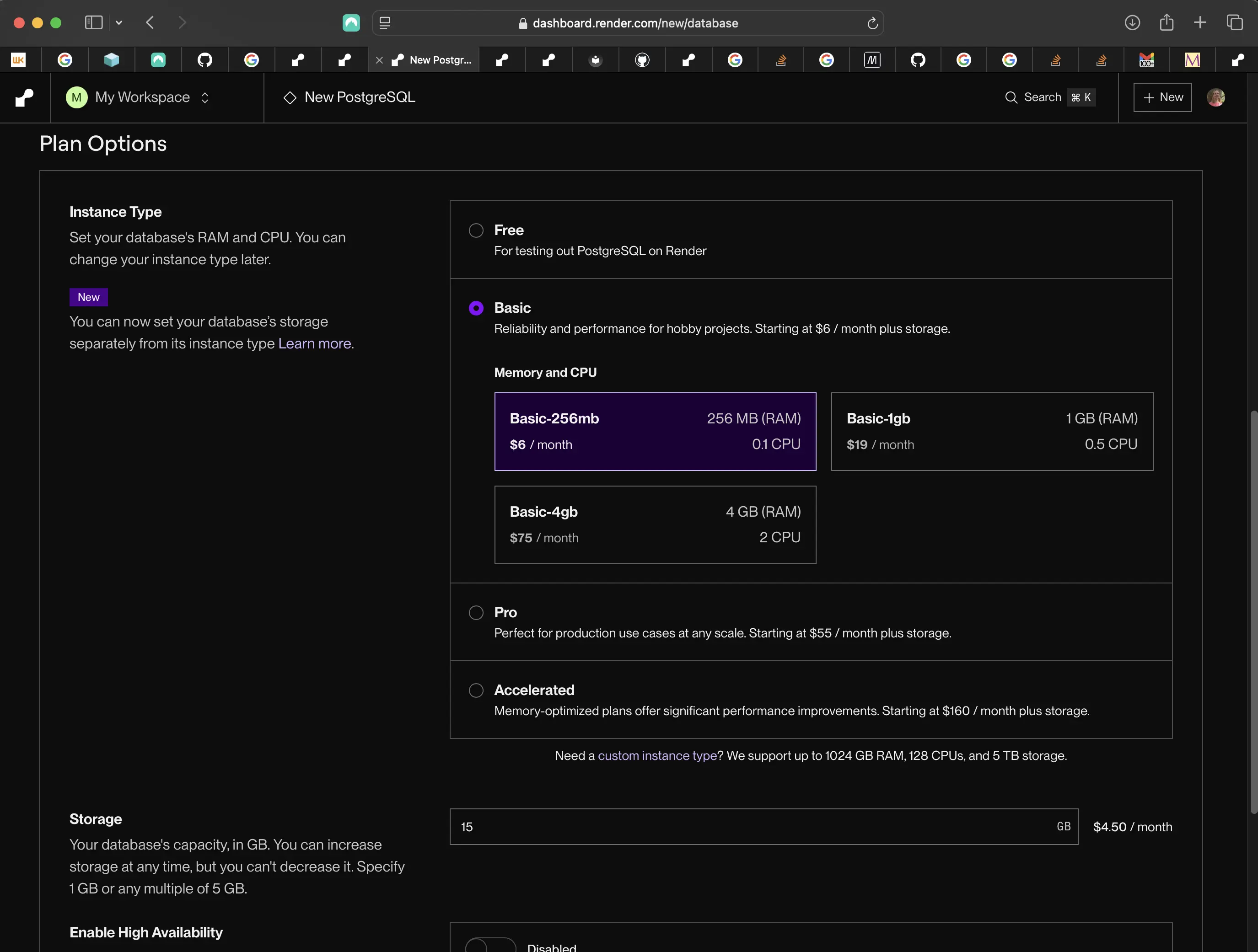
Configuring the PostgreSQL managed database service part 3 screenshot
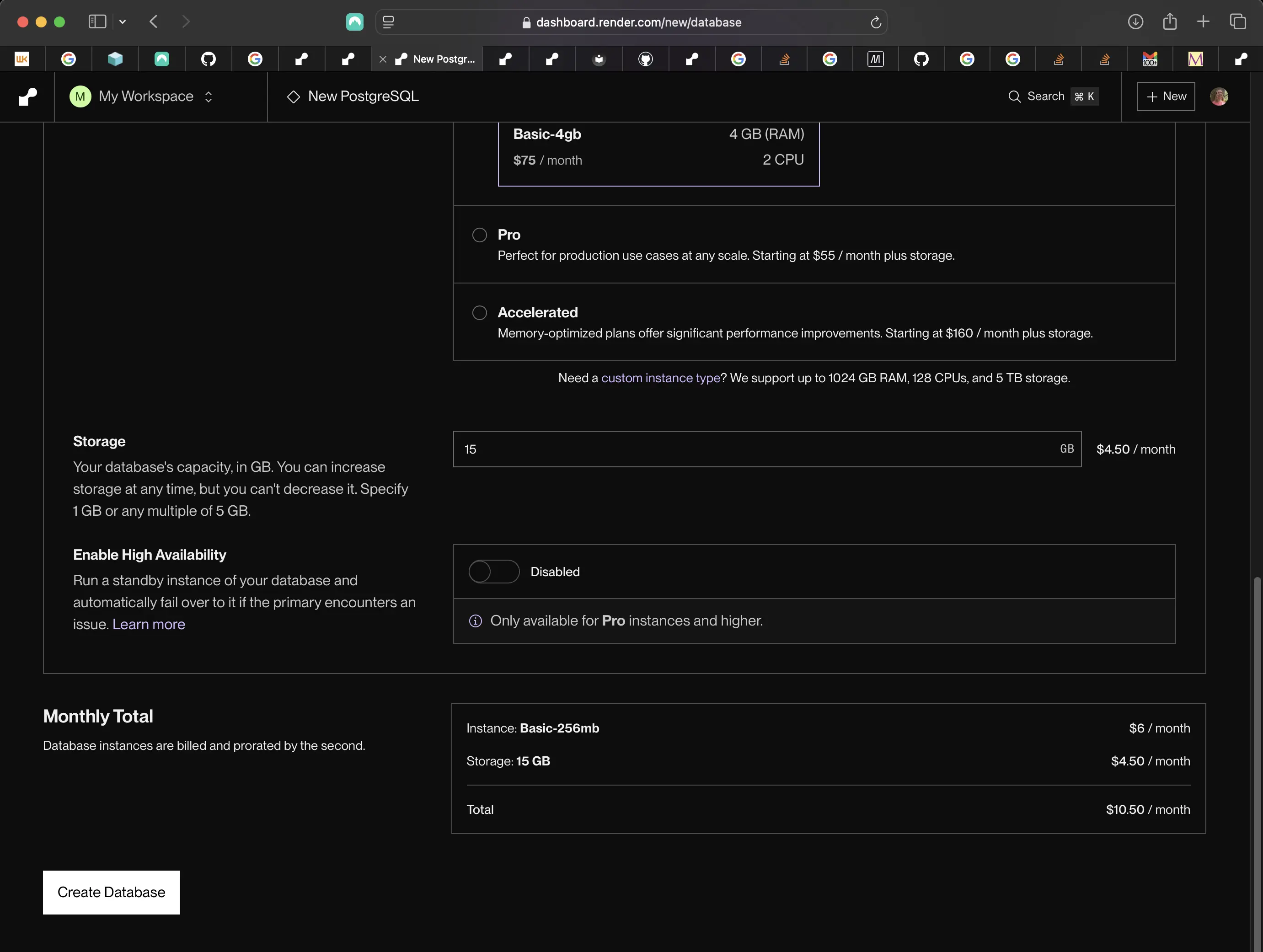
Configuring the PostgreSQL managed database service part 4
When I created this database for my django-boards project (site), I was creating an "instance". Even though I had signed up for the hobby (free) plan when I registered with Render, I selected the basic-256mb plan for the PostgreSQL database instance associated with my django-boards project. I started with the free tier, but upgraded to the basic-256mb plan when I created my render.yaml file. basic-256mb is the cheapest managed database plan at $6/month. I also selected to have 15GB of storage at $4.50/month. I could always decrease that amount if I found I didn't need so much.
I created my managed PostgreSQL database service in the following manner:
- Name: Provide a custom name. I provided django-boards-db.
- Database: Leave field empty. Render will generate this for me.
- User: Leave field empty. Render will generate this for me.
- Region: The region closest to you. And make sure to select the same region when creating your web service.
- PostgreSQL Version: the current version 16.
- Datadog API Key: Leave empty.
- Plan Type: Plan that suits your needs. I needed to select a paid plan because I wanted to add a persistent disk to my web service for user image (avatar) uploads, so I selected the cheapest plan: starter plan at $7/month.
As Nik Tomazic mentions in his article,
Free PostgreSQL databases get deleted after 90 days if you don't upgrade your account. Render only offers 1 GB of storage for free PostgreSQL databases.
That is why I primarily went with the basic-256mb database plan. I didn't want my database deleted after 90 days!
Nik Tomazic goes through the steps for creating a managed database service in his article Deploying a Django App to Render.
Creating a web service
To create my web service, I clicked on the New+ button in my django-boards project dashboard and selected Web Service. There, I connected my Render account to my GitHub account. If you use GitLab or BitBucket, you can connect your Render account to either of those accounts as well. Following the prompts, I granted Render permissions to my public django-boards repository. This then became the repository I would automatically deploy to Render.
Once I connected to GitHub, I selected my repository of choice. Don't select "All Repositories". Select individual repositories. In my case, and yours, it is one repository. To do it this way, the repository has to be public. Otherwise, it won't be found for selection.
Next, I entered the following:
- Name: A custom name. I named my service django-boards.
- Region: Make sure it is the same region as your database!
- Branch: Should be your production branch which you use to push to remote origin. For me, since I use GitHub, it's the main branch.
- Root Directory: Leave this empty.
- Environment: Python 3
- Build command: ./build.sh
- Start command: python -m gunicorn django_boards.asgi:application -k uvicorn.workers.UvicornWorker
- Plan Type: The plan that suits your needs. Remember, if you want to use a persistent Disk, you have to have a paid web service instance plan. Once everything was set up, I added the plan I wanted to my render.yaml and it then was reflected in my django-boards web service settings.
Next, I opened up the "Advanced" dropdown below and added the following environment variables:
- PYTHON_VERSION: 3.13.0. This is the version I use in my Django Boards application.
- SECRET_KEY: Click "Generate" to generate a new SECRET_KEY.
- DEBUG: False.
- ALLOWED_HOSTS: *.
- DATABASE_URL: <your_internal_database_url>. Go back into your Database service settings to grab this value.
- WEB_CONCURRENCY: 4. Render documentation states to add this environment variable and value, so I did.
I needed to set PYTHON_VERSION since Render's default Python version is 3.11.11, but I needed to use 3.13.0. I changed the ALLOWED_HOSTS when I got my web service's URL.
WEB_CONCURRENCY determines the number of worker processes my web application will spawn, essentially controlling how many concurrent requests my application can handle simultaneously, allowing me to scale my application based on traffic demands.
Lastly, I clicked on "Create Web Service".
Render will check out your source code, prepare the environment, run build.sh, generate a container, and deploy it. Your Django application will not completely work yet. If you have configured your static files and whitenoise configuration properly, you should see your home page. But you still won't be able to create a superuser. There are still a few more things to do to make this happen.
I had to wait a couple of minutes for the deployment status to change to "Live" and then I tested the application by clicking on the newly created site URL. My web app's URL is located under the web service name at the top left.
Render automatically redeploys my app every time I check code into my remote repository.
When I got my web service URL, I replaced the * value of ALLOWED_HOSTS with m web service URL. Then I triggered a manual deployment of the latest commit. Then I clicked on my application's URL to make sure that everything still worked. And it did!
Creating the render.yaml file
Next, I had to create a render.yaml file so that I could configure my interconnected set of services, databases, and environment groups. This is what my render.yaml file looks like:
databases:
    - name: django-boards-db
      plan: basic-256mb
      region: virginia
      databaseName: django_boards_db
      user: django_boards_db_user

services:
    - type: web
      plan: starter
      region: virginia
      name: django-boards
      runtime: python
      buildCommand: './build.sh'
      startCommand:
          'python -m gunicorn django_boards.asgi:application -k
          uvicorn.workers.UvicornWorker'
      envVars:
          - key: DATABASE_URL
            fromDatabase:
                name: django-boards-db
                property: connectionString
          - key: SECRET_KEY
            generateValue: true
          - key: WEB_CONCURRENCY
            value: 4
When I deployed my application including the render.yaml file, my plans for my database and web service instances upgraded and were reflected in my dashboard. Once this happened, I was able to create a persistent Disk. I needed a persistent Disk for my user avatar image uploads. Otherwise, they would be lost. But the biggest reason for the persistent Disk was the need for the existence of a default.jpg file when either a superuser or regular one was created.
Creating a persistent disk
Once I saw that my django-boards web service instance was upgraded to the Starter plan, I clicked on "Disks" inside my django-boards web service dashboard, and I was able to create a new Disk. There were only two fields I had to configure. My mount path and Disk size. I added the following:
- Mount path: /opt/render/project/src/mediafiles
- Size: Make sure to select the smallest size, which is 1GB. You can always increase this, but you can't decrease it!
Then I clicked on "Create".
I had created a mediafiles directory in my Git repository before I had even created the persistent Disk. I didn't know what I was doing yet, and the documentation does contain holes. Information is scattered all over the place.
The more direct and easier thing to do is create a mediafiles directory inside your web service dashboard shell. When your shell mounts, run the following command:
/opt/render/project/src$ mkdir mediafiles
Then run the ls command to make sure that it has been successfully created. Then, to test the persistence of the disk, create an empty text file inside the mediafiles directory, and then click on the Manual Deploy button selecting "Deploy latest commit".
/opt/render/project/src/mediafiles$ touch test.txt
Once the deploy has completed and the site is "Live", go back to the same shell and cdinto the mediafiles directory to see if test.txt is still there. If it is, then you indeed have a working persistent Disk, and are ready to upload your default.jpg image into your mediafiles directory. At first, I did not realize that this is the way I had to add default.jpg to the mediafiles directory on Render. I thought if I created a mediafiles directory in my Git repository and added default.jpg to it, it would then be automatically reflected in the mediafiles directory on Render. But that was not the case, because the filesystem on Render is ephemeral. The reason why my static files persisted is because of whitenoise.
After some research, I found that I had to upload my default.jpg file from my local machine onto render.com inside my django-boards web service instance. This meant that I had to configure SSH on Render to make that possible.
Creating an SSH key pair locally
First, I created a new SSH private and public key that I would use only on Render. I already had several key pairs on my local machine dedicated to other services, which meant I had an .ssh directory in my home (~) directory.
To create a new SSH key pair, I cd into my .ssh directory from within Terminal and ran the following commands:
# replace your_email@example.com with your own email
ssh-keygen -t ed25519 -C "your_email@example.com"

Generating public/private ALGORITHM key pair.
# Since I already had several SSH key pairs, I created a custom-named SSH key.
Enter a file in which to save the key (/Users/YOU/.ssh/id_ALGORITHM):
Since I was also already inside my .ssh directory, all I needed to do was write the custom-named SSH key after the colon and then hit return.
Next, at the prompt, I typed in a passphrase:
> Enter passphrase (empty for no passphrase): [Type a passphrase]
> Enter same passphrase again: [Type passphrase again]
Copying the SSH public key
Next, I copied the id_render.pub key so I could paste it on Render. I used the following command:
# This assumes I am inside the .ssh directory
pbcopy < id_render.pub
# This assumes I am in my home (~) directory
pbcopy < ~/.ssh/id_render.pub
Next, I had to go to the Add SSH Public Key form in the Account Settings dashboard. Please visit the Render article entitled Adding an SSH public key to your Render account, go down to the link called Add SSH Public Key, and click on it. There, name your key (make it as descriptive as possible so you know what you are using it for) and paste your public key in the Key field. Then click on the Add SSH Public Key button to save your key.
Connecting a service with SSH
Next, I had to connect my web service with SSH so I could transfer files from my local Git repository on my machine onto my web service on Render. I went into my django-boards web service and clicked on the Connect button, and then the SSH tab:
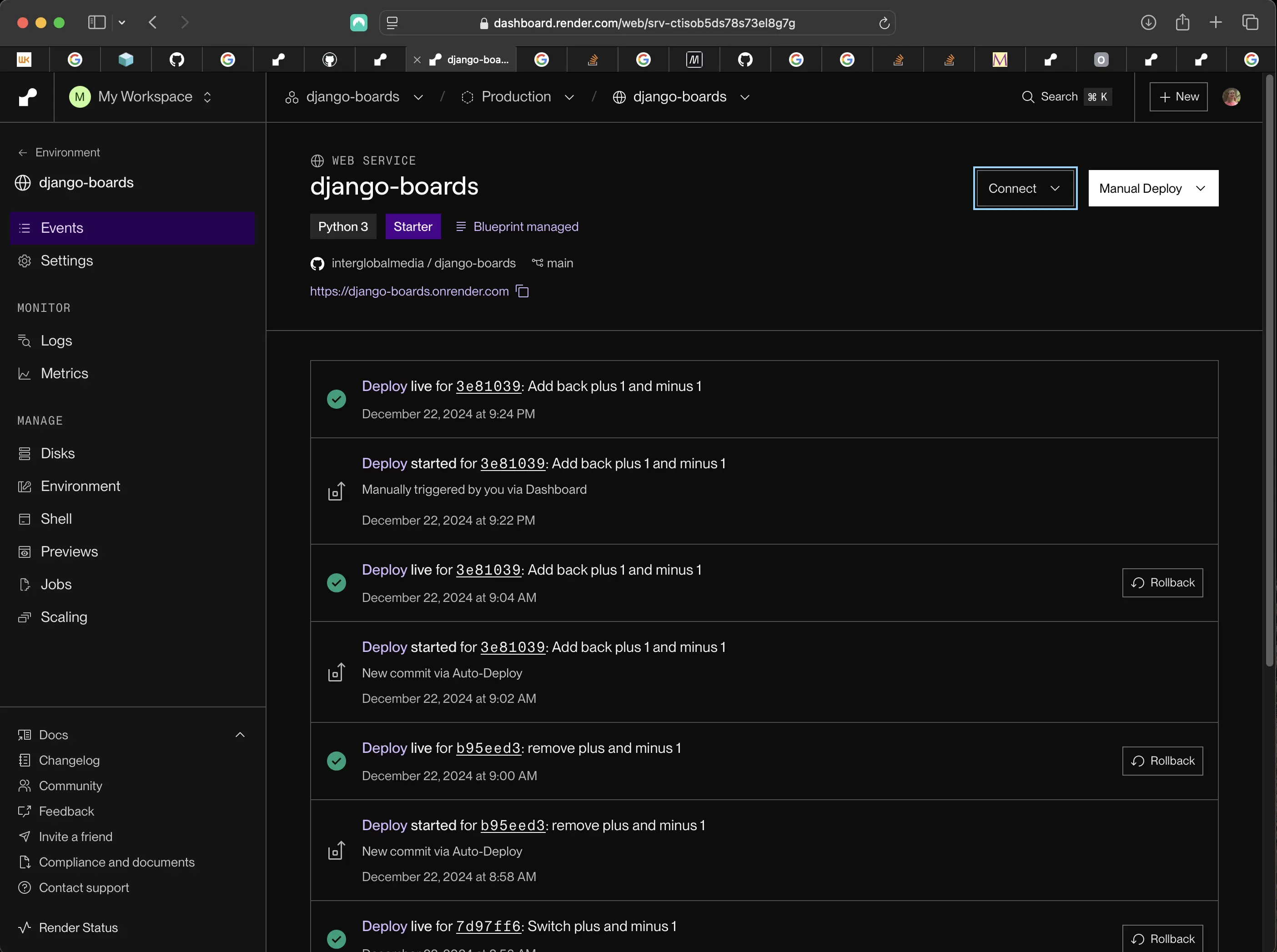
Clicking on the Connect button
Then I copied the SSH command to my clipboard.
Next, in Terminal, I pasted the SSH command.
Adding the SSH key to the ssh-agent
Next, I had to add the SSH key to the ssh-agent. Otherwise, the next time I rebooted my computer, my SSH key pair would be lost.
If you're using macOS Sierra 10.12.2 or later, you will need to modify you ~/.ssh/config file to automatically load keys into the ssh-agent and store passphrases in your keychain. I am on macOS Sequoia 15.2, so things might work a bit differently regarding saving passphrases due to the new passwords app.
If I was not sure whether or not I had an SSH config file, I could run the following command:
# This assumes I am in the home directory
open ~/.ssh/config
# This assumes I am already in the .ssh directory
open config
If the file didn't exist, I would have to create the file:
# This assumes I am inside .ssh
touch config
Once my config file is open, I can add the SSH key pair configuration for Render.
Host render.com
  AddKeysToAgent yes
  IdentityFile ~/.ssh/id_render
To make sure that you have successfully added your new SSH key to the ssh-agent, run the following command in Terminal:
ssh-add -l
It will list any keys you have added to the ssh-agent. When I ran the command, I got back keys which I had added to the ssh-agent. To make sure that the SSH public key I added to Render was one of the ones listed, I went to the Render article entitled Troubleshooting SSH and clicked on the link called Dashboard. That's where I had pasted my SSH public key. This time, I didn't paste my public key. I canceled out of the form and was taken to my Account Settings page. That is where I can find my Profile, Appearance, Account Security, CLI Tokens, API Keys, SSH Public Keys, PR Requests, and where I can delete my account. I compared the SSH key listed in Terminal on my machine with the SSH public key listed in Account Settings. They matched.
Uploading default.jpg to django-boards web service
Next, I uploaded default.jpg to my django-boards web service using SSH from Terminal on my local machine.
I went into my django-boards web service dashboard, clicked on the Connect button, selected the SSH tab, copied the SSH command there, and then pasted it into Terminal. When I connected, it took me into my django-boards web service shell.
I ran the following command to upload my default.jpg file into my mediafiles directory on Render:
ssh YOUR_SERVICE@ssh.YOUR_REGION.render.com
The following was returned in Terminal:
The authenticity of host 'render.com (IP_ADDRESS)' can't be established.
ED25519 key fingerprint is (SSH_KEY_FINGERPRINT)
Are you sure you want to continue connecting (yes/no)?
I checked the fingerprint that was provided to me against the list of fingerprints in the Render article entitled Connecting with SSH. It matched, so I typed yes and hit return. I was now connected to my django-boards web service shell on Render! However, I also received the following message before actually connecting to the shell:
client_global_hostkeys_prove_confirm: server gave bad signature for ED25519 key 0: incorrect signature
I am investigating this and will post about it when (and if) I receive an answer from render.com community or support.
Transferring files using the scp command via SSH
Now that I was set up to use SSH on Render, I could use the SCP1 command to transfer files to and from my local machine.
After a failed attempt to upload default.jpg (I was still in the Render shell when I should not have been), I exited out of the connection by typing exit followed by hitting the return key, and then from inside Terminal on my local machine, I entered something like the following command:
scp /Users/mariacam/Python-Development/django-boards/mediafiles/default.jpg
YOUR_SERVICE@ssh.YOUR_REGION.render.com:/opt/render/project/src/mediafiles
Replace YOUR_SERVICE@ssh.YOUR_REGION.render.com with the SSH command you copy when you click on the Connect button inside your django-boards web service's dashboard and select the SSH tab. Then hit return. If upload is successful, something like the following will be returned:
default.jpg 100% 2587 92.6KB/s 00:00
When I uploaded my default.jpg file, I exited the Render shell, and then reconnected. When I was reconnected, I checked to see if default.jpg still persisted with the following command:
cd mediafiles
ls
default.jpg  test.txt
Both my empty test.txt file I created in the Render shell earlier and default.jpg persisted. Success! I removed test.txt because there was no longer any use for it!
Creating a superuser in the Render shell
Now that default.jpg existed in the mediafiles directory on Render, I was ready to create a superuserin the django-boards web service shell:
# Make sure to run this command in the directory where manage.py resides
python manage.py createsuperuser
Follow the prompts (you can skip providing an email address), and if something like "superuser created successfully" is returned, you now have a superuser you can login with, and then go into the admin interface and create a few boards.
After you have created those boards, you can go into the site itself and view them there. Perhaps you might want to add a topic or two as well.
In addition, go to your profile page to check out your default.jpg avatar. Now, if you want, you can replace default.jpg with your own avatar!
You should create at least one regular user so you can start playing around with liking and unliking posts by logging in and out between users.
A note about liking a post
You have to double click on the like button in order for a Like to appear. The same goes for unliking a post. I'm not quite sure why this is happening, but I'm not working with React or AJAX, for example, but it will have to do for now!
Code associated with this post
The latest commit of django-boards on GitHub associated with this post is commit 3e81039.
Adding python-decouple
I was not completely satisfied with my approach to switching between local development and production on Render. I knew about the Python package called python-decouple, but did not think at first to try it out to see if it would decrease the amount of code I would have to comment out and uncomment when switching between local development and production.
First, I had to install python-decouple:
pip install python-decouple
Then I had to update my requirements.txt file:
pip install -r requirements.txt
Next, I had to import it into django_boards/settings.py:
import os
from pathlib import Path
import dj_database_url
from decouple import config, Csv # new
from dotenv import load_dotenv
load_dotenv() # take environment variables from .env
dotenv_path = os.path.join(os.path.dirname(__file__), '.env')
load_dotenv(dotenv_path)
Then I used it on the SECRET_KEY environment variable:
# SECURITY WARNING: keep the secret key used in production secret!
# SECRET_KEY = str(os.getenv('SECRET_KEY'))
# using decouple
SECRET_KEY = config("SECRET_KEY")
I commented out the configuration I used with python-dotenv, and used python-decouple's config method. python-decouple's config method is used to retrieve configuration parameters from various sources, such as environment variables, .env files, or .ini files.
SECRET_KEY = config('SECRET_KEY') means that python-decouple will try to find the value of SECRET_KEY in the following order:
- Environment variables
- .env file
- .ini file (if specified)
- Default value (if provided)
In my case, I have both a SECRET_KEY environment variable in my .env file and in production on Render.
Next, I used python-decouple on the DEBUG environment variable:
# SECURITY WARNING: don't run with debug turned on in production!
# DEBUG = os.getenv('DEBUG')
# DEBUG = os.environ.get('DEBUG')
# using decouple
DEBUG = config("DEBUG", default=False, cast=bool)
Here, I set a default value of False for DEBUG, but I also added the cast attribute with a value of bool (Boolean). The cast attribute specifies the type to which the retrieved configuration value should be converted. In this case, the value of False. And False is of type Boolean.
Then I used python-decouple's config method on the ALLOWED_HOSTS variable:
# Local only
# ALLOWED_HOSTS = ['127.0.0.1', 'localhost']
# in production on render
# ALLOWED_HOSTS = ['https://django-boards.onrender.com']
# using decouple only one line is necessary to cover both local and production environments
ALLOWED_HOSTS = config("ALLOWED_HOSTS", cast=Csv())
Locally, in my .env file, my ALLOWED_HOSTS variable is set to .localhost,127.0.0.1:
ALLOWED_HOSTS=.localhost,127.0.0.1
However, in production, it is set to https://django-boards.onrender.com. But with python-decouple, I can just set it to config("ALLOWED_HOSTS", cast=Csv()).
cast=Csv() tells config to use the Csv helper to parse the value of the environment variable. ALLOWED_HOSTS variable will now hold a Python list of strings, containing the values from the comma-separated environment variable.
Locally, ALLOWED_HOSTS will contain the following value:
ALLOWED_HOSTS = ['localhost', '127.0.0.1']
In production, it will contain the following:
ALLOWED_HOSTS = ['https://django-boards.onrender.com']
These code changes in settings.py can be found in the following commit on django-boards' remote repository on GitHub: 40c5b08.
I didn't think it made sense to use python-decouple with variables such as MEDIA_ROOT or STATIC_ROOT, given that part of the value consisted of the variable BASE_DIR.
Creating a settings directory to separate development settings from production settings
Since python-decouple took care of differentiating between local development and production, and there was not much else to comment out or uncomment, I thought I would give creating a settings directory containing a base.py, development.py, and production.py file in lieu of a settings.py file.
I came across an article by Vitor Freitas entitled Django Tips #20 Working With Multiple Settings Modules. It made creating this settings directory quite simple. The only thing that was not mentioned was the fact that the settings were now inside a directory and no longer inside the django_boards directory where manage.py resides. That's the main reason why I didn't succeed with this approach the first time. I did not take that into account. But this time I did.
First, I did not immediately get rid of the django_boards/settings.py file. I commented out all the code. As for the settings directory, I created the following files inside it:
# django_boards/settings/
- settings/
    - __pycache__/ # added by Django
    - __init__.py
    - base.py
    - development.py
    - production.py
Then inside base.py:
"""
Django settings for django_boards project.

Generated by 'django_boards' using Django 5.1.

For more information on this file, see
https://docs.djangoproject.com/en/5.1/topics/settings/

For the full list of settings and their values, see
https://docs.djangoproject.com/en/5.1/ref/settings/
"""

import os
from pathlib import Path
import dj_database_url
from decouple import config, Csv
from dotenv import load_dotenv

load_dotenv()  # take environment variables from .env
dotenv_path = os.path.join(os.path.dirname(__file__), ".env")
load_dotenv(dotenv_path)

# Build paths inside the project like this: BASE_DIR / 'subdir'.
BASE_DIR = Path(__file__).resolve().parent.parent

AVATAR_PROVIDERS = (
    "avatar.providers.PrimaryAvatarProvider",
    "avatar.providers.LibRAvatarProvider",
    "avatar.providers.GravatarAvatarProvider",
    "avatar.providers.DefaultAvatarProvider",
)

# Quick-start development settings - unsuitable for production
# See https://docs.djangoproject.com/en/5.1/howto/deployment/checklist/

# SECURITY WARNING: keep the secret key used in production secret!
# SECRET_KEY = str(os.getenv('SECRET_KEY'))
# using decouple
SECRET_KEY = config("SECRET_KEY")

# SECURITY WARNING: don't run with debug turned on in production!
# DEBUG = os.getenv('DEBUG')
# DEBUG = os.environ.get('DEBUG')
# using decouple
DEBUG = config("DEBUG", default=False, cast=bool)

# For user uploaded files locally
# MEDIA_ROOT = os.path.join(BASE_DIR, "media")
MEDIA_URL = "/media/"
# For user uploaded files on render.com
# MEDIA_ROOT = "/opt/render/project/src/mediafiles/"

# Application definition

INSTALLED_APPS = [
    "django.contrib.admin",
    "django.contrib.auth",
    "django.contrib.contenttypes",
    "django.contrib.sessions",
    "django.contrib.messages",
    "django.contrib.staticfiles",
    "django.contrib.humanize",
    "boards",
    "accounts",
    "dotenv",
    "pylint",
    "graphviz",
    "djlint",
    "coverage",
    "widget_tweaks",
    "soupsieve",
    "bs4",
    "html5lib",
    "markdown",
    "avatar",
    "pygments",
    "nh3",
]

MIDDLEWARE = [
    "django.middleware.security.SecurityMiddleware",
    "whitenoise.middleware.WhiteNoiseMiddleware",
    "django.contrib.sessions.middleware.SessionMiddleware",
    "django.middleware.common.CommonMiddleware",
    "django.middleware.csrf.CsrfViewMiddleware",
    "django.contrib.auth.middleware.AuthenticationMiddleware",
    "django.contrib.messages.middleware.MessageMiddleware",
    "django.middleware.clickjacking.XFrameOptionsMiddleware",
]

ROOT_URLCONF = "django_boards.urls"

TEMPLATES = [
    {
        "BACKEND": "django.template.backends.django.DjangoTemplates",
        "DIRS": [os.path.join(BASE_DIR, "../templates")],
        "APP_DIRS": True,
        "OPTIONS": {
            "context_processors": [
                "django.template.context_processors.debug",
                "django.template.context_processors.request",
                "django.contrib.auth.context_processors.auth",
                "django.contrib.messages.context_processors.messages",
                "django.template.context_processors.request",
            ],
        },
    },
]

WSGI_APPLICATION = "django_boards.wsgi.application"

# Local Database
# https://docs.djangoproject.com/en/5.1/ref/settings/#databases
# DATABASES = {
#     "default": {
#         "ENGINE": "django.db.backends.sqlite3",
#         "NAME": BASE_DIR / "db.sqlite3",
#     }
# }
# Render database
# using decouple
# DATABASES = {
#     "default": dj_database_url.config(default=config("DATABASE_URL"), conn_max_age=600),
# }

# Password validation
# https://docs.djangoproject.com/en/5.1/ref/settings/#auth-password-validators

AUTH_PASSWORD_VALIDATORS = [
    {
        "NAME": "django.contrib.auth.password_validation.UserAttributeSimilarityValidator",
    },
    {
        "NAME": "django.contrib.auth.password_validation.MinimumLengthValidator",
    },
    {
        "NAME": "django.contrib.auth.password_validation.CommonPasswordValidator",
    },
    {
        "NAME": "django.contrib.auth.password_validation.NumericPasswordValidator",
    },
]

# Internationalization
# https://docs.djangoproject.com/en/5.1/topics/i18n/

LANGUAGE_CODE = "en-us"

TIME_ZONE = "UTC"

USE_I18N = True

USE_TZ = True

# Static files (CSS, JavaScript, Images)
# https://docs.djangoproject.com/en/5.1/howto/static-files/

# This setting informs Django of the URI path from which your static files will be served to users
# Here, they well be accessible at your-domain.onrender.com/static/... or yourcustomdomain.com/static/...
STATIC_URL = "/static/"

# Local only
# STATICFILES_DIRS = [
#     os.path.join(BASE_DIR, "static"),
# ]

# This production code might break development mode, so I check whether I'm in DEBUG mode
# Tell Django to copy static assets into a path called `static` (this is specific to Render)
# STATIC_ROOT = BASE_DIR / 'staticfiles'

# Default primary key field type
# https://docs.djangoproject.com/en/5.1/ref/settings/#default-auto-field

DEFAULT_AUTO_FIELD = "django.db.models.BigAutoField"

LOGIN_URL = "login"

LOGOUT_REDIRECT_URL = "index"

LOGIN_REDIRECT_URL = "index"

EMAIL_BACKEND = "django.core.mail.backends.console.EmailBackend"

# Enable the WhiteNoise storage backend, which compresses static files to reduce disk use
# and renames the files with unique names for each version to support long-term caching
STATICFILES_STORAGE = "whitenoise.storage.CompressedManifestStaticFilesStorage"
This is the file which contains the settings common to both development and production. It helped to go through the steps of commenting out and uncommenting code based on environment. This made it easy to populate development.py and production.py, and know what to comment out in base.py.
Note: Originally I included the ALLOWED_HOSTS environment variable in base.py only. However, when I deployed to GitHub, it resulted in a 400 status code on the site. I had to redefine it in both development.py and production.py. In local development, it pointed to .env. In production, it pointed to the production environment variable on Render.
.env:
ALLOWED_HOSTS=.localhost,127.0.0.1,django-boards.onrender.com
In production:
ALLOWED_HOSTS=django-boards.onrender.com
Make sure that the production values in .env and in production are exactly the same. My site URL is https://django-boards.onrender.com, so I removed the https and just added django-boards.onrender.com in both cases. Then, when I redeployed, I got a 200 status code. Yay!
Inside development.py:
from .base import *

# using decouple to point to ALLOWED_HOSTS env var locally
ALLOWED_HOSTS = config("ALLOWED_HOSTS", cast=Csv())

# Local Database
# https://docs.djangoproject.com/en/5.1/ref/settings/#databases
DATABASES = {
    "default": {
        "ENGINE": "django.db.backends.sqlite3",
        "NAME": BASE_DIR / "../db.sqlite3",
    }
}

# Local only
STATICFILES_DIRS = [
    os.path.join(BASE_DIR, "../static"),
]
Note how I had to add ../ in front of db.sqlite3. That's because development.py does not reside in the same directory as manage.py. I have to go up one directory (..) in order to be in the same directory. Same with static. It no longer is in the same directory as manage.py, so I had to add ../ in front of it.
Inside production.py:
from .base import *

# using decouple to point to ALLOWED_HOSTS env var on render
ALLOWED_HOSTS = config("ALLOWED_HOSTS", cast=Csv())

# Render database
# using decouple
DATABASES = {
    "default": dj_database_url.config(default=config("DATABASE_URL"), conn_max_age=600),
}

# This production code might break development mode, so I check whether I'm in DEBUG mode
# Tell Django to copy static assets into a path called `static` (this is specific to Render)
STATIC_ROOT = BASE_DIR / '../staticfiles'
A note: I added import dj_database_url to base.py so I wouldn't have to import it in production.py.
Note again that I added ../ in front of staticfiles. production.py is not in the same directory as staticfiles. I have to go up one directory (../) in order to gain access to it.
Running the local server using the new settings configuration
In order to run the server in local development using the new settings directory, I ran the following command in Terminal:
python3 manage.py runserver --settings=django_boards.settings.development
However, I needed to make a change in my django-boards/manage.py file:
#!/usr/bin/env python
"""Django's command-line utility for administrative tasks."""
import os
import sys


def main():
    """Run administrative tasks."""
    os.environ.setdefault('DJANGO_SETTINGS_MODULE', 'django_boards.settings.development') # new
    try:
        from django.core.management import execute_from_command_line
    except ImportError as exc:
        raise ImportError(
            "Couldn't import Django. Are you sure it's installed and "
            "available on your PYTHONPATH environment variable? Did you "
            "forget to activate a virtual environment?"
        ) from exc
    execute_from_command_line(sys.argv)


if __name__ == '__main__':
    main()
I had to append .development to django_boards.settings. I also had to make sure to change it to 'django_boards.settings.production' before pushing my changes to GitHub!
I also had to make sure that I made the same changes to my django_boards/asgi.py file for the new configuration to work on Render!
To see the code for the commit associated with appending .production inside django_boards/asgi.py file, please visit 42d76e2.
To see the code for the commit associated with removing ALLOWED_HOSTS from base.py and adding it to development.py and production.py, please visit 55f5028.
To see the code for the commit associated with placing ALLOWED_HOSTS at the top of the code in development.py and production.py, please visit 5f53031. I just wanted to follow the original settings sequence.
To see the commit associated with removing commented out code from base.py, please visit ddaccc9.
Updating settings/base.py
When I removed all the commented out code that related either specifically to development or production, my settings/base.py looked like the following:
# settings/base.py
"""
Django settings for django_boards project.

Generated by 'django_boards' using Django 5.1.

For more information on this file, see
https://docs.djangoproject.com/en/5.1/topics/settings/

For the full list of settings and their values, see
https://docs.djangoproject.com/en/5.1/ref/settings/
"""

import os
from pathlib import Path
import dj_database_url
from decouple import config, Csv
from dotenv import load_dotenv
load_dotenv() # take environment variables from .env
dotenv_path = os.path.join(os.path.dirname(__file__), '.env')
load_dotenv(dotenv_path)

# Build paths inside the project like this: BASE_DIR / 'subdir'.
BASE_DIR = Path(__file__).resolve().parent.parent

AVATAR_PROVIDERS = (
    "avatar.providers.PrimaryAvatarProvider",
    "avatar.providers.LibRAvatarProvider",
    "avatar.providers.GravatarAvatarProvider",
    "avatar.providers.DefaultAvatarProvider",
)

# Quick-start development settings - unsuitable for production
# See https://docs.djangoproject.com/en/5.1/howto/deployment/checklist/

# SECURITY WARNING: keep the secret key used in production secret!
# using decouple
SECRET_KEY = config("SECRET_KEY")

# MEDIA_URL is the same in both local development and production
MEDIA_URL = "/media/"

# Application definition

INSTALLED_APPS = [
    "django.contrib.admin",
    "django.contrib.auth",
    "django.contrib.contenttypes",
    "django.contrib.sessions",
    "django.contrib.messages",
    "django.contrib.staticfiles",
    "django.contrib.humanize",
    "boards",
    "accounts",
    "dotenv",
    "pylint",
    "graphviz",
    "djlint",
    "coverage",
    "widget_tweaks",
    "soupsieve",
    "bs4",
    "html5lib",
    "markdown",
    "avatar",
    "pygments",
    "nh3",
]

MIDDLEWARE = [
    "django.middleware.security.SecurityMiddleware",
    "whitenoise.middleware.WhiteNoiseMiddleware",
    "django.contrib.sessions.middleware.SessionMiddleware",
    "django.middleware.common.CommonMiddleware",
    "django.middleware.csrf.CsrfViewMiddleware",
    "django.contrib.auth.middleware.AuthenticationMiddleware",
    "django.contrib.messages.middleware.MessageMiddleware",
    "django.middleware.clickjacking.XFrameOptionsMiddleware",
]

ROOT_URLCONF = "django_boards.urls"

TEMPLATES = [
    {
        "BACKEND": "django.template.backends.django.DjangoTemplates",
        "DIRS": [os.path.join(BASE_DIR, "../templates")],
        "APP_DIRS": True,
        "OPTIONS": {
            "context_processors": [
                "django.template.context_processors.debug",
                "django.template.context_processors.request",
                "django.contrib.auth.context_processors.auth",
                "django.contrib.messages.context_processors.messages",
                "django.template.context_processors.request",
            ],
        },
    },
]

# Password validation
# https://docs.djangoproject.com/en/5.1/ref/settings/#auth-password-validators

AUTH_PASSWORD_VALIDATORS = [
    {
        "NAME": "django.contrib.auth.password_validation.UserAttributeSimilarityValidator",
    },
    {
        "NAME": "django.contrib.auth.password_validation.MinimumLengthValidator",
    },
    {
        "NAME": "django.contrib.auth.password_validation.CommonPasswordValidator",
    },
    {
        "NAME": "django.contrib.auth.password_validation.NumericPasswordValidator",
    },
]

# Internationalization
# https://docs.djangoproject.com/en/5.1/topics/i18n/

LANGUAGE_CODE = "en-us"

TIME_ZONE = "UTC"

USE_I18N = True

USE_TZ = True

# Static files (CSS, JavaScript, Images)
# https://docs.djangoproject.com/en/5.1/howto/static-files/

# This setting informs Django of the URI path from which your static files will be served to users
# Here, they well be accessible at your-domain.onrender.com/static/... or yourcustomdomain.com/static/...
STATIC_URL = "/static/"

# Default primary key field type
# https://docs.djangoproject.com/en/5.1/ref/settings/#default-auto-field

DEFAULT_AUTO_FIELD = "django.db.models.BigAutoField"

LOGIN_URL = "login"

LOGOUT_REDIRECT_URL = "index"

LOGIN_REDIRECT_URL = "index"

EMAIL_BACKEND = "django.core.mail.backends.console.EmailBackend"

# Enable the WhiteNoise storage backend, which compresses static files to reduce disk use
# and renames the files with unique names for each version to support long-term caching
STATICFILES_STORAGE = "whitenoise.storage.CompressedManifestStaticFilesStorage"
To see the commit associated with the above code for base.py, please visit 56b8be1.
Defining MEDIA_ROOT development.py, production.py and removing it from base.py
As you can see, I removed MEDIA_ROOT from base.py (first I commented it out) and defined it in development.py:
# settings/development.py
from .base import *

# SECURITY WARNING: don't run with debug turned on in production!
# using python-dotenv
DEBUG = os.getenv('DEBUG')

# using decouple to point to ALLOWED_HOSTS env var locally
ALLOWED_HOSTS = config("ALLOWED_HOSTS", cast=Csv())

# For user uploaded files locally
MEDIA_ROOT = os.getenv("MEDIA_ROOT")

print(MEDIA_ROOT, 'media root in development')

WSGI_APPLICATION = "django_boards.wsgi.application"

# correct absolute path in which db.sqlite3 resides
CURRENT_DIR= '/Users/mariacam/Python-Development/django-boards/'

# Local Database. Comment out before deploying to production
# https://docs.djangoproject.com/en/5.1/ref/settings/#databases
DATABASES = {
    "default": {
        "ENGINE": "django.db.backends.sqlite3",
        "NAME": CURRENT_DIR + "db.sqlite3",
    }
}

# Local only
STATICFILES_DIRS = [
    os.path.join(BASE_DIR, "../static"),
]
I also had to add MEDIA_ROOT to my .env file:
MEDIA_ROOT=media/
Then I had to make sure to export it so that it was recognized in my development environment. I ran the following command inside the root django-boards directory:
export MEDIA_ROOT=media/
Then, when I ran export, MEDIA_ROOT appeared as one of the accessible environment variables.
Next, I added the following to settings/production.py:
# settings/production.py
from .base import *

# SECURITY WARNING: don't run with debug turned on in production!
# using environ
DEBUG = os.environ.get('DEBUG')

# using decouple to point to ALLOWED_HOSTS env var on render
ALLOWED_HOSTS = config("ALLOWED_HOSTS", cast=Csv())

MEDIA_ROOT = os.environ.get("MEDIA_ROOT", "/opt/render/project/src/mediafiles")
print(MEDIA_ROOT, "media root")

ASGI_APPLICATION = "django_boards.asgi.application"

# Render database
# using decouple
# comment out while in local development
DATABASES = {
    "default": dj_database_url.config(default=config("DATABASE_URL"), conn_max_age=600),
}

# This production code might break development mode, so I check whether I'm in DEBUG mode
# Tell Django to copy static assets into a path called `static` (this is specific to Render)
STATIC_ROOT = BASE_DIR / '../staticfiles'
Because I was differentiating between my MEDIA_ROOT in local development and production, I didn't have to use python-decouple. I used os.environ.get() instead, which grabs the MEDIA_ROOT environment variable from production on Render.
I removed DEBUG and MEDIA_ROOT related commented out code that I no longer needed from settings/base.py. I also added more helpful comments.
To see the associated version (commit) of settings/base.py, settings/development.py, and settings/production.py, please visit 26245bb.
settings directory configuration did not work in production on Render and how I fixed it
The settings directory configuration did not work in production on Render. Because I no longer was using the default settings.py which resided in the same directory as manage.py AND my persisted mediafiles directory which contained my user uploaded avatar images, Django no longer knew how to retrieve (production) settings.
It took me a little while to figure out how to point to my production.py file on Render, but with a little push in the right direction from fellow Django Forum member @JRO_Cambria and a couple of threads I found on stackoverflow, I figured out how to reconnect with my images on Render.
I had to add the following in my django_boards/urls.py file:
from django.contrib import admin
from django.urls import path, include, re_path # re_path is new

from accounts import views as accounts_views
from boards import views

from django.contrib.auth import views as auth_views

from django.conf import settings
from django_boards.settings import development, base, production # new line
from django.conf.urls.static import static, serve # serve is new
from django.contrib import admin

urlpatterns = [
    ...
     path('admin/', admin.site.urls),
     re_path(r'^media/(?P<path>.*)$', serve, {'document_root': production.MEDIA_ROOT}),
]
if development:
    urlpatterns += static(base.MEDIA_URL, document_root=development.MEDIA_ROOT)
I didn't realize that it was in django_boards/urls.py where I would define my environments. @JRO_Cambria suggested that I would have to add some kind of URL that would point to my MEDIA_URL /media/. I had never encountered this before, but after my online session, I researched it. I came across TWO stackoverflow threads which contained the same code specific to Render, so I thought I'd try it out. And guess what, it worked!
To view the thread I used as the solution to my MEDIA_URL issue, please visit Django Media Files Not Found (404) on Render Deployment.
Breaking down the MEDIA_URL related code in django_boards/urls.py
First I imported re_path from django.urls. re_path is used to define URL patterns using regular expressions. It provides more flexibility and control over URL matching compared to path(), which uses string-based matching.
Syntax:
re_path(route, view, kwargs=None, name=None)
The route is a regular expression string defining the URL pattern.
The view is the view function (or class-based view) to call when the pattern matches.
kwargs is an optional keyword argument to pass to the view function. kwargs (keyword arguments) are a way to pass an undetermined number of named arguments to a function.
name is the name of the URL pattern, used for reverse URL resolution. This means that I refer to the URL only by its name attribute. If I want to change the URL itself or the view it refers to, I can do this by editing in one place only, urls.py.
In my media URL pattern, (?P<path>.*) is a named group. A named group captures a specific part of the URL and passes it as a keyword argument to the view.
In Django Boards, the named group that follows media/ is (?P<path>.*) . <path> defines a named capturing group within my re_path regular expression. The path part that follows media/ is profile_images, which resides inside the mediafiles directory at the root of my application on Render. That's where the user uploaded avatars reside.
The default.jpg image resides at the root of the mediafiles directory, which is the directory that the media/ URL points to. default.jpg bypasses profile_images. It is loaded by default when a user registers and already exists in the directory. When a user registers, they do not upload an avatar during registration.
/opt/render/project/src/mediafiles/ is the mount path of my django-boards web service instance's persistent disk mount path.
?P means that the regex between the parentheses is a named capturing group.
.* in regex means the following: a . (dot) means any character, and * means "0 or more instances of the preceding regex token" (or character).
django.conf.urls.static module is used to serve static files during development.
serves a function within the django.conf.urls.static module that allows me to serve static files like images, CSS, and JavaScript directly from my Django project during development.
The serve function serves the file/image from MEDIA_ROOT if it matches the pattern.
If I wanted to limit image uploads to jpg, jpeg, png, or gif, I would do the following:
re_path(r'^media/(?P<path>.*\.jpg|.*\.jpeg|.*\.png|.*\.gif)$', serve, {'document_root': production.MEDIA_ROOT}),
This is exactly what I ended up adding. * before .\ (dot) represents the name of the image file. The backslash escapes the . (dot) so that it has no special meaning. It is just a . (dot).
document_root is configuration directive for web servers, specifying the directory/file from which they should serve files. In the re_path URL pattern, it points to settings/production.py. Since I imported production from django_boards.settings (the settings directory inside django_boards), I only have to add production.MEDIA_ROOT, which represents the MEDIA_ROOT environment variable inside production.py. This URL pattern, and especially production.MEDIA_ROOT, is the secret sauce that fixed my mediafiles issue!
The settings directory code to date
settings/base.py:
"""
Django settings for django_boards project.

Generated by 'django_boards' using Django 5.1.

For more information on this file, see
https://docs.djangoproject.com/en/5.1/topics/settings/

For the full list of settings and their values, see
https://docs.djangoproject.com/en/5.1/ref/settings/
"""

import os
from pathlib import Path
import dj_database_url
from decouple import config, Csv
from dotenv import load_dotenv
load_dotenv() # take environment variables from .env
dotenv_path = os.path.join(os.path.dirname(__file__), '.env')
load_dotenv(dotenv_path)

# Build paths inside the project like this: BASE_DIR / 'subdir'.
BASE_DIR = Path(__file__).resolve().parent.parent

AVATAR_PROVIDERS = (
    "avatar.providers.PrimaryAvatarProvider",
    "avatar.providers.LibRAvatarProvider",
    "avatar.providers.GravatarAvatarProvider",
    "avatar.providers.DefaultAvatarProvider",
)

# Quick-start development settings - unsuitable for production
# See https://docs.djangoproject.com/en/5.1/howto/deployment/checklist/

# SECURITY WARNING: keep the secret key used in production secret!
# using decouple
SECRET_KEY = config("SECRET_KEY")

# MEDIA_URL is the same in both local development and production
MEDIA_URL = "/media/"

# Application definition

INSTALLED_APPS = [
    "django.contrib.admin",
    "django.contrib.auth",
    "django.contrib.contenttypes",
    "django.contrib.sessions",
    "django.contrib.messages",
    "django.contrib.staticfiles",
    "django.contrib.humanize",
    "boards",
    "accounts",
    "dotenv",
    "pylint",
    "graphviz",
    "djlint",
    "coverage",
    "widget_tweaks",
    "soupsieve",
    "bs4",
    "html5lib",
    "markdown",
    "avatar",
    "pygments",
    "nh3",
]

MIDDLEWARE = [
    "django.middleware.security.SecurityMiddleware",
    "whitenoise.middleware.WhiteNoiseMiddleware",
    "django.contrib.sessions.middleware.SessionMiddleware",
    "django.middleware.common.CommonMiddleware",
    "django.middleware.csrf.CsrfViewMiddleware",
    "django.contrib.auth.middleware.AuthenticationMiddleware",
    "django.contrib.messages.middleware.MessageMiddleware",
    "django.middleware.clickjacking.XFrameOptionsMiddleware",
]

ROOT_URLCONF = "django_boards.urls"

TEMPLATES = [
    {
        "BACKEND": "django.template.backends.django.DjangoTemplates",
        "DIRS": [os.path.join(BASE_DIR, "../templates")],
        "APP_DIRS": True,
        "OPTIONS": {
            "context_processors": [
                "django.template.context_processors.debug",
                "django.template.context_processors.request",
                "django.contrib.auth.context_processors.auth",
                "django.contrib.messages.context_processors.messages",
                "django.template.context_processors.request",
            ],
        },
    },
]

WSGI_APPLICATION = "django_boards.wsgi.application" #subsequently moved to development.py

# Password validation
# https://docs.djangoproject.com/en/5.1/ref/settings/#auth-password-validators

AUTH_PASSWORD_VALIDATORS = [
    {
        "NAME": "django.contrib.auth.password_validation.UserAttributeSimilarityValidator",
    },
    {
        "NAME": "django.contrib.auth.password_validation.MinimumLengthValidator",
    },
    {
        "NAME": "django.contrib.auth.password_validation.CommonPasswordValidator",
    },
    {
        "NAME": "django.contrib.auth.password_validation.NumericPasswordValidator",
    },
]

# Internationalization
# https://docs.djangoproject.com/en/5.1/topics/i18n/

LANGUAGE_CODE = "en-us"

TIME_ZONE = "UTC"

USE_I18N = True

USE_TZ = True

# Static files (CSS, JavaScript, Images)
# https://docs.djangoproject.com/en/5.1/howto/static-files/

# This setting informs Django of the URI path from which your static files will be served to users
# Here, they well be accessible at your-domain.onrender.com/static/... or yourcustomdomain.com/static/...
STATIC_URL = "/static/"

# Default primary key field type
# https://docs.djangoproject.com/en/5.1/ref/settings/#default-auto-field

DEFAULT_AUTO_FIELD = "django.db.models.BigAutoField"

LOGIN_URL = "login"

LOGOUT_REDIRECT_URL = "index"

LOGIN_REDIRECT_URL = "index"

EMAIL_BACKEND = "django.core.mail.backends.console.EmailBackend"

# Enable the WhiteNoise storage backend, which compresses static files to reduce disk use
# and renames the files with unique names for each version to support long-term caching
STATICFILES_STORAGE = "whitenoise.storage.CompressedManifestStaticFilesStorage"
development.py:
from .base import *

# SECURITY WARNING: don't run with debug turned on in production!
# using python-dotenv
DEBUG = os.getenv('DEBUG')

# using decouple to point to ALLOWED_HOSTS env var locally
ALLOWED_HOSTS = config("ALLOWED_HOSTS", cast=Csv())

# For user uploaded files locally
MEDIA_ROOT = os.path.join(BASE_DIR, "../media") # subsequently changed to MEDIA_ROOT = os.getenv("MEDIA_ROOT") and MEDIA_ROOT=media/ added to .env

print(MEDIA_ROOT, 'media root in development')

# Local Database
# https://docs.djangoproject.com/en/5.1/ref/settings/#databases
DATABASES = {
    "default": {
        "ENGINE": "django.db.backends.sqlite3",
        "NAME": BASE_DIR / "../db.sqlite3",
    }
}

# Local only
STATICFILES_DIRS = [
    os.path.join(BASE_DIR, "../static"),
]
production.py:
from .base import *

# SECURITY WARNING: don't run with debug turned on in production!
# using environ
DEBUG = os.environ.get('DEBUG')

# using decouple to point to ALLOWED_HOSTS env var on render
ALLOWED_HOSTS = config("ALLOWED_HOSTS", cast=Csv())

MEDIA_ROOT = os.environ.get("MEDIA_ROOT", "/opt/render/project/src/mediafiles")
print(MEDIA_ROOT, "media root")

ASGI_APPLICATION = "django_boards.asgi.application" # this was subsequently added

# Render database
# using decouple
# comment out while in local development
DATABASES = {
    "default": dj_database_url.config(default=config("DATABASE_URL"), conn_max_age=600),
}

# This production code might break development mode, so I check whether I'm in DEBUG mode
# Tell Django to copy static assets into a path called `static` (this is specific to Render)
STATIC_ROOT = BASE_DIR / '../staticfiles'
django_boards/asgi.py to date
django_boards/asgi.py:
"""
ASGI config for django_boards project.

It exposes the ASGI callable as a module-level variable named ``application``.

For more information on this file, see
https://docs.djangoproject.com/en/5.1/howto/deployment/asgi/
"""

import os

from django.core.asgi import get_asgi_application

os.environ.setdefault('DJANGO_SETTINGS_MODULE', 'django_boards.settings.production')

application = get_asgi_application()
Render uses ASGI, so DJANGO_SETTINGS_MODULE should always be set to django_boards.settings.production.
django_boards/wsgi.py to date
django_boards/wsgi.py:
"""
WSGI config for django_boards project.

It exposes the WSGI callable as a module-level variable named ``application``.

For more information on this file, see
https://docs.djangoproject.com/en/5.1/howto/deployment/wsgi/
"""

import os

from django.core.wsgi import get_wsgi_application

os.environ.setdefault('DJANGO_SETTINGS_MODULE', 'django_boards.settings.development')

application = get_wsgi_application()
Since I only use django_boards/wsgi.py in development, I keep DJANGO_SETTINGS_MODULE set to django_boards.settings.development.
manage.py to date
manage.py:
#!/usr/bin/env python
"""Django's command-line utility for administrative tasks."""
import os
import sys


def main():
    """Run administrative tasks."""
    os.environ.setdefault('DJANGO_SETTINGS_MODULE', 'django_boards.settings.production')
    try:
        from django.core.management import execute_from_command_line
    except ImportError as exc:
        raise ImportError(
            "Couldn't import Django. Are you sure it's installed and "
            "available on your PYTHONPATH environment variable? Did you "
            "forget to activate a virtual environment?"
        ) from exc
    execute_from_command_line(sys.argv)


if __name__ == '__main__':
    main()
Since I manually set my environment via the Command Line anyway, I keep DJANGO_SETTINGS_MODULE set to django_boards.settings.production. To view the latest changes to the Django Boards application code, please
visit 7b55bad
Fine-tuning manage.py so I didn't have to manually switch between development and production
I made these changes later on, but thought it appropriate to share here:
# manage.py

#!/usr/bin/env python
"""Django's command-line utility for administrative tasks."""
import os
from dotenv import load_dotenv
load_dotenv()  # take environment variables from .env
dotenv_path = os.path.join(os.path.dirname(__file__), ".env")
load_dotenv(dotenv_path)
from django_boards.settings import development, production
import sys

def main():
    """Run administrative tasks."""
    # in order for development env to work, must be set to development here locally. Must be set to production before deploying to Render. The "if elif" condition takes care of that.
    DEVELOPMENT_ENVIRONMENT = os.getenv("ENVIRONMENT")
    PRODUCTION_ENVIRONMENT = os.environ.get("ENVIRONMENT")
    if development:
        print(development, 'in development')
        os.environ.setdefault("DJANGO_SETTINGS_MODULE", "DEVELOPMENT_ENVIRONMENT")
    elif production:
        print(production, 'in production')
        os.environ.setdefault("DJANGO_SETTINGS_MODULE", "PRODUCTION_ENVIRONMENT")
    try:
        from django.core.management import execute_from_command_line
    except ImportError as exc:
        raise ImportError(
            "Couldn't import Django. Are you sure it's installed and "
            "available on your PYTHONPATH environment variable? Did you "
            "forget to activate a virtual environment?"
        ) from exc
    execute_from_command_line(sys.argv)


if __name__ == "__main__":
    main()
I added ENVIRONMENT=django_boards.settings.development to .env, and made sure to export it so it would be added to my local global environment variables. Again, I used os.getenv() to get the ENVIRONMENT environment variable locally, and os.environ.get() to get THE ENVIRONMENT variable in production. I also made sure to export it in Render's shell. This way, I did not have to worry about switching manually between django_boards.settings.development and django_boards.settings.production as the value of the DJANGO_SETTINGS_MODULE. I defined DJANGO_SETTINGS_MODULE in production to django_boards.settings.production and exported it there.
The commit associated with the above manage.py code on GitHub is 73038bc.
Note regarding likes (again)
Note 12.31.24: The likes performance differs drastically in production vs local development. In local development, because I use the WSGI development server, which is synchronous, liking and unliking a post is instantaneous. However, in production, which runs on an asynchronous ASGI server, liking and unliking a post is NOT instantaneous. I should clock how long it takes when first landing on a topic post, and how long it takes for a like or unlike to register. It definitely can be up to several seconds. After a little bit, liking and unliking a post works much better, but the behavior can be erratic.
Another thing that might have improved the performance of liking and unliking posts is the removal of window.location in in the like/unlike related JavaScript code in base.html. It resided above history.go(0), which is still there. To view that committed change on GitHub, please visit 025316f.
I can run an asynchronous ASGI server called daphne in development, but right now, daphne 4.1.2 does not support Python 3.13.0, which is what I am using. Upcoming daphne 4.2 WILL support Python 3.13.0. My virtual environment recognizes my daphne install, but my requirements.txt does not include daphne, and therefore my production environment on Render does not either. It results in a failed build. I will talk about how to set up an ASGI server locally when daphne 4.2 is released.
Latest commit for Django Boards on GitHub
To view the latest commit for Django Boards on GitHub, please visit 56b8be1.
Running python3 manage.py check
I just learned about the python3 manage.py check command (1.4.25), so I decided to run it on Django Boards locally to make sure I had everything configured correctly. This is what it initially returned in Terminal:
media/ media root in development media/ media root <module 'django_boards.settings.development' from '/Users/mariacam/Python-Development/django-boards/django_boards/settings/development.py'> in development Traceback (most recent call last): File "/Users/mariacam/Python-Development/django-boards/manage.py", line 34, in <module> main() ~~~~^^ File "/Users/mariacam/Python-Development/django-boards/manage.py", line 30, in main execute_from_command_line(sys.argv) ~~~~~~~~~~~~~~~~~~~~~~~~~^^^^^^^^^^ File "/Users/mariacam/Python-Development/django-boards/venv/lib/python3.13/site-packages/django/core/management/__init__.py", line 442, in execute_from_command_line utility.execute() ~~~~~~~~~~~~~~~^^ File "/Users/mariacam/Python-Development/django-boards/venv/lib/python3.13/site-packages/django/core/management/__init__.py", line 436, in execute self.fetch_command(subcommand).run_from_argv(self.argv) ~~~~~~~~~~~~~~~~~~~~~~~~~~~~~~~~~~~~~~~~~~~~^^^^^^^^^^^ File "/Users/mariacam/Python-Development/django-boards/venv/lib/python3.13/site-packages/django/core/management/base.py", line 405, in run_from_argv parser = self.create_parser(argv[0], argv[1]) File "/Users/mariacam/Python-Development/django-boards/venv/lib/python3.13/site-packages/django/core/management/base.py", line 368, in create_parser self.add_arguments(parser) ~~~~~~~~~~~~~~~~~~^^^^^^^^ File "/Users/mariacam/Python-Development/django-boards/venv/lib/python3.13/site-packages/django/core/management/commands/check.py", line 47, in add_arguments choices=tuple(connections), ~~~~~^^^^^^^^^^^^^ File "/Users/mariacam/Python-Development/django-boards/venv/lib/python3.13/site-packages/django/utils/connection.py", line 73, in __iter__ return iter(self.settings) ^^^^^^^^^^^^^ File "/Users/mariacam/Python-Development/django-boards/venv/lib/python3.13/site-packages/django/utils/functional.py", line 47, in __get__ res = instance.__dict__[self.name] = self.func(instance) ~~~~~~~~~^^^^^^^^^^ File "/Users/mariacam/Python-Development/django-boards/venv/lib/python3.13/site-packages/django/utils/connection.py", line 45, in settings self._settings = self.configure_settings(self._settings) ~~~~~~~~~~~~~~~~~~~~~~~^^^^^^^^^^^^^^^^ File "/Users/mariacam/Python-Development/django-boards/venv/lib/python3.13/site-packages/django/db/utils.py", line 148, in configure_settings databases = super().configure_settings(databases) File "/Users/mariacam/Python-Development/django-boards/venv/lib/python3.13/site-packages/django/utils/connection.py", line 50, in configure_settings settings = getattr(django_settings, self.settings_name) File "/Users/mariacam/Python-Development/django-boards/venv/lib/python3.13/site-packages/django/conf/__init__.py", line 81, in __getattr__ self._setup(name) ~~~~~~~~~~~^^^^^^ File "/Users/mariacam/Python-Development/django-boards/venv/lib/python3.13/site-packages/django/conf/__init__.py", line 68, in _setup self._wrapped = Settings(settings_module) ~~~~~~~~^^^^^^^^^^^^^^^^^ File "/Users/mariacam/Python-Development/django-boards/venv/lib/python3.13/site-packages/django/conf/__init__.py", line 166, in __init__ mod = importlib.import_module(self.SETTINGS_MODULE) File "/Users/mariacam/.pyenv/versions/3.13.0/lib/python3.13/importlib/__init__.py", line 88, in import_module return _bootstrap._gcd_import(name[level:], package, level) ~~~~~~~~~~~~~~~~~~~~~~^^^^^^^^^^^^^^^^^^^^^^^^^^^^^^ File "<frozen importlib._bootstrap>", line 1387, in _gcd_import File "<frozen importlib._bootstrap>", line 1360, in _find_and_load File "<frozen importlib._bootstrap>", line 1324, in _find_and_load_unlocked ModuleNotFoundError: No module named 'DEVELOPMENT_ENVIRONMENT' (venv) (3.13.0) ✘ mariacam@Marias-MBP ~/Python-Development/django-boards main ● python3 manage.py --settings=django_boards.settings.development che ck media/ media root in development media/ media root <module 'django_boards.settings.development' from '/Users/mariacam/Python-Development/django-boards/django_boards/settings/development.py'> in development Traceback (most recent call last): File "/Users/mariacam/Python-Development/django-boards/venv/lib/python3.13/site-packages/django/core/management/__init__.py", line 255, in fetch_command app_name = commands[subcommand] ~~~~~~~~^^^^^^^^^^^^ KeyError: '--settings=django_boards.settings.development' During handling of the above exception, another exception occurred: Traceback (most recent call last): File "/Users/mariacam/Python-Development/django-boards/manage.py", line 34, in <module> main() ~~~~^^ File "/Users/mariacam/Python-Development/django-boards/manage.py", line 30, in main execute_from_command_line(sys.argv) ~~~~~~~~~~~~~~~~~~~~~~~~~^^^^^^^^^^ File "/Users/mariacam/Python-Development/django-boards/venv/lib/python3.13/site-packages/django/core/management/__init__.py", line 442, in execute_from_command_line utility.execute() ~~~~~~~~~~~~~~~^^ File "/Users/mariacam/Python-Development/django-boards/venv/lib/python3.13/site-packages/django/core/management/__init__.py", line 436, in execute self.fetch_command(subcommand).run_from_argv(self.argv) ~~~~~~~~~~~~~~~~~~^^^^^^^^^^^^ File "/Users/mariacam/Python-Development/django-boards/venv/lib/python3.13/site-packages/django/core/management/__init__.py", line 262, in fetch_command settings.INSTALLED_APPS File "/Users/mariacam/Python-Development/django-boards/venv/lib/python3.13/site-packages/django/conf/__init__.py", line 81, in __getattr__ self._setup(name) ~~~~~~~~~~~^^^^^^ File "/Users/mariacam/Python-Development/django-boards/venv/lib/python3.13/site-packages/django/conf/__init__.py", line 68, in _setup self._wrapped = Settings(settings_module) ~~~~~~~~^^^^^^^^^^^^^^^^^ File "/Users/mariacam/Python-Development/django-boards/venv/lib/python3.13/site-packages/django/conf/__init__.py", line 166, in __init__ mod = importlib.import_module(self.SETTINGS_MODULE) File "/Users/mariacam/.pyenv/versions/3.13.0/lib/python3.13/importlib/__init__.py", line 88, in import_module return _bootstrap._gcd_import(name[level:], package, level) ~~~~~~~~~~~~~~~~~~~~~~^^^^^^^^^^^^^^^^^^^^^^^^^^^^^^ File "<frozen importlib._bootstrap>", line 1387, in _gcd_import File "<frozen importlib._bootstrap>", line 1360, in _find_and_load File "<frozen importlib._bootstrap>", line 1324, in _find_and_load_unlocked ModuleNotFoundError: No module named 'DEVELOPMENT_ENVIRONMENT'
There was something wrong with my code in manage.py. Then I added DEVELOPMENT_ENVIRONMENT to .env setting ENVIRONMENT as its value. That also did not work.
Next, I changed manage.py to the following:
# manage.py
#!/usr/bin/env python
"""Django's command-line utility for administrative tasks."""
import os
from dotenv import load_dotenv
load_dotenv()  # take environment variables from .env
dotenv_path = os.path.join(os.path.dirname(__file__), ".env")
load_dotenv(dotenv_path)
from django_boards.settings import development, production
import sys

def main():
    """Run administrative tasks."""
    # in order for development env to work, must be set to development here locally. Must be set to production before deploying to Render. The "if elif" condition takes care of that.
    if development:
        print(development, 'in development')
        os.environ.setdefault("DJANGO_SETTINGS_MODULE", "django_boards.settings.development")
    elif production:
        print(production, 'in production')
        os.environ.setdefault("DJANGO_SETTINGS_MODULE", "django_boards.settings.production")
    try:
        from django.core.management import execute_from_command_line
    except ImportError as exc:
        raise ImportError(
            "Couldn't import Django. Are you sure it's installed and "
            "available on your PYTHONPATH environment variable? Did you "
            "forget to activate a virtual environment?"
        ) from exc
    execute_from_command_line(sys.argv)


if __name__ == "__main__":
    main()
This time it worked in development. The following was returned in Terminal:
media/ media root in development
media/ media root
<module 'django_boards.settings.development' from '/Users/mariacam/Python-Development/django-boards/django_boards/settings/development.py'> in development
System check identified no issues (0 silenced).
Then I committed the changes and pushed to GitHub/production.
python manage.py check --settings=django_boards.settings.production --deploy
/opt/render/project/src/mediafiles media root
/opt/render/project/src/mediafiles media root in development
System check identified some issues:

WARNINGS:
?: (security.W004) You have not set a value for the SECURE_HSTS_SECONDS setting. If your entire site is served only over SSL, you may want to consider setting a value and enabling HTTP Strict Transport Security. Be sure to read the documentation first; enabling HSTS carelessly can cause serious, irreversible problems.
?: (security.W008) Your SECURE_SSL_REDIRECT setting is not set to True. Unless your site should be available over both SSL and non-SSL connections, you may want to either set this setting True or configure a load balancer or reverse-proxy server to redirect all connections to HTTPS.
?: (security.W009) Your SECRET_KEY has less than 50 characters, less than 5 unique characters, or it's prefixed with 'django-insecure-' indicating that it was generated automatically by Django. Please generate a long and random value, otherwise many of Django's security-critical features will be vulnerable to attack.
?: (security.W012) SESSION_COOKIE_SECURE is not set to True. Using a secure-only session cookie makes it more difficult for network traffic sniffers to hijack user sessions.
?: (security.W016) You have 'django.middleware.csrf.CsrfViewMiddleware' in your MIDDLEWARE, but you have not set CSRF_COOKIE_SECURE to True. Using a secure-only CSRF cookie makes it more difficult for network traffic sniffers to steal the CSRF token.
I also had to change the line DEBUG = os.environ.get('DEBUG') in settings/production.py explicitly to DEBUG=False. Using os.environ.get() still pointed to DEBUG=True in my .env. That meant I should explicitly set DEBUG=True in settings/development.py as well.
I have made sure that my production site has Maintenance mode enabled until I have completed my security settings and added a backend email service.
Updating security settings in settings/production.py
# settings/production.py
from .base import *

# SECURITY WARNING: don't run with debug turned on in production!
# using environ
DEBUG = False

# Added as a result of running "python manage.py check --settings=django_boards.settings.production --deploy" in render's shell
SECURE_SSL_REDIRECT=True

SESSION_COOKIE_SECURE=True

CSRF_COOKIE_SECURE=True

# using decouple to point to ALLOWED_HOSTS env var on render
ALLOWED_HOSTS = config("ALLOWED_HOSTS", cast=Csv())

MEDIA_ROOT = os.environ.get("MEDIA_ROOT", "/opt/render/project/src/mediafiles")
print(MEDIA_ROOT, "media root")

ASGI_APPLICATION = "django_boards.asgi.application"

# Render database
# using decouple
# comment out while in local development
DATABASES = {
    "default": dj_database_url.config(default=config("DATABASE_URL"), conn_max_age=600),
}

# This production code might break development mode, so I check whether I'm in DEBUG mode
# Tell Django to copy static assets into a path called `static` (this is specific to Render)
STATIC_ROOT = BASE_DIR / '../staticfiles'
The only other thing, according to Render, is to add the SECURE_HSTS_SECONDS setting. According to Render,
Render automatically creates and renews TLS certificates for all custom domains, including wildcard domains. All HTTP traffic to a custom domain is automatically redirected to HTTPS.
This tells me that I should have no problem setting my SECURE_HSTS_SECONDS setting to a non-zero value. As I later mention in part 33, my certificate(s) for my custom domain was successfully issued.
Initially, I set SECURE_HSTS_SECONDS=60 just to make sure that everything is working. It is. I was able to access the site and even log in.
Then I increased it to five minutes. I was still able to access the site and log in. I will increase the time even more when the backend email service has been resolved.
In addition, if I wanted to (it is optional but recommended), I could set SECURE_HSTS_INCLUDE_SUBDOMAINS=True and SECURE_HSTS_PRELOAD=True.
# would be placed in settings/production.py
SECURE_HSTS_INCLUDE_SUBDOMAINS=True
SECURE_HSTS_PRELOAD=True # Enable HSTS preloading (requires registration)
To recap, in order for SECURE_HSTS_SECONDS to work properly (and not break my site), I have to make sure HTTPS is working:
- I have to make sure my Django site is configured to use HTTPS, and that my SSL certificate is valid.
- SECURE_HSTS_SECONDS sets the duration (in seconds) that the browser should remember to only access my site over HTTPS.
- If SECURE_HSTS_INCLUDE_SUBDOMAINS is set to True, HSTS will also be enforced for all subdomains of my site.
- If SECURE_HSTS_PRELOAD is set to True, my site can be submitted to the HSTS preload list maintained by major browsers. This ensures that the site is always accessed over HTTPS, even for first-time visitors.
Adding a site to the HSTS preload list
To add my site to the HSTS preload list, I should:
- Ensure my site meets the following requirements:
- Serves a valid certificate
- Redirects from HTTP to HTTPS on the same host
- Serves all subdomains over HTTPS
- Supports HTTPS for the www subdomain
- The max-age directive in the HSTS header is at least 31536000 seconds (1 year)
- The includeSubDomains directive is specified
- The preload directive is specified
- Submit my domain using the form on the HSTS preload list website
- Check the status of my request by:
- Entering the domain name again in the form
- Visiting chrome://net-internals/#hsts in my Chrome browser
When I add hrome://net-internals/#hsts to the Chrome address bar, the following appears:
Checking status of HSTS preload list
Regenerating a SECRET_KEY locally for production on Render
According to the check command, Render did not generate a secure enough SECRET_KEY for me. I should have run the command for generating a long, random key locally and then added it as the value of my SECRET_KEY environment variable on Render. I finally did, and I executed the following to generate the secure, long, and randomly generated SECRET_KEY in Terminal:
python manage.py shell
This returned the following:
media/ media root in development # returned from a print() function
media/ media root # returned from a print() function
<module 'django_boards.settings.development' from '/Users/mariacam/Python-Development/django-boards/django_boards/settings/development.py'> in development # returned from a print() function
Python 3.13.0 (main, Nov 16 2024, 22:29:42) [Clang 16.0.0 (clang-1600.0.26.3)] on darwin
Type "help", "copyright", "credits" or "license" for more information.
(InteractiveConsole)
>>>
Then I ran the following:
>>> import secrets
>>> secret_key = secrets.token_urlsafe(100)
>>> print(secret_key)
>>> generated SECRET_KEY
Then I copied the newly generated 100 character SECRET_KEY and pasted it as the value of my SECRET_KEY in production. When I ran python manage.py check --settings=django_boards.settings.production --deploy again in production, I no longer got a warning regarding SECRET_KEY.
To view the Django Boards latest commit up to and including changes made after I ran python manage.py check --settings=django_boards.settings.production --deploy on Render, please visit 3e38f3f.
Conclusion
In this section, I prepare my django-boards application for deployment to Render. I update my existing project for deployment, create a Render account, and create a DEBUG environment variable for production. I configure my media files, static files, and my database settings for production. I add the whitenoise package to make my static files persist on Render, and create a build script for deployment on Render. I install Gunicorn and Uvicorn, create a Django project in the Render dashboard, and add the Postgres managed database service. I create a web service, a render.yaml file, a persistent Disk for my web service's media files, and an SSH key pair locally. I connect to my Render web service with SSH, add my SSH key pair to the ssh-agent on my local machine, and upload default.jpg to my django-boards web service. I transfer default.jpg to Render using the scp command via SSH, and create a superuser in the Render shell. Later I come back and create a new settings directory where I separate my local development environment from my production environment.
Related Resources
- Django Boards repository on GitHub: interglobalmedia
- How to create a fullstack application using Django and Python Part 16: mariadcampbell.com
- Deploying a Django App to Render: testdriven.io, Nik Tomazic
- Deploy a Django App on Render: Render documentation
- Blueprint YAML Reference: Render
documentation
- Deploy a Django App on Render: Render documentation
- Render Blueprints (IaC): Render documentation
- Generating a new SSH key and adding it to the ssh-agent: GitHub documentation
- Adding an SSH public key to your Render account: Render documentation
- Connecting with SSH: Render documentation
- Troubleshooting SSH: Render documentation
- Persistent Disks: Render documentation
- SCP man page
- Django Tips #20 Working With Multiple Settings Modules: Vitor Freitas, simpleisbetterthancomplex.com
- Django - How to keep secrets safe with python-dotenv: Hana Belay, dev.to
- Using Py Dotenv (python-dotenv) Package to Manage Env Variables: Configu
- django.urls functions for use in URLconfs¶ path(): Django documentation
- How to Score A+ for Security Headers on Your Django Website: Adam Johnson
- Security in Django: Django documentation
Related Posts
Footnotes
-
SCP, or OpenSSH secure file copy, copies files between hosts on a network. scp uses the SFTP protocol over a ssh(1) connection for data transfer, and uses the same authentication and provides the same security as a login session. To learn more, visit the SCP man page. ↩