How to show hidden Files in Windows 11
Social Share:
Wednesday, July 10, 2024 at 9:31 PM | 2 min read
Last modified on Wednesday, May 27, 2026 at 6:34 PM
#command line, #command prompt, #file explorer, #showing hidden files, #terminal, #windows 11
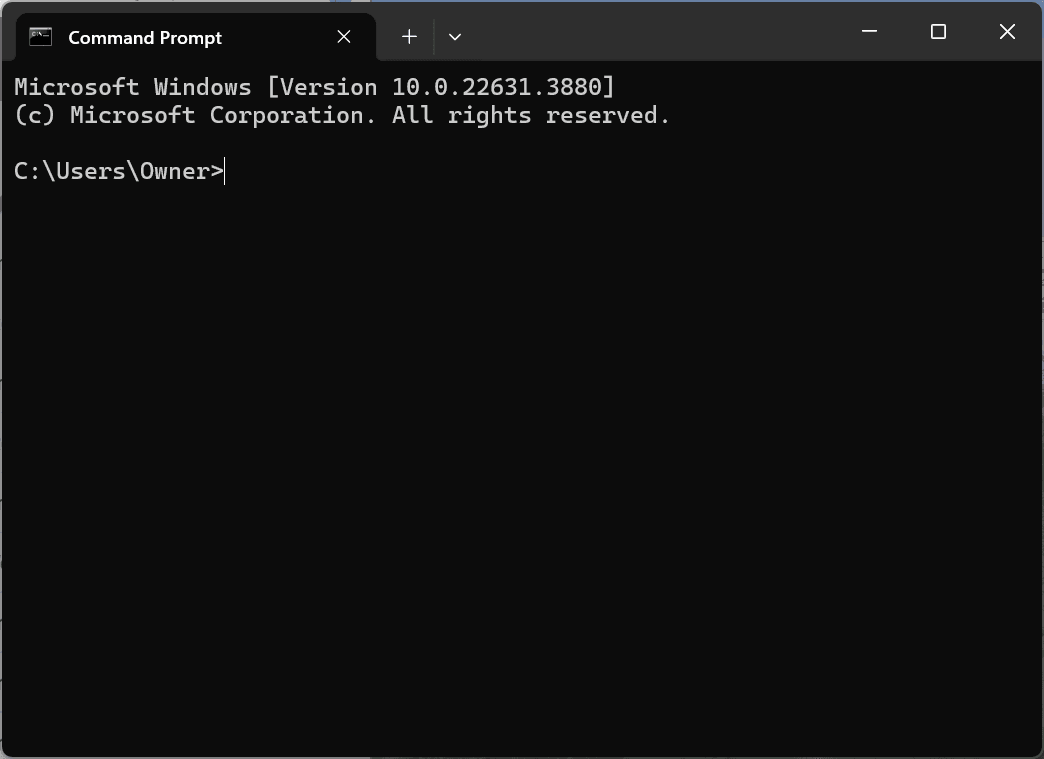
Windows 11 Command Prompt window
Table of Contents
- So what is a hidden file anyway?
- Showing hidden files via the File Explorer
- Showing hidden files via Command Prompt
- Related Resources
So what is a hidden file anyway?
Sometimes we have to make changes to files whose names begin with a dot (.), but dot files are hidden, and we can't see them!
In this article, I will discuss how we can show hidden files in Windows 11. And for those of you that are familiar with Windows 10, showing hidden files in Windows 11 is much more straightforward, and the process is different.
Showing hidden files via the File Explorer
In order to show hidden files in File Explorer, first I launch File Explorer via the search bar in the Windows dock and type "File Explorer". Then I click on "File Explorer" to go into it and find the location of the hidden files (or folders) I want to reveal:
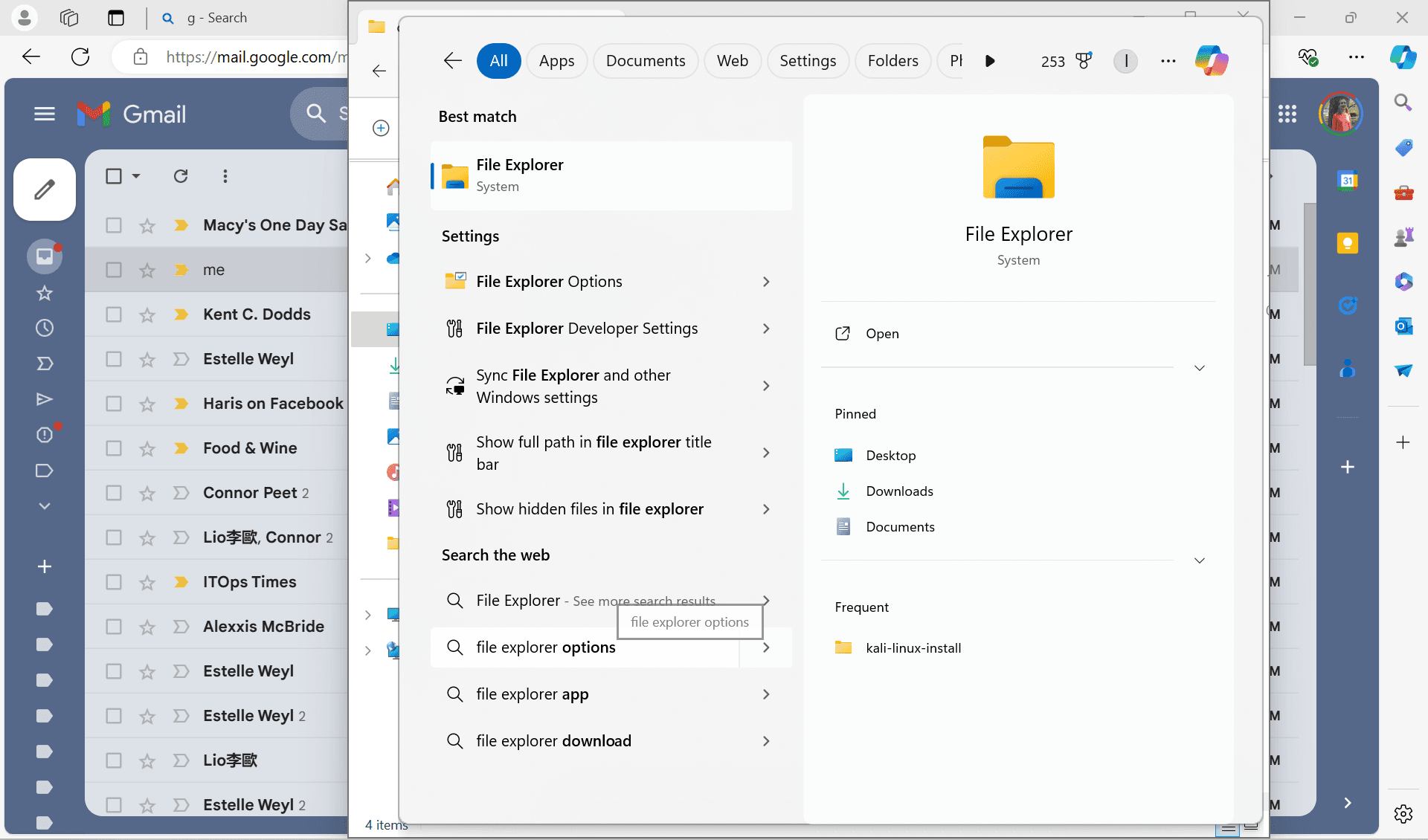
Search results from Search bar located in Windows dock
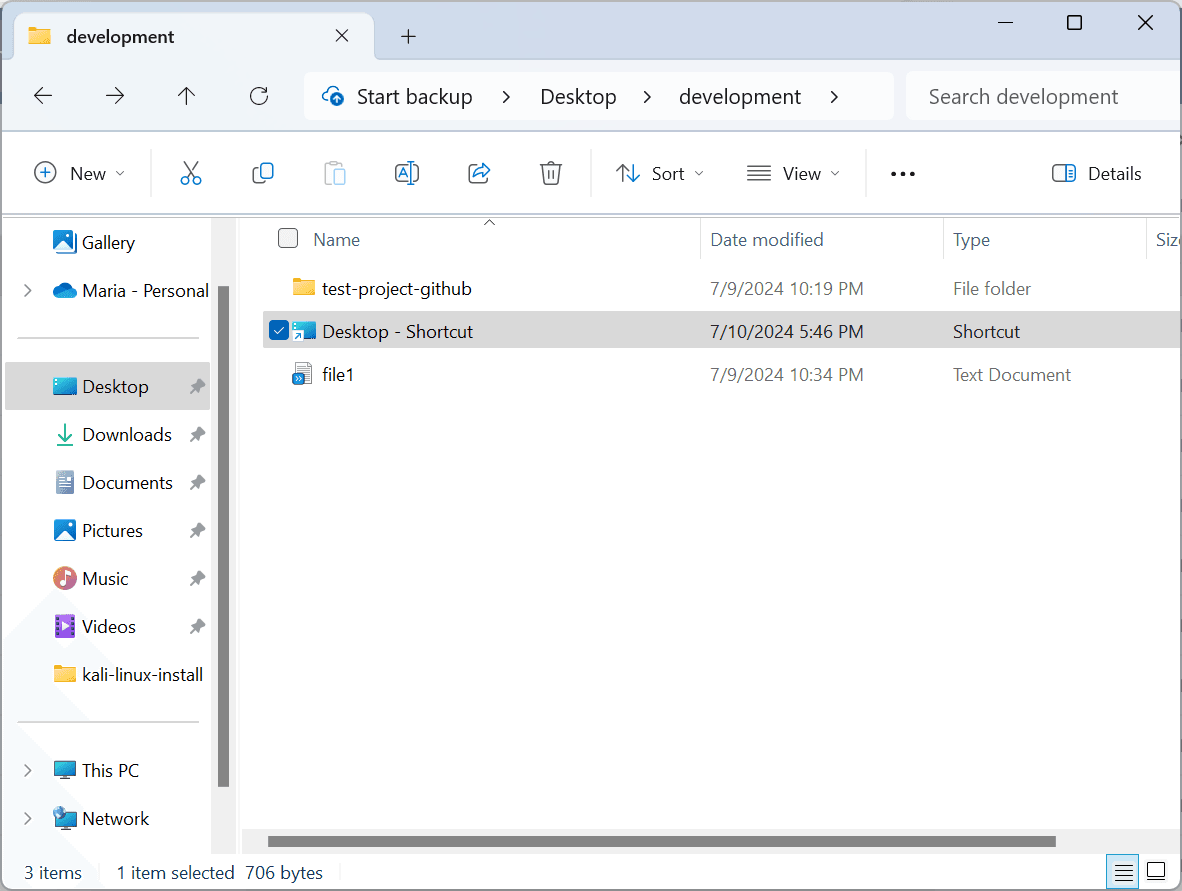
In this case, I have selected a folder called "development" on the Desktop, and it looks something like the following:
I click on the View tab in the File Explorer menu bar, and the following appears:
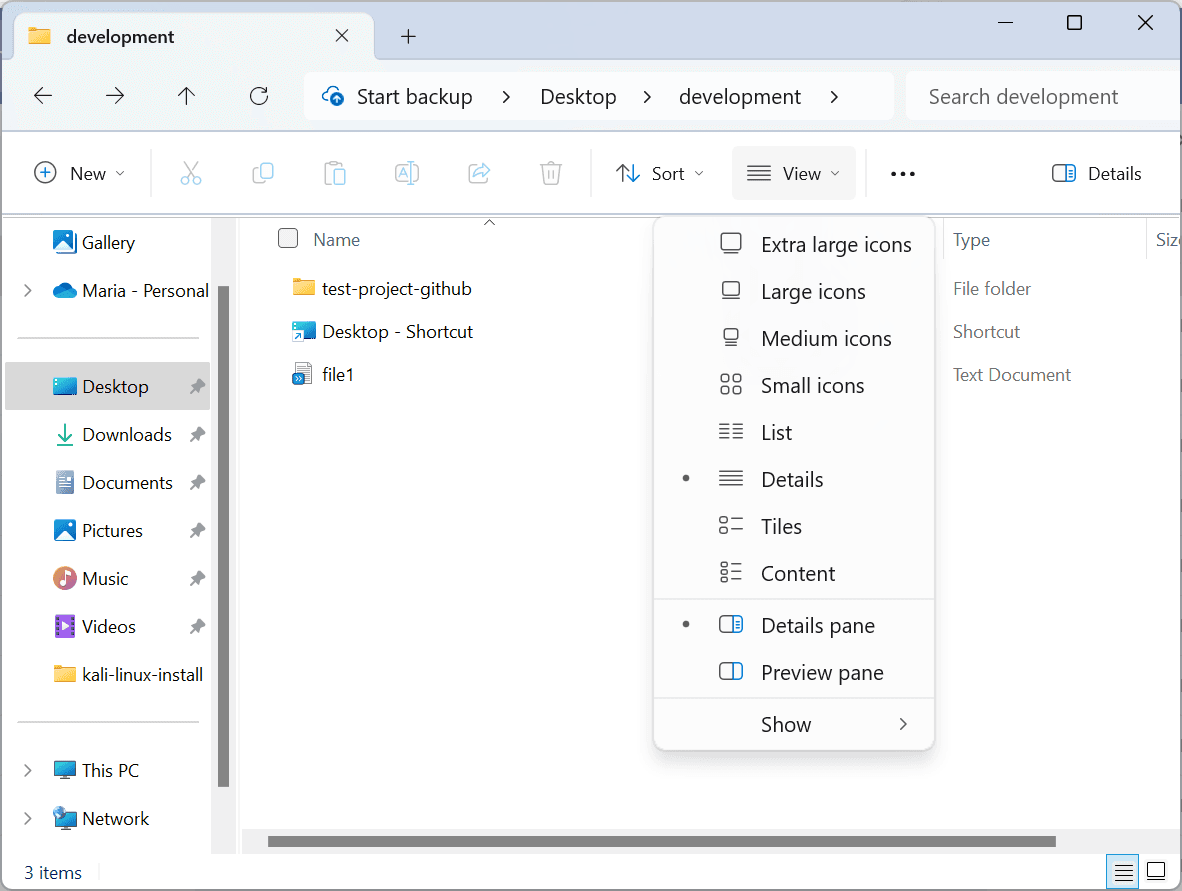
View tab expanded
Next, I go down to the "Show" option at the bottom and select it. The following appears:
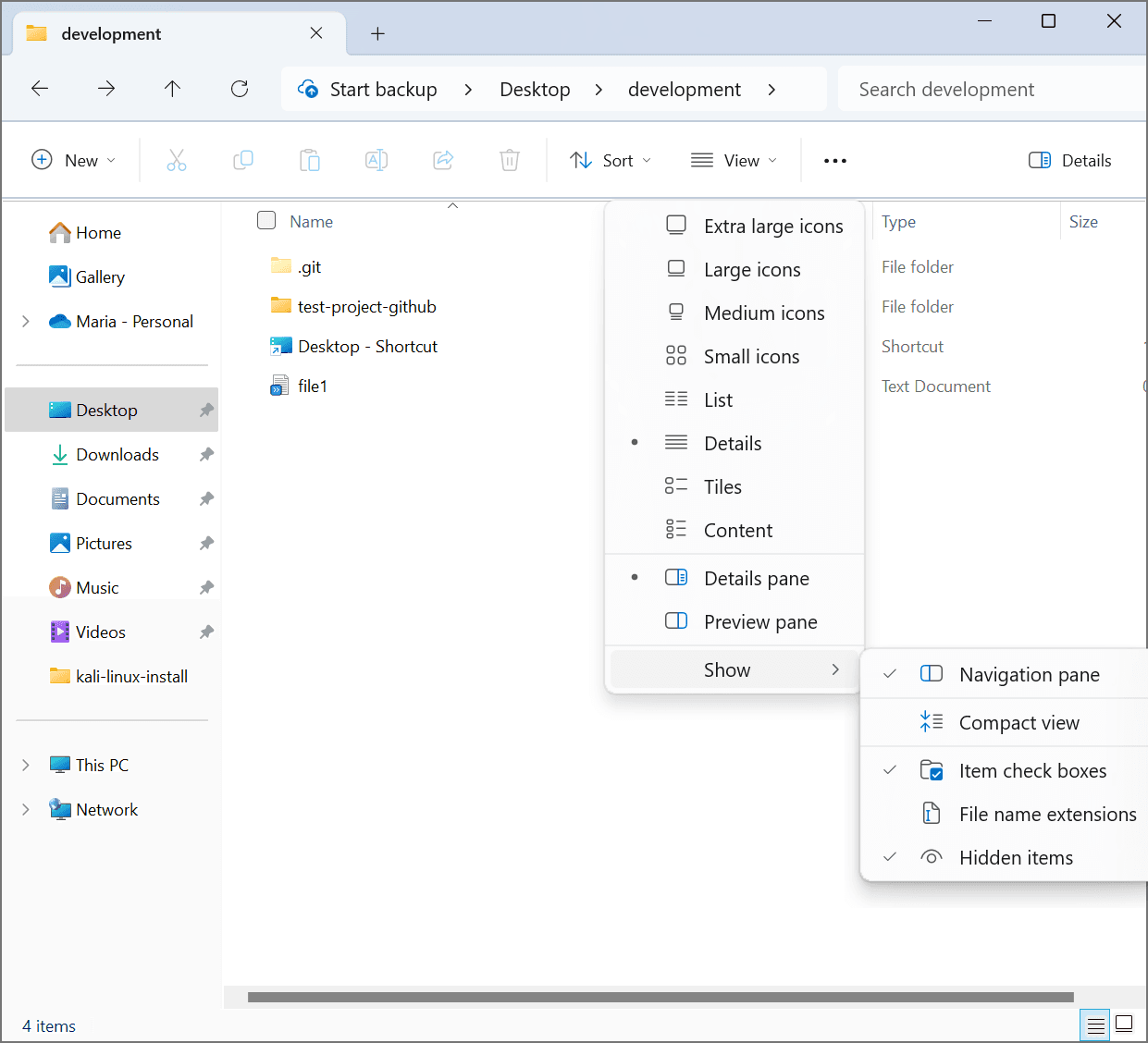
Show option expanded
As shown in the screenshot, I select "Hidden Items", which then results in the appearance of a dot folder called .git.
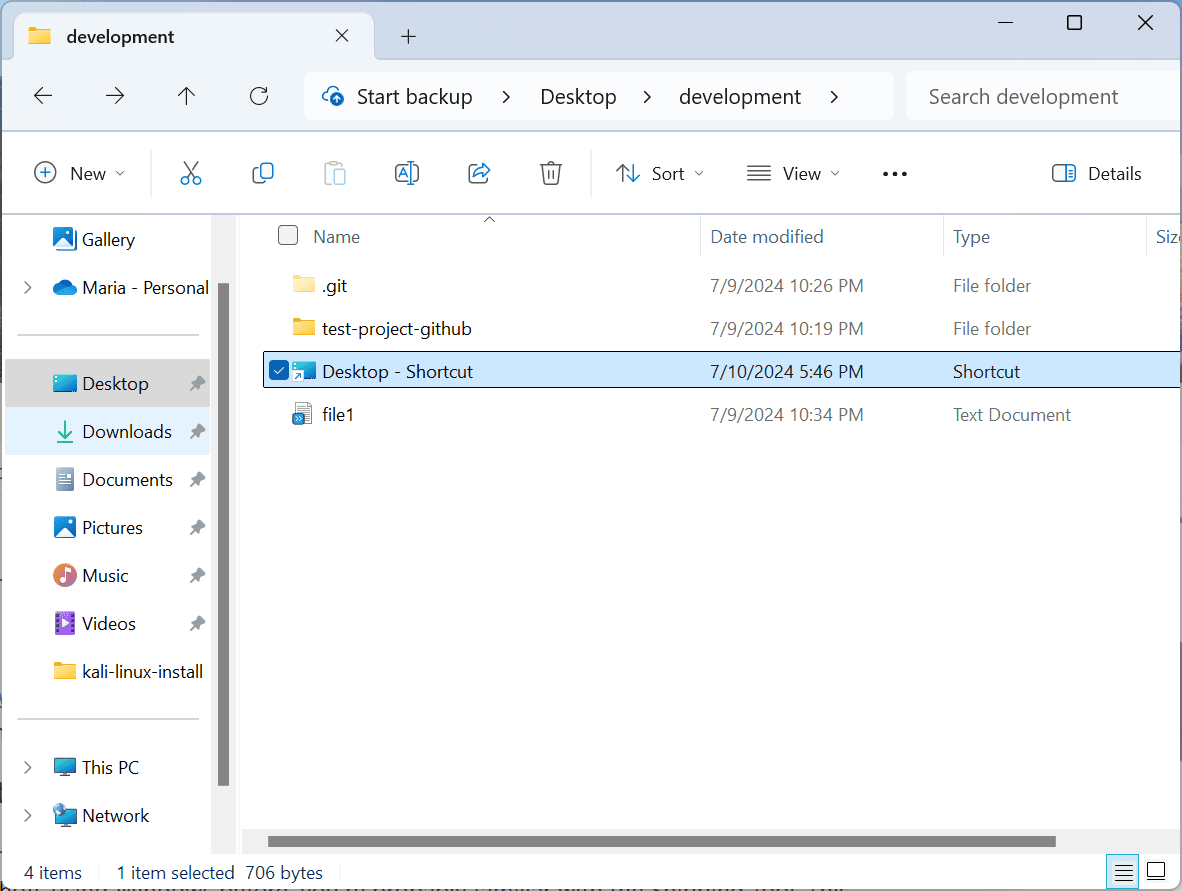
Show hidden folder via File Explorer
When I deselect "Hidden Items", .git disappears.
Revealed hidden folder hidden again
Showing hidden files via Command Prompt
If are like me, and you like working via Command Line (Command Prompt) as much as possible, you can go to the same search bar in the Windows dock and type the following:
cmd
Then I click on Command Prompt in the search results, and something like the following appears:
Command Prompt window
Next, I cd into the folder where I want to reveal hidden files or folders:
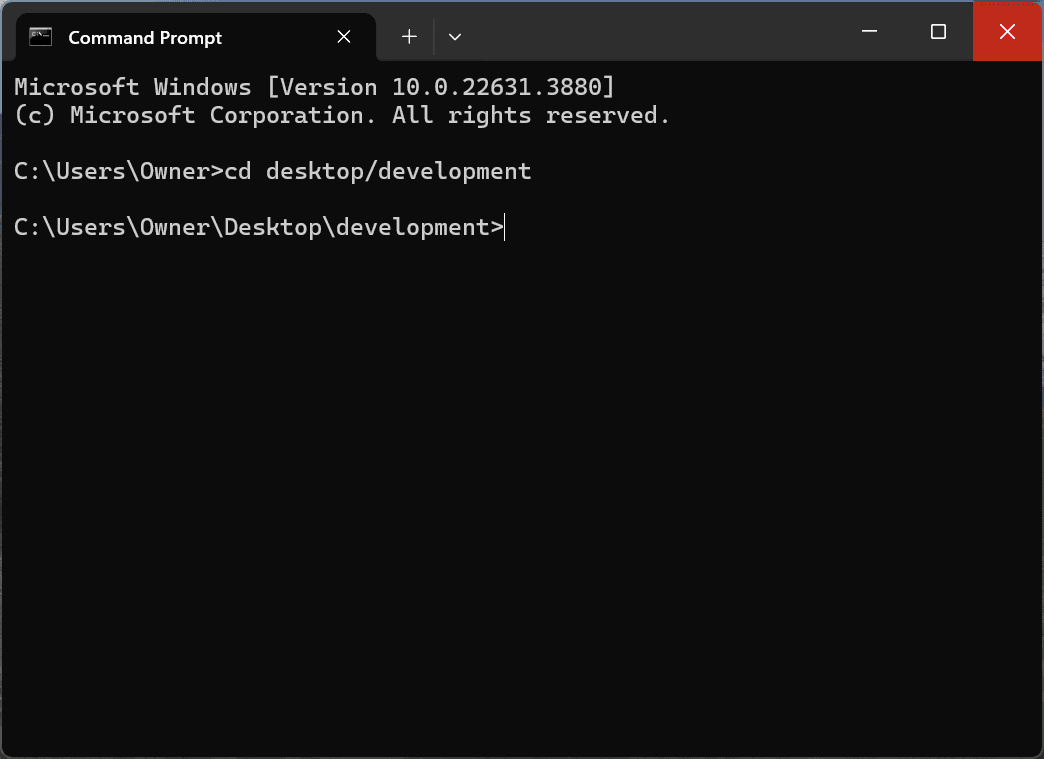
Then I run the dir command to see what is visible in the folder:
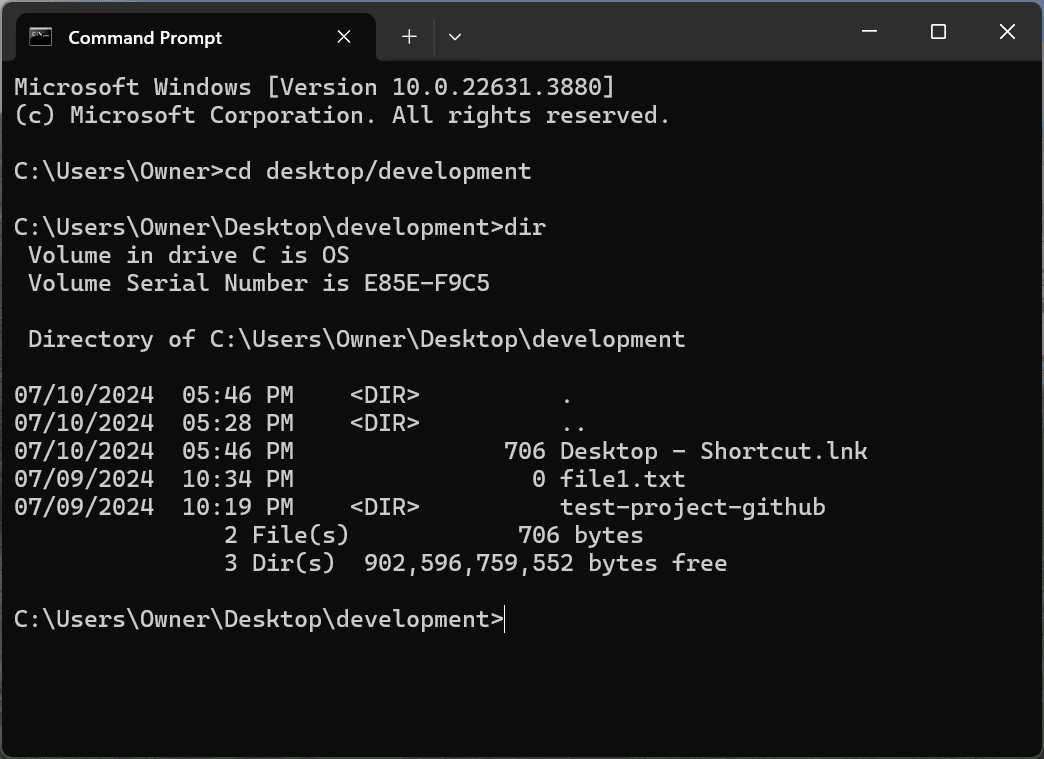
Running the dir command in Command Prompt
No dot (hidden) commands are visible. They are not by default.
Next I run the following command in Command Prompt:
dir /a:h
which results in the following:
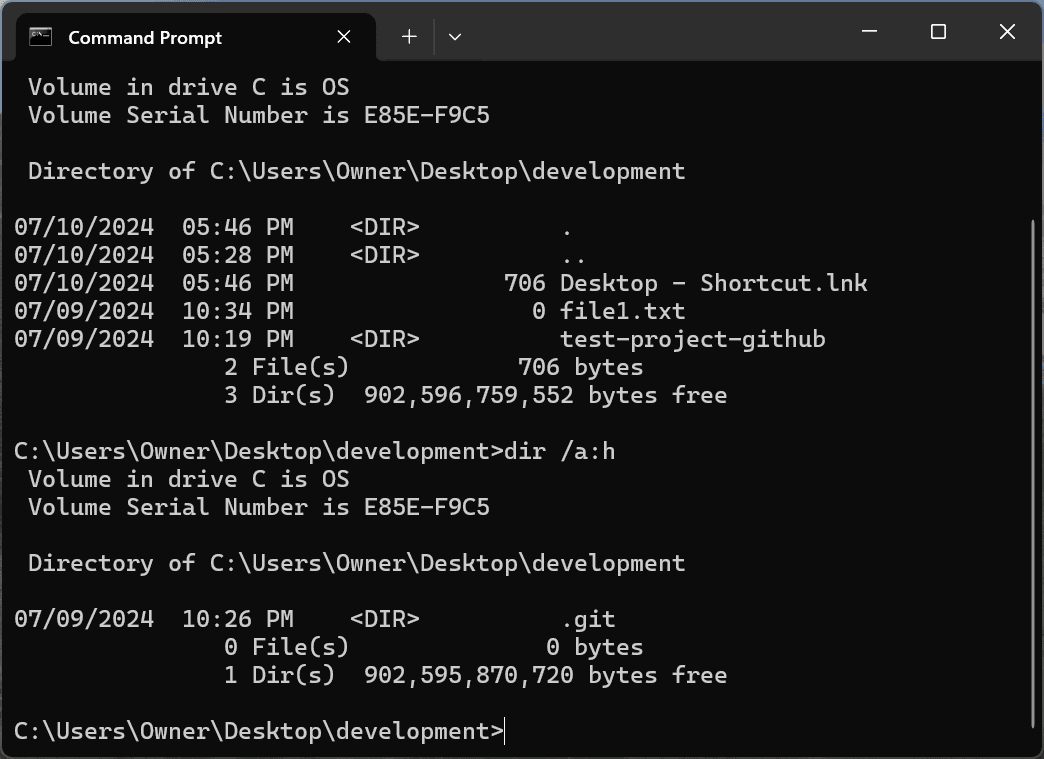
Running the dir /a:h command in Command Prompt
Now a dot folder called .git appears. However, when I run the dir command again, the .git folder is hidden again, because the result of dir /a:h is not persistent.
Related Resources
-
How To Show Hidden Files in Windows (For Beginners): by Mars Groves, all about cookies
-
Changing permissions using symbolic mode and numeric mode in Linux and Unix (macOS): mariadcampbell.com
-
Shell script for turning your macOS laptop's WiFi off and on: mariadcampbell.com