Editing your zsh history
Social Share:
Thursday, June 11, 2026 at 7:44 AM | 8 min read
Last modified on Thursday, June 11, 2026 at 10:10 PM
#macOS, #command line, #history, #terminal history, #vim, #zsh

Photo by Bas Peperzak on unsplash.com
Table of Contents
- How to delete commands in .zsh_history in iTerm2 (Zsh shell)
- Opening .zsh_history using the Vim .zsh_history command
- Using fn key shortcuts to search through history
- Moving to a line with Colon key + line number in command mode
- Deleting a line with dd in command mode
- Deleting a line with Control key + u key in insert mode
- Deleting lines in visual mode
- Deleting a range of lines in command mode
- Deleting all lines in command mode
- Deleting parts of a line in command mode
- Vim edit commands recap
- Conclusion
- Related Resources
Today I thought it time to go through my Zsh shell history and purge both duplicate commands and commands with typos. This way I could reuse commands confidently.
How to delete commands in .zsh_history in iTerm2 (Zsh shell)
I'm not going to simply go through a generic walkthrough about how to remove content from my .zsh_history file all at once. I'll describe how I cherry pick the lines which I want to delete and how I get around Vim doing it.
I work on a MacBook Pro M1 Silicon from 2021. My (default) shell is Zsh. In order to delete a command from Zsh history, I first open up my .zsh_history file with the Vim editor. You could choose to use the Nano editor, which is also available on macOS, but I prefer Vim.
Note that there will be sites that will state that you can delete a line from history using the history -d <linenumber> command. However, that only works in the Bash shell. I have tried it myself, and it does not work with Zsh.
Opening .zsh_history using the Vim .zsh_history command
To access .zsh_history where all the commands that have been executed, first I launch iTerm2, and run the following command in an iTerm2 window instance inside my home directory (~):
# pwd should be ~ which represents your home directory
VIM .zsh_history
The command opens up my .zsh_history file in the Vim text editor.
Using fn key shortcuts to search through history
I can search through the commands by using one or a combination of the following shortcuts:
fn key + ← key — moves you to the beginning of a line
fn key + → key — moves you to the end of a line
fn key + ↑ key — moves you up a line
fn key + ↓ key — moves you down a line
fn key + G key — moves you to the beginning of the file
fn key + shift key + G key — moves you to the end of a file
The screenshot below is a snapshot of what my .zsh_history file looks like:
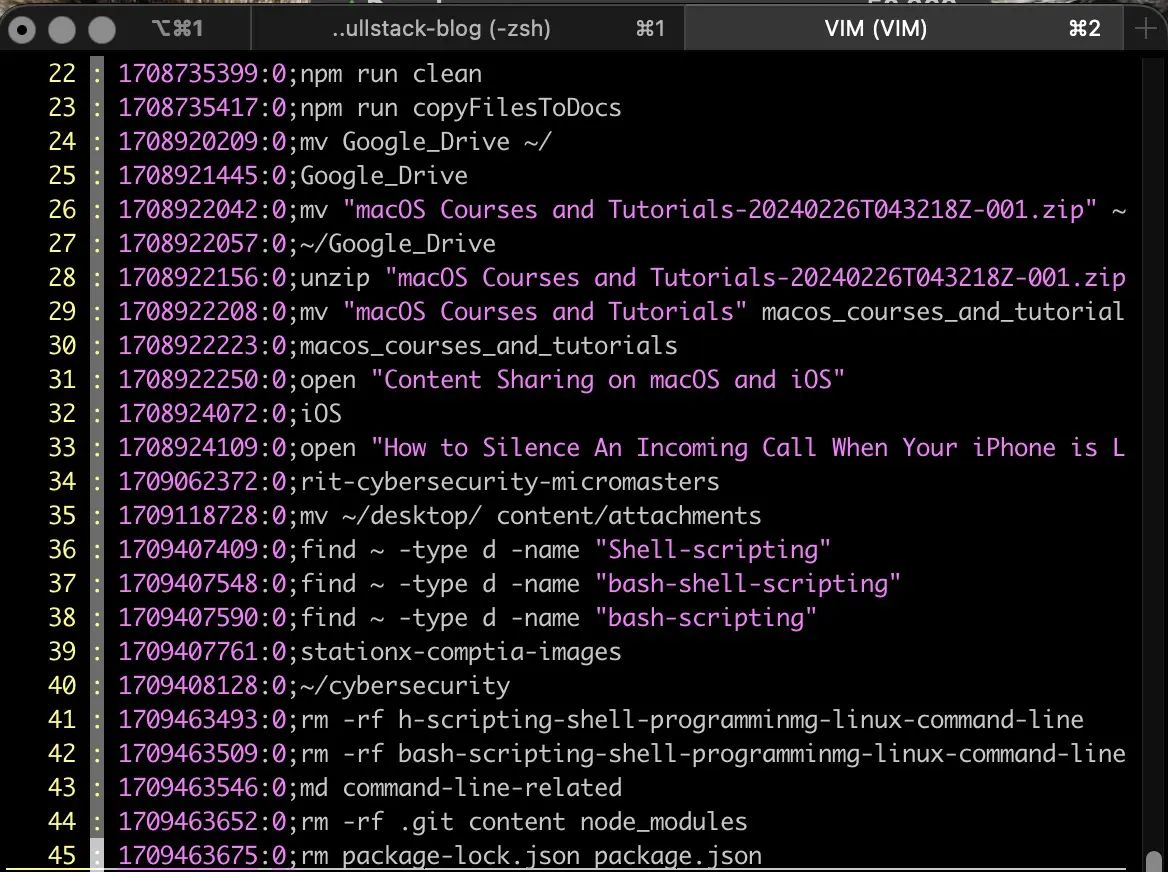
Snapshot of the .zsh_history file
When I go through the commands, I may notice that there are some which may be no longer applicable (they have been there for years) and some which may contain typos and are therefore useless.
Moving to a line with Colon key + line number in command mode
Let's say I want to go to a particular line inside .zsh_history. Instead of simply going through hundreds of lines, one at a time, using the ↑ or ↓ key, I can type : followed by the line number. But I have to make sure that I am in command and not insert mode before I do that. Pressing the esc key takes me into command mode.
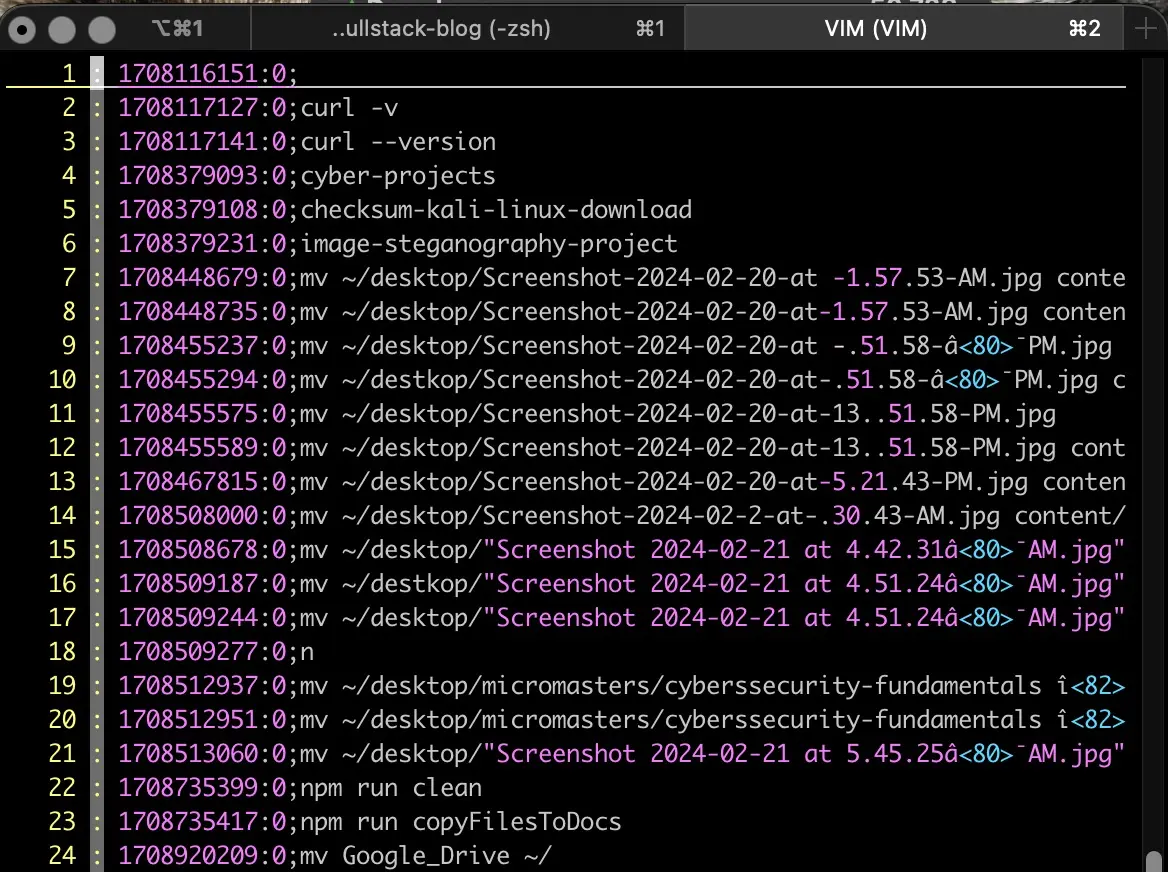
Snapshot of .zsh_history file in command mode including cursor
In the screenshot above, the cursor is in command mode, and the cursor, represented by a horizontal white line, is at line one. In order to skip to another line within the file, I press : followed by a number:
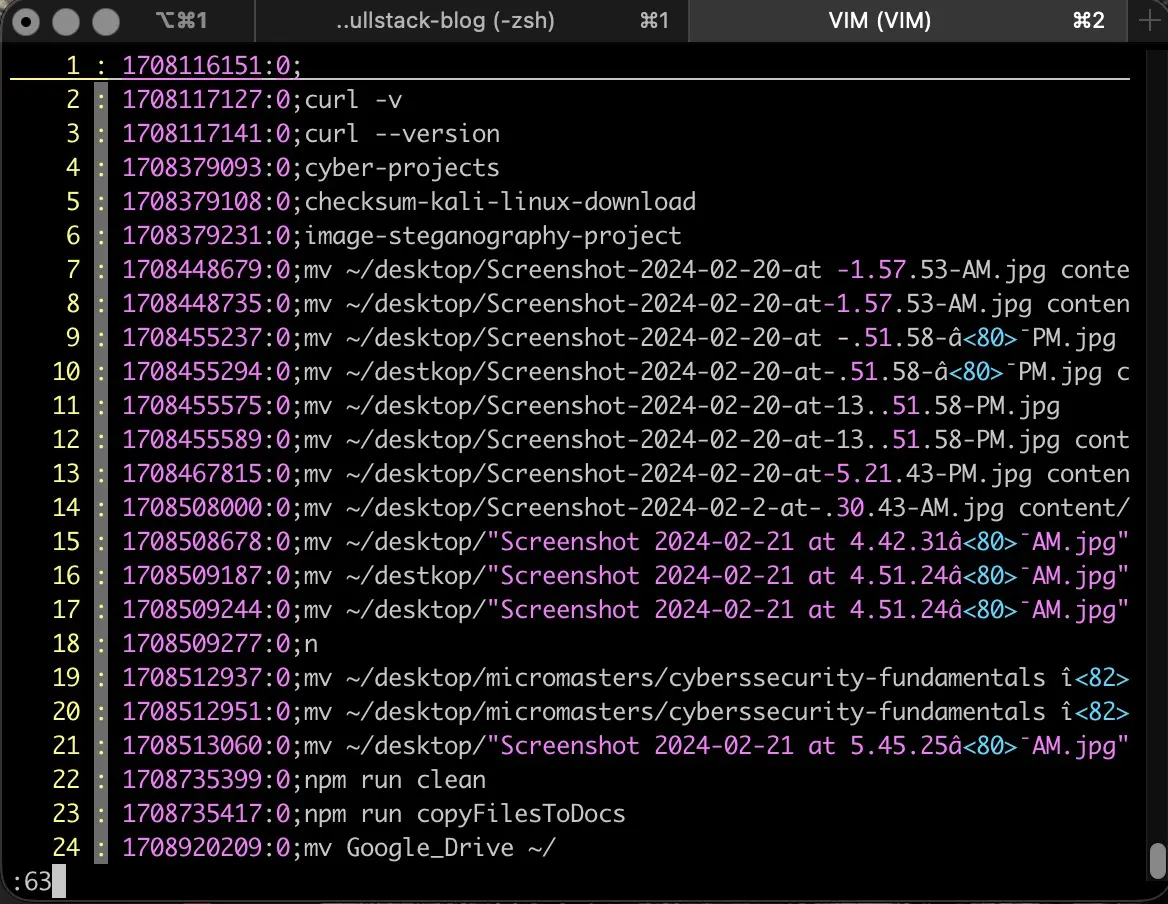
Snapshot of .zsh_history file in command mode including cursor and calling line number
When I press the return key, the following is returned:
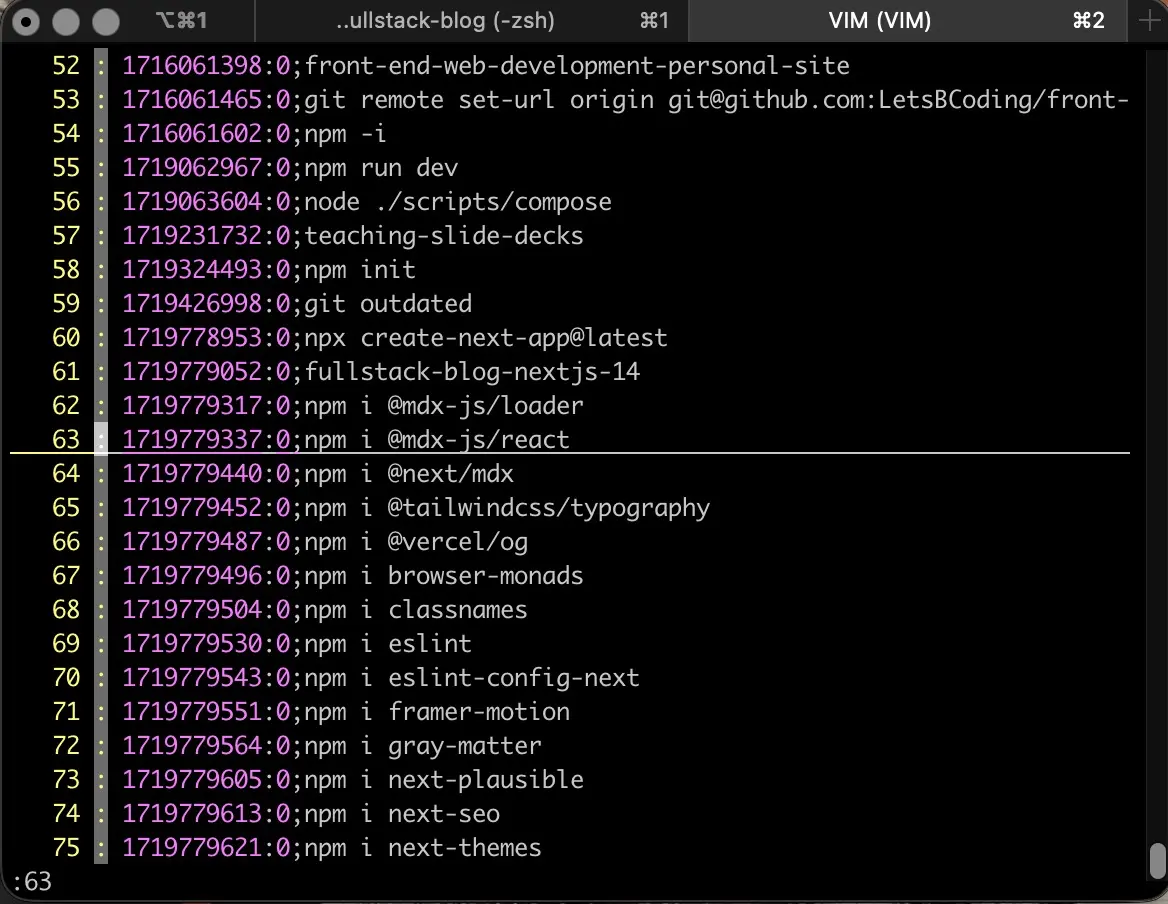
Snapshot of .zsh_history file in command mode including cursor and retrieving line number
Deleting a line with dd in command mode
Once the line I want to delete has been selected, I press esc to make sure I am in command mode, type (lowercase) d key + d key, and the line which has been selected is deleted.
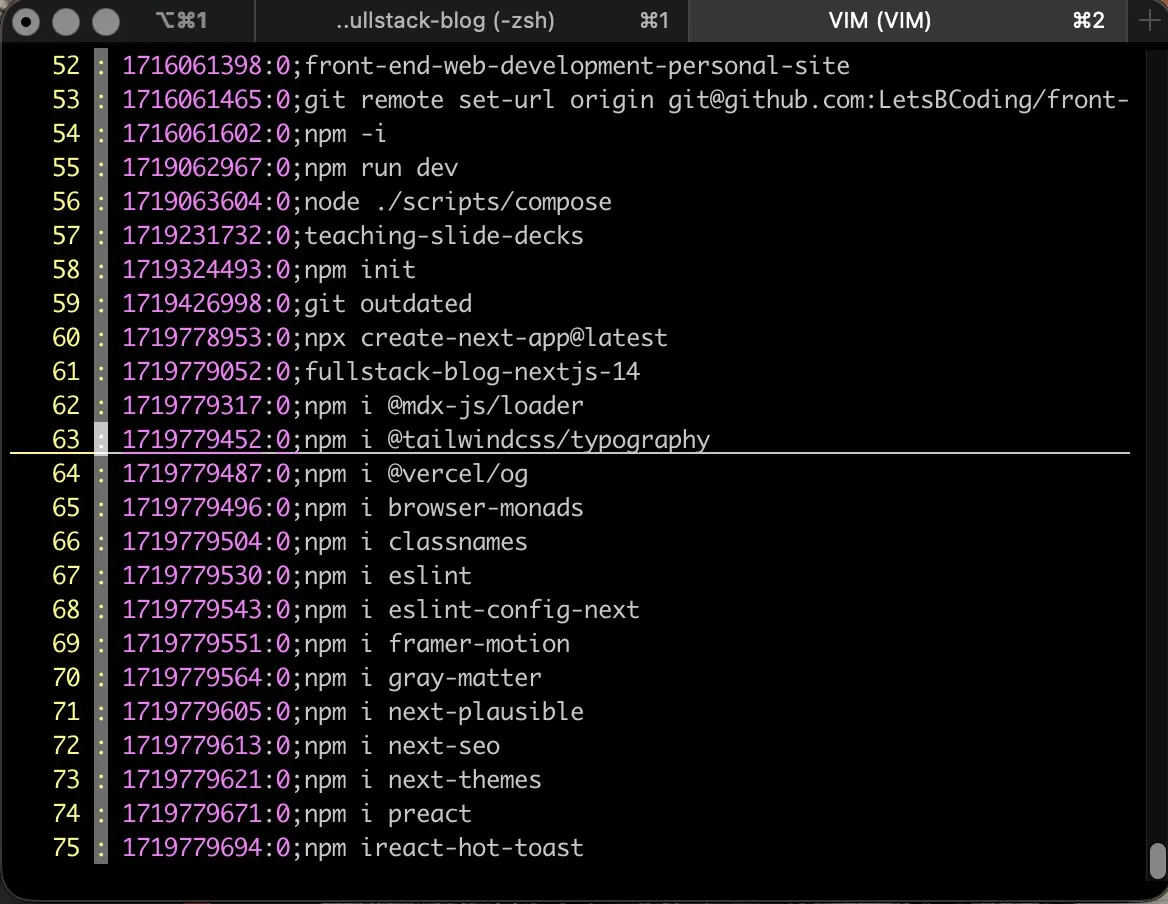
Deletion of line(s) in .zsh_history by pressing the lowercase d key twice
You may notice that I deleted two lines. I mistakenly typed dd twice. I have to be careful not to do that if I don't want to delete more than one line. When I type dd, I should make sure that I did delete the line before I type dd again thinking that I was not successful the first time. In this case it didn't matter, but it could have. I can avoid this mistake by not turning my eyes away from the screen while I am typing dd.
Deleting multiple lines with dd in command mode
To delete multiple lines with dd, if I first press esc to make sure I am in command mode and then type 7dd, for example, it will delete the selected line and then 6 lines below it.
Deleting a line with Control key + u key in insert mode
I can also delete one line at a time in insert mode. To go into insert mode, I press the (lowercase) i key and INSERT appears. Then I go to the line I want to delete by pressing the fn key + either the ↑ key or the ↓ key to take me there. Then I press the fn key + ⇢ key to take me to the end of the line.
After I get to the end of the line, I press Control key + u key, which deletes the whole line. Then I press the Control key + u key again, and it deletes the empty line and takes me up one line and to the end of it. The second approach is just as fast, and perhaps offers a bit more "control" over the deletion process because it is done in two (visible) steps which are easier to follow. It's a matter of personal preference. The first approach is blazing fast and therefore can be harder to follow.
Deleting lines in visual mode
I can delete lines in Vim using visual mode. To enter visual mode, press Shift key + V key (uppercase V). This will result in:
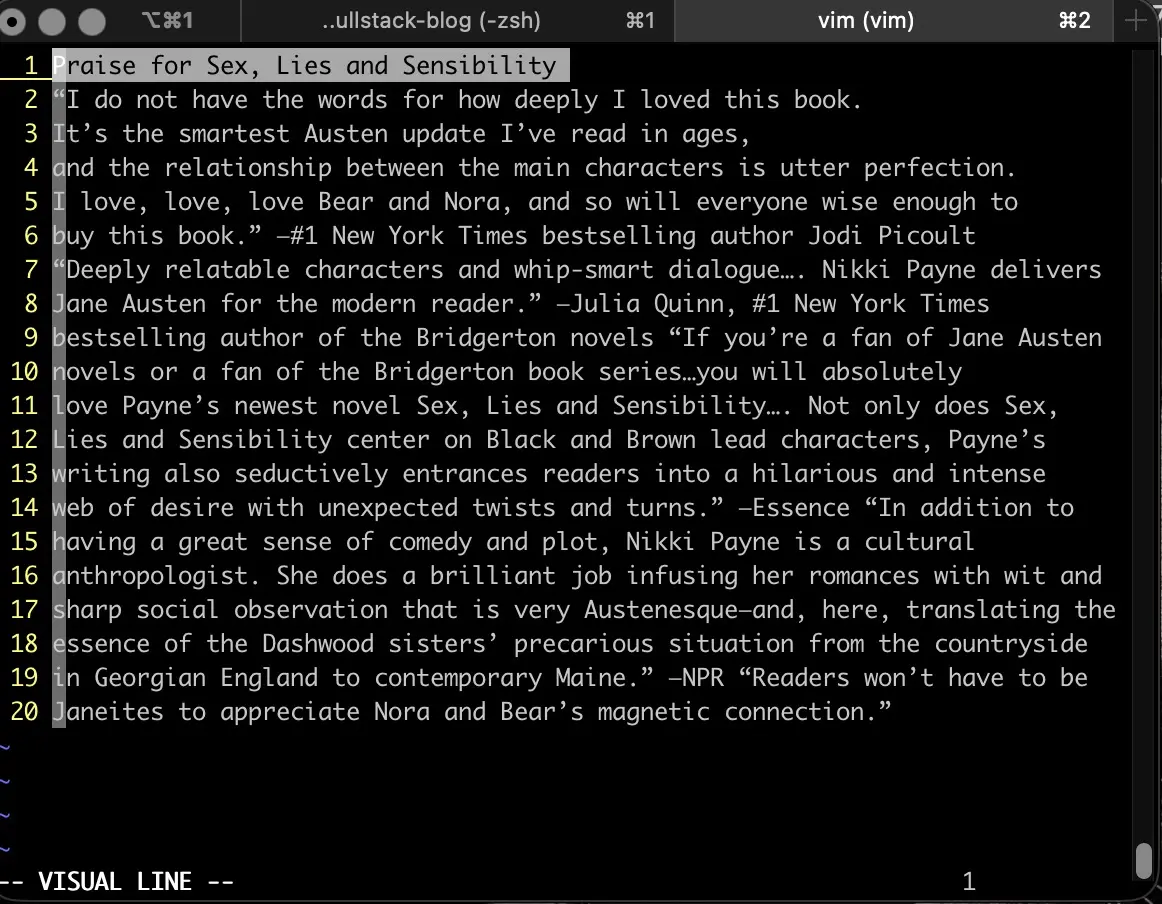
Entering visual mode in Vim
You may notice the number "1" at the bottom right of the screenshot. That represents the location of the cursor. And "VISUAL LINE" indicates that I am in visual mode.
In order to select/highlight more lines to delete, I press the ↓ key:
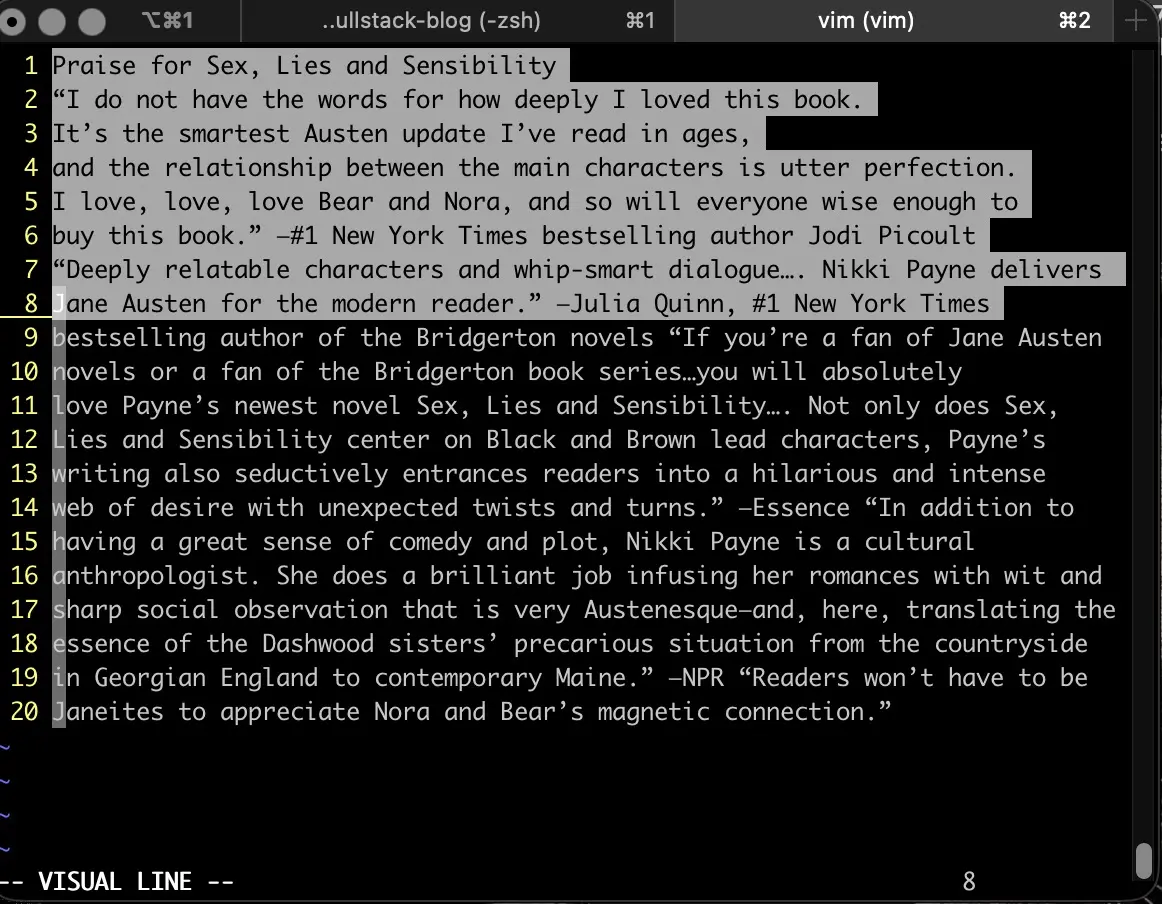
Selecting multiple lines to delete in visual mode
You may notice that at the bottom right of the screenshot is the number "8". That represents the number of lines that have been highlighted/selected.
Once I have made my selection, I press the (lowercase) d key and all the selected lines are deleted.
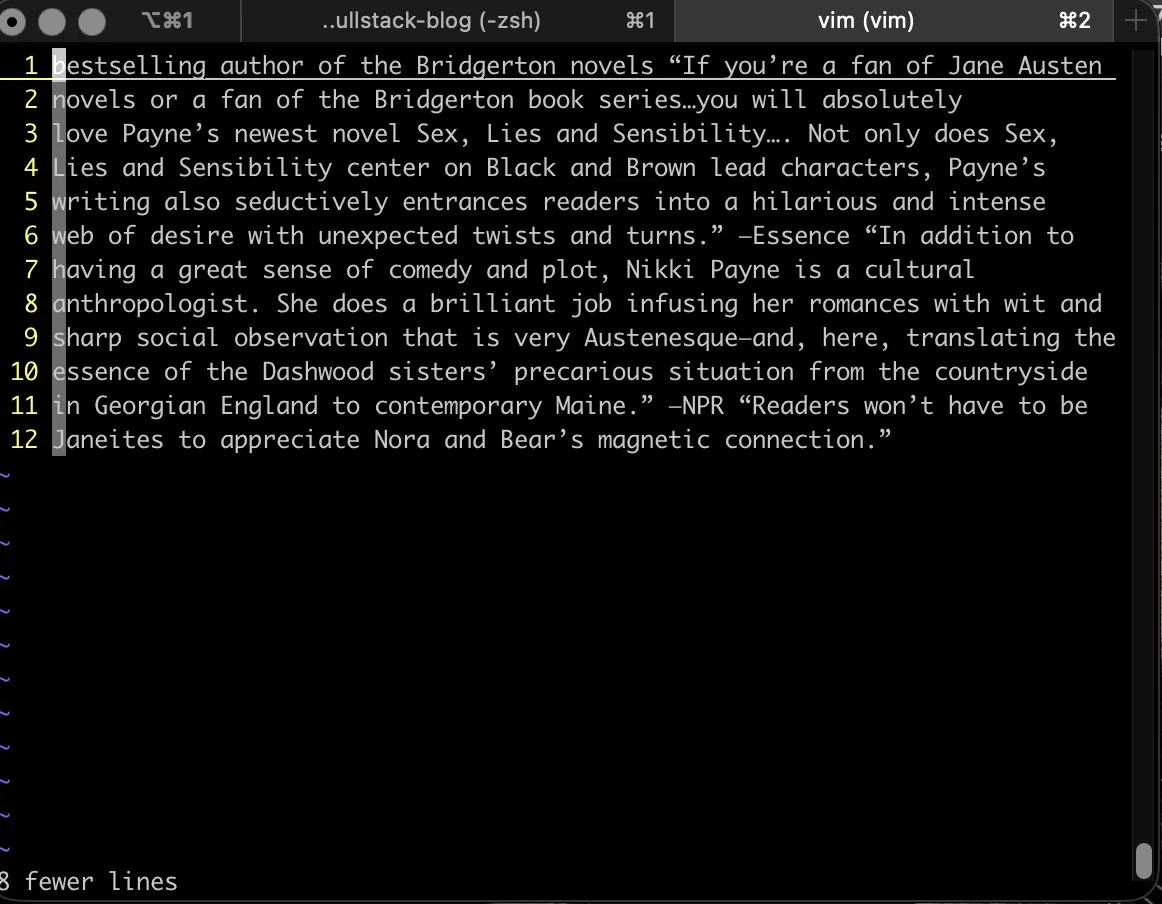
Result of pressing the d key after selecting lines to delete in visual mode
You may notice that multiple line deletion is also confirmed by the text "8 fewer lines" at the bottom left of the screenshot. This indicates that I have just deleted 8 lines in .zsh_history. In order to save these changes, I have to first press esc and then :x followed by pressing the return key in order to save the changes made to the file. Pressing the return key takes me back to the command prompt in Terminal.
One important thing to note about deleting lines in visual mode. Wherever the cursor is located in visual mode will be the first line that is selected before I use the ↑ or ↓ key to expand the number of lines I want to delete. So before going into visual mode, I have to make sure that I have placed my cursor on a line I want to delete while I am still in command mode. I would use the fn key + the ↑ or ↓ key to take me there.
Deleting a range of lines in command mode
The syntax for deleting a range of lines in command mode is:
:[start],[end]d
So let's say that I want to delete lines 6-12.
First, I would press the esc key to make sure that I am in command mode accompanied by the following:
:6,12d
This is what it looks like in Vim:
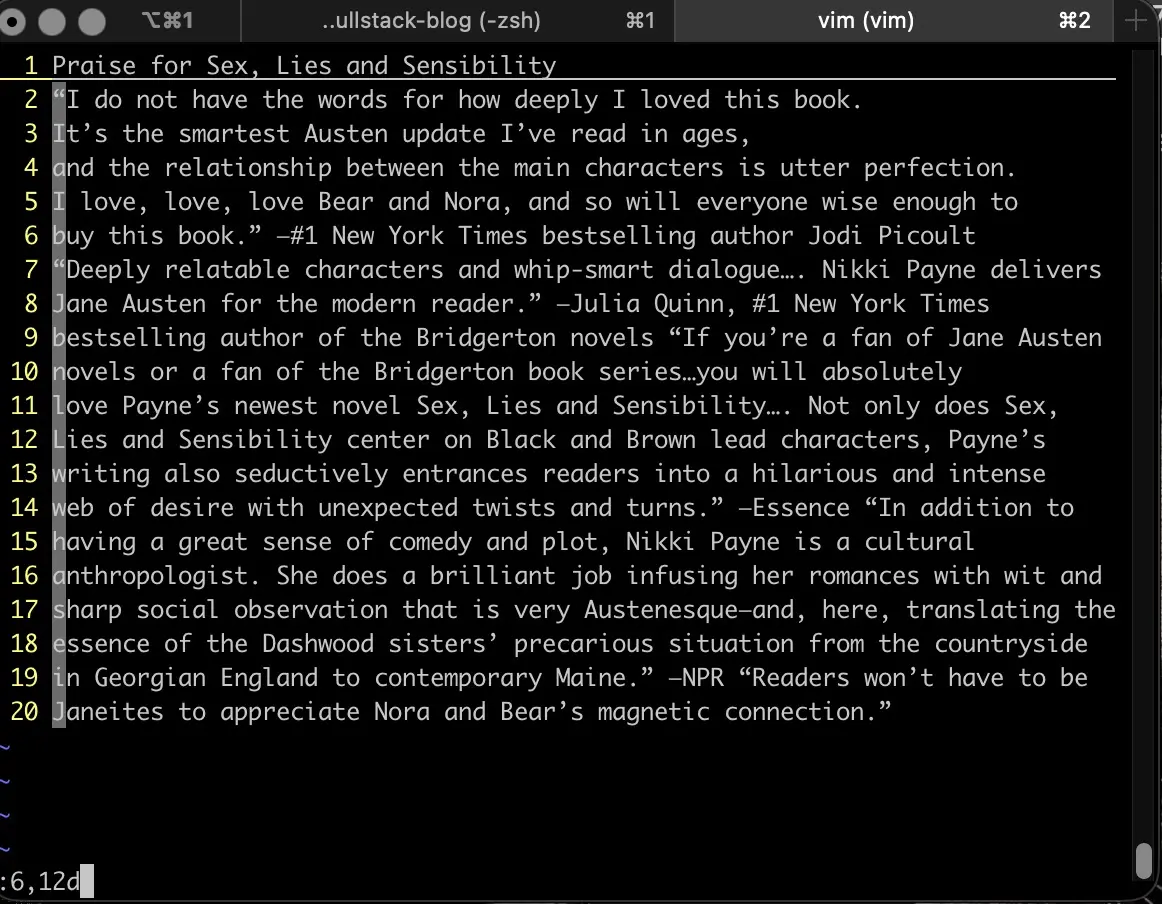
Preparing to delete a range of lines in Vim, 6-12
When I press the return key, the lines are deleted.
Using special characters in the range
- . (dot) represents the current line
- $ represents the last line
- % represents all lines
For example, :.,$d deletes from the current line to the end of the file.
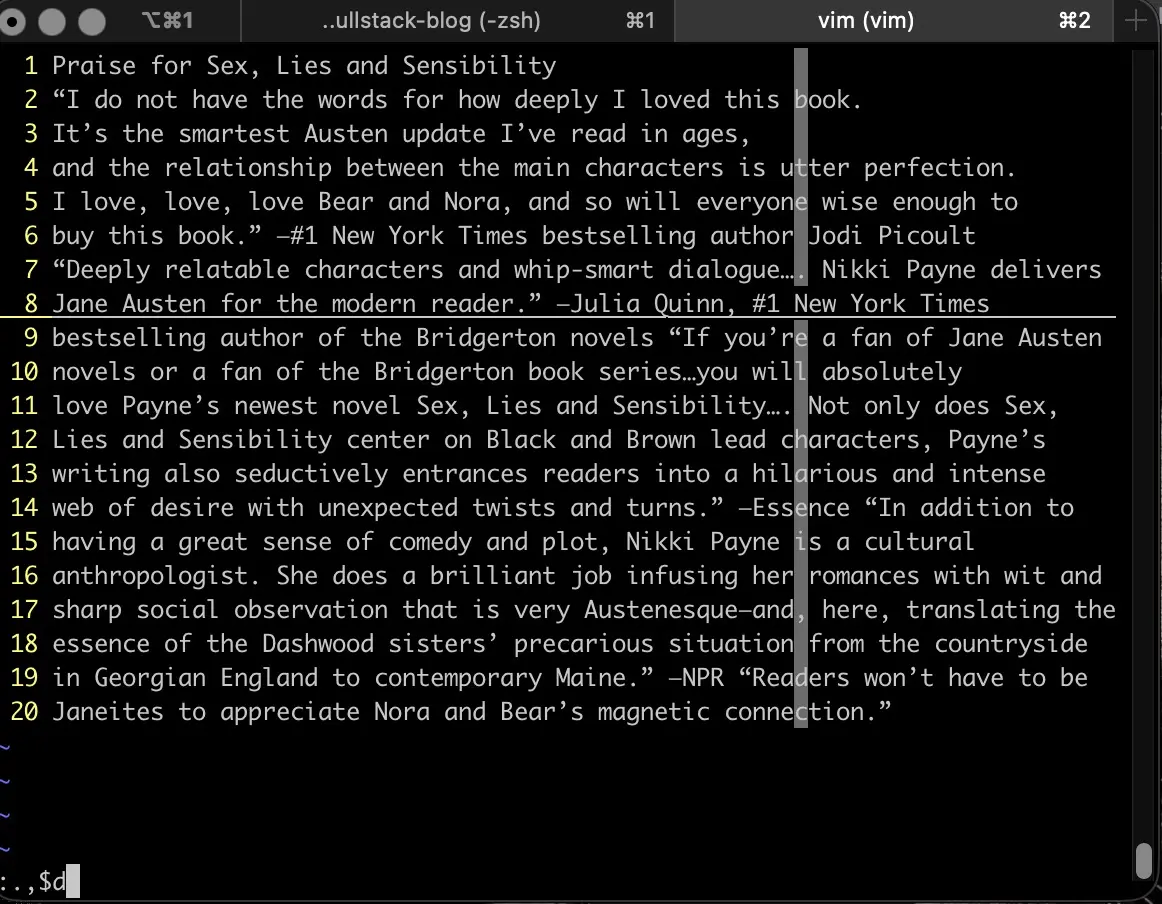
Preparing to delete a range of lines using the :.,$d command
And when I press the return key, it looks like the following:
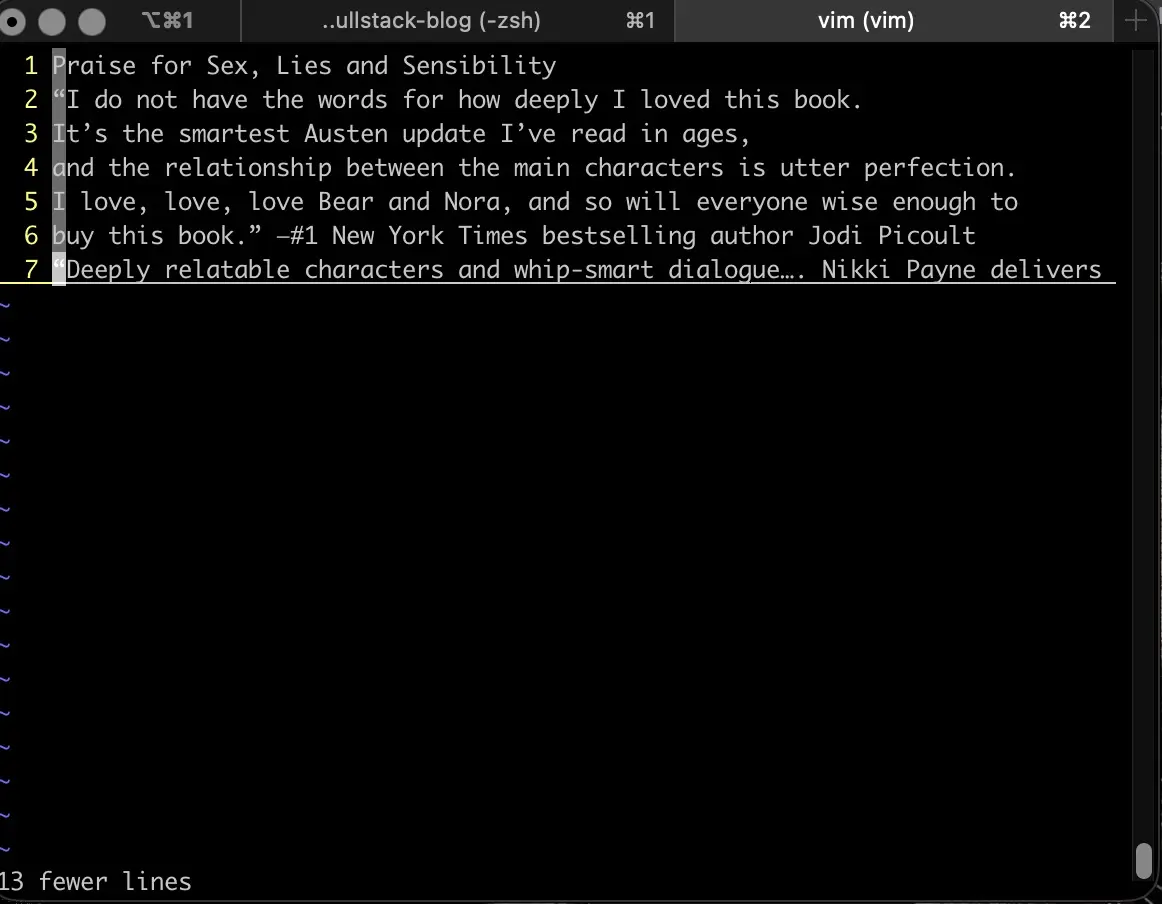
Result of running the :.,$d command in Vim
Deleting all lines in command mode
The really fun command is %. In order to delete all lines from a file in Vim, I complete the following steps:
- I press the esc key to enter command mode.
- I type :%d and then press the return key.
- If I want to save my changes, I press :x followed by pressing the return key. This takes me out of Vim and back to the Terminal command prompt.
- If I don't want to save my changes for whatever reason, I type :q!. This takes me out of Vim and back to the Terminal command prompt.
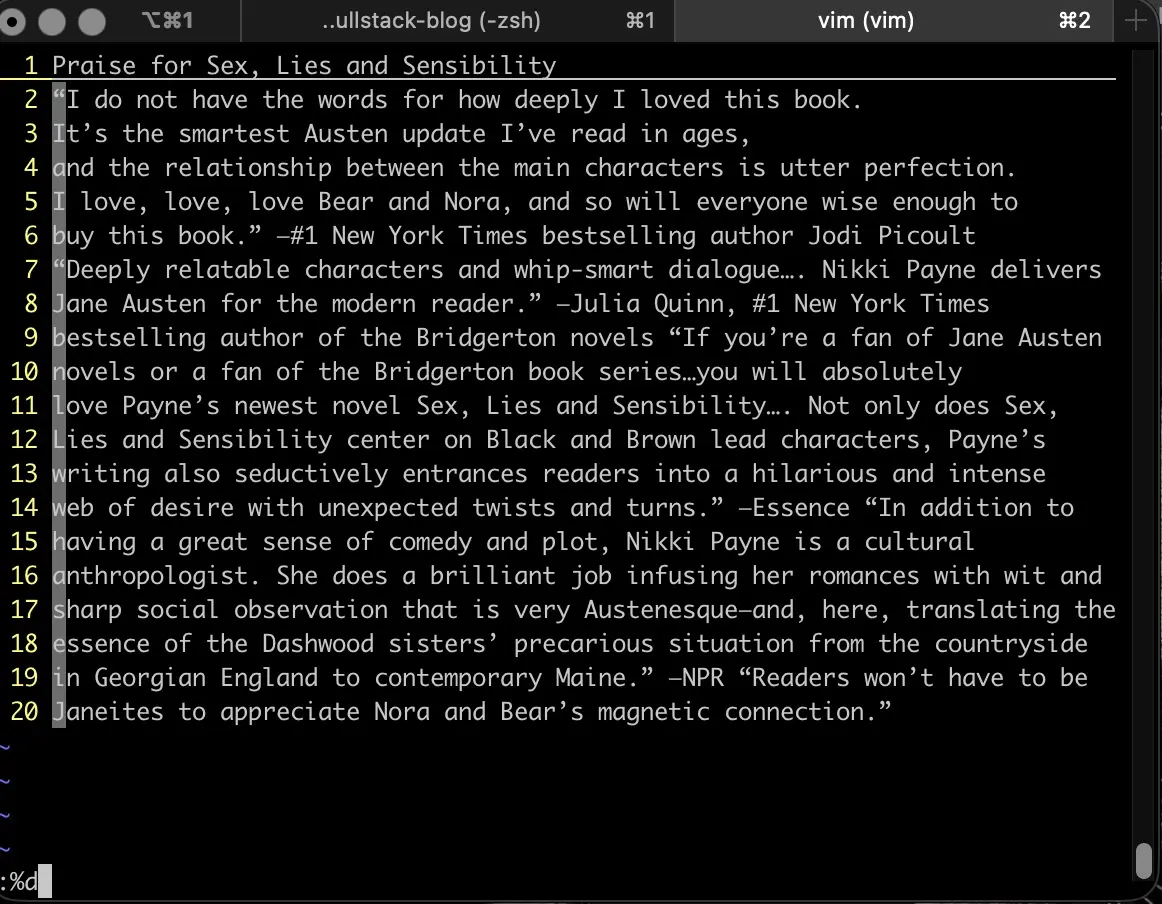
Preparing to delete the contents of a file from within Vim with the :%d command
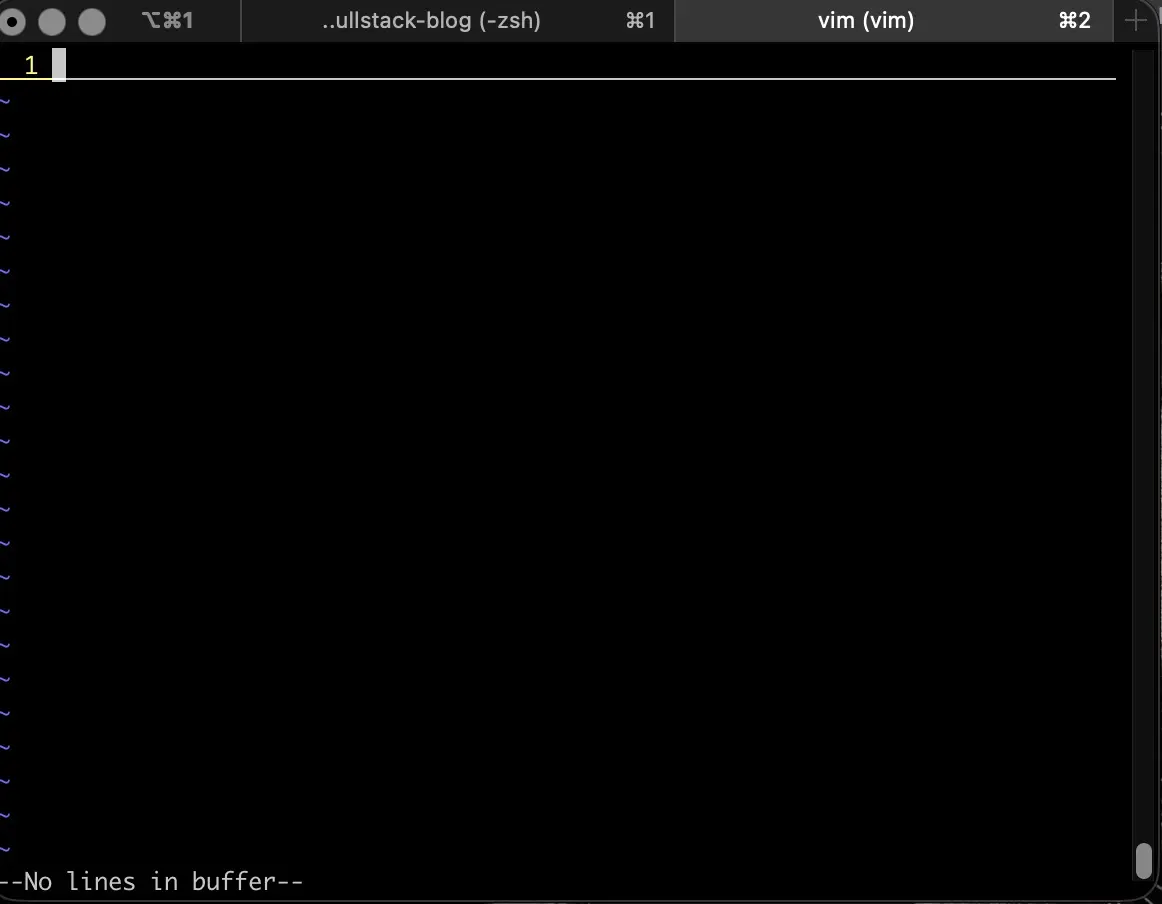
State of the file after executing :%d
As indicated by "--No lines in buffer--" at the bottom left of the screenshot, :%d deleted the entire contents of the file.
Deleting parts of a line in command mode
If I want to delete a part of a line from the cursor to the end of the line, I would type D or d$.
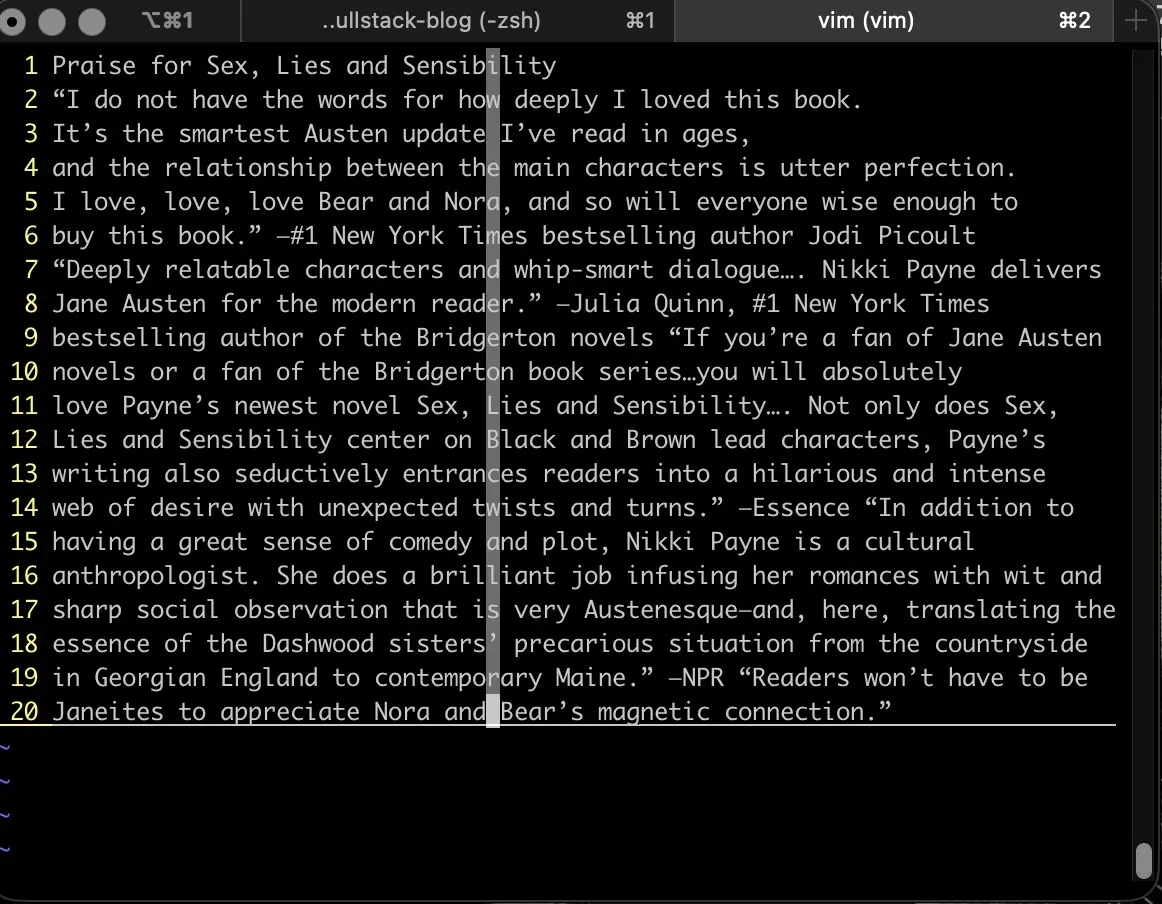
Preparing to delete a part of the line from the cursor to the end of it using the D command
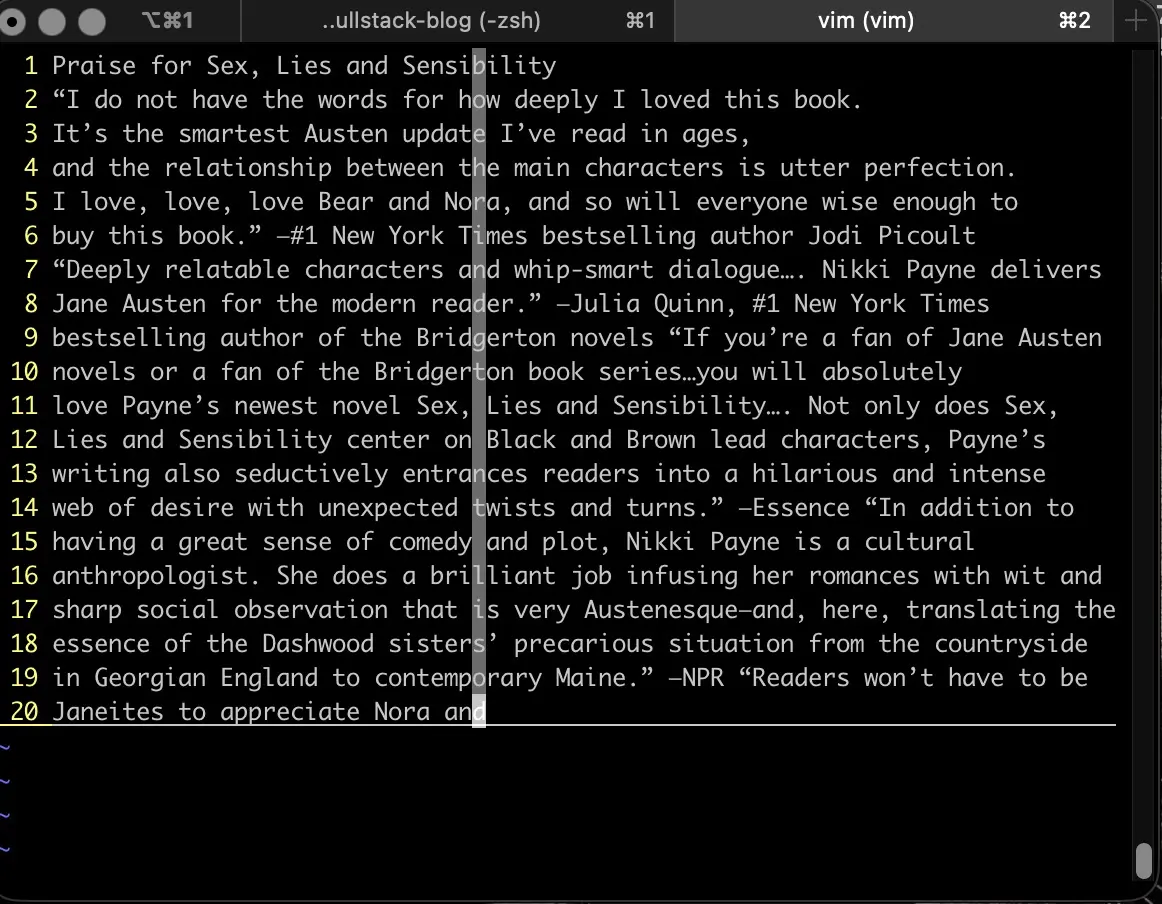
Result of execution of D command deleting part of line from cursor to the end of the line
Other commands which delete parts of a line in command mode include:
- d0 deletes from the cursor to the beginning of the line.
- dw deletes from the cursor to the start of the next word.
- db deletes from the cursor to the beginning of the current word.
Vim edit commands recap
| Vim command | Vim mode | Result |
|---|---|---|
| Colon key + line number | Command mode | Moves the cursor to the line number |
| dd | Command mode | Deletes the line number selected by the cursor |
| ndd | Command mode | Deletes the line selected by the cursor and n number of lines below it |
| Control key + u key | Insert mode | Deletes the current line as long as the cursor is located at the end of the line |
| Shift Key + v key -> either ↑ key or ↓ key -> d key | Visual mode | All selected lines are deleted |
| :[start],[end]d | Command mode | Deletes the range of lines from start line number through end line number |
| Colon key + Percentage key + d key | Command mode | Deletes all lines in a file leaving an empty one. |
| D / d$ | Command mode | Deletes a part of a line from the cursor location to the end of the line |
| d0 | Command mode | Deletes from the cursor location to the beginning of the line |
| dw | Command mode | Deletes from the cursor location to the start of the next word |
| db | Command mode | Deletes from the cursor location to the beginning of the current word |
Conclusion
In this post, I describe the various ways I can edit my .zsh_history file in Vim. I edit the file using command mode, visual mode, and insert mode. Command mode is the most convenient and fastest, and it is the default Vim mode. It takes a couple of extra steps to edit a file in Vim using either INSERT or VISUAL mode, but selecting which way to go is a matter of personal preference or the most efficient way to accomplish the task at hand.
Related Resources
- Clearing Terminal history in Linux and why it is important to do on occasion: mariadcampbell.com
- How to Delete Lines in Vim / Vi: by Dejan Panovski, linuxize.com
- Vim Cheat Sheet: vim.rtorr.com
- 4 Vim features to use to improve productivity: by Hunter Coleman, opensource.com
- Vim Cheatsheet: linuxize.com