How a stray package-lock.json can break your Next.js Turbopack build
Social Share:
Thursday, May 14, 2026 at 11:29 AM | 5 min read
Last modified on Thursday, May 14, 2026 at 11:29 AM
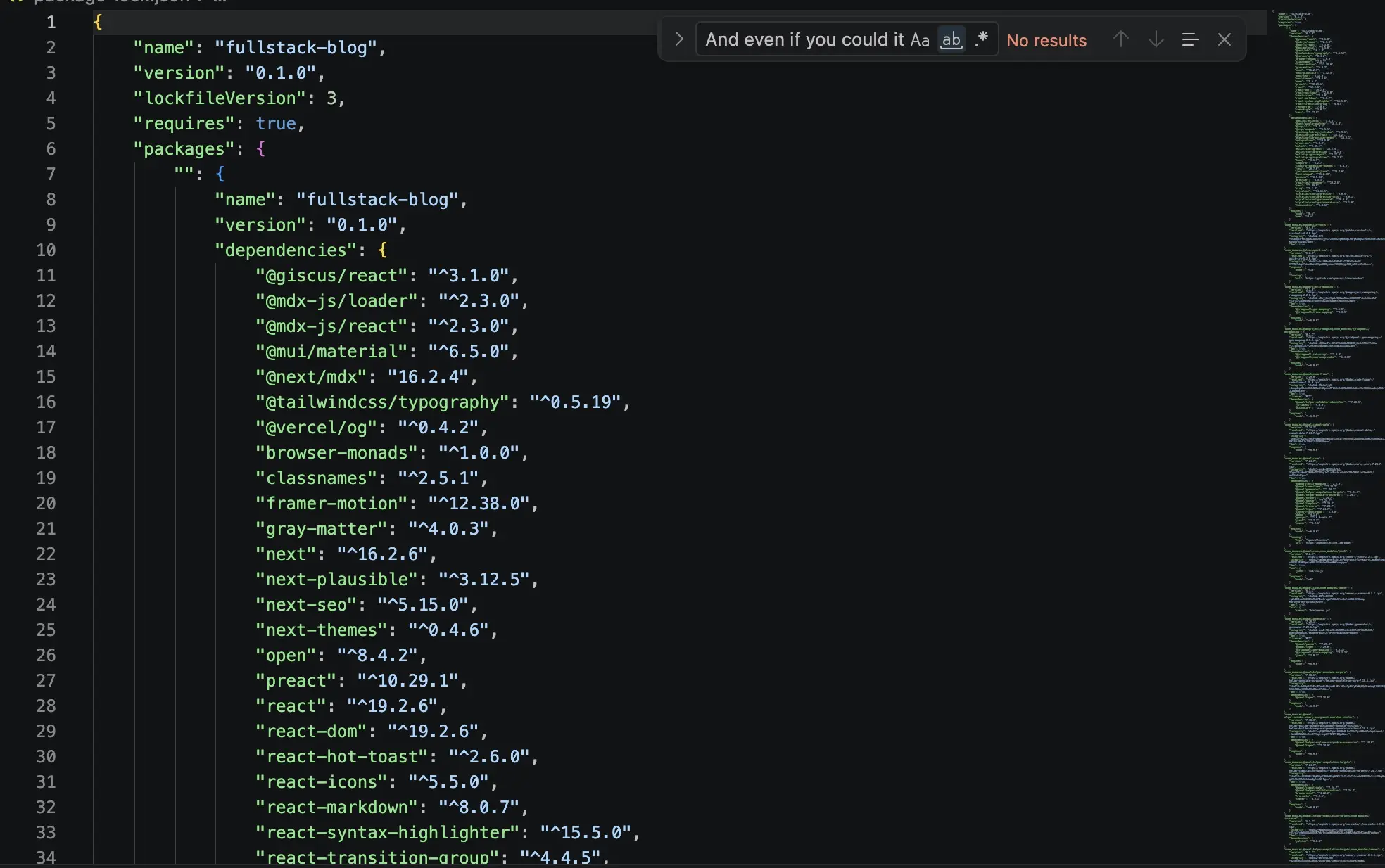
package-lock.json, which locks the exact versions of dependencies and their sub-dependencies for a project using the Node Package Manager (npm), ensuring consistent installations across different environments
Table of Contents
- What is Turbopack?
- Some key features of Turbopack
- The "Next.js inferred your workspace root" warning explained
- How to fix the "Next.js inferred your workspace root" warning
- Why paying close attention to output returned to Terminal during development is so important and how to make the process easier
- Key takeaways
- Related Resources
Sometimes, when running npm run dev, the following warning may be returned in Terminal:
fullstack-blog@0.1.0 dev
> next dev

▲ Next.js 16.2.6 (Turbopack)
- Local:         http://localhost:3000
- Network:       http://192.168.1.163:3000
✓ Ready in 275ms
⚠ Warning: Next.js inferred your workspace root, but it may not be correct.
 We detected multiple lockfiles and selected the directory of /Users/mariacam/package-lock.json as the root directory.
 To silence this warning, set `turbopack.root` in your Next.js config, or consider removing one of the lockfiles if it's not needed.
   See https://nextjs.org/docs/app/api-reference/config/next-config-js/turbopack#root-directory for more information.
 Detected additional lockfiles:
   * /Users/mariacam/Development/nextjs-fullstack-blog/package-lock.json
The warning indicates that a straggling package-lock.json resides in the home directory. For those of us coming from using Webpack with Next.js, in order to understand this warning, we first have to understand what Turbopack is and what it does.
What is Turbopack?
Turbopack is a Rust-based bundler introduced and integrated into Next.js 16, specifically designed to enhance the development experience for JavaScript and TypeScript applications. It serves as the Next.js 16+ default bundler, replacing Webpack.
Some key features of Turbopack
Performance enhancement
- Using Turbopack means faster builds: Production builds with Turbopack are two times to five times faster compared to Webpack.
- Using Turbopack means improved refresh times: Development with Turbopack means up to 10 times faster refresh times during development. This means developers can view changes almost immediately.
New functionalities
- File system caching: Turbopack stores compiler artifacts on disk, which reduces compile times significantly, especially for larger projects. Storing compiler artifacts on disk means you can enable disk caching in your development environment, which allows artifacts to persist between sessions. This is meant to improve performance during subsequent compilations. This can significantly reduce compilation times within large projects.
- Efficient server-side hot reloading: Turbopack optimizes the reloading process by only refreshing changed modules, which in turn improves development efficiency.
Subresource integrity support (SRI) feature
Subresource integrity support (SRI) means that browsers can verify that JavaScript files have not been altered during transit. This feature enhances security by ensuring that only approved scripts are executed, preventing potential attacks from compromised or suspicious resources. It verifies file integrity by generating cryptographic hashes for JavaScript files, thereby enhancing application security.
The "Next.js inferred your workspace root" warning explained
So what does the "Next.js inferred your workspace root" warning mean and why is it important to understand? It means that Turbopack selected the wrong package-lock.json for the Next.js Fullstack Blog application. It also detected the right one inside the nextjs-fullstack-blog directory, but did not select it. That is potentially very bad, especially if you don't pay attention to warnings rendered in the Terminal console while running the next dev script or the next build script for that matter.
Using the wrong package-lock.json in an application can wreak all sorts of havoc in development. And even worse (as in this case), using the wrong package.json can wreak even more havoc!
How to fix the "Next.js inferred your workspace root" warning
Fixing the "Next.js inferred your workspace root" warning is simple. In the instance displayed here, just rm package.json and/or rm package-lock.json from the home directory. However, make sure that you have changed into the directory where the straggling package-lock.json or package.json file resides, otherwise you might end up removing your application's (correct) package.json or package-lock.json file.
One way of making sure you are in the correct directory is to run the following command in Terminal:
pwd
The pwd command returns the path to the directory you are currently in.
In the case here, if you are inside the root directory of your Next.js application, something like the following should be returned in Terminal:
/Users/mariacam/development/nextjs-fullstack-blog
However, perhaps you are not actually at the root of /Users/mariacam/development/nextjs-fullstack-blog. Perhaps you changed into your home directory (~) for whatever reason, and forgot. Before running npm install, you should double check the directory you are in by running the pwd command.
If you run pwd and you are not at the root of your Next.js application but at the root of your home directory, the following would be returned:
/Users/mariacam
By checking which directory you are actually in before running 'npm install', you avoid creating a(nother) package-lock.json, thereby causing Turbopack to detect multiple lockfiles and potentially select the wrong one to use in development. This potentially results in a mismatch between development mode and production mode, which can be quite problematic.
Additionally, a package-lock.json will not be generated unless there is a package.json present in the same directory. So if Turbopack is detecting a package-lock.json file outside the root of the Next.js application, such as in the home directory (as in the case here), that indicates that there is also a straggling package.json file present. When you remove the package-lock.json, search for the package.json and remove it.
Why paying close attention to output returned to Terminal during development is so important and how to make the process easier
Paying close attention to terminal output during software development is very important because it serves as a critical developer tool to ensure your code functions correctly and efficiently.
Terminal output provides immediate feedback on code execution, allowing you to verify if specific parts of your code are working as expected. This quick feedback speeds up the development cycle, enabling you to make adjustments and address issues promptly.
Terminal output is used to trace how and where code is executed, which helps to identify errors and inspect variable values at different points in the application. This hands-on approach is vital during development, allowing you to catch and fix issues before they become more problematic.
But there is one little problem regarding analyzing terminal output. Chances are that the output will be very lengthy and that you can't view it all in the console. And even if you could, it would be difficult to follow there.
No problem. The following command runs Next.js in development mode AND saves terminal output to a file inside the root of your application directory:
# make sure that the command is executed at the root of the Next.js application
npm run dev 2>&1 | cat > output.txt
npm run dev is the script in package.json with the value of next dev. It runs the Next.js application in the browser in development mode. It starts the development server, permitting real-time code changes and instant feedback.
2>&1 redirects standard error (stderr) to standard output (stdout), ensuring both stdout and stderr output is captured.
cat > output.txt writes the piped output into a file named output.txt.
| is the pipe operator which is used to pass the output of one command directly into the input of another command. Here, it passes the npm run dev 2>&1 command output into the input of the cat > output.txt. The cat command simply displays the contents of output.txt.
Key takeaways
If you ever encounter the Turbopack "multiple lockfile" warning in Terminal resulting from running the npm run dev command, make sure to find the culprit package-lock.json file and remove it. Turbopack's selection of this accidental package-lock.json file can lead to mismatches between development mode and production mode, which in turn can potentially break the application build.
One way to avoid such an issue is to run the pwd command before running npm install to make sure you are at the root directory of your application.
Finally, the one habit to pick up when running your Next.js application in development mode is to run the npm run dev 2>&1 | cat > output.txt command. This enables you to save both standard output (stdout) and standard error (stderr) to an output.txt file and not the Terminal console. This allows you to read and analyze the file content and resolve any visible errors more speedily and efficiently.
Related Resources
- Turbopack in Next.js: Faster Dev Builds, Common Errors, and Real Fixes: by Sumeet Shroff, prateeksha.com
- Turbopack: Nextjs documentation
- Turbopack adoption guide: Overview, examples, and alternatives: by Abhinav Anshul, LogRocket