How to create a fullstack application using Django and Python Part 17
Social Share:
Monday, September 16, 2024 at 10:19 AM | 12 min read
Last modified on Thursday, July 16, 2026 at 12:08 PM
#fullstack development, #macOS, #django, #bootstrap 5, #custom template tags, #python3, #series, #tests, #unittest
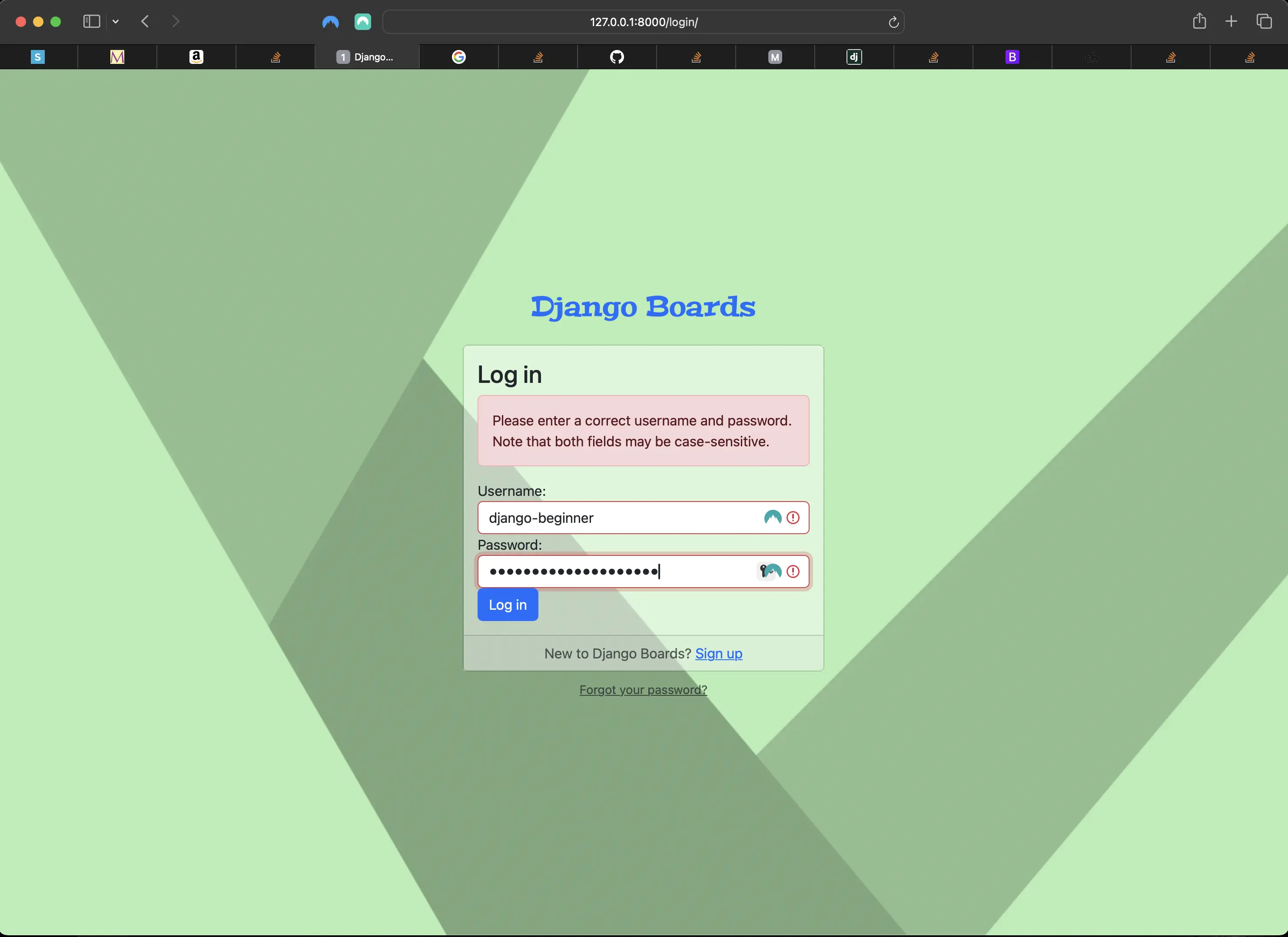
Non-existent user and incorrect password
Important Note: Before committing anything to Git or pushing anything to remote, please visit How to create a fullstack application using Django and Python Part 4 where I discuss how to add the python-dotenv package to the Django site and why it is crucial to do it. This article assumes you have a working knowledge of Git.
Table of Contents
- Improving the sign up template design
- Checking out the signup view in the browser
- Adding the logout view
- Creating a dropdown menu for logged in users
- Fixing logout in the user dropdown menu
- Adding a Login URL to django_boards/urls.py
- Creating templates/login.html
- Reusing templates/base_accounts.html in signup.html and login.html
- Log in non-field errors in templates/login.html
- Creating custom template tags
- Code associated with this post
- Conclusion
- Related Resources
- Related Posts
Update (July 2026): This walkthrough was written against Django 5.1, which reached full end-of-life in December 2025 and is no longer receiving security patches. Run python -m django --version to check which version you have.
I wrote this series as a live process, so sometimes it might seem confusing, but it all works out in the end.
Improving the sign up template design
Visit Toptal patterns on their website to pick a background for my accounts pages: Toptal patterns.
I can go two ways with improving the design of the signup template. I could either:
- Download a pattern of my choosing.
- Create a new directory inside the static directory called img.
- Place my background pattern inside.
- Create a file called accounts.css inside static/css.
OR... I could add my own background patterns. For example, I am adding a CSS gradient to the background of my accounts pages by adding the CSS to the static/css/accounts.css file:
/* inside static/css/accounts.css at the top of the file */
body {
	background:
		linear-gradient(60deg, #b4eeb4 25%, transparent 25.09%),
		linear-gradient(120deg, #90be90 33%, transparent 33.09%),
		linear-gradient(50deg, #7da67d 45%, transparent 45.09%),
		linear-gradient(-50deg, #b4eeb4 15%, transparent 15.09%),
		linear-gradient(-45deg, #90be90 33%, transparent 33.09%),
		linear-gradient(95deg, #b4eeb4 58.5%, transparent 58.59%),
		linear-gradient(95deg, #b4eeb4 100%, transparent 58.59%);
	height: 100vh;
	width: 100vw;
	overflow-x: hidden;
}
If you want to go the way of Toptal background images, add the following to static/css/accounts.css:
body {
	/* replace the image added here with your own */
	background-image: url(../img/shattered.png);
}

.logo {
	font-family: 'Peralta', cursive;
}

.logo a {
	color: rgba(0, 0, 0, 0.9);
}

.logo a:hover,
.logo a:active {
	text-decoration: none;
}
Then update templates/signup.html markup to reflect the changes to static/css/accounts.css:
<!-- adding static/css/accounts.css -->
{% load static %}

{% block stylesheet %}
  <link rel="stylesheet" href="{% static 'css/accounts.css' %}">
{% endblock stylesheet %}

{% block body %}
  <div class="container">
    <h1 class="text-center logo my-4">
      <a href="{% url 'index' %}">Django Boards</a>
    </h1>
    <div class="row justify-content-center">
      <div class="col-lg-8 col-md-10 col-sm-12">
        <div class="card">
          <div class="card-body">
            <h3 class="card-title">Sign up</h3>
            <form method="post" novalidate>
              {% csrf_token %}
              {% include "includes/form.html" %}
              <button type="submit" class="btn btn-primary btn-block">Create an account</button>
            </form>
          </div>
          <div class="card-footer text-muted text-center">
            Already have an account? <a href="#">Log in</a>
          </div>
        </div>
      </div>
    </div>
  </div>
{% endblock body %}
Above, I have applied the Bootstrap 5 card components markup to improve upon the look of my signup.html template. Below, is all the CSS I added thus far to static/css/accounts.css:
/* static/css/accounts.css */
@import url('https://fonts.googleapis.com/css2?family=Peralta&display=swap');

body {
	background:
		linear-gradient(60deg, #b4eeb4 25%, transparent 25.09%),
		linear-gradient(120deg, #90be90 33%, transparent 33.09%),
		linear-gradient(50deg, #7da67d 45%, transparent 45.09%),
		linear-gradient(-50deg, #b4eeb4 15%, transparent 15.09%),
		linear-gradient(-45deg, #90be90 33%, transparent 33.09%),
		linear-gradient(95deg, #b4eeb4 58.5%, transparent 58.59%),
		linear-gradient(95deg, #b4eeb4 100%, transparent 58.59%);
	height: 100vh;
	width: 100vw;
	overflow-x: hidden;
	display: flex;
	flex-direction: column;
	justify-content: center;
	align-items: center;
}

.container {
	margin-top: -2rem;
}

.container h1 {
	font-family: 'Peralta', serif;
	font-weight: 400;
	font-style: normal;
	font-size: 2rem;
}

.container h1 a {
	text-decoration: none;
}

/* Bootstrap card styling to change opacity of the card's background color. Could also change the opacity of a background image. instead of setting a color to the background property, you set an image. */

.card {
	position: relative;
	background: transparent;
}

.card::before {
	content: '';
	position: absolute;
	top: 0;
	left: 0;
	width: 100%;
	height: 100%;
	opacity: 0.5;
	background: #fff;
	z-index: -1;
}
Whether or not I add the Toptal background image or simply use a CSS gradient, I should still update templates/signup.html markup to include Bootstrap card markup.
Checking out the signup view in the browser
With the most recent changes to the styling of templates/signup.html, this is what mine looks like in the browser:
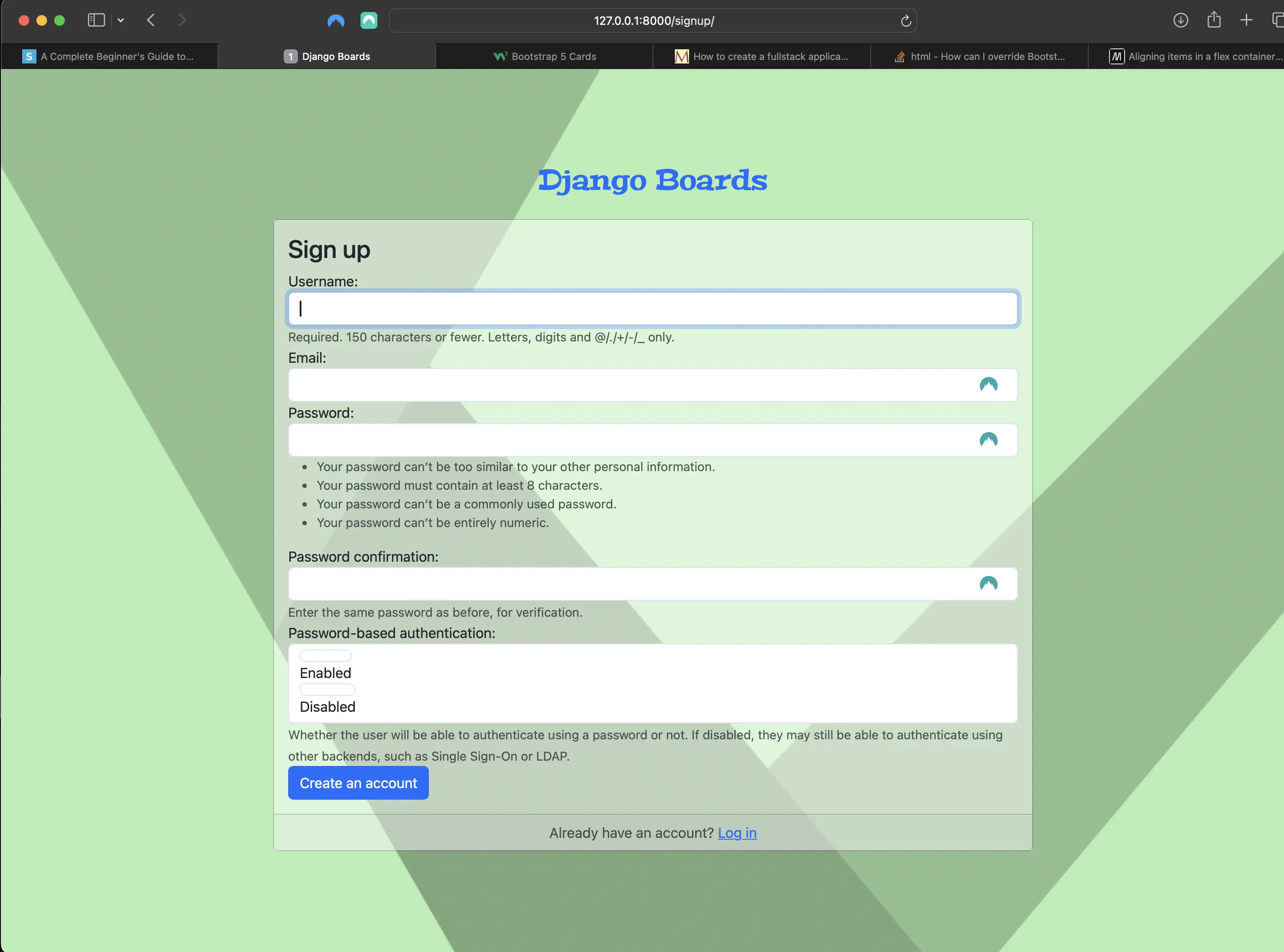
Result of improving the styling of the signup view
Adding the logout view
Adding new route to django_boards/urls.py
# django_boards/urls.py
from django.contrib import admin
from django.urls import path

from accounts import views as accounts_views
from boards import views

from django.contrib.auth import views as auth_views

urlpatterns = [
    path("", views.index, name="index"),
    path("signup/", accounts_views.signup, name="signup"),
    path("logout/", auth_views.LogoutView.as_view(), name='logout'), # added
    path("boards/<str:id>/", views.board_topics, name="board_topics"),
    path("boards/<str:id>/new/", views.new_topic, name="new_topic"),
    path("admin/", admin.site.urls),
]
I imported the views from the Django’s contrib module. I renamed it to auth_views to avoid naming conflicts with the boards.views. The renaming also clarifies what it is being used for. I also treat this view a bit differently (auth_views.LogoutView.as_view()). It is a Django class-based view. Until now, I have only created views as Python functions. Class-based views provide a more flexible way to extend and re-use views.
Next, I add LOGOUT_REDIRECT_URL = 'index' to the bottom of the django_boards/settings.py file:
# in django_boards/settings.py at the bottom of the file:
LOGOUT_REDIRECT_URL = 'index'
I am passing the name of the URL pattern I want to redirect the user to after they log out.
When I access the URL 127.0.0.1:8000/logout/, I will be logged out. But before I log out, I have to create a dropdown menu for logged in users.
Creating a dropdown menu for logged in users
The Bootstrap 5 dropdown component needs jQuery to work. The current version of jQuery is 3.7.1. I don't have to download it from jquery.com. I can add a CDN jQuery link instead: https://releases.jquery.com. Select the "minified" version, and just copy the code and paste it as I will demonstrate shortly.
As for the Bootstrap JS, you can grab the code from cdnjs as well: bootstrap dnjs. Just click on the code icon (</>), and that will copy the code for you. Then you just have to paste it into your HTML template.
Bootstrap JS is dependent on Popper, and you can grab the code for that on cdnjs as well: popper.js on cdnjs.
When you have grabbed the three scripts and added them to your templates/base.html, it should look something like the following:
<!-- templates/base.html -->
{% load static %}
<!DOCTYPE html>
<html lang="en">
  <head>
    <meta charset="utf-8">
    <meta name="description" content="A forum dedicated to all things Django" />
    <meta name="keywords" content="django, python3" />
    <title>
      {% block title %}
        Django Boards
      {% endblock title %}
    </title>
    <link rel="stylesheet" href="{% static 'css/bootstrap.min.css' %}">
    <link rel="stylesheet" href="{% static 'css/app.css' %}">
    {% block stylesheet %}
    {% endblock stylesheet %}
  </head>
  <body>
    {% block body %}
      <nav class="navbar navbar-expand-sm navbar-dark bg-dark">
        <div class="container">
          <a class="navbar-brand" href="{% url 'index' %}">Django Boards</a>
          <div class="dropdown">
            <a class="btn btn-primary dropdown-toggle"
               href="#"
               role="button"
               data-bs-toggle="dropdown"
               aria-expanded="false">{{ user.username }}</a>
            <ul class="dropdown-menu">
              <li>
                <a class="dropdown-item" href="#">My account</a>
              </li>
              <li>
                <a class="dropdown-item" href="#">Change password</a>
              </li>
              <form method="post" action="{% url 'logout' %}">
                {% csrf_token %}
                <button type="submit">Logout</button>
              </form>
            </ul>
          </div>
          <button class="navbar-toggler"
                  type="button"
                  data-toggle="collapse"
                  data-target="#mainMenu"
                  aria-controls="mainMenu"
                  aria-expanded="false"
                  aria-label="Toggle navigation">
            <span class="navbar-toggler-icon"></span>
          </button>
        </div>
      </nav>
      <div class="container">
        <ol class="breadcrumb my-4">
          {% block breadcrumb %}
          {% endblock breadcrumb %}
        </ol>
        {% block content %}
        {% endblock content %}
      </div>
    {% endblock body %}
    <script src="https://cdnjs.cloudflare.com/ajax/libs/popper.js/2.9.2/umd/popper.min.js"
            integrity="sha512-2rNj2KJ+D8s1ceNasTIex6z4HWyOnEYLVC3FigGOmyQCZc2eBXKgOxQmo3oKLHyfcj53uz4QMsRCWNbLd32Q1g=="
            crossorigin="anonymous"
            referrerpolicy="no-referrer"></script>
    <script src="https://code.jquery.com/jquery-3.7.1.min.js"
            integrity="sha256-/JqT3SQfawRcv/BIHPThkBvs0OEvtFFmqPF/lYI/Cxo="
            crossorigin="anonymous"></script>
    <script src="https://cdnjs.cloudflare.com/ajax/libs/bootstrap/5.3.3/js/bootstrap.min.js"
            integrity="sha512-ykZ1QQr0Jy/4ZkvKuqWn4iF3lqPZyij9iRv6sGqLRdTPkY69YX6+7wvVGmsdBbiIfN/8OdsI7HABjvEok6ZopQ=="
            crossorigin="anonymous"
            referrerpolicy="no-referrer"></script>
  </body>
</html>
My index/home page view now looks like the following:
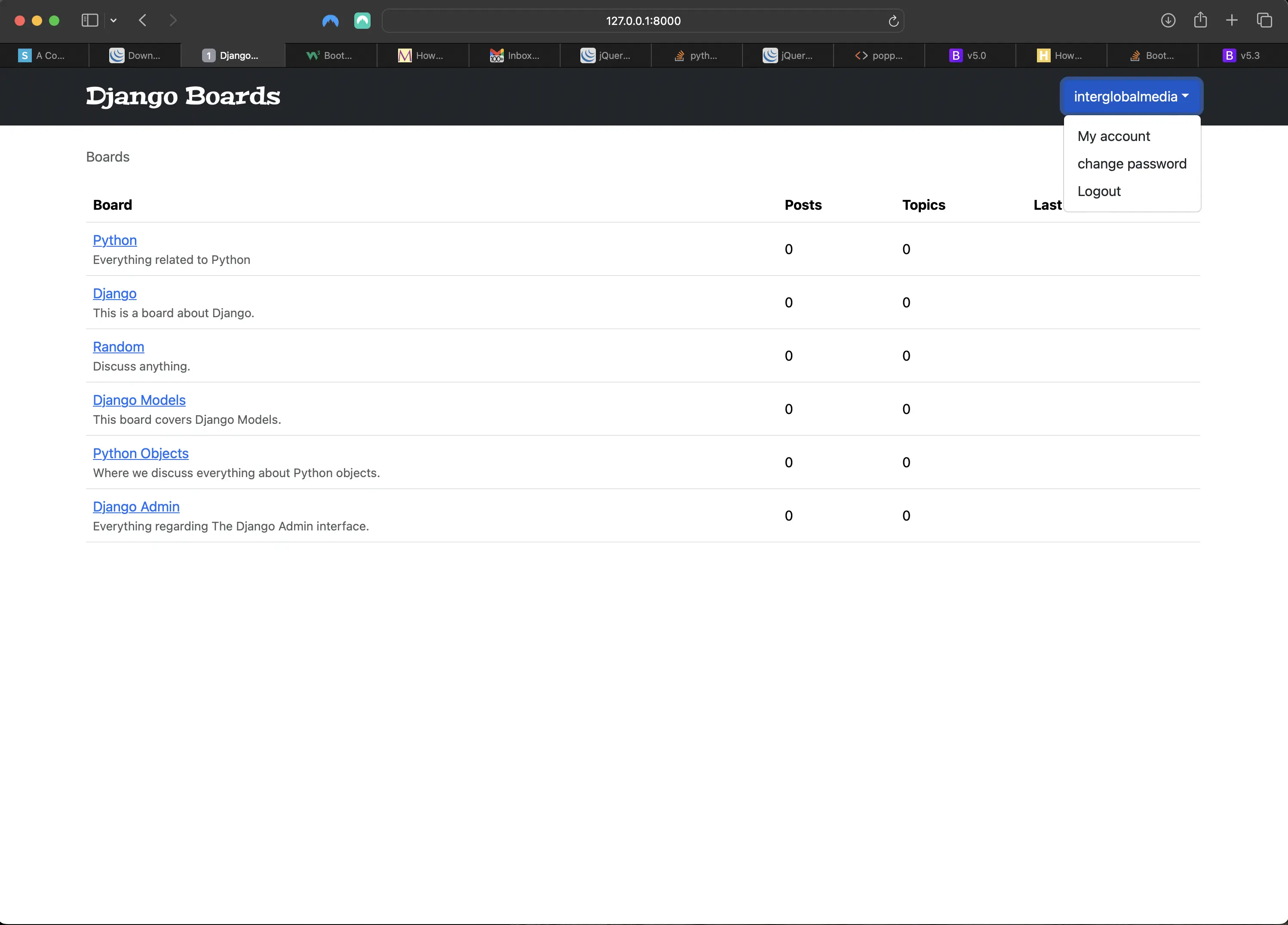
Updated index/home view including logged in user dropdown menu
I changed the background of the navigation menu, because the background color choices for the Bootstrap dropdown menu were limited. I wanted to have a nice contrast between the background color of the navigation menu and the logged in user dropdown menu.
Note: whatever version of Bootstrap you are using (and it should always be the latest one), make sure that you are using the associated HTML markup for that version. Otherwise, the JavaScript functionality might not work!
Adding the Bootstrap 5 dropdown menu including the logout URL
I did include the HTML markup for the logged in user dropdown menu in the Django code snippet above. Specifically, it is the following:
<div class="dropdown">
  <a class="btn btn-primary dropdown-toggle"
      href="#"
      role="button"
      data-bs-toggle="dropdown"
      aria-expanded="false">{{ user.username }}</a>
  <ul class="dropdown-menu">
    <li>
      <a class="dropdown-item" href="#">My account</a>
    </li>
    <li>
      <a class="dropdown-item" href="#">Change password</a>
    </li>
    <form method="post" action="{% url 'logout' %}">
      {% csrf_token %}
      <button type="submit">Logout</button>
    </form>
  </ul>
</div>
The logout URL is also included. It works, but when I click on "Logout", the username disappears and the dropdown arrow is all that remains.
Note: Inserting a form inside of the dropdown menu, which is an unordered list, may seem funny, but since Django 5, this is the way that the Logout has to be dealt with. Otherwise it won't work! I would be taken to an empty page.
Fixing logout in the user dropdown menu
In order to remove the logged in user dropdown menu on logout, I add a "Login" button along with a "Sign up" button instead. templates/base.html should look like the following:
<!-- templates/base.html -->
{% load static %}
<!DOCTYPE html>
<html lang="en">
  <head>
    <meta charset="utf-8">
    <meta name="description" content="A forum dedicated to all things Django" />
    <meta name="keywords" content="django, python3" />
    <title>
      {% block title %}
        Django Boards
      {% endblock title %}
    </title>
    <link rel="stylesheet" href="{% static 'css/bootstrap.min.css' %}">
    <link rel="stylesheet" href="{% static 'css/app.css' %}">
    {% block stylesheet %}
    {% endblock stylesheet %}
  </head>
  <body>
    {% block body %}
      <nav class="navbar navbar-expand-sm navbar-dark bg-dark">
        <div class="container">
          <a class="navbar-brand" href="{% url 'index' %}">Django Boards</a>
          {% if user.is_authenticated %}
          <div class="dropdown">
            <a class="btn btn-primary dropdown-toggle"
               href="#"
               role="button"
               data-bs-toggle="dropdown"
               aria-expanded="false">{{ user.username }}</a>
              <ul class="dropdown-menu">
                <li>
                  <a class="dropdown-item" href="#">My account</a>
                </li>
                <li>
                  <a class="dropdown-item" href="#">Change password</a>
                </li>
                <li>
                  <form method="post" action="{% url 'logout' %}">
                    {% csrf_token %}
                    <button type="submit">Logout</button>
                  </form>
                </li>
              </ul>
            </div>
          <button class="navbar-toggler"
                  type="button"
                  data-toggle="collapse"
                  data-target="#mainMenu"
                  aria-controls="mainMenu"
                  aria-expanded="false"
                  aria-label="Toggle navigation">
            <span class="navbar-toggler-icon"></span>
          </button>
           {% else %}
            <form class="form-inline ml-auto">
              <a href="#" class="btn btn-outline-secondary">Log in</a>
              <a href="{% url 'signup' %}" class="btn btn-primary ml-2">Sign up</a>
            </form>
          {% endif %}
        </div>
      </nav>
      <div class="container">
        <ol class="breadcrumb my-4">
          {% block breadcrumb %}
          {% endblock breadcrumb %}
        </ol>
        {% block content %}
        {% endblock content %}
      </div>
    {% endblock body %}
    <script src="https://cdnjs.cloudflare.com/ajax/libs/popper.js/2.9.2/umd/popper.min.js"
            integrity="sha512-2rNj2KJ+D8s1ceNasTIex6z4HWyOnEYLVC3FigGOmyQCZc2eBXKgOxQmo3oKLHyfcj53uz4QMsRCWNbLd32Q1g=="
            crossorigin="anonymous"
            referrerpolicy="no-referrer"></script>
    <script src="https://code.jquery.com/jquery-3.7.1.min.js"
            integrity="sha256-/JqT3SQfawRcv/BIHPThkBvs0OEvtFFmqPF/lYI/Cxo="
            crossorigin="anonymous"></script>
    <script src="https://cdnjs.cloudflare.com/ajax/libs/bootstrap/5.3.3/js/bootstrap.min.js"
            integrity="sha512-ykZ1QQr0Jy/4ZkvKuqWn4iF3lqPZyij9iRv6sGqLRdTPkY69YX6+7wvVGmsdBbiIfN/8OdsI7HABjvEok6ZopQ=="
            crossorigin="anonymous"
            referrerpolicy="no-referrer"></script>
  </body>
</html>
Now my index/home page looks like the following when logged out:
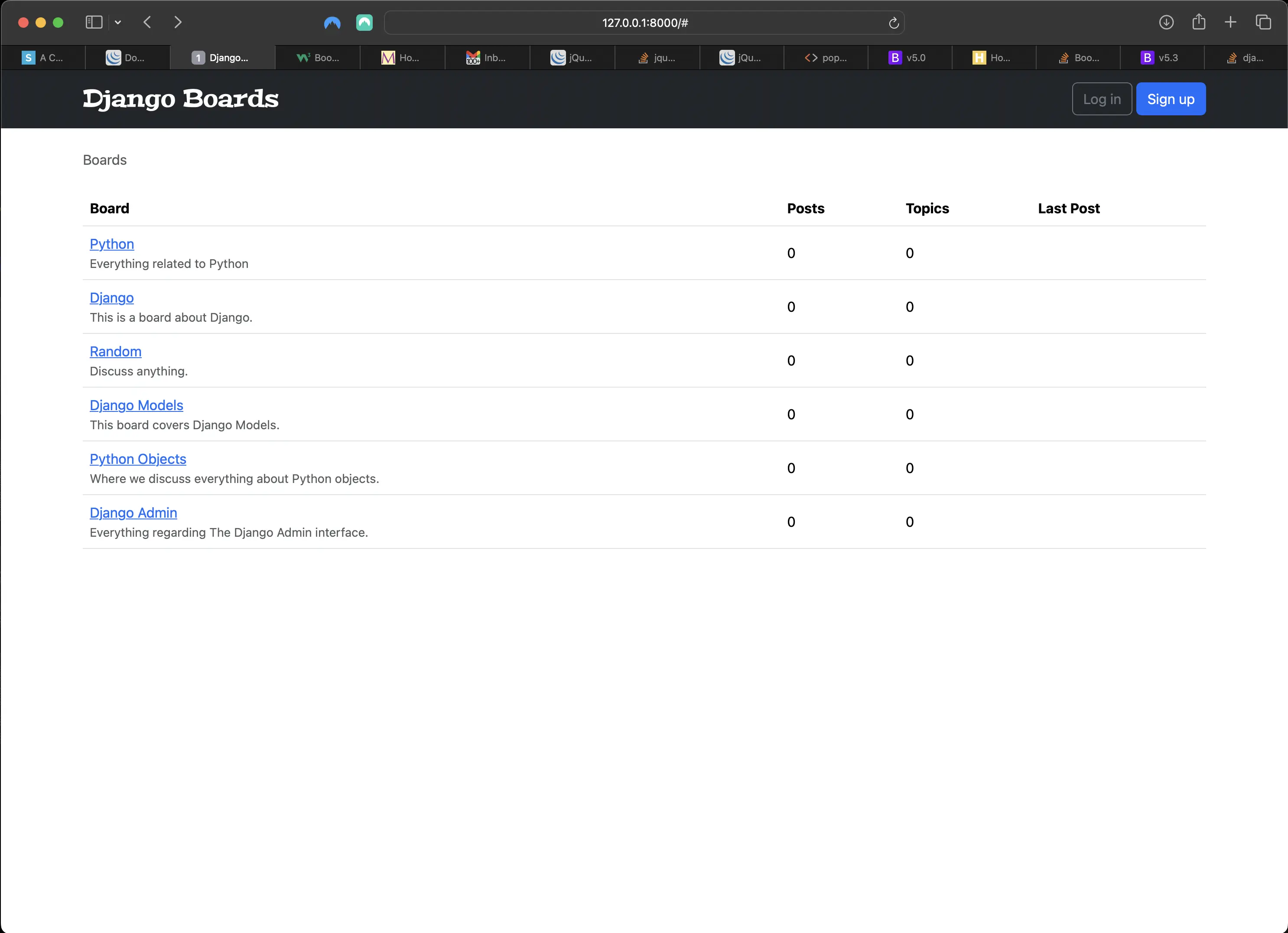
index/home page including Login/Sign up buttons when user logs out
When the logged in user logs out, they are taken back to the index/home page, which looks like the above on logout.
Adding a Login URL to django_boards/urls.py
# in django_boards/urls.py
urlpatterns = [
    path("", views.index, name="index"),
    path("signup/", accounts_views.signup, name="signup"),
    path("login/", auth_views.LoginView.as_view(template_name='login.html'),  name='login'), # added
    path("logout/", auth_views.LogoutView.as_view(), name='logout'),
    path("boards/<str:id>/", views.board_topics, name="board_topics"),
    path("boards/<str:id>/new/", views.new_topic, name="new_topic"),
    path("admin/", admin.site.urls),
]
Adding Login redirect in django_boards/settings.py
# in django_boards/settings.py below LOGOUT_REDIRECT_URL:
LOGIN_REDIRECT_URL = 'index'
The configuration is telling Django where to redirect after a successful login.
Adding the login URL to templates/base.html
<!-- inside templates/base.html -->
 {% else %}
  <form class="form-inline ml-auto">
    <a href="{% url 'login' %}" class="btn btn-outline-secondary">Log in</a>
    <a href="{% url 'signup' %}" class="btn btn-primary ml-2">Sign up</a>
  </form>
{% endif %}
Creating templates/login.html
{% extends "base.html" %}

{% load static %}

{% block stylesheet %}
<link rel="stylesheet" href="{% static 'css/accounts.css' %}" />
{% endblock stylesheet %}

{% block body %}
<div class="container">
	<h1 class="text-center logo my-4">
		<a href="{% url 'index' %}">Django Boards</a>
	</h1>
	<div class="row justify-content-center">
		<div class="col-lg-4 col-md-6 col-sm-8">
			<div class="card">
				<div class="card-body">
					<h3 class="card-title">Log in</h3>
					<form method="post" novalidate>
						{% csrf_token %} {% include 'includes/form.html' %}
						<button type="submit" class="btn btn-primary btn-block">
							Log in
						</button>
					</form>
				</div>
				<div class="card-footer text-muted text-center">
					New to Django Boards?
					<a href="{% url 'signup' %}">Sign up</a>
				</div>
			</div>
			<div class="text-center py-2">
				<small>
					<a href="#" class="text-muted">Forgot your password?</a>
				</small>
			</div>
		</div>
	</div>
</div>
{% endblock body %}
Now, when I click on the login button, I am taken to the login page:
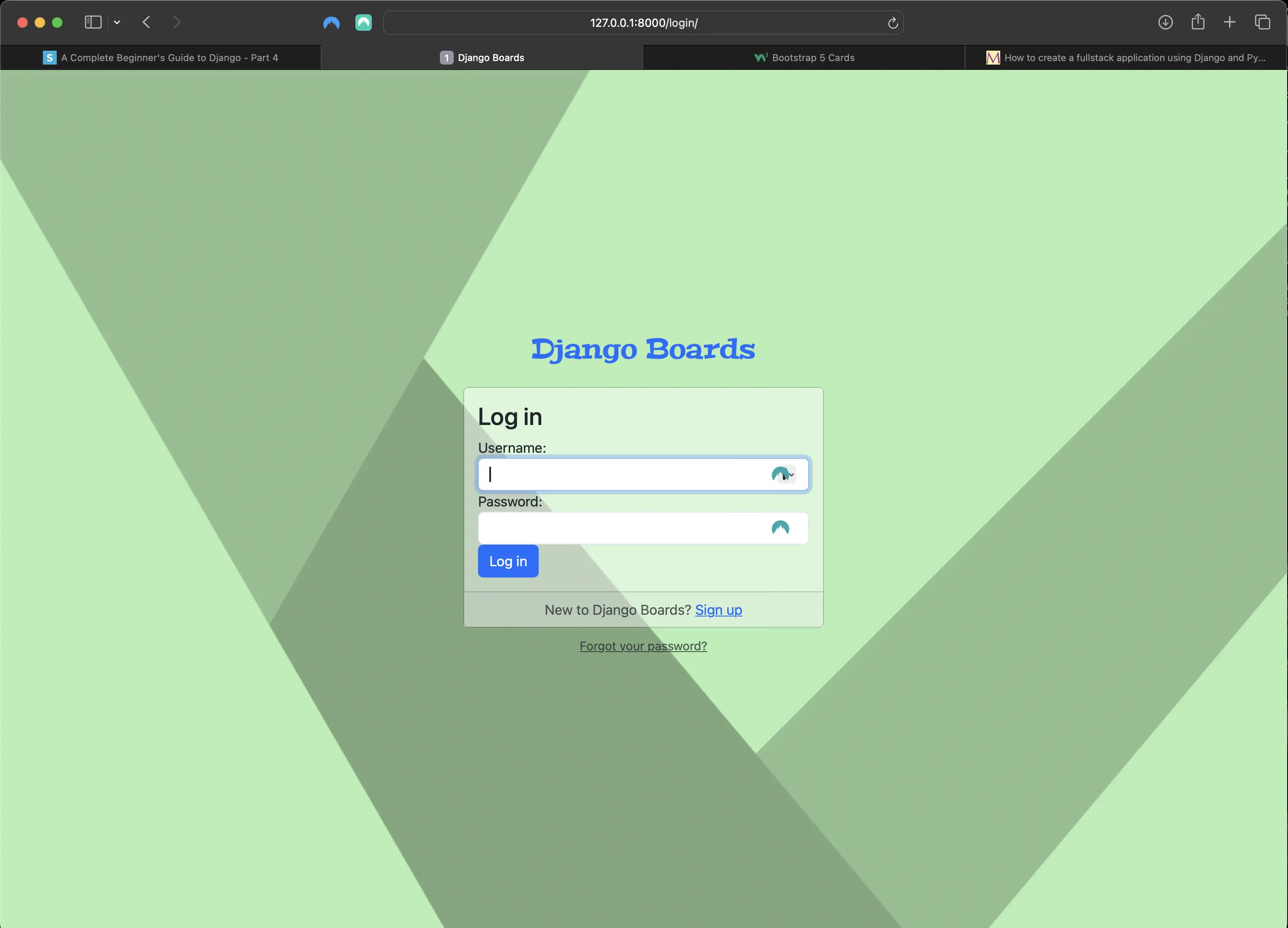
The login page
This is all well and good, but I am repeating templates. Let's fix that by creating another reusable template called base_accounts.html in the templates directory:
<!-- inside templates/base_accounts.html -->
{% extends "base.html" %}

{% load static %}

{% block stylesheet %}
  <link rel="stylesheet" href="{% static 'css/accounts.css' %}">
{% endblock %}

{% block body %}
  <div class="container">
    <h1 class="text-center logo my-4">
      <a href="{% url 'index' %}">Django Boards</a>
    </h1>
    {% block content %}
    {% endblock content %}
  </div>
{% endblock body %}
Reusing templates/base_accounts.html in signup.html and login.html
Reusing templates/base_accounts.html in signup.html:
<!-- place at the top of templates/signup.html -->
{% extends 'base_accounts.html' %}
I also have to add a Login URL to templates/signup.html:
<div class="card-footer text-muted text-center">
  Already have an account? <a href="{% url 'login' %}">Log in</a>
</div>
Reusing templates/base_accounts.html in login.html:
<!-- place at the top of templates/login.html -->
{% extends 'base_accounts.html' %}
Log in non-field errors in templates/login.html
If I submit an empty login form, some error messages are rendered to the page:
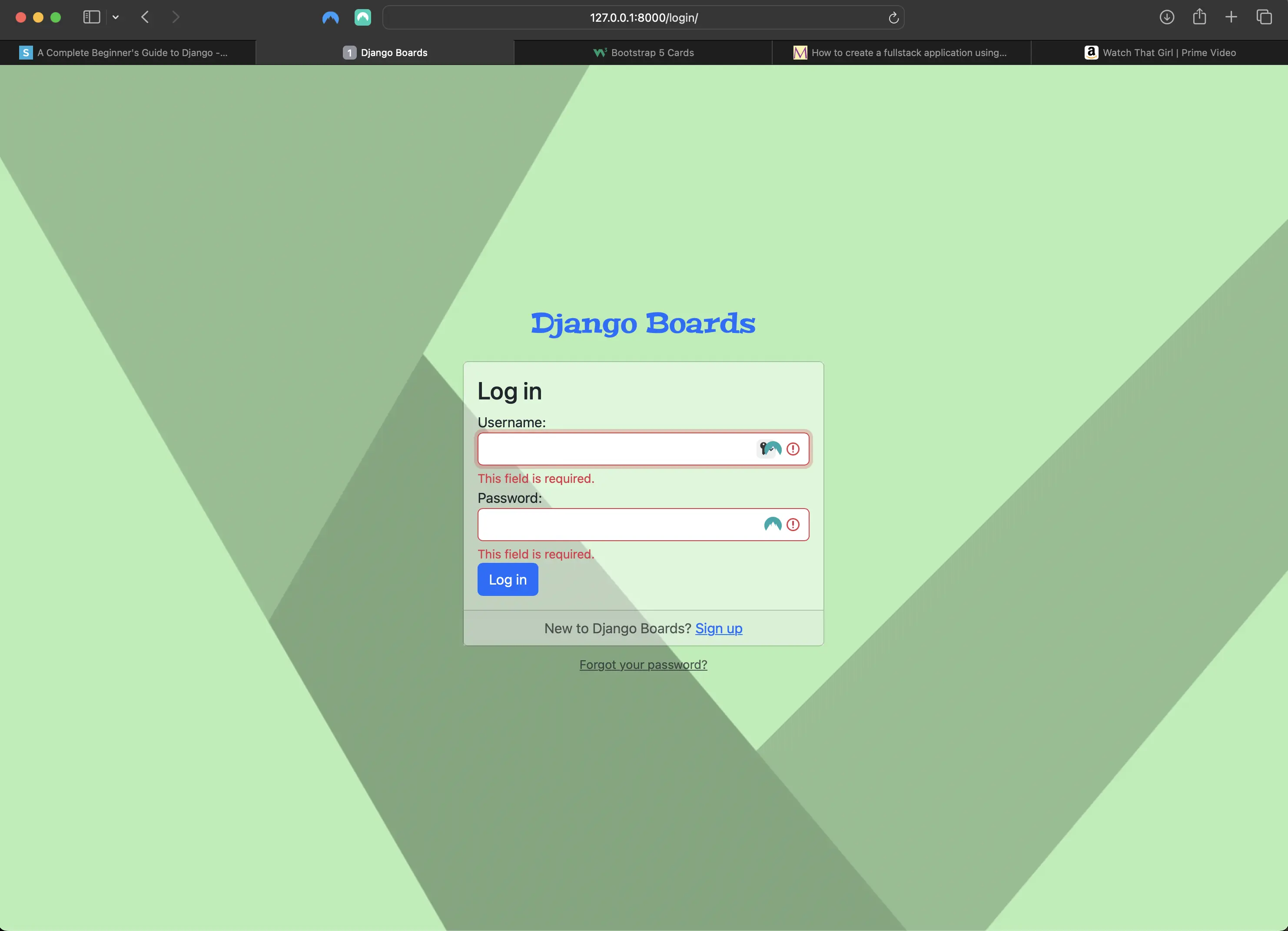
Submitting an empty login form
But if I start to type a non-existent username in the Username field, the following happens:
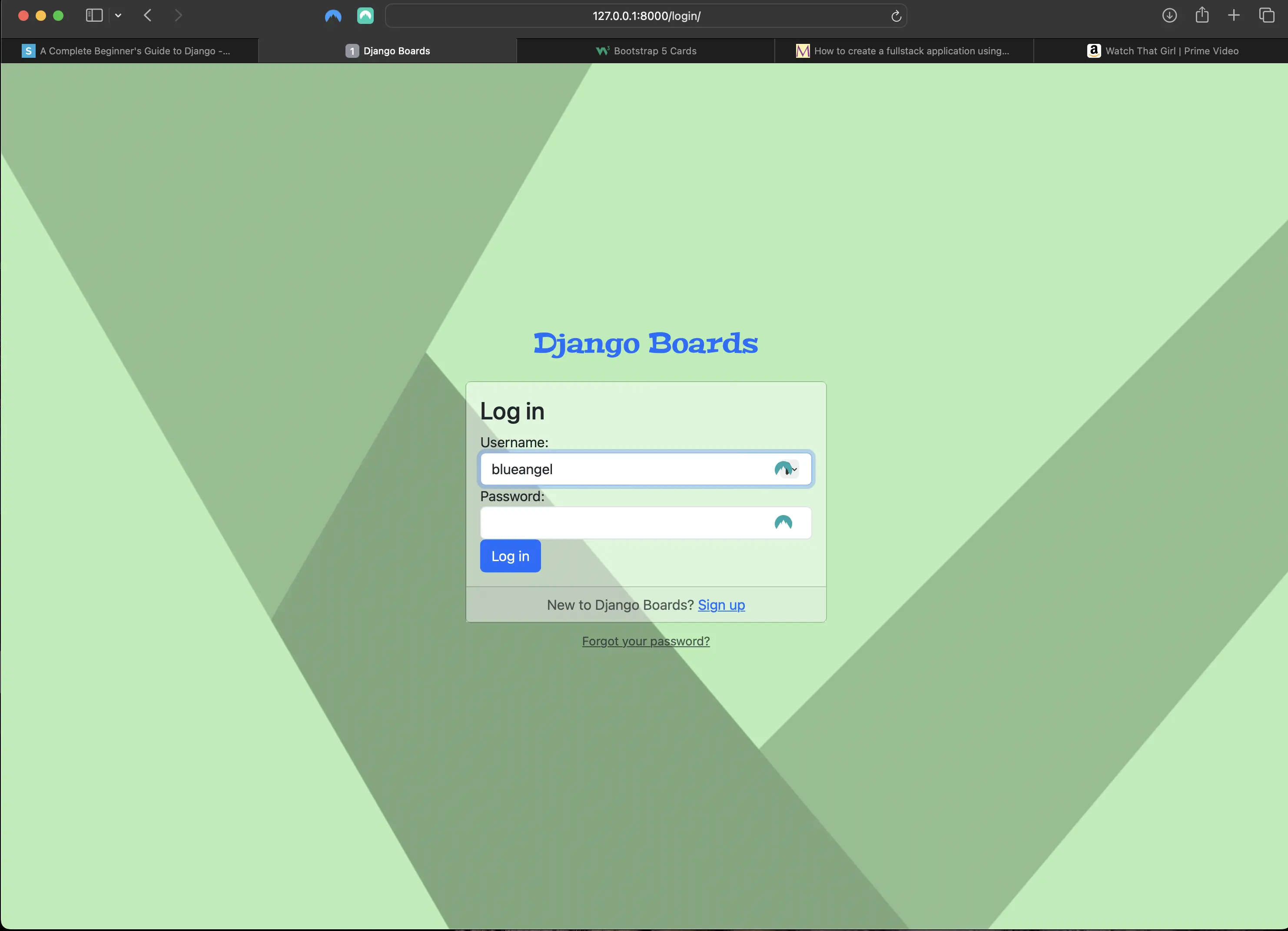
Typing in non-existent username in login form
Nothing happens. No error messages, and no red borders.
Why is nothing happening? Forms in Django have special types of errors called non-field errors. They are a collection of errors not related to any specific field.
Refactoring templates/includes/form.html to show non-field errors
<!-- templates/includes/form.html -->
{% load widget_tweaks %}
{% if form.non_field_errors %}
  <div class="alert alert-danger" role="alert">
    {% for error in form.non_field_errors %}
      <p {% if forloop.last %}class="mb-0"{% endif %}>{{ error }}</p>
    {% endfor %}
  </div>
{% endif %}
{% for field in form %}
  <div class="form-group">
    {{ field.label_tag }}
    {% if form.is_bound %}
      {% if field.errors or form.non_field_errors %}
        {% render_field field class="form-control is-invalid" %}
        {% for error in field.errors %}<div class="invalid-feedback">{{ error }}</div>{% endfor %}
      {% elif field.errors %}
        {% render_field field class="form-control is-invalid" %}
      {% else %}
      {% render_field field class="form-control is-invalid" %}
      {% endif %}
    {% else %}
      {% render_field field class="form-control" %}
    {% endif %}
    {% if field.help_text %}<small class="form-text text-muted">{{ field.help_text|safe }}</small>{% endif %}
  </div>
{% endfor %}
I included an elif statement. Otherwise, field inputs would render as valid even if they were not valid when there are non_field_errors. I also did not include the "is-valid" class anywhere, because invalid form data inevitably would be incorrectly "validated". I set the render_field to "invalid" twice, because otherwise, when I would type an incorrect username followed by an empty password field, the is_bound field with the incorrect username would not be invalidated, which is misleading.
As for {% if forloop.last %}, I add this because of the margin-bottom of the p element. A form may have several non-field errors and for each non-field error, I render a p tag with the error. Each time I am checking if it is the last p to render. If it is, I add a Bootstrap 5 CSS class called "mb-0" which stands for “margin bottom = 0”. This way the alert styling doesn’t look strange, with too much space below the error message(s).
Below is a rendering of the login view before the user types anything in the form fields:
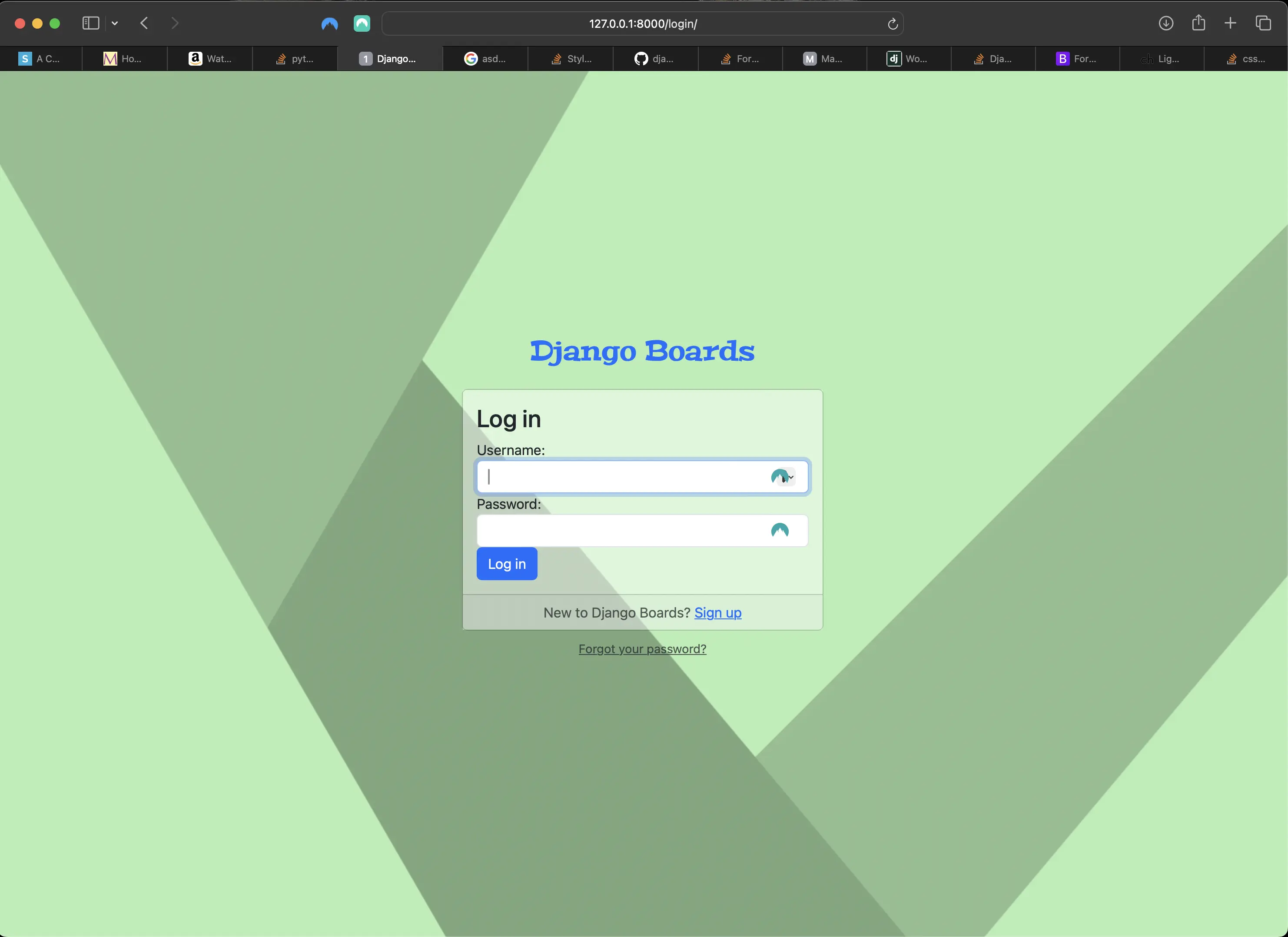
Rendering of the login view before the user types anything
Below is a rendering of the login view when the user types a non-existent user but does not type in a password and then submits the login form:
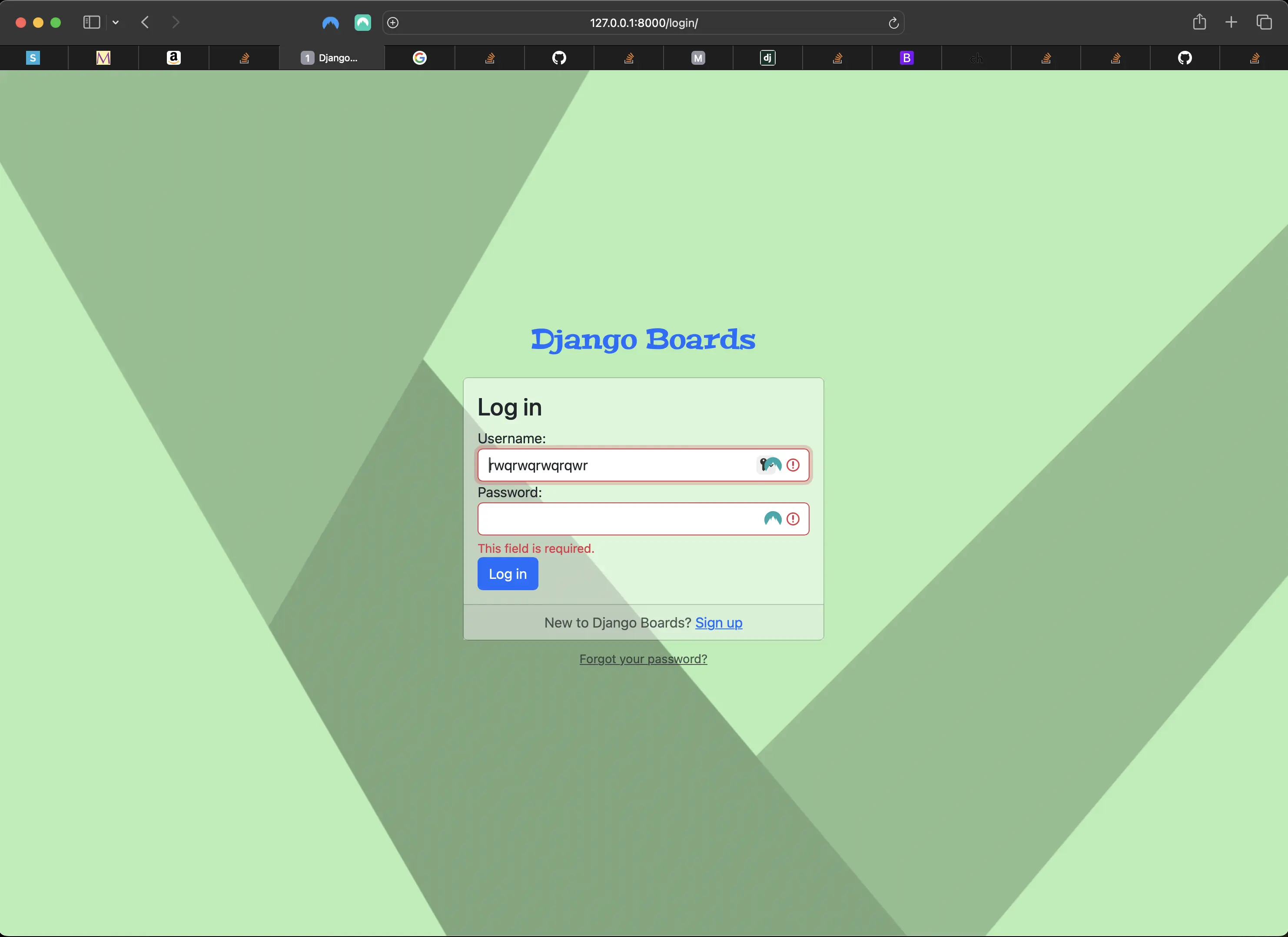
Non-existent user and no password
Below is a rendering of the login view when the user types a non-existent user and an incorrect password and then submits theform:
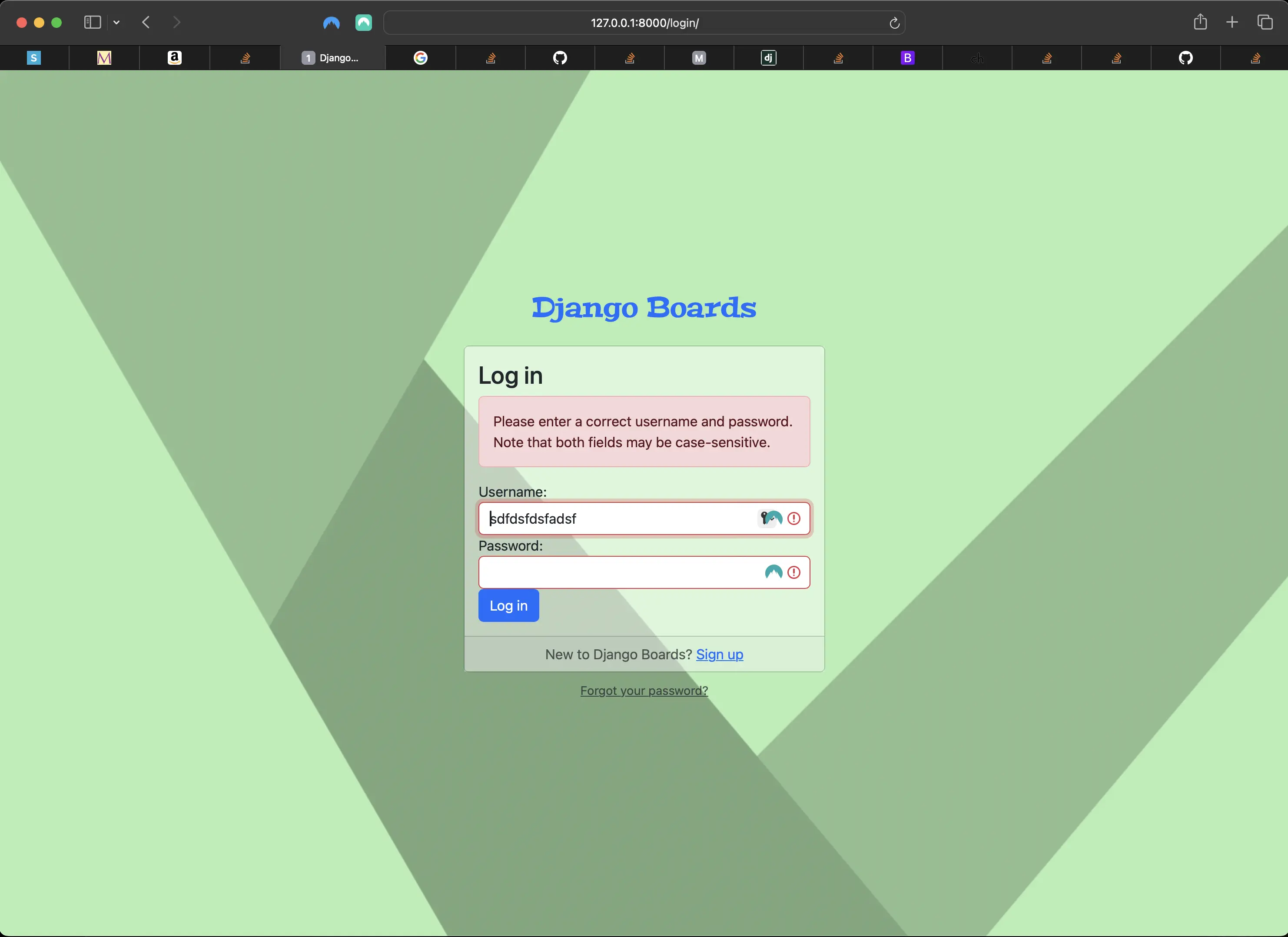
Non-existent user and incorrect password
Below is a rendering of the login view when the user types an existing user and no password and then submits the form:
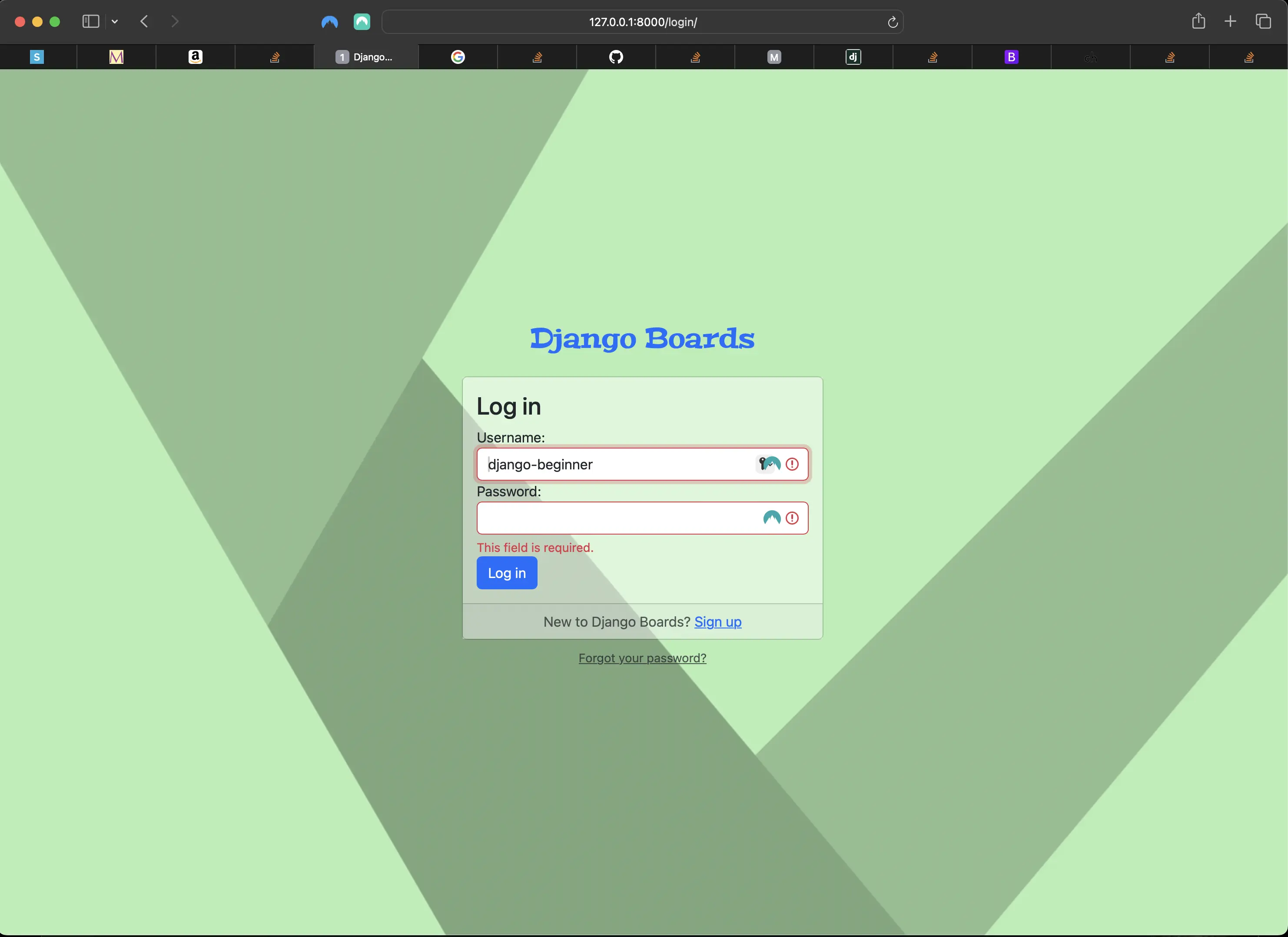
Existing user and no password
Below is a rendering of the login view when the user types an existing user and incorrect password and then submits the form:
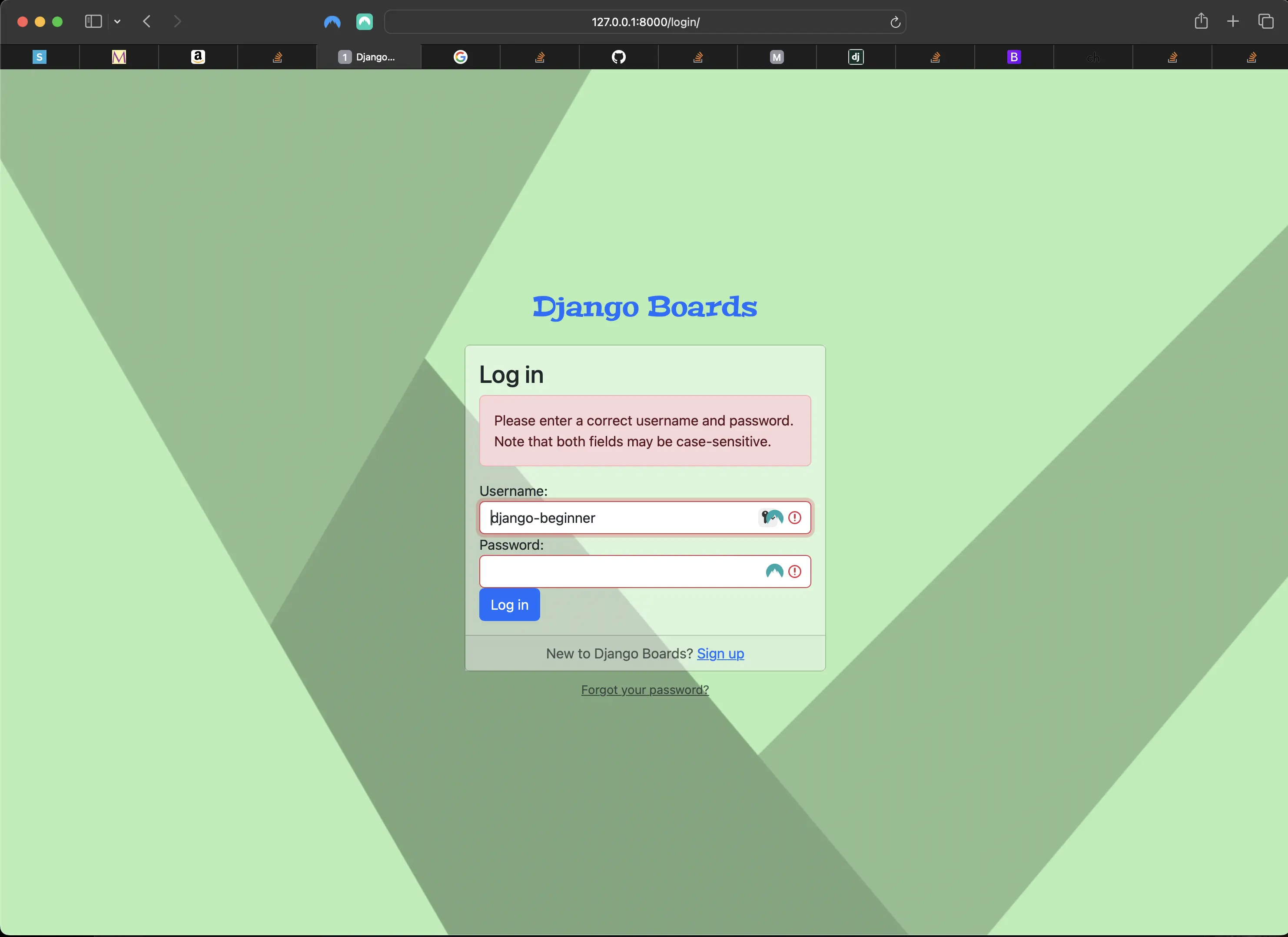
Correct username and incorrect password
Below is a rendering of the login view when the user types an existing user and correct password after having submitted invalid login data, but before re-submitting the login form:
Correct username and correct password before re-submission
Below is a rendering of the redirect after submitting the login form containing correct username and password:
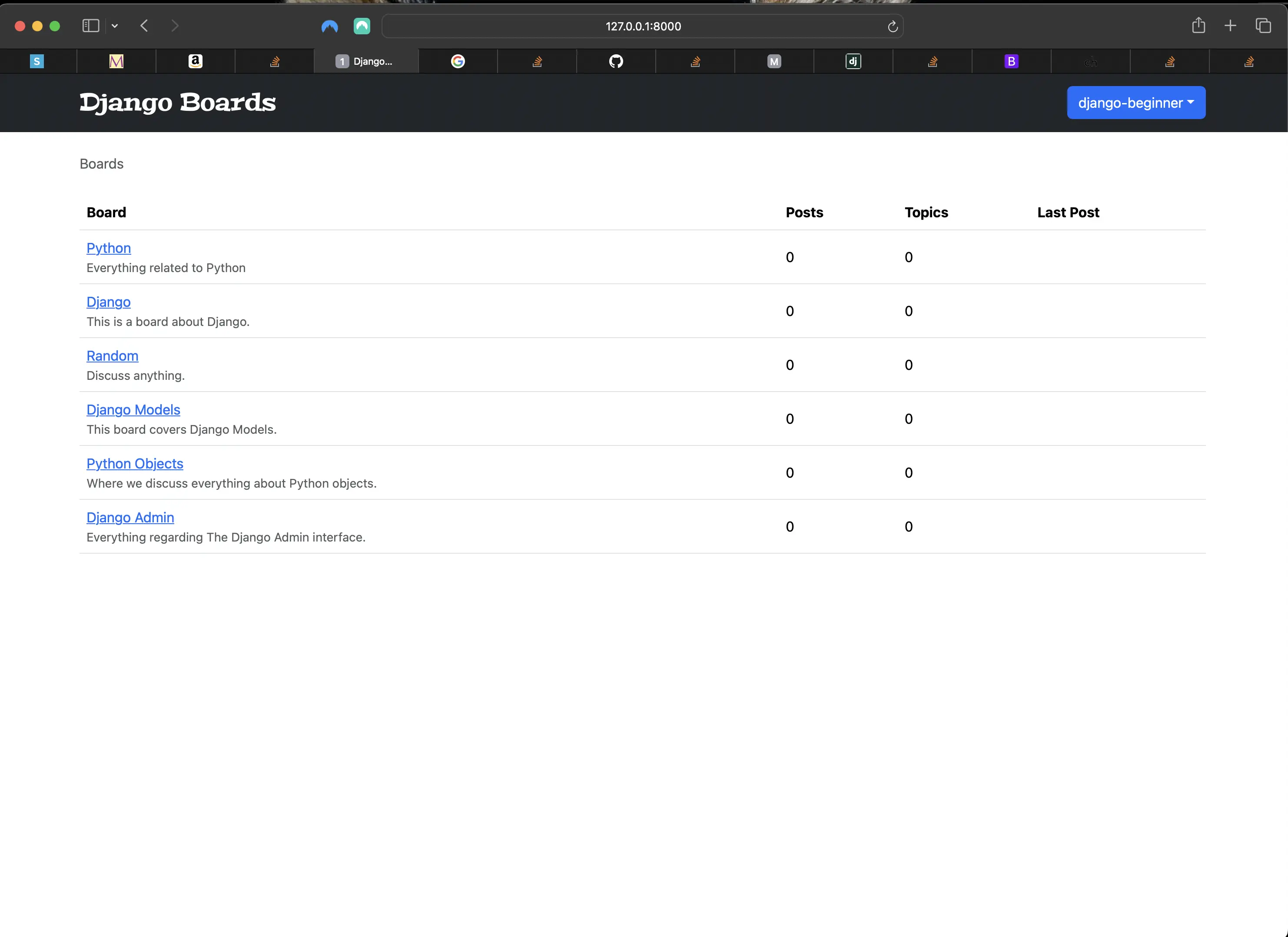
Successful redirect after submitting valid data
In the original code in Vitor's tutorial, I would still have had to deal with the password field. Django never returns the data of the password fields to the client, so I just conditionally ignore is-valid and is-invalid CSS classes in some cases. That is what I did in templates/includes/form.html. I do take the password field into account.
Creating custom template tags
Next, inside boards/, I create a new directory called templatetags. It must be called templatetags, with no underscores. Inside templatetags, I create two empty files: one called __init__.py, and the other form_tags.py.
Next, in the form_tags.py file, I add the following:
# inside boards/templatetags/form_tags.py:
from django import template

register = template.Library()

@register.filter
def field_type(bound_field):
    return bound_field.field.widget.__class__.__name__

@register.filter
def input_class(bound_field):
    css_class = ''
    if bound_field.form.is_bound:
        if bound_field.errors:
            css_class = 'is-invalid'
        elif field_type(bound_field) != 'UsernameInput':
            css_class = 'is-invalid'
        elif field_type(bound_field) != 'PasswordInput':
            css_class = 'is-valid'
    return 'form-control {}'.format(css_class)
I just created two template filters.
Django template tags
Django includes dozens of tags used to implement arbitrary logic inside templates.
Tags are more complex than variables. Some tags create text in the output, some control flow by performing loops or logic, and some load external information into the template to be used by other variables. They provide arbitrary logic in the rendering process.
For example, a tag can output content, serve as a control structure, such as an if statement or a for loop, grab content from a database, or even enable access to other template tags.
Template tag syntax
{% tag_name %}
I have already used some built-in template tags in my project. One is the {% extends %} template tag. But now I am going to create custom template tags.
I am going to load my template filters just as I did with my widget_tweaks or static template tags in a template.
After creating my form_tags.py file, I will have to stop the development server and start it again so Django can identify the new template tags.
The form_tags custom template tag
I can load my new form_tags as follows:
{% form_tags %}
After loading them, I can use them in a template like the following:
{{ form.username|field_type }}
Which would return:
'TextInput'
The input_class custom template tag
<!-- how to use the input_class custom template tag: -->
{{ form.username|input_class }}

<!-- if the form is not bound, it will simply return: -->
'form-control '

<!-- if the form is bound and valid: -->
'form-control is-valid'

<!-- if the form is bound and invalid: -->
'form-control is-invalid'
Updating the templates/includes/form.html to use the new template tags
<!-- templates/includes/form.html -->
{% load form_tags widget_tweaks %}

{% if form.non_field_errors %}
  <div class="alert alert-danger" role="alert">
    {% for error in form.non_field_errors %}
      <p{% if forloop.last %} class="mb-0"{% endif %}>{{ error }}</p>
    {% endfor %}
  </div>
{% endif %}

{% for field in form %}
  <div class="form-group">
    {{ field.label_tag }}
    {% render_field field class=field|input_class %}
    {% for error in field.errors %}
      <div class="invalid-feedback">
        {{ error }}
      </div>
    {% endfor %}
    {% if field.help_text %}
      <small class="form-text text-muted">
        {{ field.help_text|safe }}
      </small>
    {% endif %}
  </div>
{% endfor %}
With the addition of my custom template tags, I have somewhat reduced the complexity of my template. The behavior is exactly the same as my previous implementation of templates/includes/form.html. But the code in the template is more readable, because there is less nested logic. Some of the logic has been transferred to form_tags.
Testing the template tags
Let's create a test_templatetags.py file inside my boards/tests/. Then let's place the following inside test_templatetags.py:
# boards/tests/test_templatetags.py
from django import forms
from django.test import TestCase
from ..templatetags.form_tags import field_type, input_class

class ExampleForm(forms.Form):
    name = forms.CharField()
    password = forms.CharField(widget=forms.PasswordInput())
    class Meta:
        fields = ('name', 'password')

class FieldTypeTests(TestCase):
    def test_field_widget_type(self):
        form = ExampleForm()
        self.assertEqual('TextInput', field_type(form['name']))
        self.assertEqual('PasswordInput', field_type(form['password']))

class InputClassTests(TestCase):
    def test_unbound_field_initial_state(self):
        form = ExampleForm()  # unbound form
        self.assertEqual('form-control ', input_class(form['name']))

    def test_valid_bound_field(self):
        form = ExampleForm({'name': 'john', 'password': '123'})  # bound form (field + data)
        # this actually reflects logic in templatetags/form_tags.py to fix invalid data passing as valid
        self.assertEqual('form-control is-invalid', input_class(form['name']))
        self.assertEqual('form-control is-invalid', input_class(form['password']))

    def test_invalid_bound_field(self):
        form = ExampleForm({'name': '', 'password': '123'})  # bound form (field + data)
        self.assertEqual('form-control is-invalid', input_class(form['name']))
Next, to run boards/tests/test_templatetags.py, I run python3 manage.py test boards, from part 15, remember? I am running all my boards tests with this command including test_templatetages.py. But, in order to run only the test_templatetags.py file, I run the following command instead:
python3 manage.py test boards.tests.test_templatetags
I run this command from inside the directory where manage.py resides.
boards is the name of the app, .tests points to the tests directory inside boards, and .test_templatetags represents the file containing the tests I want to run.
When I run this test, the following should be returned:
Found 4 test(s).
Creating test database for alias 'default'...
System check identified no issues (0 silenced).
....
----------------------------------------------------------------------
Ran 4 tests in 0.001s

OK
Destroying test database for alias 'default'...
Code associated with this post
To view the code associated with this post, please visit 973a39f.
Conclusion
In this section, I improve the signup.html template design, add a logout view and route, create a dropdown menu for logged in users, create a login.html template, url, and redirect, create a reusable template, add non-field errors to the login.html template, create custom template tags to use in the form.html includes, and create tests for the template tags.
Related Resources
- Django Boards repository on GitHub
- Built-in template tags and filters: Official Django Documentation
Related Posts
- How to create a fullstack application using Django and Python Table of Contents
- Fixing a silent bug in the input_class template filter: mariadcampbell.com