How to create copy link with highlight link
Social Share:
Saturday, May 9, 2026 at 10:19 PM | 5 min read
Last modified on Saturday, June 13, 2026 at 9:28 PM
#chrome, #copy link with highlight, #firefox, #macOS, #microsoft edge, #opera, #safari, #vivaldi
Table of Contents
- How to create copy link with highlight link in Safari
- Copy link with highlight in Chrome
- Copy link to highlight in Firefox
- Copy link to highlight in Microsoft Edge
- Copy link to highlight in Opera
- Copy link to highlight in Vivaldi
- Why copy link with/to highlight
- Conclusion
- Related Resources
- Footnotes
Note 6.13.26: All the browsers tested here are macOS versions. When you click on the various highlight links, you have to try them out in the browsers that they were tested on. If I am talking about "Copy link to highlight" in Firefox, then you have to test the link in Firefox, etc.
The other day I found out how to link to specific text within a post on the web instead of simply linking to the entire post.
This approach is called "copy link with highlight" in Safari, and that is exactly what happens when a person clicks on that special link. It is also called "copy link with highlight" in Chrome, but in Firefox, Firefox Nightly build, Opera, Vivaldi, and Microsoft Edge, it is called "copy link to highlight". The naming difference is subtle, but you will not find "copy link with highlight" in Firefox, Firefox Nightly, Opera, Vivaldi, or Microsoft Edge.
How to create copy link with highlight link in Safari
In order to create a "copy link with highlight" link in Safari, do the following:
- I select the text I would like to link to, and then right-click on the selected text. When I right-click on the selected text, the "copy link with highlight" option appears in the resulting dropdown menu:

Safari right-click context menu showing the copy link with highlight option
- Copy and paste the link wherever you want to share it. For example, you could share it in an email or a text with a colleague or friend. Or you could share it on social media.
When you click on the copy link with highlight link, you are taken to something like the following:

Browser view after clicking a copy link with highlight link, showing the highlighted text on the destination page
Copy link with highlight in Chrome
In Chrome, the feature is called "copy link with highlight".
For example, I go onto a webpage via Chrome, where there is content I want to highlight, and I highlight the text I want to share:

Highlighting text on a webpage in Chrome
And to create the actual link, I right-click on my macOS laptop's tracking pad, and select "Copy link with highlight" in the dropdown menu that appears:
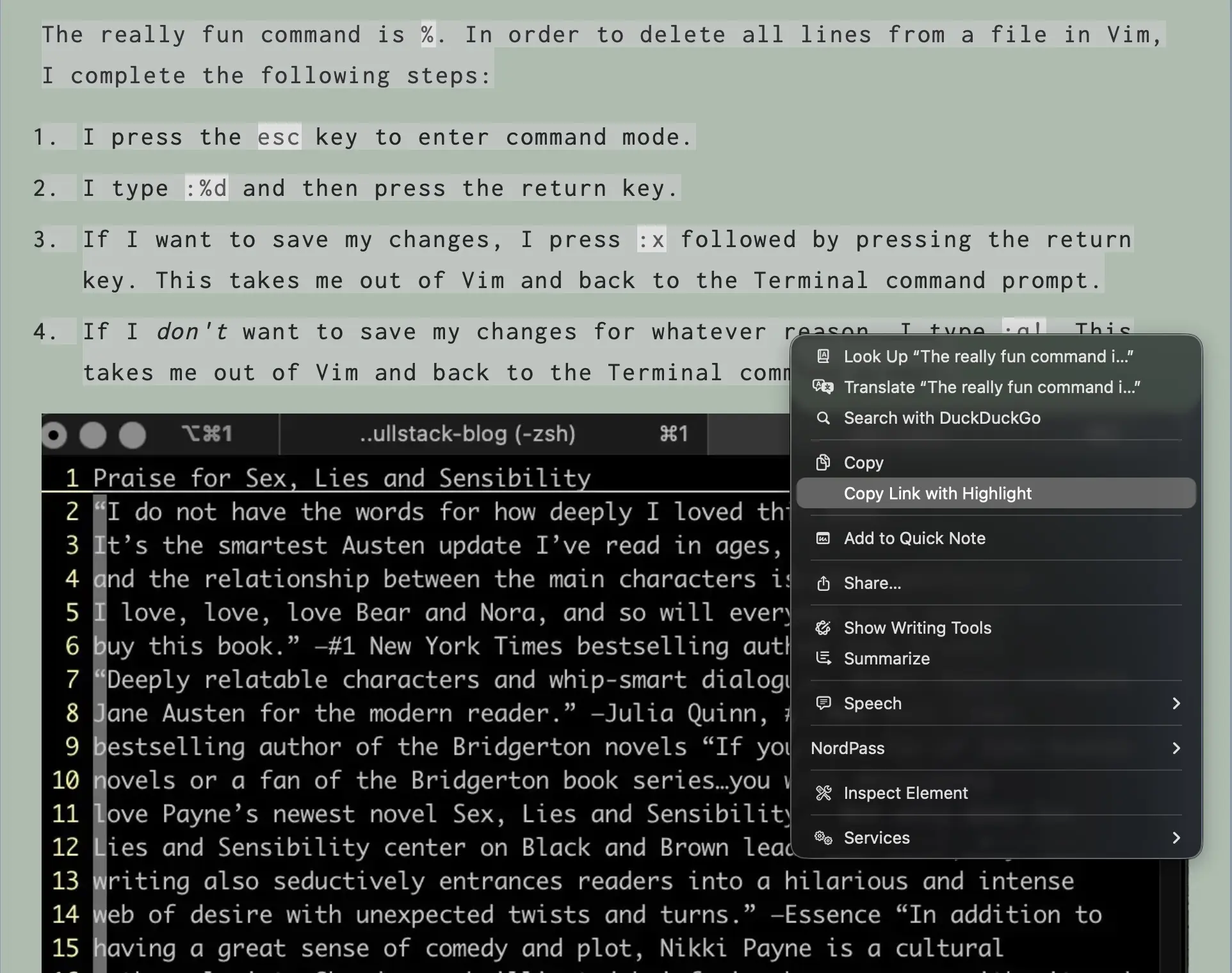
Right-clicking on highlighted selection in Chrome and selecting "Copy link with highlight"
To share this link, I simply paste it wherever I want, and it results in the following:
Example of "Copy link with highlight" in Chrome
Click on the link to see what "copy link with highlight" in Chrome looks like!
Copy link to highlight in Firefox
There is a "Copy link to highlight" feature in Firefox1, which follows the same steps as in Safari and Chrome.
When I select the text I want to highlight in Firefox, I right-click on it and select "Copy link to highlight" in the dropdown menu that appears:

Right-clicking on highlighted text in Firefox and selecting "Copy link to highlight" in the dropdown menu
When I paste the "Copy link to highlight" link, it takes me to the following:
Example of "Copy link to highlight" in Firefox
You can click on the link to see what "copy link to highlight" in Firefox looks like, but both in the regular Firefox app and Nightly Build for macOS, the link just takes you to the top of the page where the highlighted text is. It does not take you to the highlighted text.
Copy link to highlight in Microsoft Edge
When I go into Microsoft Edge and highlight some text and then right-click on it, the following dropdown appears:
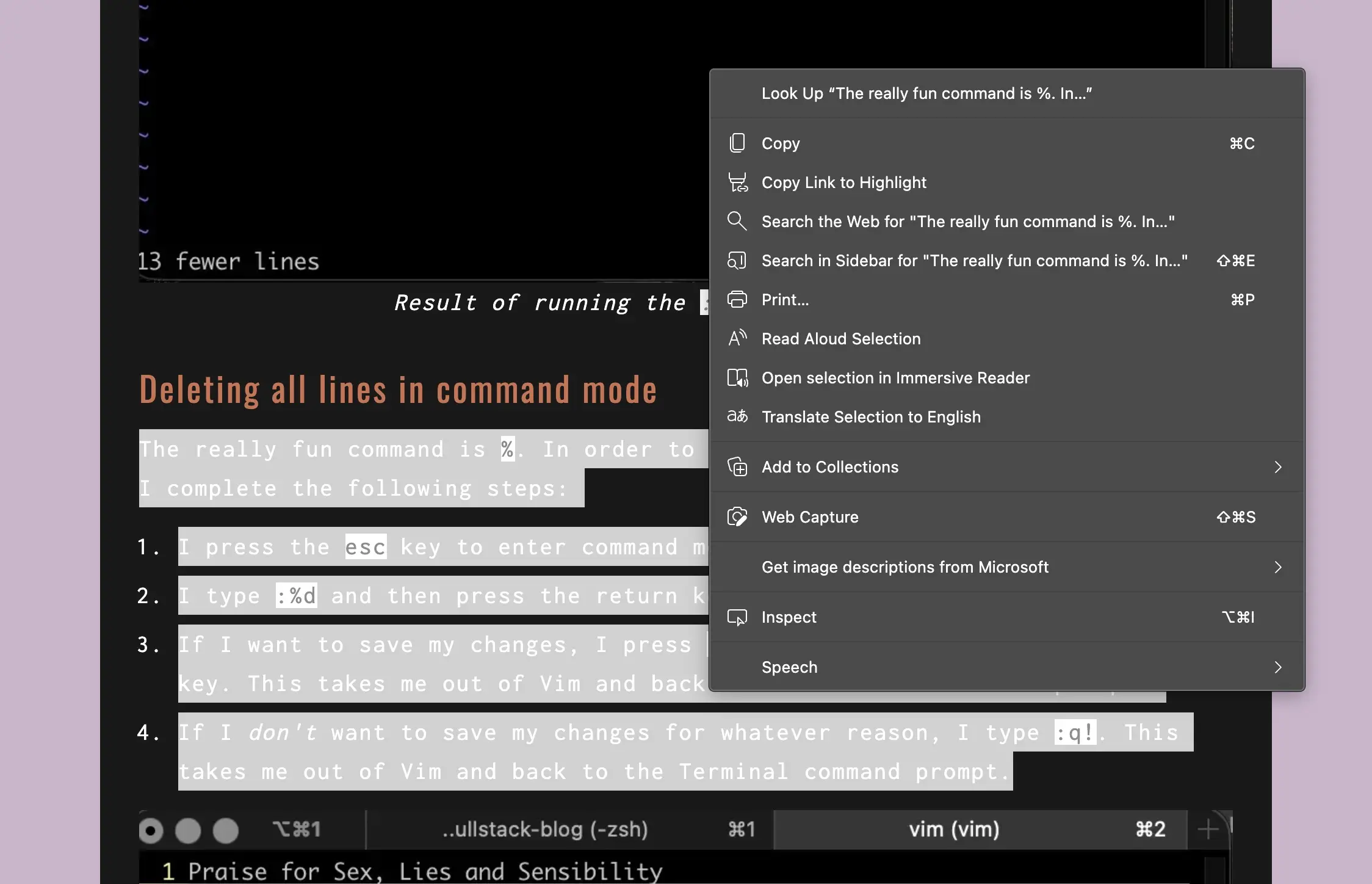
Highlighting text on webpage in Microsoft Edge and then right-clicking on it so that dropdown appears
And when I paste the link, it takes me to the following:
Example of "Copy link to highlight" in Microsoft Edge
You can click on the link to see what "Copy link to highlight" in Microsoft Edge looks like, but the link just takes you to the top of the page where the highlighted text is. It does not take you to the highlighted text.
Copy link to highlight in Opera
When I go into Opera and highlight some text I want to share in a link, I right-click on it and a dropdown menu appears:
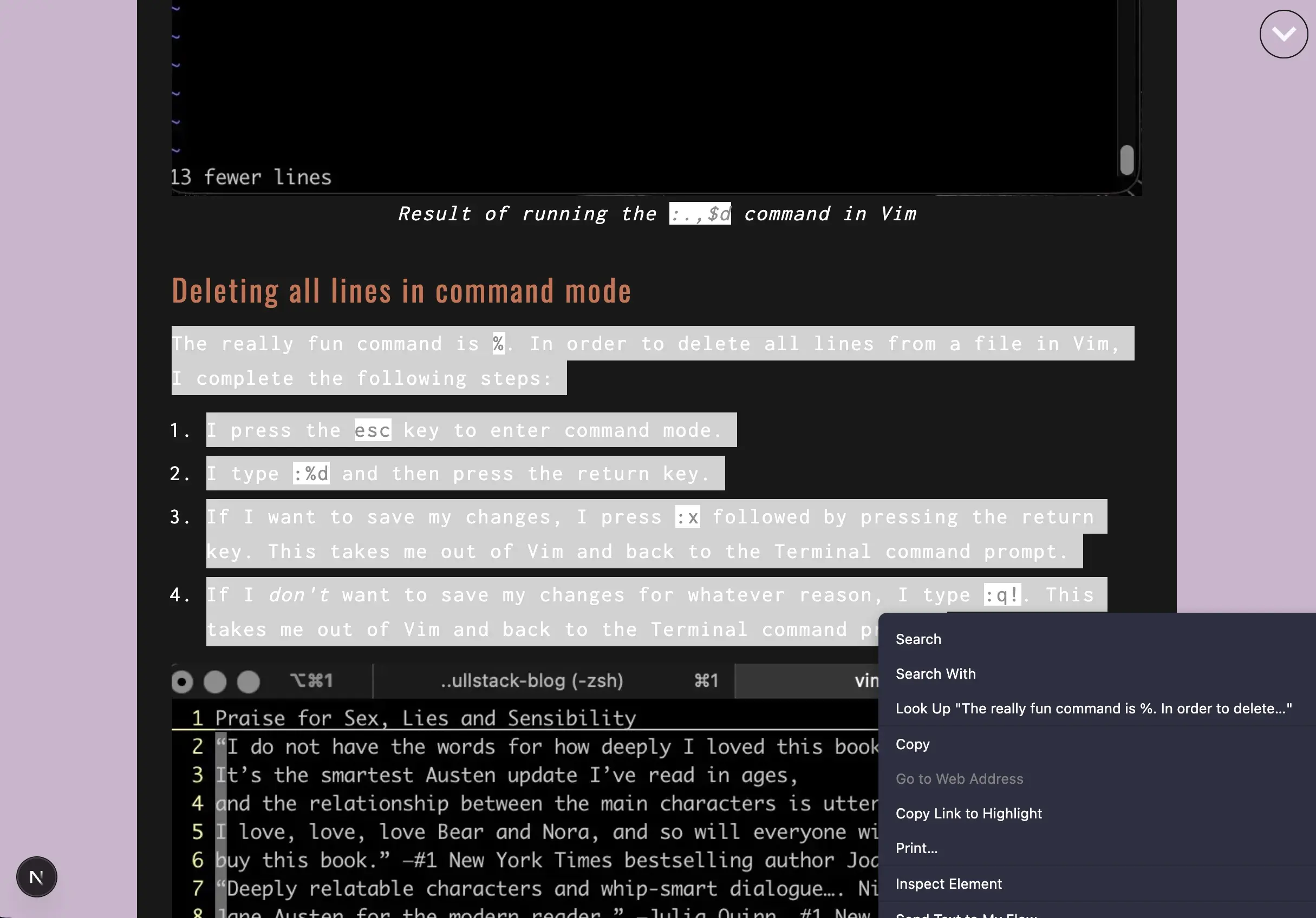
Highlighting text in Opera and then right-clicking on it so that a dropdown menu appears
I select the "Copy Link to Highlight" option in the dropdown, and then paste it where I want to share it — perhaps in an email to a colleague or friend, or in a social media post. Click on the link below in Opera to see where it takes you:
Example of "Copy link to highlight" in Opera
Copy link to highlight in Vivaldi
When I go into Vivaldi and highlight some text on a webpage followed by right-clicking on that text, the following dropdown appears:
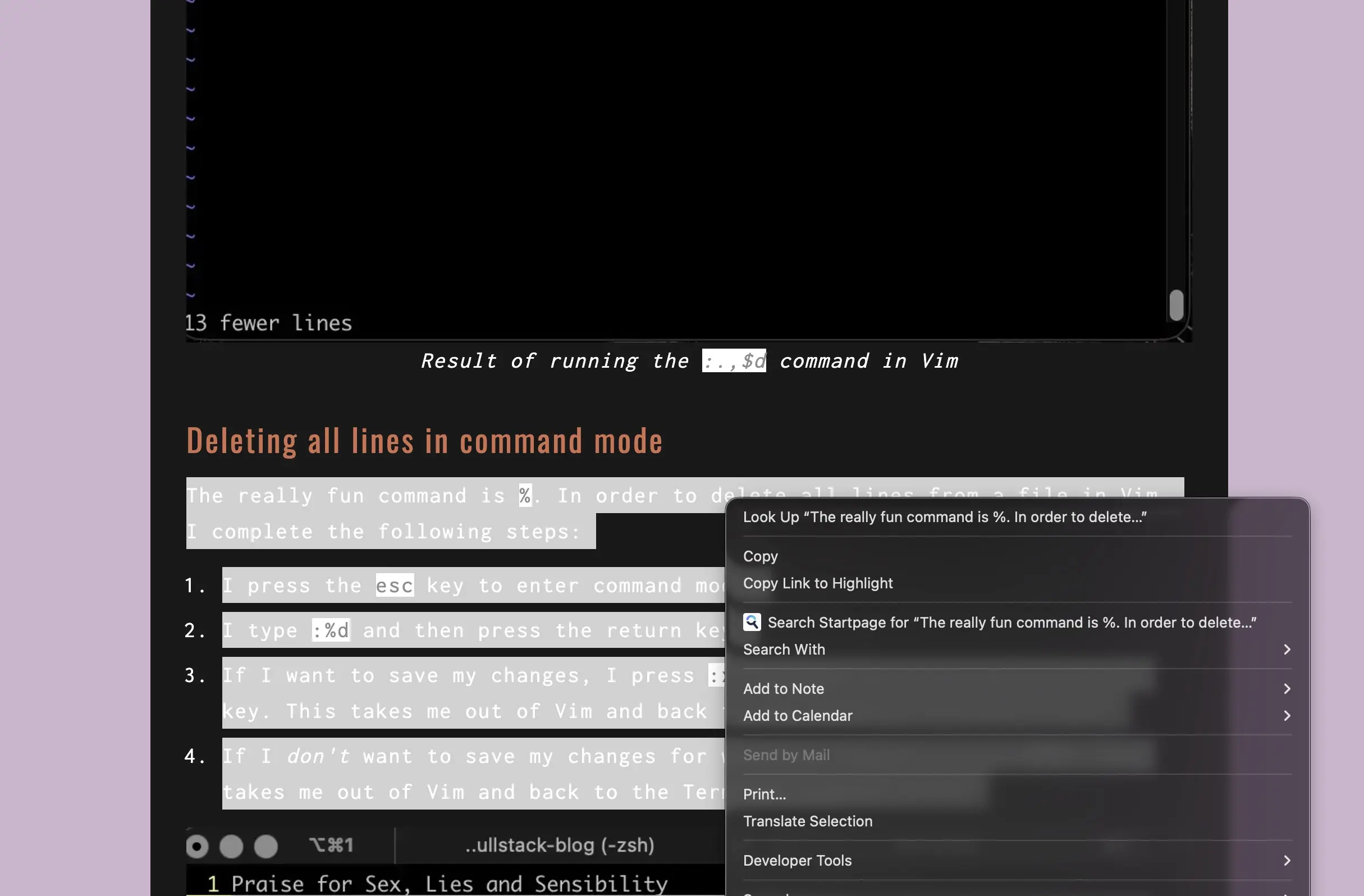
Highlighting text in Vivaldi and then right-clicking on it so that a dropdown menu appears
When I select the "Copy Link to Highlight" option and have copied the link, I can paste it wherever I want. I click it right below:
Example of "Copy link to highlight" in Vivaldi
Click on the link to see what "copy link to highlight" in Vivaldi looks like!
Why copy link with/to highlight
Sharing a "copy link with highlight" link can be quite helpful:
Efficiency: It takes the person clicking the link directly to a specific spot on the page I want to highlight (pun intended). Perhaps there wasn't anything else on the page I am interested in sharing! This way, the person (clicking the link) does not have to search through the page to find the relevant information.
Speed: This feature speeds up and enhances communication and collaboration between people.
Conclusion
I like using the "copy link with highlight" feature in Safari. It takes me (or the recipient of the link) immediately to the highlighted text on the page without having to scroll down to get there. Not only is this efficient browser behavior, but the feature itself is efficient. The beneficiary of the link does not have to search through the page to find the pertinent information. "Copy link with highlight" also expedites and deepens communication and collaboration between people. It's great that Opera, Vivaldi, and Chrome all have a functional "copy link with highlight" feature, but the browser behavior is not as smooth, quick, or efficient. They take me first to the top of the webpage, and then scroll down to the highlighted text. As regards "copy link with highlight", Safari is far ahead of the game!
Related Resources
- Firefox Previews "Link to Text Highlight" Feature in Latest Nightly Build: by Cpt Jank, TechPowerUp
Footnotes
-
Both Firefox Nightly and the regular Firefox app for macOS do contain the "Copy link to highlight" option, but when you click on the link, you are taken to the top of the webpage where the Title of the post/page is. In fact, only the webpage/post title text is included in the link. Same with Microsoft Edge for macOS. You are taken to the top of the webpage where the title of the page or post is, and that is the only text which is included in the link. I am sure that browser behavior for the feature differs from browser to browser, but the only browsers I have tested are the ones included in this post. ↩