How to show hidden files or folders on macOS
Social Share:
Thursday, July 11, 2024 at 4:00 AM | 5 min read
Last modified on Wednesday, May 27, 2026 at 6:56 PM
#macOS, #chmod, #file permissions, #command line, #finder, #keyboard shortcuts, #macOS users, #shell scripting
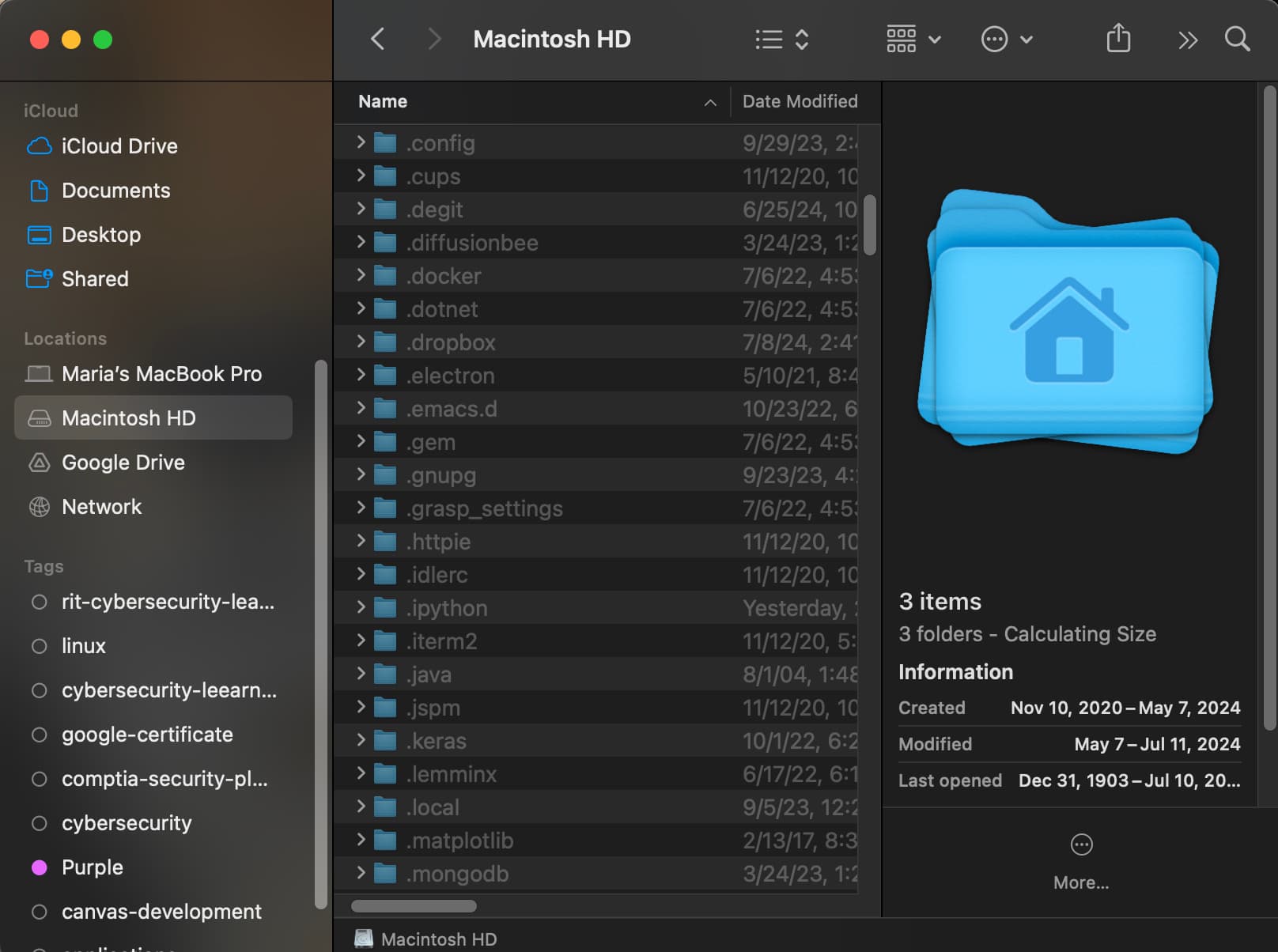
Revealing hidden files and folders in the Finder window
Table of Contents
- So what is a hidden file anyway?
- How to show hidden files or folders with a keyboard shortcut
- How to show and hide hidden files and folders (again) in Terminal
- Bonus: creating shell scripts to show and hide hidden files and folders
- Related Resources
So what is a hidden file anyway?
Sometimes I need to access hidden files on my laptop. They could be SSH key related files or folders, various configuration files, Git related files or folders, etc. All of these files or folders start with a dot (.).
I usually either use VSCode when working on projects that contain dot files or folders, or Terminal. But not everyone uses either one, so I am going to show how to show hidden files or folders both using the Finder app on macOS AND Terminal.
How to show hidden files or folders with a keyboard shortcut
In order to show hidden files or folders via the Finder app using a keyboard shortcut, first I open the Finder in the dock, and then I click on the Macintosh HD in the sidebar located under Locations. Then I press the Command key + Shift key + Period (.) key. This results in the following in the Finder window:
Revealing hidden files and folders in the Finder window
As you can see, the dot files and folders are greyed out to indicate that they are hidden files and folders.
In order to hide those files and folders again, I just press the Command key + Shift key + Period (.) key again.
How to show and hide hidden files and folders (again) in Terminal
In order to show hidden files or folders via Terminal, first I open it up via Spotlight Search. To open Spotlight Search, I press the Command key + Space Bar. Then I type "Terminal", and it launches on the screen.
When I have launched the Terminal window instance, I type the following command in Terminal:
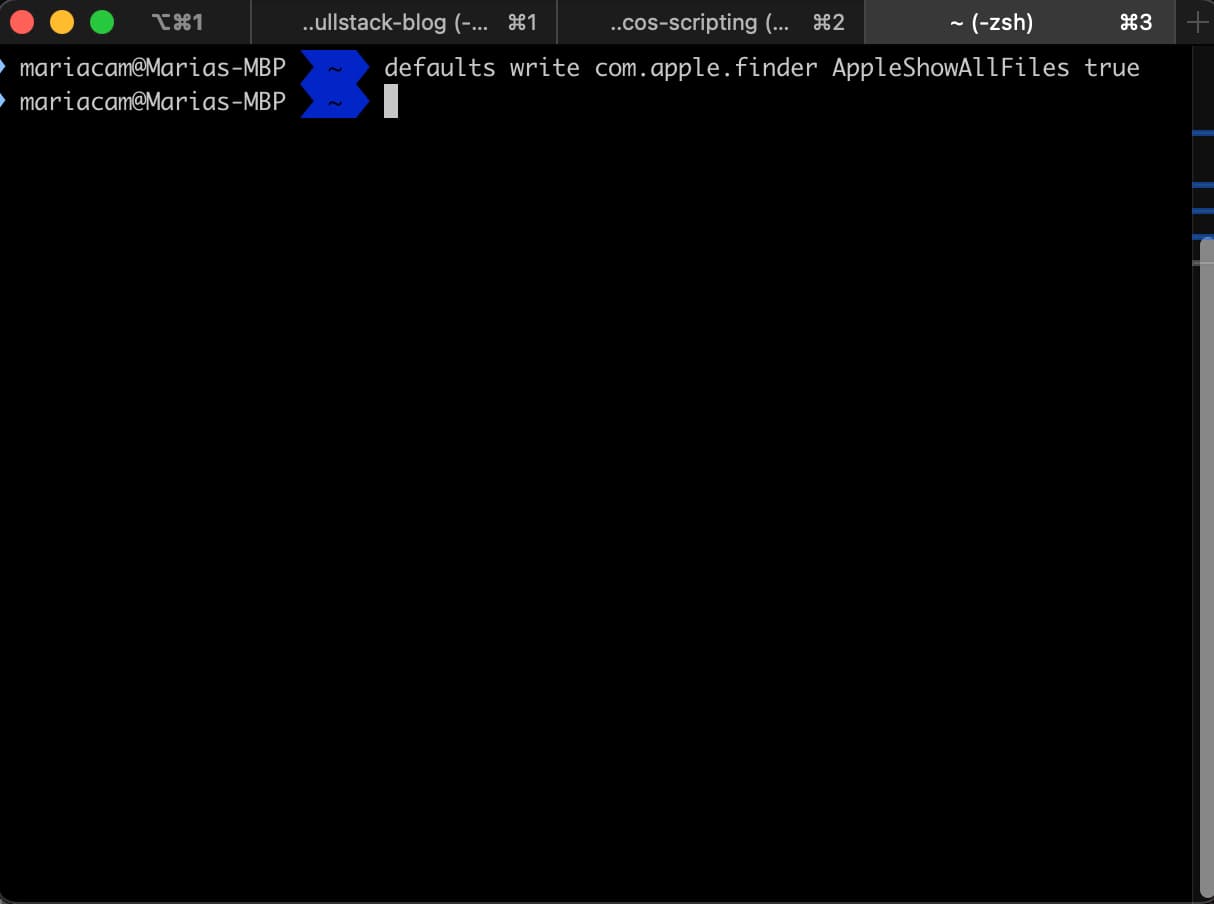
Typing defaults write com.apple.finder AppleShowAllFiles true command in Terminal
Afterwards, I type the following:
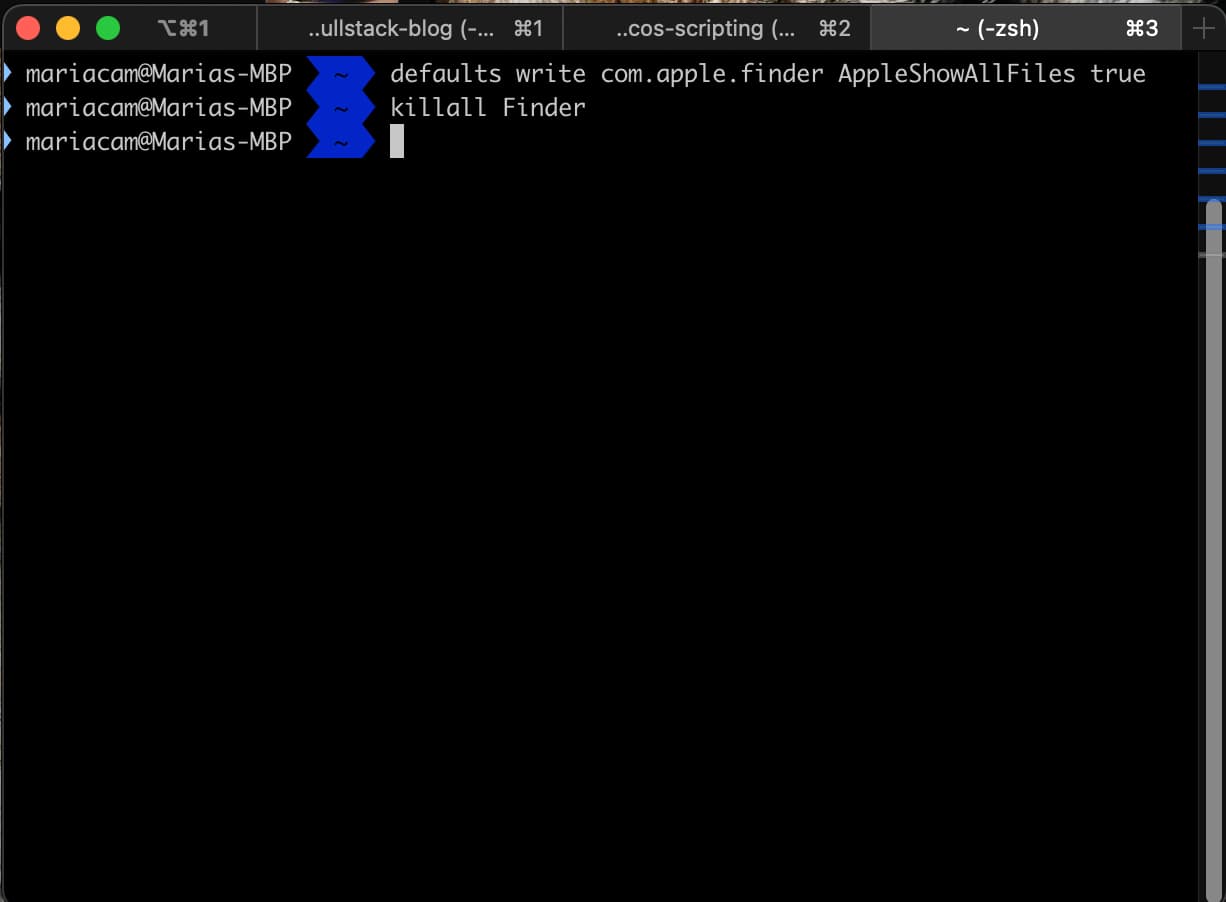
Typing the killall Finder command in Terminal
Why the killall Finder command? This refreshes the Finder. If I did not include this command, nothing would change, and the hidden files and folders would remain hidden.
Next, I want to hide the hidden files and folders again, so first I type the following command in Terminal:
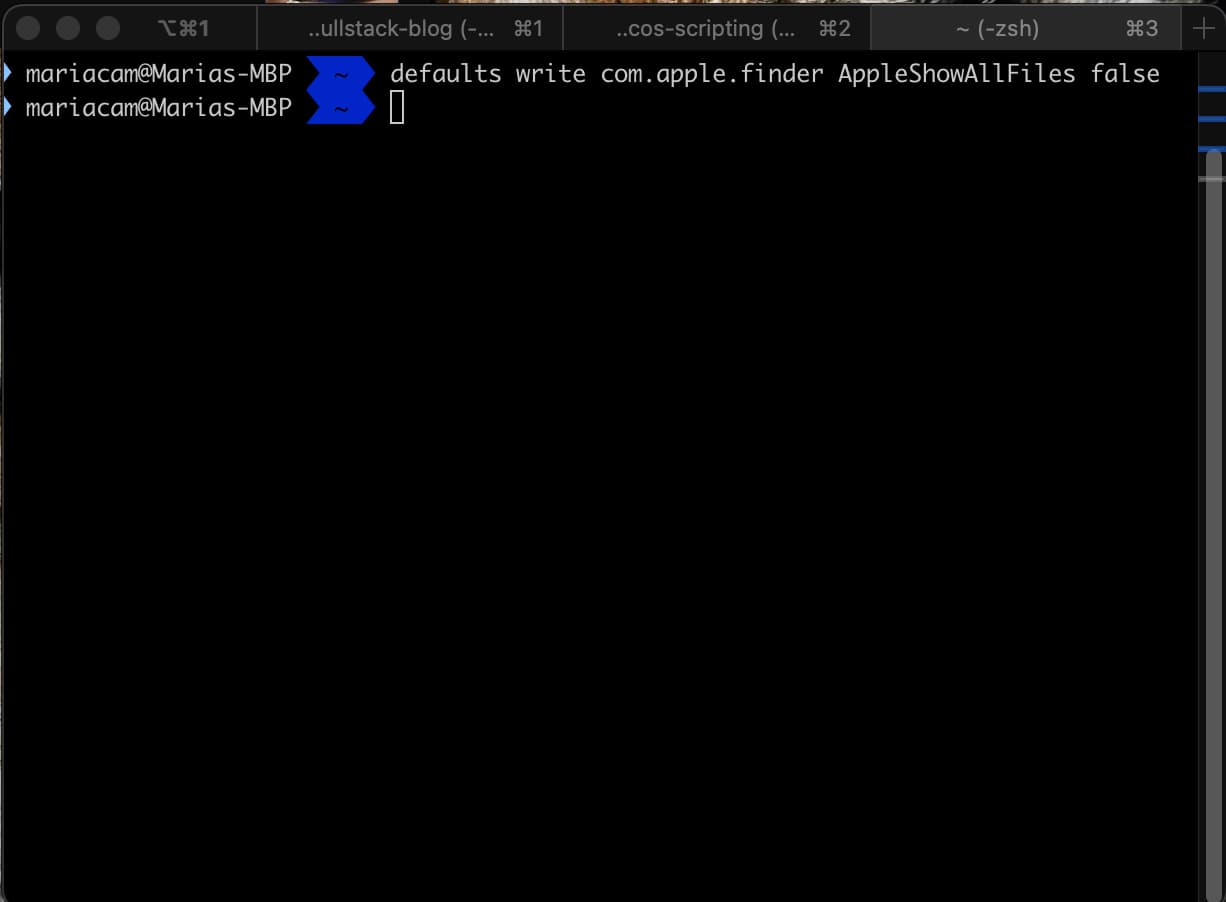
Typing defaults write com.apple.finder AppleShowAllFiles false command in Terminal
And then I type the following again to refresh the Finder:
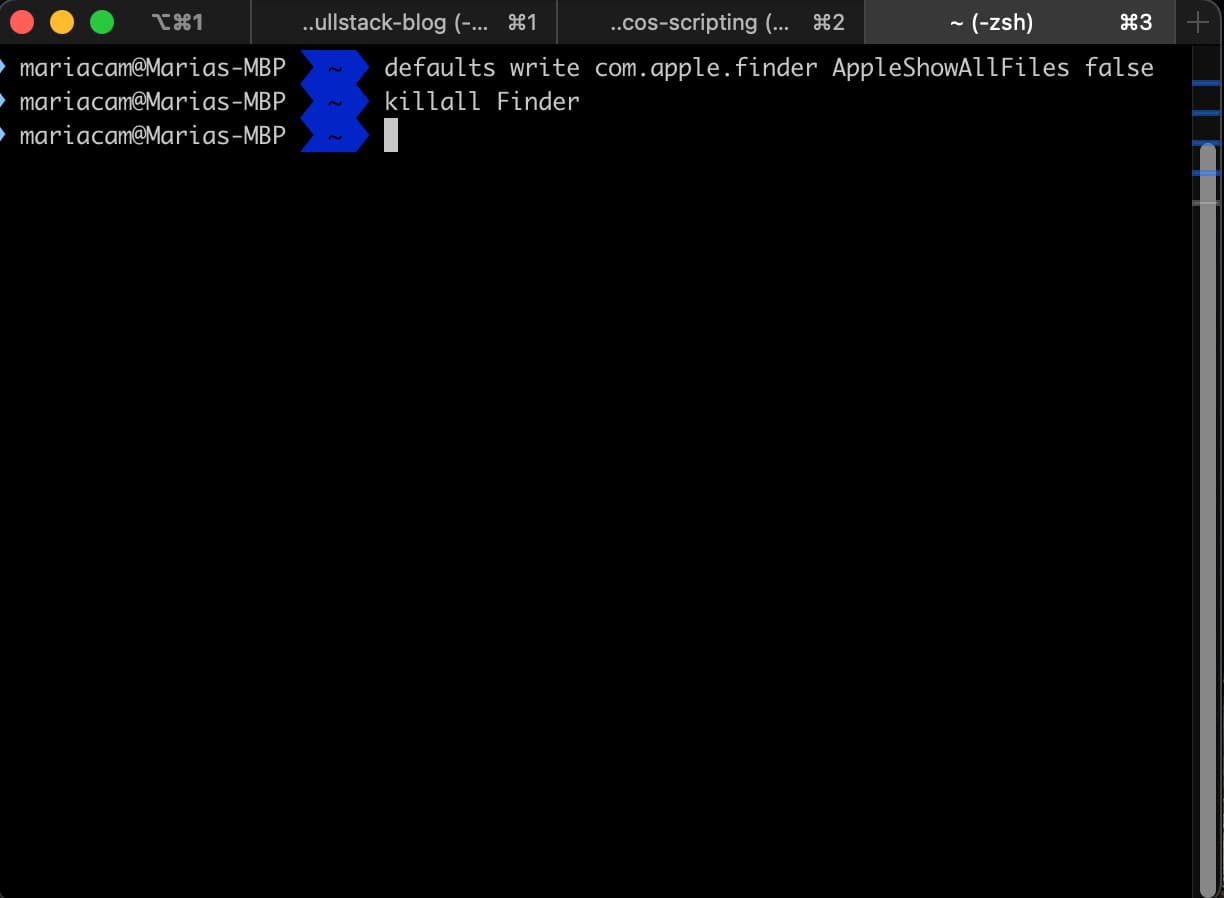
Typing the killall Finder command in Terminal
And this results in the following in the Finder:
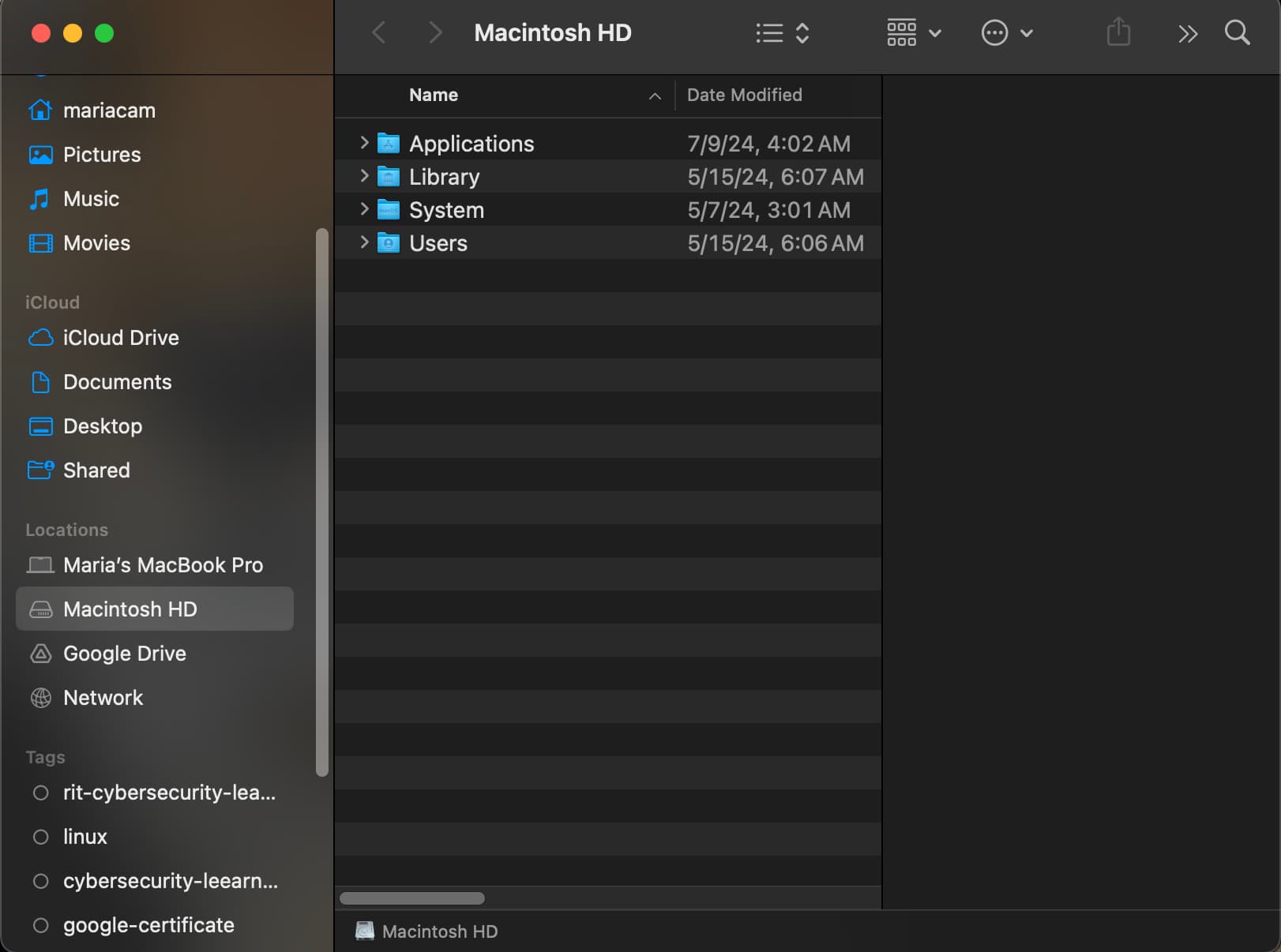
The Finder refreshed by the killall Finder command
Bonus: creating shell scripts to show and hide hidden files and folders
I can also create shell scripts to reveal and hide hidden files and folders.
First, I create a file called show_hidden_files.sh in Terminal using Vim:
vim show_hidden_files.sh
This both creates and opens up a new file called show_hidden_files.sh in the built-in Vim text editor:
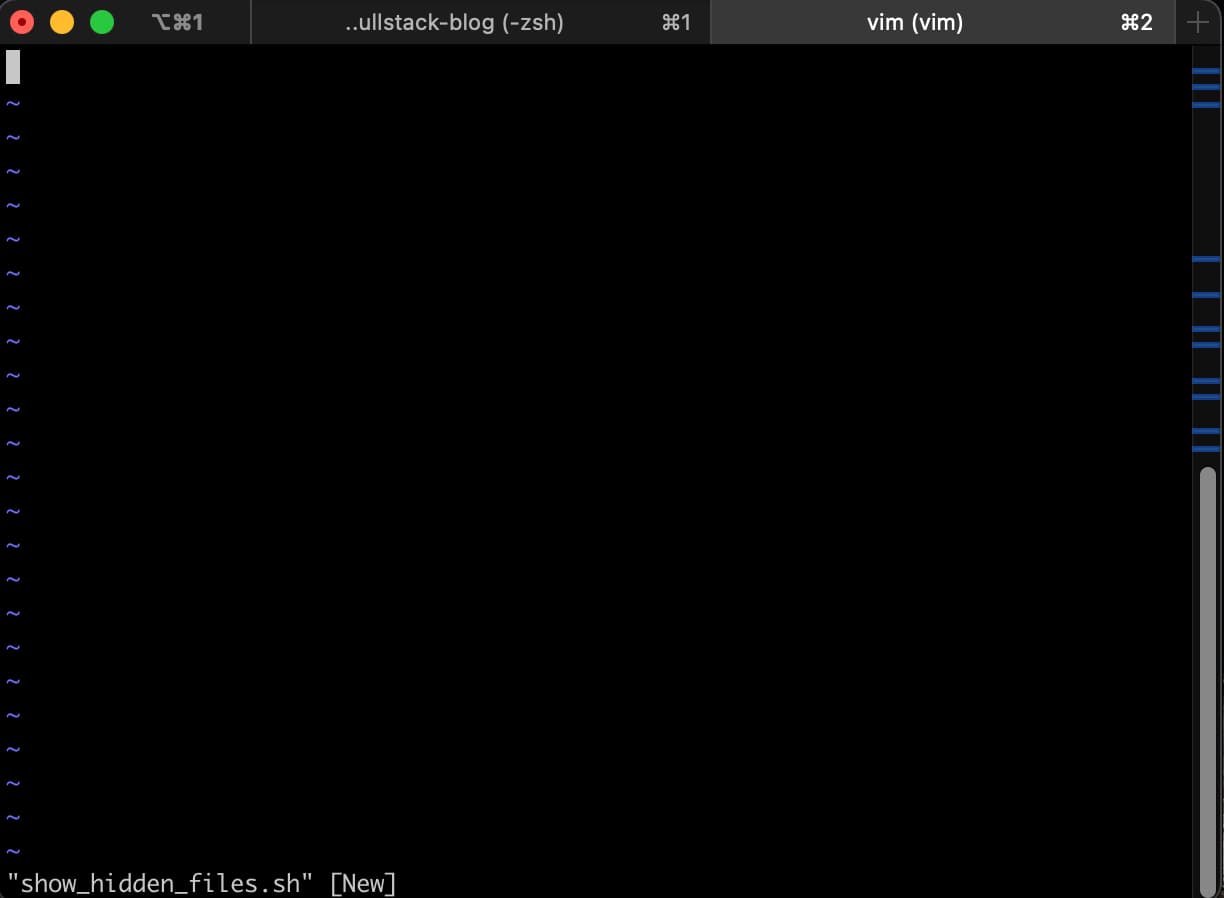
Create new file called show_hidden_files.sh
Then, after I press the "I" key to go into INSERT mode, I type the following code:
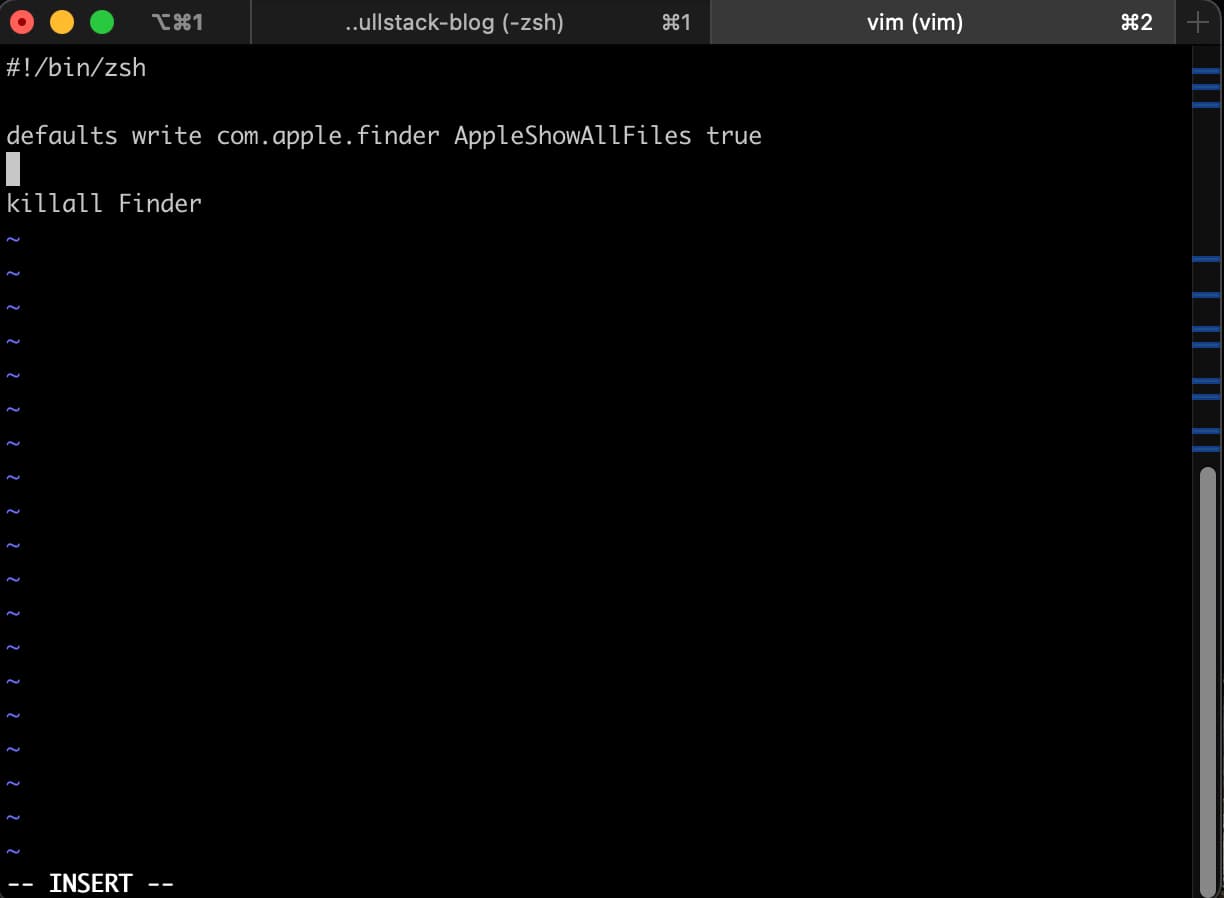
Typing the show hidden files shell script in Vim
Next, I press the esc key followed by the Shift key + Colon (:) key and then the X key to save changes and exit out of Vim. This takes me back to Command Line:
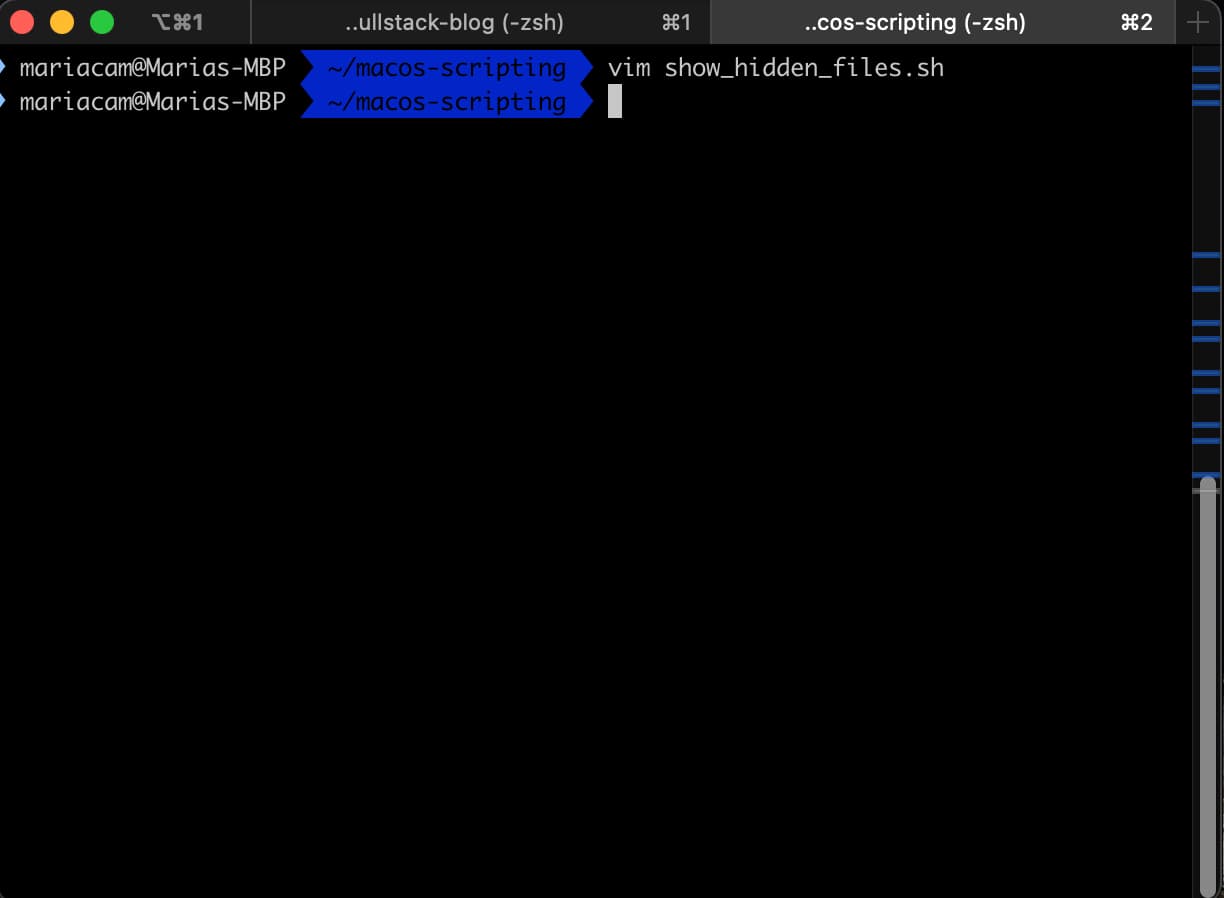
Returning to Command Line
Next, I have to change the permissions for show_hidden_files.sh. When I run ls -l show_hidden_files.sh to find out what the default permissions for show_hidden_files.sh are, the following is returned:
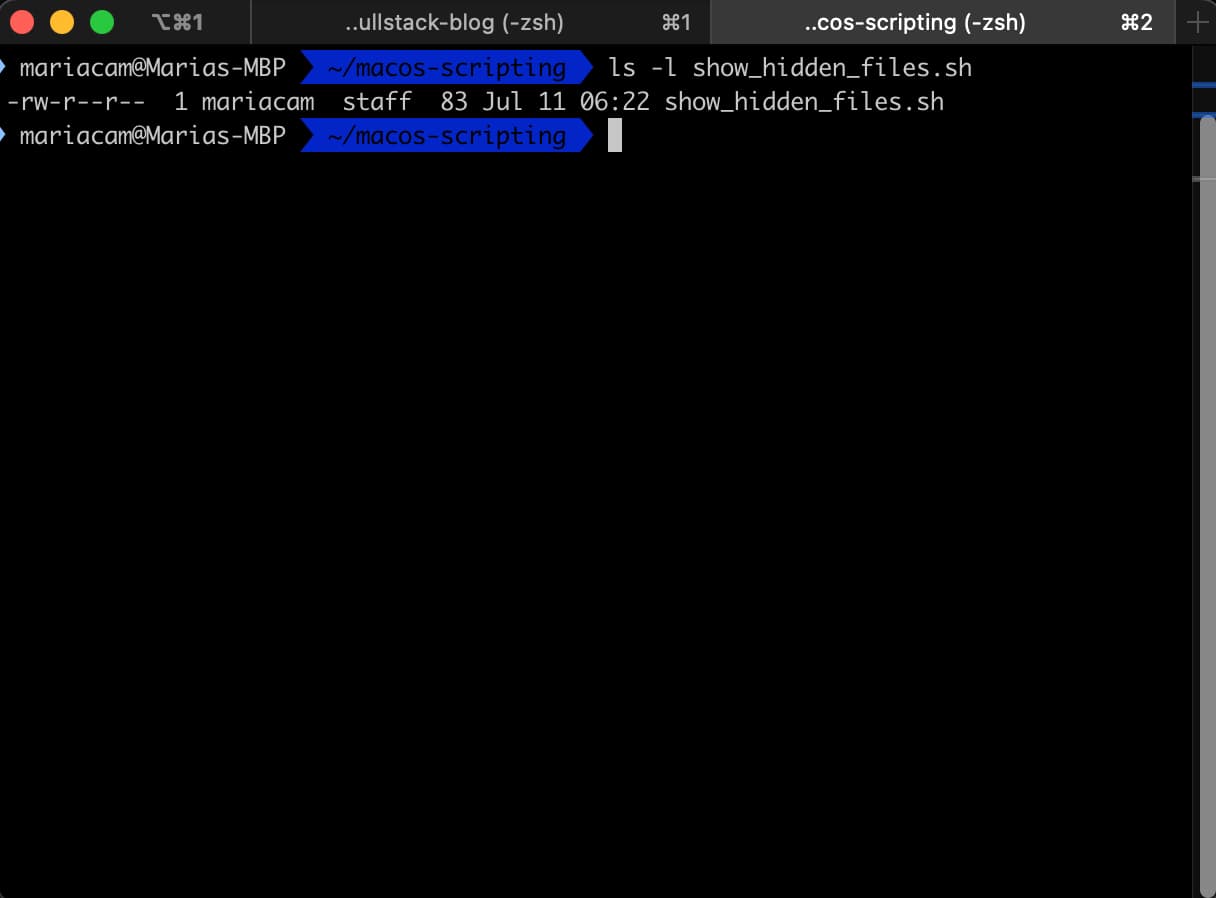
Result of running ls -l show_hidden_files.sh in Terminal
-rw-r--r-- represents first that show_hidden_files.sh is a file (-), the permissions for the owner of the file (rw-), then user groups on my computer (r--), and then other (r--). To learn more about file permissions on macOS, please visit my article entitled Shell script for turning your macOS laptop's WiFi off and on. As for what other users represent, it refers to the Guest user and users that only have share permissions on macOS. Sharing only users can access shared files remotely, but can’t log in to the computer or change settings. Guest users, mostly used by tech support professionals to access your computer and fix issues and bugs, for example, are usually set up to allow guest users to log in to your Mac without entering a password. Guest user accounts are also used to allow a guest user access to shared folders from another computer on your network. To learn more, please visit the Related Resources section at the end of this article.
In order to change the file permissions for show_hidden_files.sh and give full permissions (read (r), (w), execute (e)) to the owner of the file and no permissions at all (0) to user groups and "other", I run the following command in Terminal:
chmod 700 show_hidden_files.sh
Applying 7 as the permission for the owner of the file means that the owner has read, write and execute permissions on the file. Applying 0 to user groups and other means giving no permissions. When I run this command in Terminal, and then run ls -l show_hidden_files.sh, it results in the following:
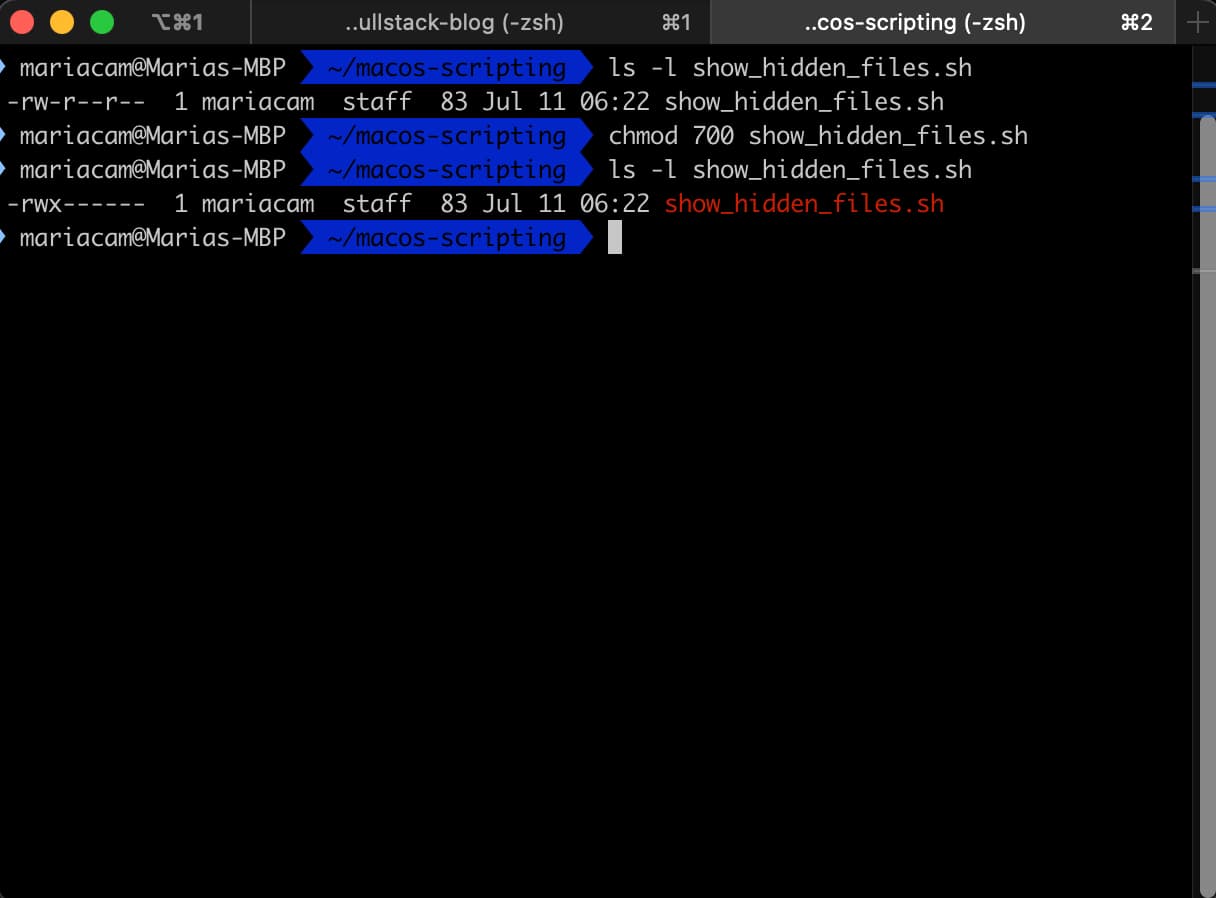
Running the ls -l show_hidden_files.sh in Terminal
Now I can run this shell script from the Command Line. If I want to run this script without including a path to the file (meaning from another directory other than the directory where the shell script resides), I have to run it from within the directory where it resides:
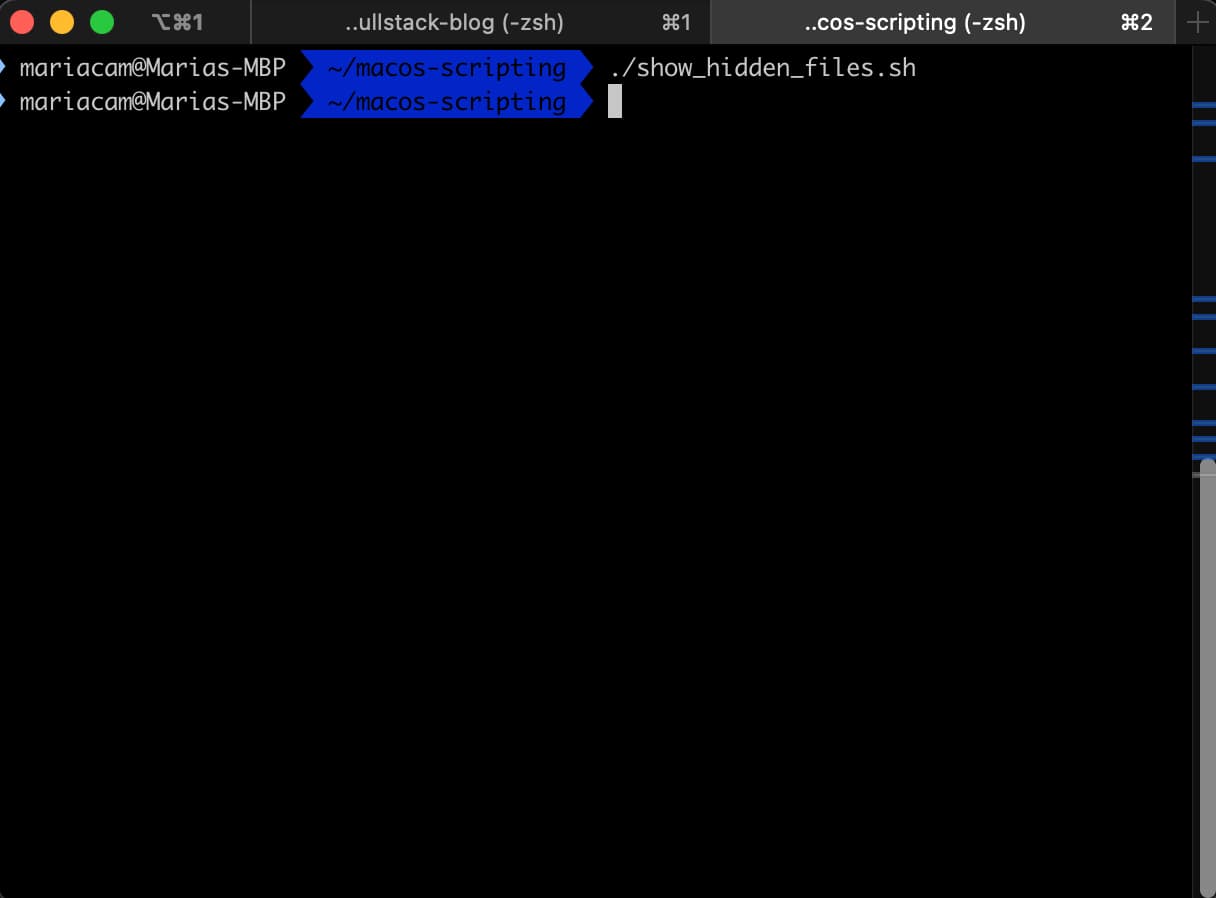
Running show_hidden_files.sh shell script in Terminal
Now when I open the Finder window, it looks like the following:
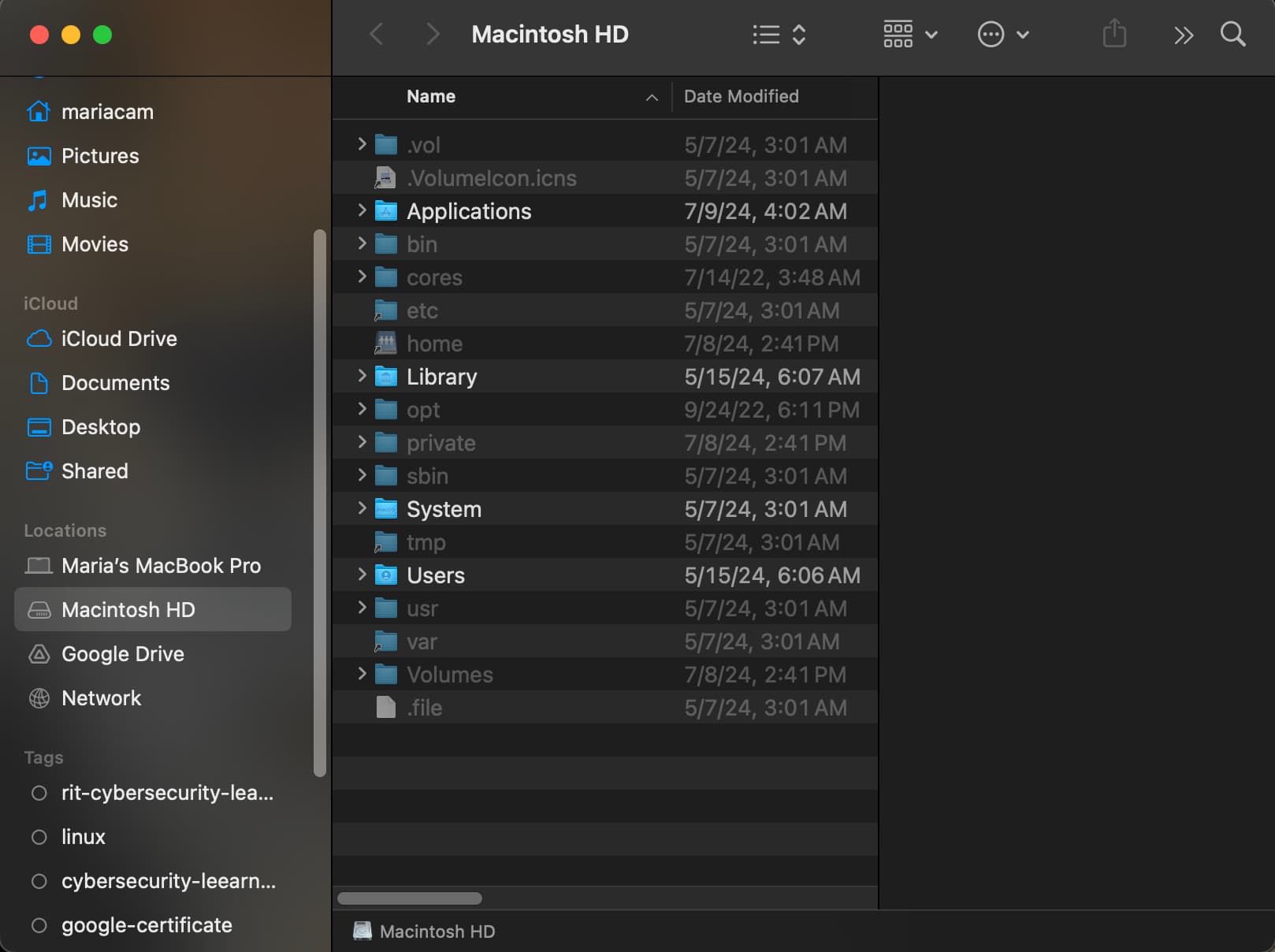
The Finder after running the show_hidden_files.sh shell script in Terminal
Next. I create a shell script to hide hidden folders again. Follow the steps for creating the show_hidden_files.sh shell script in Vim, and then changing its default permissions with the chmod command, but make sure to type the following instead:
#!/bin/zsh

defaults write com.apple.finder AppleShowAllFiles false

killall Finder
Next, run the script inside of the directory where you created it. In my case, I run it inside a folder inside my home directory (~) called macos-scripting:
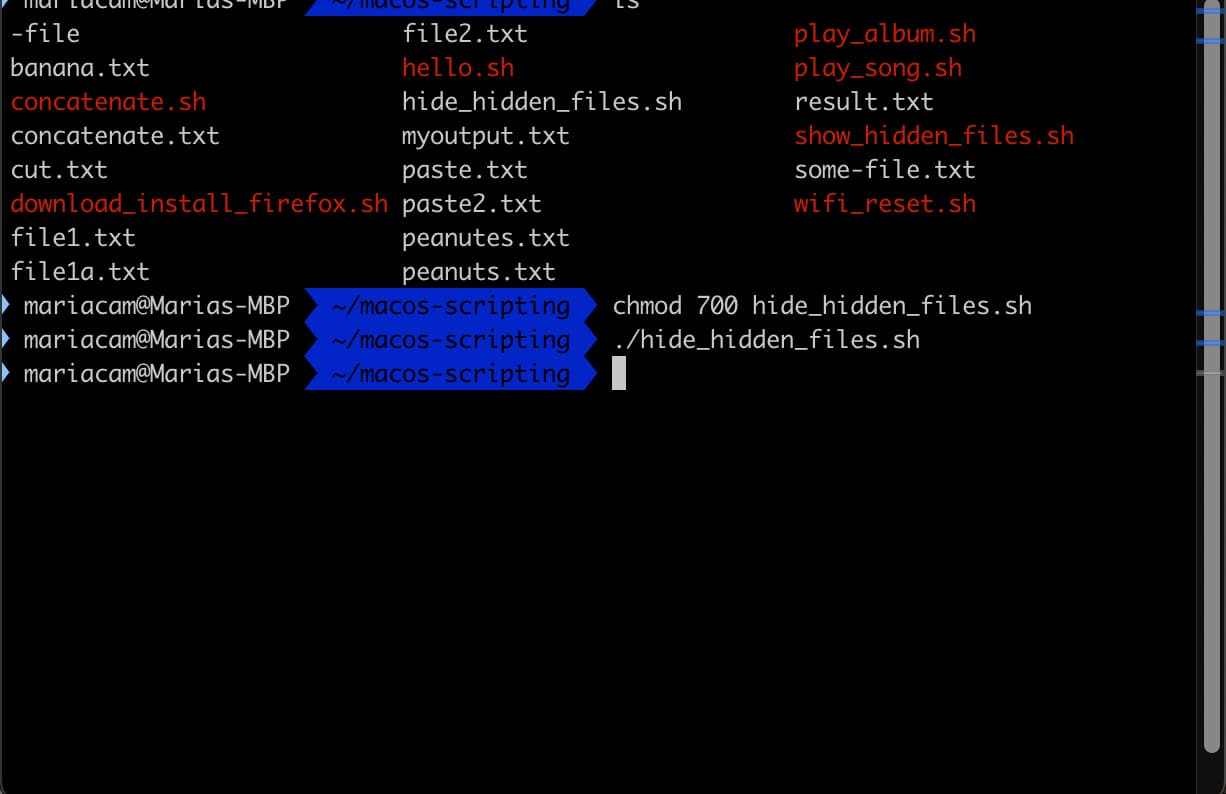
Running the hide_hidden_files.sh shell script in Terminal
Then, when I open up the Finder app, it looks like the following:
The Finder app after running the hide_hidden_files.sh shell script
And that is it!
Related Resources
-
How to Make Mac Show Hidden Files via Terminal/Finder/Shortcut: by Anna Yuan, boysoft.com
-
Shell script for turning your macOS laptop's WiFi off and on: mariadcampbell.com
-
How to write protect a file in macOS: mariadcampbell.com
-
Add a user or group on Mac: macOS User Guide
-
Change Guest User settings on Mac: macOS User Guide
-
Guest User Accounts: macmost
-
The macOS Guest Account Explained: 3 Reasons to Start Using It: by Tim Brookes, makeuseof