Setting your default browser via Command Line in macOS
Social Share:
Sunday, August 18, 2024 at 12:36 AM | 4 min read
Last modified on Monday, June 8, 2026 at 6:54 AM
#applescript, #command line, #macOS, #default browser, #homebrew, #terminal

Photo by Designecologist on pexels.com
Table of Contents
- Installing the Homebrew defaultbrowser package
- Running the defaultbrowser command
- Running defaultbrowser without any arguments
- Limitations of defaultbrowser
- Running the defaultbrowser command with macOS Monterey and beyond
- System Preferences became System Settings in macOS Ventura and why that was significant
- Why defaultbrowser continued to work despite breaking macOS changes
- Conclusion
- Related Resources
- Footnotes
This post was originally published in August 2024 and updated in June 2026 with current default browser information.
Installing the Homebrew defaultbrowser package
When I’m working on my MacBook Pro, I prefer to stay inside Terminal as much as possible. So when I wanted to change my default browser using Command Line, I decided to go with the Homebrew defaultbrowser package.
First, I ran the following commands, one after the other:
brew update
brew upgrade
This is similar to what we do in Linux Mint when we run sudo apt update and sudo apt upgrade to make sure that all our packages are up to date before installing a new one. We have to do the same with Homebrew.
Next, I ran the following command to install the defaultbrowser package:
brew install defaultbrowser
Running the defaultbrowser command
After it was successfully installed, I quit the active Terminal window and opened up a new instance. And there, I ran the following command to make Safari my default browser:
defaultbrowser safari
Chances are that the defaultbrowser command will be able to change my default web browser as long as the target browser is installed on my machine. Currently I have the following browsers installed, and I can set any of them as my default browser:
Firefox Developer Edition.app
Google Chrome.app
Microsoft Edge.app
Opera.app
Firefox.app
Safari.app
Vivaldi.app
Firefox Nightly.app
Running defaultbrowser without any arguments
I can run the defaultbrowser command without any arguments, and it will return all the browser apps installed on my machine. That is how I got the list of browser apps included above. However, it will also list other apps that are not purely browser apps but might contain some kind of browser functionality.
Limitations of defaultbrowser
| Limitations of defaultbrowser | |
|---|---|
| Compatibility Issues | defaultbrowser may not support all web browsers. You should verify if your preferred browser is compatible. |
| defaultbrowser may not be compatible with all versions of macOS. You should check if your macOS version is compatible with defaultbrowser. | |
| User account restrictions | defaultbrowser may not work well in environments with multiple user accounts. Homebrew's permission model can restrict access, making it difficult for you and other users on the system to set your default browser. |
| Installation requirements | You must have Homebrew installed to use defaultbrowser, which adds an extra step if you are unfamiliar with package managers and Command Line. |
| Command limitations | While the defaultbrowser command is simple, you still need to be familiar with Command Line, which could be an obstacle. |
Running the defaultbrowser command with macOS Monterey and beyond
With the release of macOS Monterey on October 25, 2021, Apple introduced a privacy/security measure where changing the default browser requires user confirmation through a system dialog. This is part of Apple's security model. So now, if I ran the defaultbrowser command in Terminal to switch away from Safari as my default browser OR switch back to it, I would receive something like the following prompt:
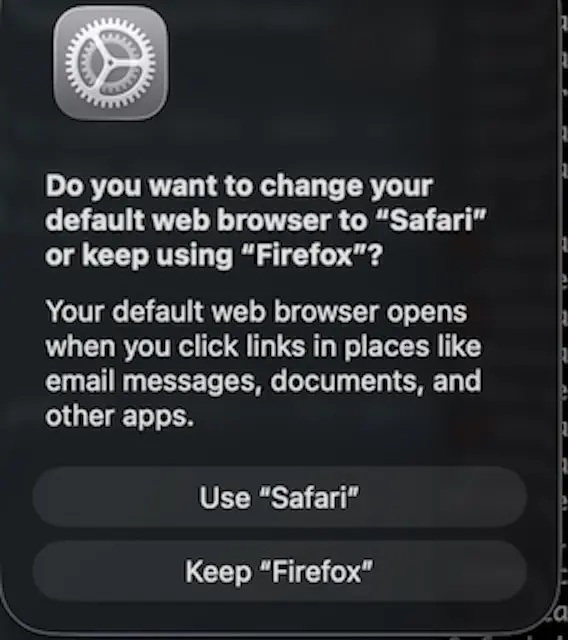
Screenshot of macOS prompt requiring a user to confirm their desire to switch their default browser
This prompt would appear whether I am using the defaultbrowser command in Terminal or opened a web browser which was NOT my default browser.
There's no legitimate way to bypass the confirmation dialog. It's enforced at the OS level through sandboxing and the TCC framework1 (Transparency, Consent, and Control) specifically to prevent malware from silently hijacking my default browser without my knowledge.
System Preferences became System Settings in macOS Ventura and why that was significant
With the release of macOS Ventura on October 24, 2022, "System Preferences" was replaced by "System Settings". This resulted in a domino effect on other macOS features, including AppleScripts. Older AppleScript hacks that used to work became obsolete. For example, when I recently revisited AppleScripts I created several years ago for changing the default browser, they did not work. For one, they depended on System Preferences and not System Settings.
Other older hacks like directly editing the LaunchServices plist file or using lsregister no longer worked in Ventura+ because those files became protected, and Apple intentionally broke AppleScript automation of these settings for security reasons.
Why defaultbrowser continued to work despite breaking macOS changes
defaultbrowser calls the Launch Services API (LSSetDefaultHandlerForURLScheme or the newer LSSetDefaultRoleHandlerForContentType), which on Monterey+ triggers the system confirmation dialog. It does not bypass the system-level confirmation dialog, it integrates it by invoking the Launch Services API.
Conclusion
In pre-Monterey macOS, scripting the setting of a default browser was possible via plist edits or older System Preferences AppleScript. However, with Monterey and after, the only legitimate approach is defaultbrowser (or any tool calling the same API), and the system dialog is unavoidable by Apple design. In addition, most AppleScripts became obsolete with the release of macOS Ventura. If working inside the Command Line is your preference, the defaultbrowser Homebrew package is the way to go.
Related Resources
- Default Browser Switching: By Scott Willsey, scottwillsey.com
- Setting the Default Web Browser from Command Line on Mac: OSX Daily
- Full Transparency: Controlling Apple's TCC: by Stuart Ashenbrenner, huntress.com
Footnotes
-
The TCC framework manages application access to sensitive user data, making sure that apps must request permission from users before accessing features like the camera, microphone, and location services. This increases user privacy by permitting users to control which applications can access their personal information. ↩